

Introduction
In my previous Bot framework articles, I have explained about
In my previous Bot framework articles, I have explained about
- How can we install Bot Framework and Create a Simple Bot Framework Application
- Real Time Bot Application
- An Interactive Bot Application With LUIS Using Microsoft Bot Framework
Now in this article, I will explain how we can attach images and files with Bot framework's reply message.
Many messaging channels possess an ability to attach rich objects like images, media files and other files. In the Bot Connector, we map our attachment data structure to media attachments and rich cards on each channel.
Let's start, step by step.
Many messaging channels possess an ability to attach rich objects like images, media files and other files. In the Bot Connector, we map our attachment data structure to media attachments and rich cards on each channel.
Let's start, step by step.
First of all open, Visual Studio and create a Bot Application. Follow the steps to create a Bot Application.
- Go to File > New > Project (CTRL + SHIFT +N).
- Now one dialog box will open. Select Visual C# Project and you will find an option, Bot Application. Choose this and give the name of the project.
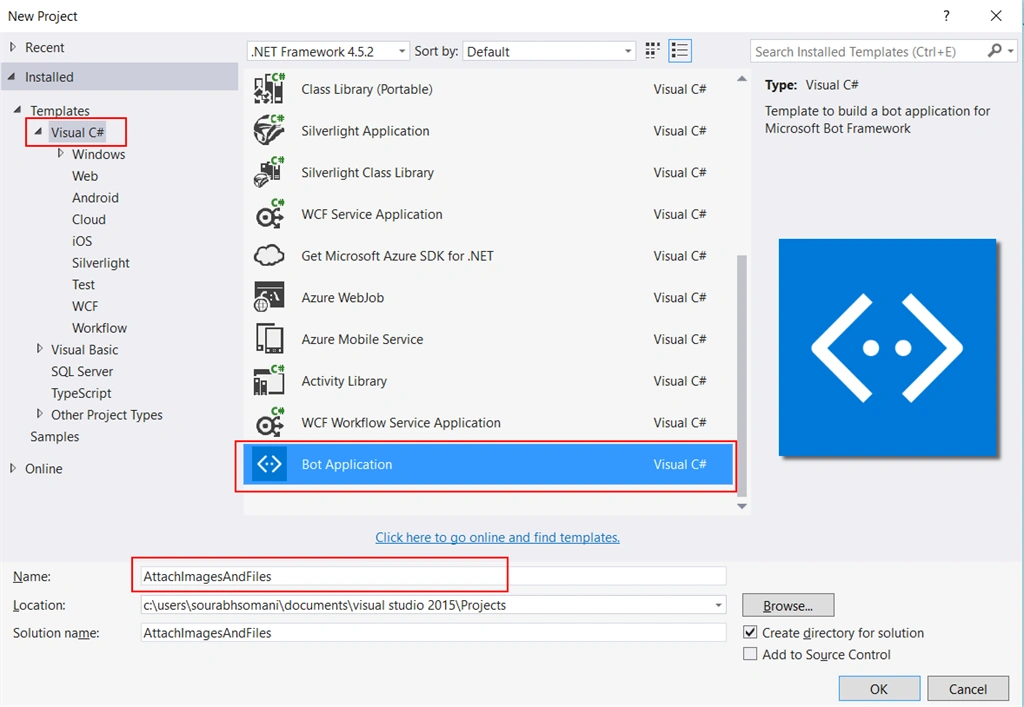
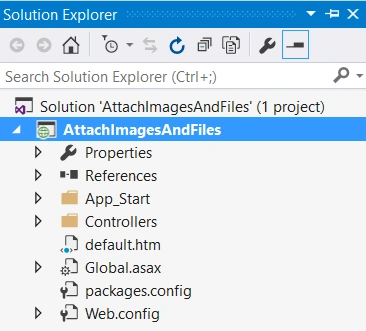
- After creating the project, you will get some files in Solution Explorer, as you can see in the figure shown below:
- using System;
- using System.Linq;
- using System.Net;
- using System.Net.Http;
- using System.Threading.Tasks;
- using System.Web.Http;
- using System.Web.Http.Description;
- using Microsoft.Bot.Connector;
- using Microsoft.Bot.Connector.Utilities;
- using Newtonsoft.Json;
- namespace AttachImagesAndFiles
- {
- [BotAuthentication]
- public class MessagesController : ApiController
- {
- /// <summary>
- /// POST: api/Messages
- /// Receive a message from a user and reply to it
- /// </summary>
- public async Task<Message> Post([FromBody]Message message)
- {
- if (message.Type == "Message")
- {
- // calculate something for us to return
- int length = (message.Text ?? string.Empty).Length;
- // return our reply to the user
- return message.CreateReplyMessage($"You sent {length} characters");
- }
- else
- {
- return HandleSystemMessage(message);
- }
- }
- private Message HandleSystemMessage(Message message)
- {
- if (message.Type == "Ping")
- {
- Message reply = message.CreateReplyMessage();
- reply.Type = "Ping";
- return reply;
- }
- else if (message.Type == "DeleteUserData")
- {
- // Implement user deletion here
- // If we handle user deletion, return a real message
- }
- else if (message.Type == "BotAddedToConversation")
- {
- }
- else if (message.Type == "BotRemovedFromConversation")
- {
- }
- else if (message.Type == "UserAddedToConversation")
- {
- }
- else if (message.Type == "UserRemovedFromConversation")
- {
- }
- else if (message.Type == "EndOfConversation")
- {
- }
- return null;
- }
- }
- }
- ContentType- In this property you can set Content Type / MIME Type, which describes which type of content you are sending.
- ContentUrl- This property contains actual file link.
Sample Code for sending Files and Images
Example for sending an Image
- Attachment attachment = new Attachment();
- attachment.ContentType = "image/png";
- attachment.ContentUrl = "http://www.c-sharpcorner.com/Images/csharp-corner.png";
- message.Attachments.Add(attachment);
- using System;
- using System.Linq;
- using System.Net;
- using System.Net.Http;
- using System.Threading.Tasks;
- using System.Web.Http;
- using System.Web.Http.Description;
- using Microsoft.Bot.Connector;
- using Microsoft.Bot.Connector.Utilities;
- using Newtonsoft.Json;
- namespace AttachImagesAndFiles
- {
- [BotAuthentication]
- public class MessagesController : ApiController
- {
- /// <summary>
- /// POST: api/Messages
- /// Receive a message from a user and reply to it
- /// </summary>
- public async Task<Message> Post([FromBody]Message message)
- {
- if (message.Type == "Message")
- {
- string FoodItem = (message.Text).ToLower();
- if(FoodItem=="pizza")
- {
- Attachment attachment1 = new Attachment();
- attachment1.ContentType = "image/png";
- attachment1.ContentUrl = "http://www.lapizzatreno.com/upload/pizza_thumb/pizza_image2376.png";
- Attachment attachment2 = new Attachment();
- attachment2.ContentType = "image/png";
- attachment2.ContentUrl = "https://mob.kotipizza.fi/kuvat/tuotteet/pizza-berlusconi-200x200.png";
- message.Attachments.Add(attachment1);
- message.Attachments.Add(attachment2);
- message.Text = "Which pizza you want ";
- return message;
- }
- else if(FoodItem=="burger")
- {
- Attachment attachment1 = new Attachment();
- attachment1.ContentType = "image/jpg";
- attachment1.ContentUrl = "http://insidescoopsf.sfgate.com/files/2015/07/burger-200x200.jpg";
- Attachment attachment2 = new Attachment();
- attachment2.ContentType = "image/jpg";
- attachment2.ContentUrl = "http://www.mymarios.com/site/wp-content/uploads/1972/06/burgers-veggie-burger-200x200.jpg";
- message.Attachments.Add(attachment1);
- message.Attachments.Add(attachment2);
- message.Text = "Which Burger you want ";
- return message;
- }
- else
- {
- message.CreateReplyMessage("Hello, You can order for Pizza and Burger. Just Type \"Pizza\" for Pizza and \"Burger\" for Burger. ");
- }
- return message;
- }
- else
- {
- return HandleSystemMessage(message);
- }
- }
- private Message HandleSystemMessage(Message message)
- {
- if (message.Type == "Ping")
- {
- Message reply = message.CreateReplyMessage();
- reply.Type = "Ping";
- return reply;
- }
- else if (message.Type == "DeleteUserData")
- {
- // Implement user deletion here
- // If we handle user deletion, return a real message
- }
- else if (message.Type == "BotAddedToConversation")
- {
- }
- else if (message.Type == "BotRemovedFromConversation")
- {
- }
- else if (message.Type == "UserAddedToConversation")
- {
- }
- else if (message.Type == "UserRemovedFromConversation")
- {
- }
- else if (message.Type == "EndOfConversation")
- {
- }
- return null;
- }
- }
- }
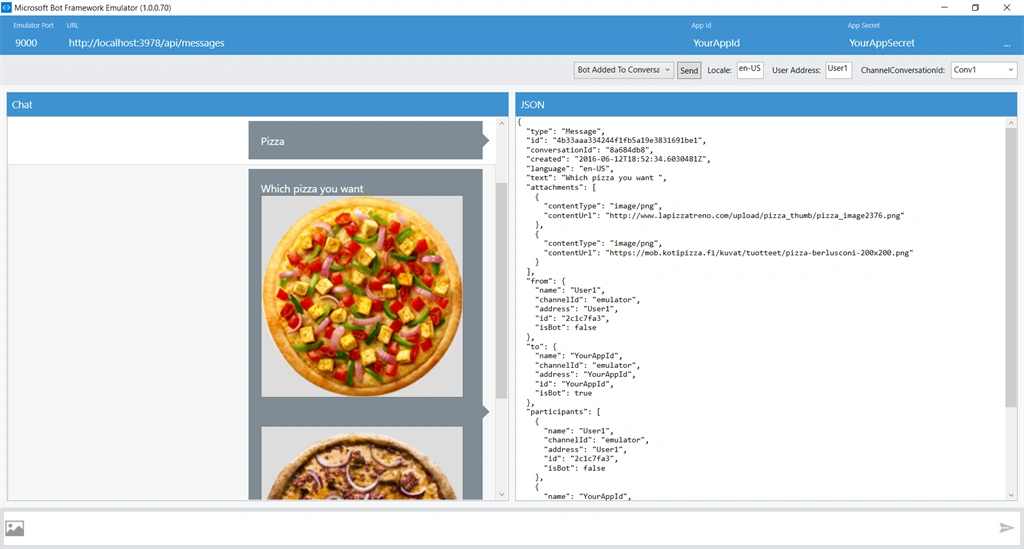
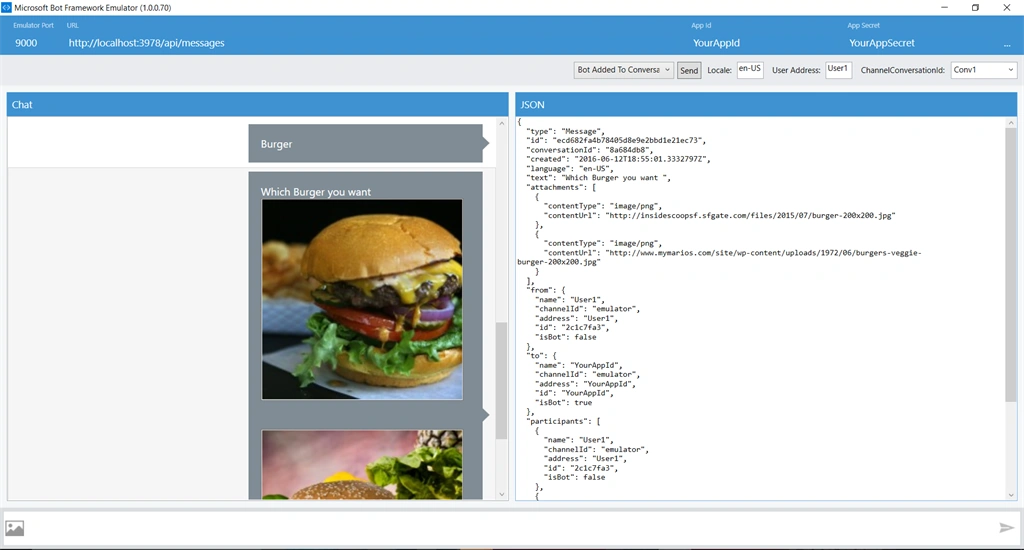
Run this program in Bot emulator and you will get the output, as shown below:
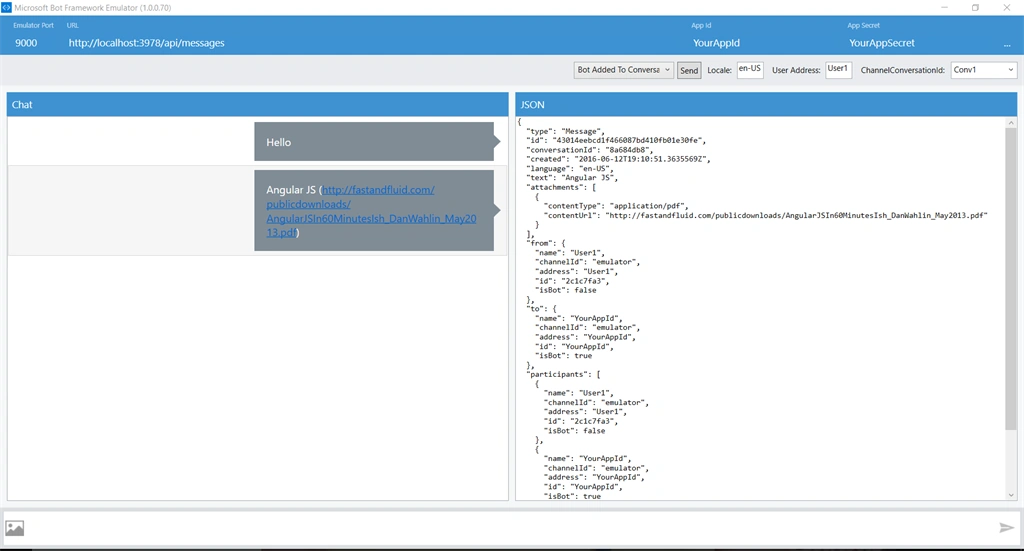
Example for sending Files
- Attachment attachment1 = new Attachment();
- attachment1.ContentType = "application/pdf";
- attachment1.ContentUrl = "http://fastandfluid.com/publicdownloads/AngularJSIn60MinutesIsh_DanWahlin_May2013.pdf";
- message.Attachments.Add(attachment1);
- message.Text = "Angular JS";
- return message;
Juan Carlos Ruiz PachecoPosted Jan 24, 2020, 12:01 AM
Does It work on Mobile Devices?
Rejith TGPosted Oct 29, 2018, 11:08 PM
Can we add Image + Text as same as Skype on Web chat
satish kPosted Jul 20, 2017, 5:14 AM
How do i accept attachments from user? For my project, i need to take user photo and few supporting documents.
Nikita DoshiPosted Jun 27, 2017, 2:36 AM
Which Message class is it in Task<Message> ? ( public async Task<Message> Post([FromBody]Message message) )
keerthiprasad HonnappaPosted Jun 23, 2017, 6:47 AM
How to accept attachments to the bot
Praveen KumarPosted Aug 16, 2016, 6:13 AM
It's very helpful Sourabh Somani
Praveen KumarPosted Aug 16, 2016, 6:12 AM
Nice Article!
Santhakumar MunuswamyPosted Jun 25, 2016, 3:08 AM
Nice share
Prasanna MuraliPosted Jun 24, 2016, 1:18 AM
Nice one..
Thiruppathi RPosted Jun 15, 2016, 1:33 AM
Nice share...
Kuppurasu NagarajPosted Jun 14, 2016, 1:13 PM
Nice Sharing..
Vignesh ManiPosted Jun 14, 2016, 11:58 AM
Nice one
farooq smdPosted Jun 14, 2016, 7:38 AM
nice one
RajaPosted Jun 14, 2016, 12:05 AM
Great...
Sourabh SomaniPosted Jun 14, 2016, 12:00 AM
Debasis Saha Thanks :)
Debasis SahaPosted Jun 13, 2016, 1:42 PM
Nice One..