

To access or to run an audit log search just follow the below steps.
- Go to portal site (https://portal.office.com) sign in to Office 365.
- It will display office 365 admin center now in left navigation, click on Security and Compliance tab, and it will navigate to Security & compliance center.
- In the left navigation, click on Audit log search under the Search & investigation tab.
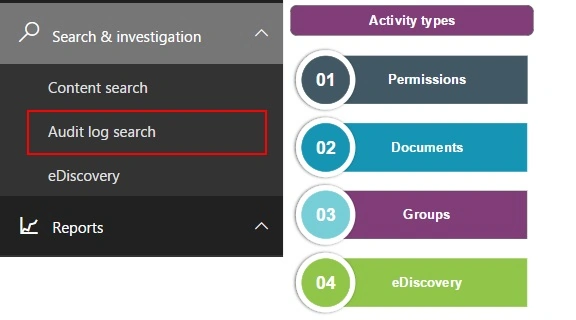
Audit log search
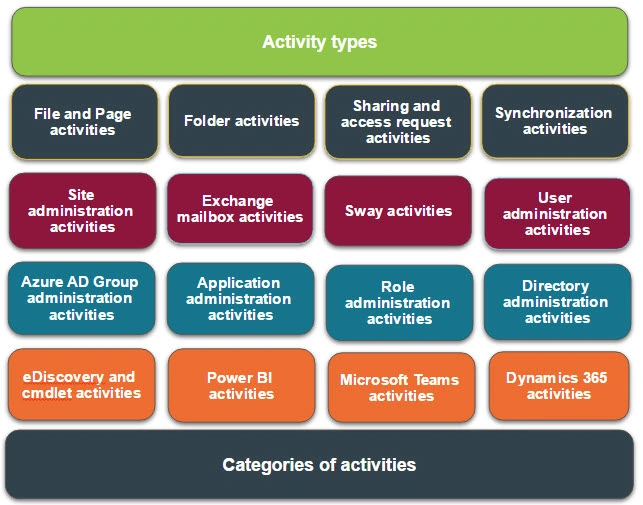
Here you will catch detailed access on what end users are doing which activities within the sites like add users, folder activities, documents activities much more. You'll be able to find activity related to email, groups, documents, permissions, directory services etc.
You can search the Office 365 audit log for activities that were performed within the last 90 days.
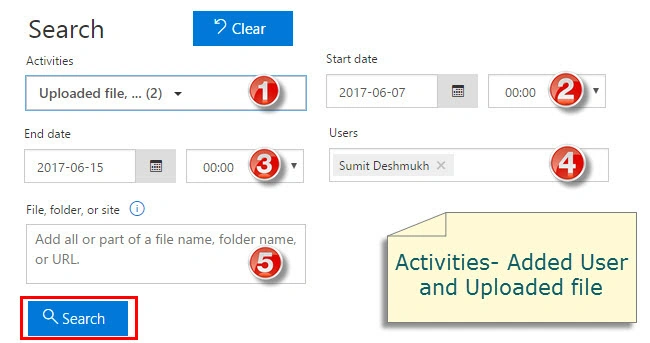
Let’s select the activities first that you wish to search and get the result. Fill out the require details for search criteria.
Activities
Choose the activities from dropdown menu that you wish to search for.
Select a date and time choice to display the events that occurred within that period.
Users
Click in users box and it will populate available users to select one or more users to show search results for.
File, folder or site
Enter certain or all of a file or folder name to search for activity related to the file of folder that contains the specified keyword.
Note
special character like \ / - _ not supported in the search query.
Result
Run a search to view results. The results display with date and time when the event occurred, IP address of your used device, user, Activity which performed by user, item, Details of result sets.
Now the results are showing the user performing the activity along with the file uploaded in document libraries too.
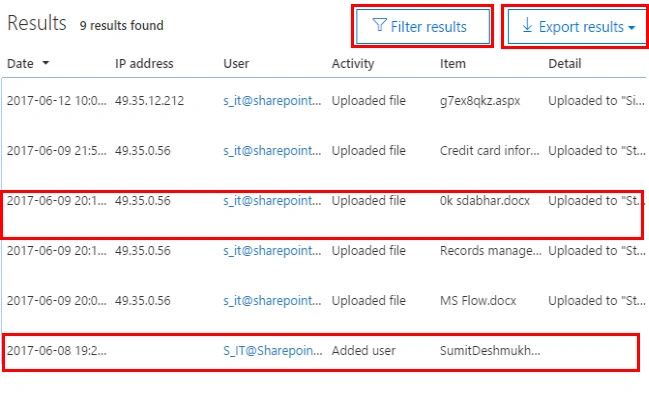
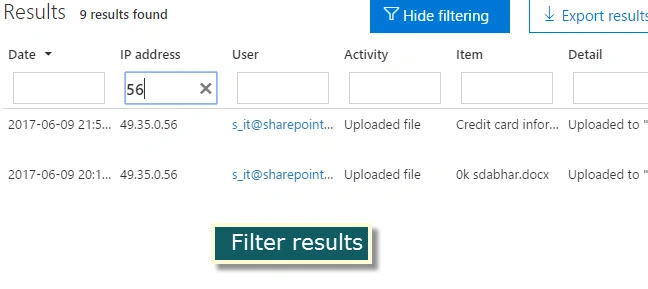
Great..! Here is the result of the uploaded file and added user activities performed by user sets. You can filter results based on Date and time, IP address, User name, Activity, Item, and Details respectively. See below image.
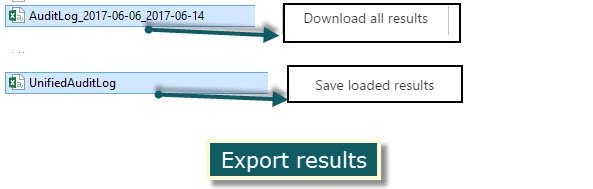
Good to see there is a nice option to export results as you can save loaded results or download all results in csv format.
Once all the activties are done, you can then save this. Once saved you can also create a new alert policy for user activities; it will display in the Alerts section of the Security & Compliance center to create new alert policies refer my article Alert Policies in Office 365 Security and Compliance Center.
Happy reading. Any suggestions or feedback are always welcome.Thank you.
Join the conversation! Your thoughts help the community grow.