

In this article we can explore the Audit feature of SharePoint 2010. This is a built-in feature and provides a great amount of flexibility for Administrators & Developers.
What is Auditing in SharePoint?
Auditing involves Activity Tracking inside the SharePoint environment. The auditing reports generated can be used by Administrators or Managers to determine the usage of SharePoint resources.
By enabling Auditing we can track activities like:
- List Access
- Library Access
- Opening of Documents
- Editing Items
- Check In / Check Out
- Copying / Moving / Deleting items
- Searching
- Editing Permissions
The following is a sample of how a detailed audit report looks:
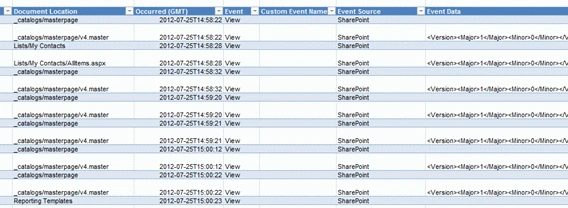
Under the hood, SharePoint uses events and a SQL Server table to retrieve & save the audit entries. The following are the topics we are discussing in this article:
- Enable Audit
- View Audit Entries
- Custom Report
- Server Object Models
- Audit Event Types
- Writing custom Audit entries
Enable Audit
We can enable audit for a site collection from the Site Settings > Audit Settings link.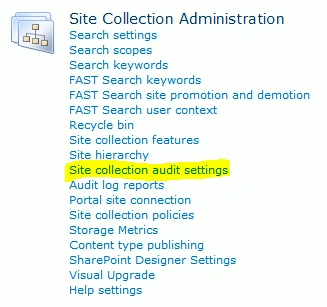
From the Configure Audit Settings page that is opened specify the events to be audited.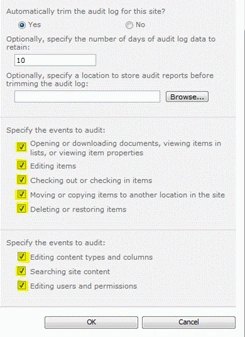
Once you have enabled auditing you can go ahead and try accessing/modifying existing list/library items. These activities should be triggering the Audit entry creation.
Note: Please note that in real-world scenarios you should only enable the events required. Too many event auditing queues more work to the server and can degrade the performance.
View Audit Entries
Now we can proceed to view the audit entries just created. You can use the Audit log reports from the Site Settings page, as in: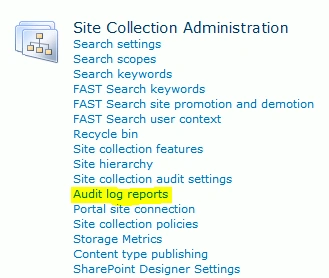
In the page that appears, View Auditing Reports, you will see there are various categories of reports like:
- Content Modification
- Content Viewing
- Deletion
- Policy Modification etc.
Click on the Content Viewing since this time we are interested in only Viewing reports. In the dialog that appears enter the document library to save the report to. Click Ok to generate the report. (The report is a document and hence a document library is required to save it.)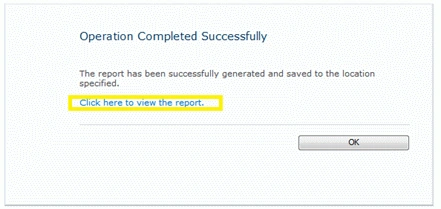
Click on the Click here to view report link to view the report. It should open in an XLSX document. There are 2 tabs on the XLSX file – summary and detailed.
Custom Report
Now we can try using the Custom Report generation. This options is useful when we need to get a report based on / or a combination of:
- Custom List
- Particular user
- Date Range
Please note that under the hood SharePoint has saved all the event records. The custom report will be filtering the records based on the user selection.
To generate the custom report, go to Site Settings > Audit log reports > Run a custom report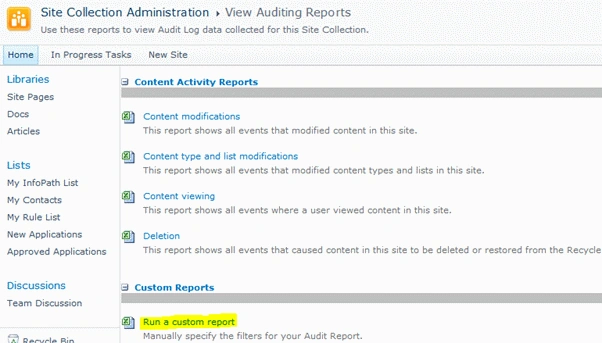
You should get the following page with filtering options: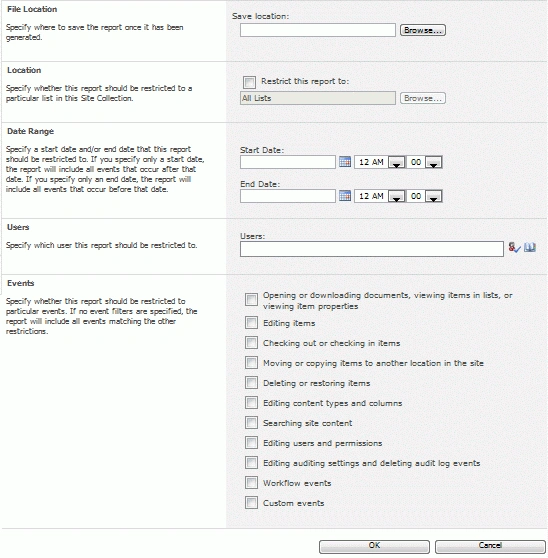
You can choose the Save Location, List, Dates, Users, and Events and click the OK button to generate the report as XLSX file.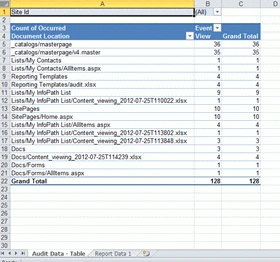
Server Object Models
The good thing is that we can use Server Object Model to interact with Audit. the following are some of the important audit classes inside the Microsoft.SharePoint namespace:
- SPAudit
- SPAuditEntry
- SPAuditEventType
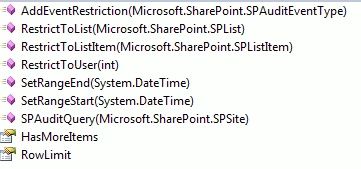
- SPAuditQuery
SPAudit
SPAudit is the main class which can be used to access the audit settings for the associated object. The server object models like SPSite, SPWeb, SPList, SPDocumentLibrary contains a property named Audit which represents the underlying SPAudit settings.
The SPAudit class contains methods for the following operations:
- GetAuditEntries() to get the audit entries
- Update() to update modifications to audit settings
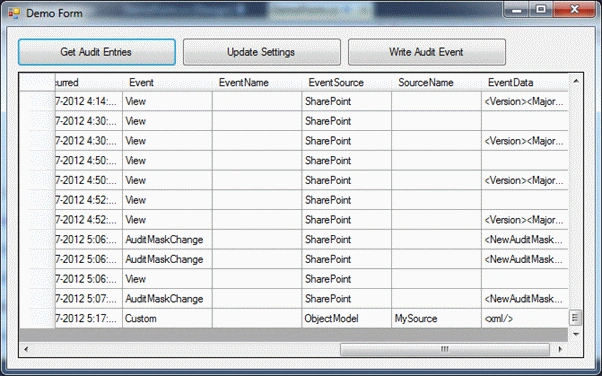
The following is the code to get audit entries:
private void GetAuditEntriesButton_Click(object sender, EventArgs e)
{
SPSite site = new SPSite("http://localhost");
SPAudit audit = site.Audit;
var collection = audit.GetEntries();
}
The following is the code to update audit settings for the site:
private void UpdateButton_Click(object sender, EventArgs e)
{
SPSite site = new SPSite("http://localhost");
SPAudit audit = site.Audit;
Tom BrownPosted Apr 8, 2015, 6:08 AM
Thanks , this article is really very good to audit for a site collection and track the activities of List Access, library access, documents and editing items. But I used the automated solution from http://www.lepide.com/lepideauditor/sharepoint.html that provides the ability to view permission list column and monitor end-user operations including the viewing of documents, users, permissions, accesses, site, document libraries, folders, lists and list items.
Jean PaulPosted Oct 26, 2012, 2:22 PM
You are Welcome Edson!
edson catugyPosted Oct 26, 2012, 2:21 PM
Very useful, congratulations!