

If you’re using Azure OpenAI, then you must be aware that the most common and easiest way to authenticate our application is using app-key.

The key-based authentication approach is very popular because it is very straightforward. Let's have a quick look at the below code snippet:
from openai import AzureOpenAI
client = AzureOpenAI(
    api_key= 'KEY_GOES_HERE',
    api_version="2024-02-01",
    azure_endpoint = 'ENDPOINT_GOES_HERE'
    )
response = client.completions.create(model='MODEL_GOES_HERE', prompt='Tell me a joke', max_tokens=80)
print("\n ##########")
print(response.choices[0].text)
The above code snippet constructs the AzureOpenAI client object using api-key,api-version, and endpoint. Then, this object makes a call to the completion endpoint with the required parameters.
Of course, key-based authentication works very well for experimentation purposes, like in the above case, but it is not very well suited for enterprise-grade applications that will soon be in production.
So, why should we never use keys to authenticate Azure OpenAI in production?
Key reasons for not using key-based authentication
In a production capacity, it is generally not recommended to use keys for Azure OpenAI authentication, and there are several key reasons behind for this. Here are the reasons.
- Key Exposure: Keys may inadvertently be committed to source control by developers or stored in some insecure locations, and if the key is exposed, unauthorized individuals can easily gain access to the Azure environment.
- Granular Permissions: Keys are good for local development and testing but not for production environments as they don’t follow the principle of least privilege. They give too much access to anyone who uses them, which can lead to misuse.
- Shareable: It is very easy to share keys with both good and bad intentions, intentionally or unintentionally which leads to potential security breaks.
- Rotation being hard: As keys can’t rotate automatically, we need manual intervention to do the rotation which might be too time-consuming and cumbersome, specifically in a production deployment. Just one instance of compromise and all the instances where that are used to generate tokens will need an update.
Tips to avoid key-based authentication
One should avoid using keys to authenticate and use Managed Identities for Azure resources. There are multiple benefits of Managed Identities.
- Superior security: Managed identities offer a significant improvement to security by providing tokens which are generated by Azure. This eventually means, that we no longer need to handle credentials directly.
- Granular Access Control: With Managed Identities, assigning specific roles and permissions is straightforward. This ensures that each identity has only the access it needs, adhering to the principle of least privilege. It emphasizes on granting the bare minimum required permissions.
- No rotation required: As the managed identity feature takes care of credential management for us, we do not need to store or manually rotate credentials, which minimizes the risk of credential exposure.


 Using Azure Portal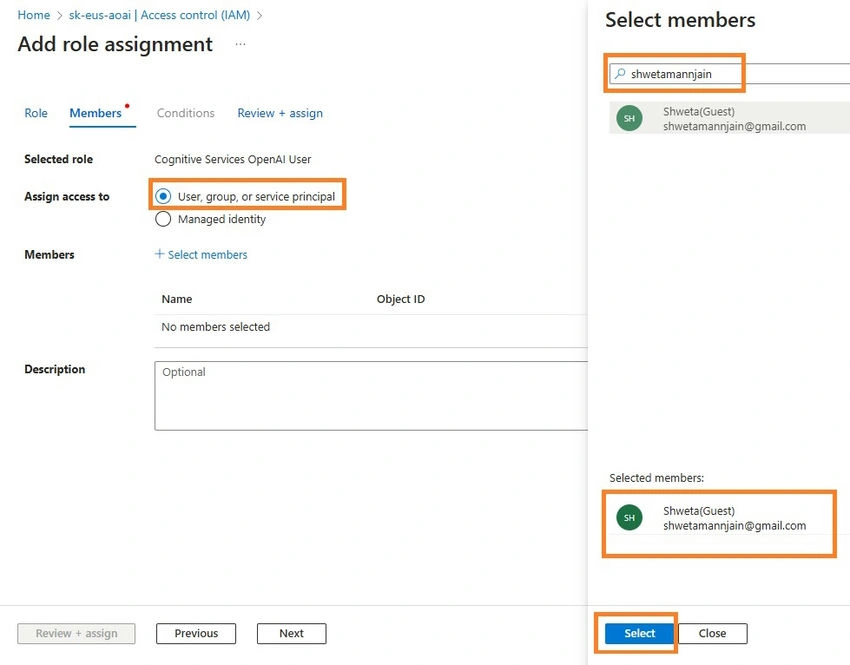
Join the conversation! Your thoughts help the community grow.