

Introduction
In this article I will tell you how to use External Authentication Services with ASP.NET MVC Web Application. I will outline all the Nuget Packages you need to install, and classes you need to add.
ASP.NET Identity
The ASP.NET Identity model is way more flexible than the old membership system.
ASP.NET Identity is the new membership system for building ASP.NET web application. ASP.NET allows you to add login features to your application and makes it easy to customize data about the logged in user.
ASP.NET Identity can be used with all the ASP.NET framework such as ASP.NET MVC, Web Forms, Web Pages, Web API and SignalR.
Goals of ASP.NET Identity:
ASP.NET membership story-web APIs and Web Apps.
- Profile.
- Extensibility allows for non SQL persistence Model.
- Improve unit testability of application code.
- Separate Authentication from membership.
- Full support for Async programming.
- claims Based.
- Roles.
- Go to the Start and run Visual Studio 2013 for Web.
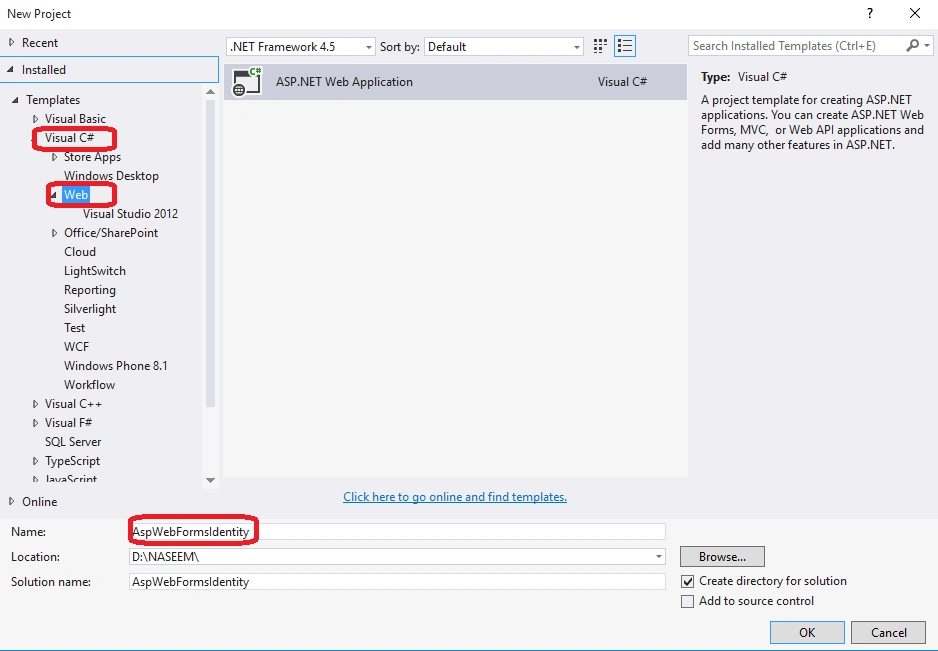
- Click new project from the start page or go to the menu and select file and then New project.
- Select Visual C# on the left side, then Web and then select ASP.NET Web Application. Name your project ”AspWebFormsIdentity” and click OK.
- After that we select the MVC Project Template to create the Application and then Click OK.
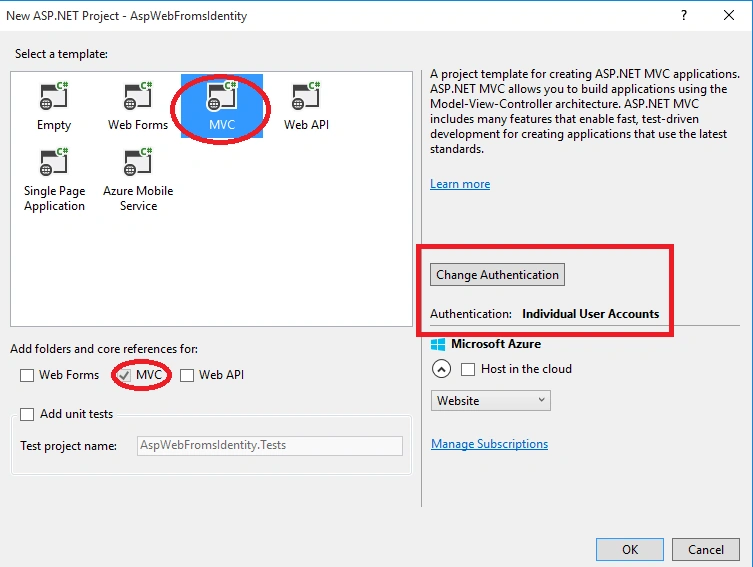
Note: The Web Forms, MVC and Web API templates allow you to select the authentication approach but when we select Empty the Change Authentication button is disabled and no authentication support.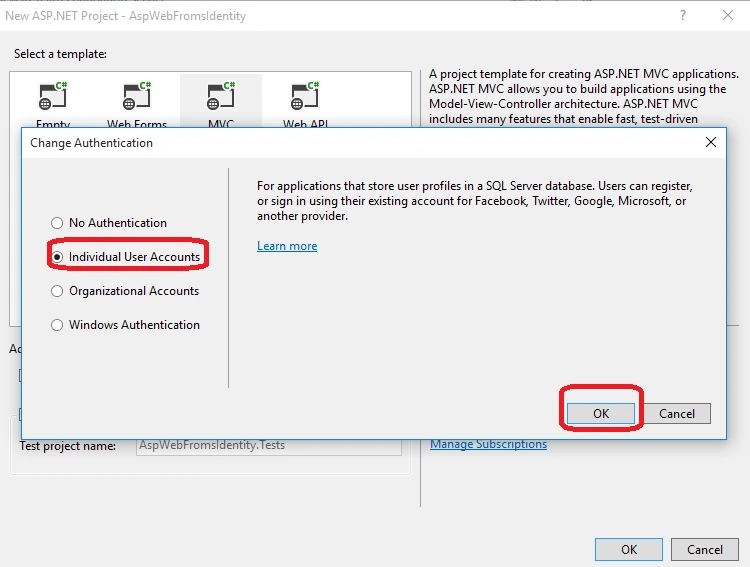
- When we click on "OK" the MVC application is created automatically. Now open the layout file.
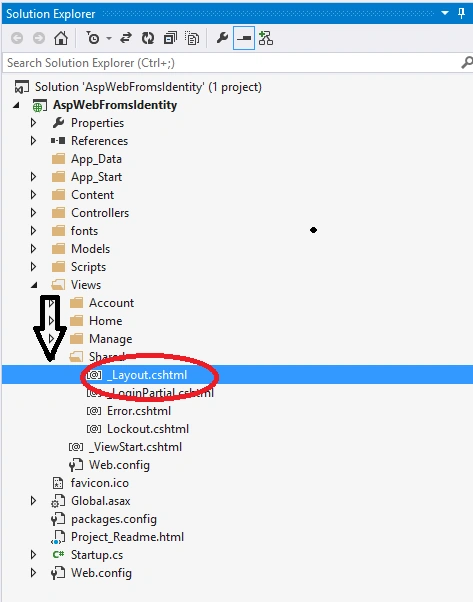
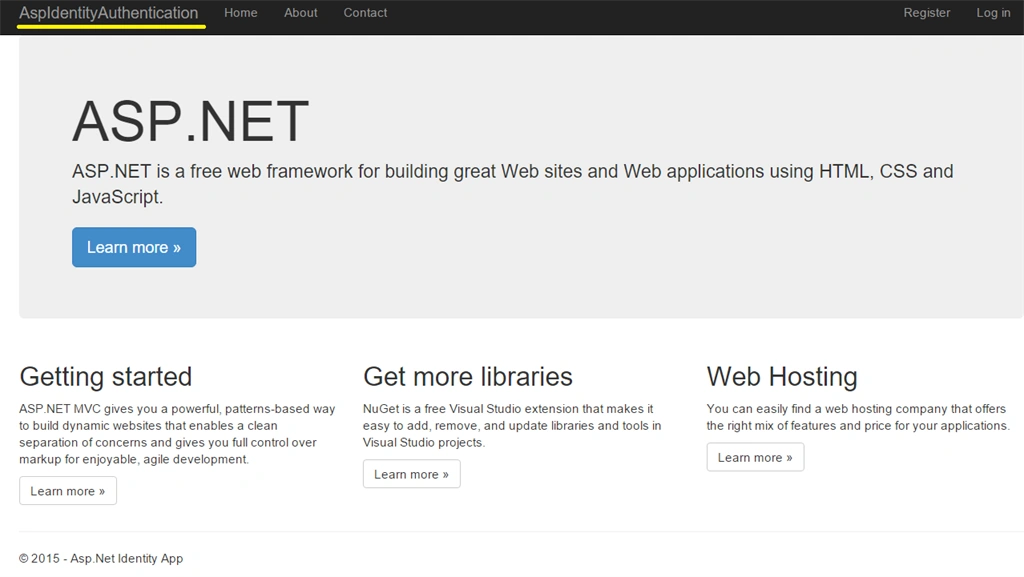
- After that change the application name and title as shown below:
- <!DOCTYPE html>
- <html>
- <head>
- <meta charset="utf-8" />
- <meta name="viewport" content="width=device-width, initial-scale=1.0">
- <title>@ViewBag.Title - Asp.Net Identity App </title>
- @Styles.Render("~/Content/css") @Scripts.Render("~/bundles/modernizr")
- </head>
- <body>
- <div class="navbar navbar-inverse navbar-fixed-top">
- <div class="container">
- <div class="navbar-header">
- <button type="button" class="navbar-toggle" data-toggle="collapse" data-target=".navbar-collapse">
- <span class="icon-bar"></span>
- <span class="icon-bar"></span>
- <span class="icon-bar"></span>
- </button>
- @Html.ActionLink("AspIdentityAuthentication", "Index", "Home", new { area = "" }, new { @class = "navbar-brand" })
- </div>
- <div class="navbar-collapse collapse">
- <ul class="nav navbar-nav">
- <li>@Html.ActionLink("Home", "Index", "Home")</li>
- <li>@Html.ActionLink("About", "About", "Home")</li>
- <li>@Html.ActionLink("Contact", "Contact", "Home")</li>
- </ul>
- @Html.Partial("_LoginPartial")
- </div>
- </div>
- </div>
- <div class="container body-content">
- @RenderBody()
- <hr />
- <footer>
- <p>© @DateTime.Now.Year - Asp.Net Identity App </p>
- </footer>
- </div>
- @Scripts.Render("~/bundles/jquery") @Scripts.Render("~/bundles/bootstrap") @RenderSection("scripts", required: false)
- </body>
- </html>
Google Authentication
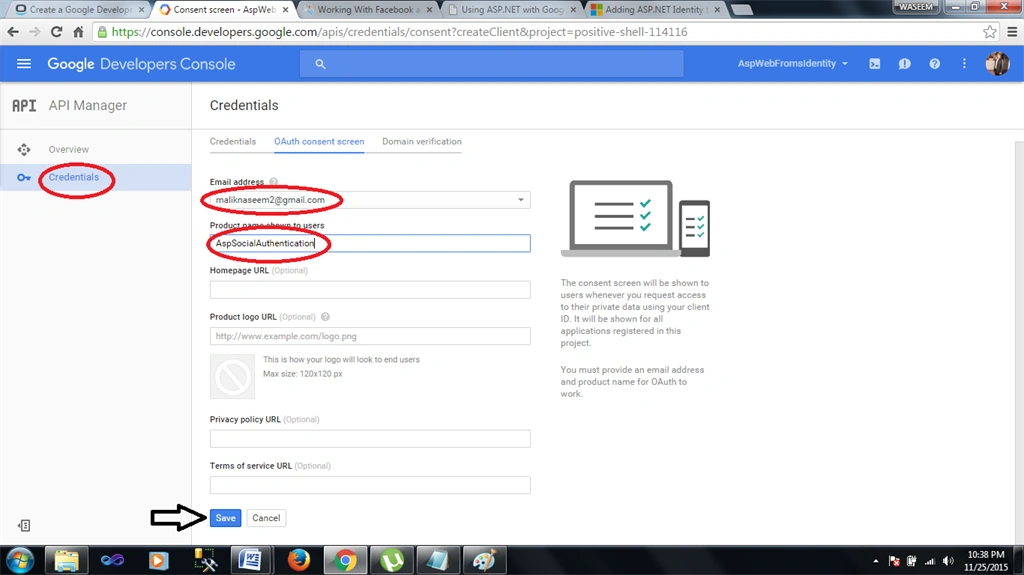
The first service I wanted to login with was Google. I need to head over to the Google Developers Console and create a new project and a new app. Selecting to create an app comes up with a modal dialog, which asks for a bit of information:
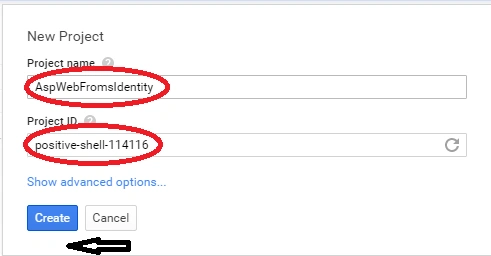
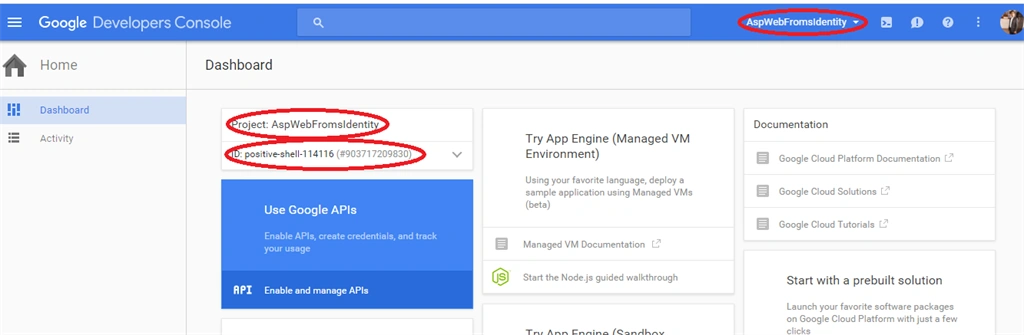
- After that Click on Create Button, the following window will be visible,
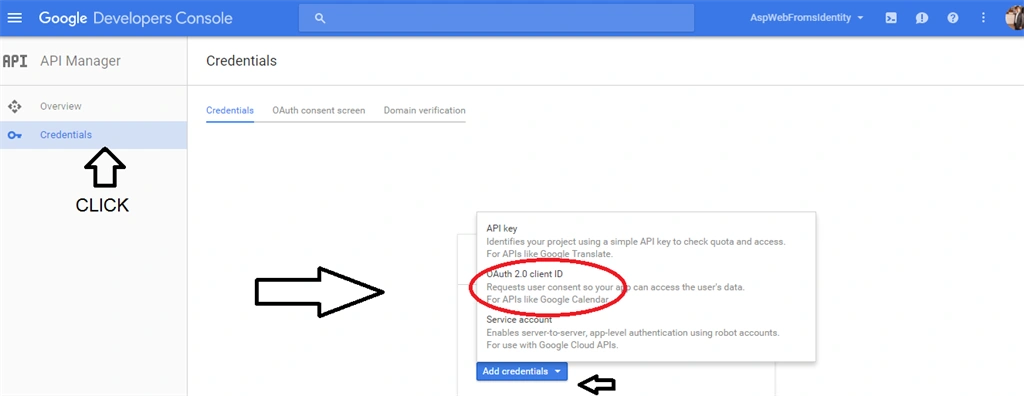
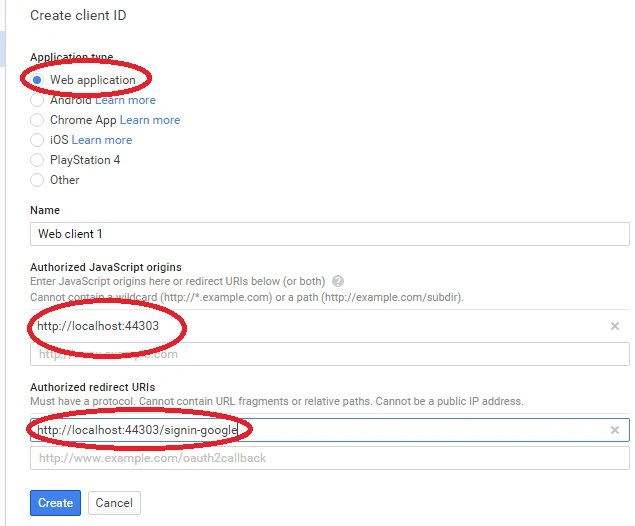
- After clicking on the OAuth 2.0 Client ID, the following window will be visible,
- Once there, we’re going to create a new Client ID, of course this is of type “Web Application”, and then simply fill out the details, mine looked like this.
- Once created, Google then provides us with a Client ID and Client Secret, this is what we need for our project. As the commented out code stub in the Startup.
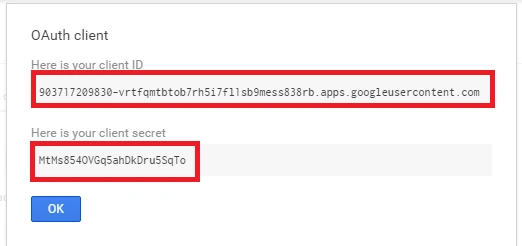
Now we'll enable the Google authentication for the application using the Client ID, Client secret and the following procedure,
- Now we'll ppen the Startup_Auth.cs file for enabling the authentication.
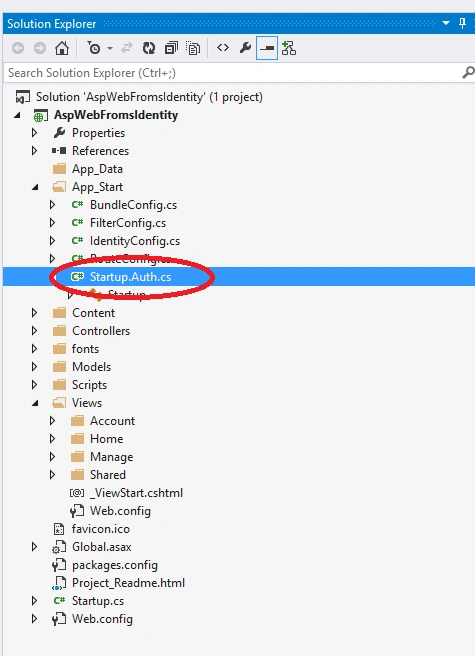
- Now Uncomment the code to enable Google Authentication as in the following code,
- // Uncomment the following lines to enable logging in with third party login providers
- //app.UseMicrosoftAccountAuthentication(
- // clientId: "",
- // clientSecret: "");
- //app.UseTwitterAuthentication(
- // consumerKey: "",
- // consumerSecret: "");
- //app.UseFacebookAuthentication(
- // appId: "",
- // appSecret: "");
- app.UseGoogleAuthentication(new GoogleOAuth2AuthenticationOptions()
- {
- ClientId = "****************************",
- ClientSecret = "*********************"
- });
- After that run the Application and click on the Login Button.
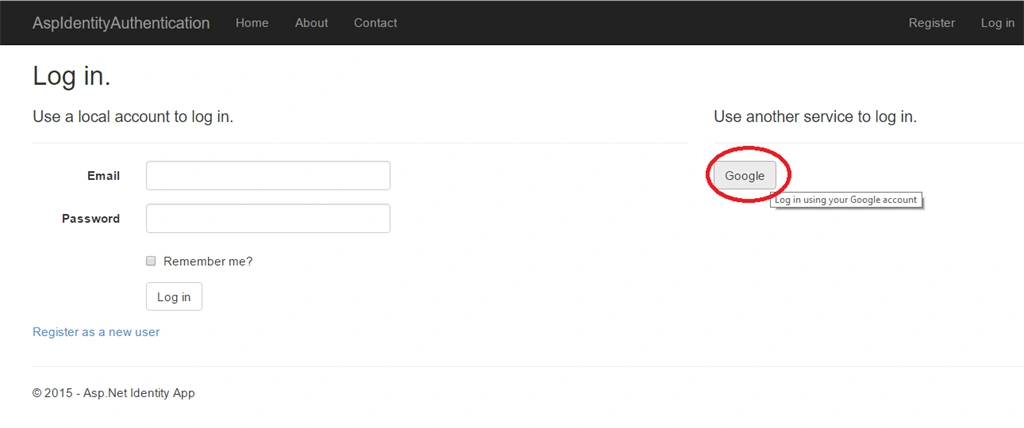
- Click on "Google",
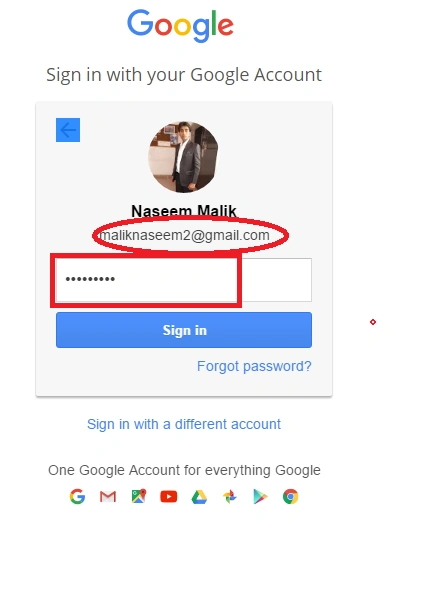
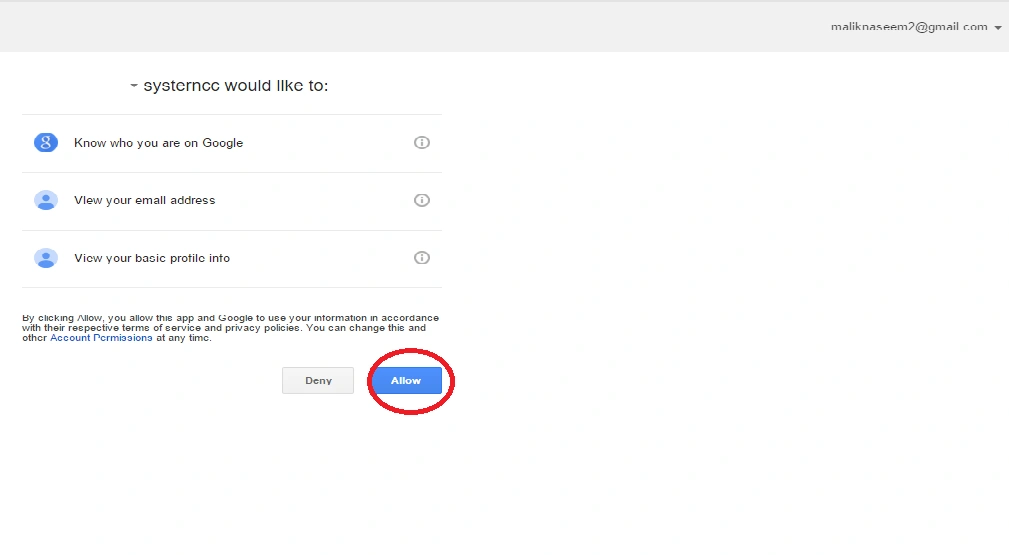
- Enter the credentials for Google Account and you'll be prompted to authenticate the Localhost.
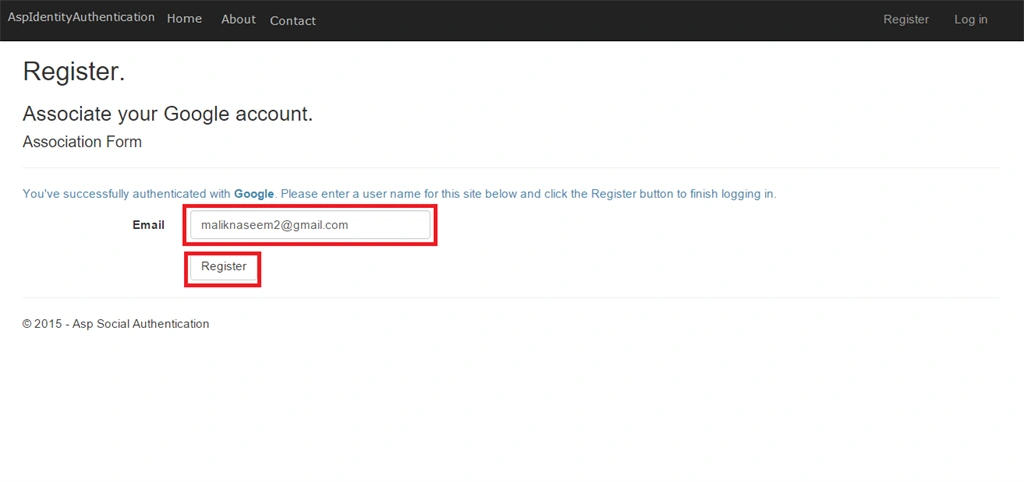
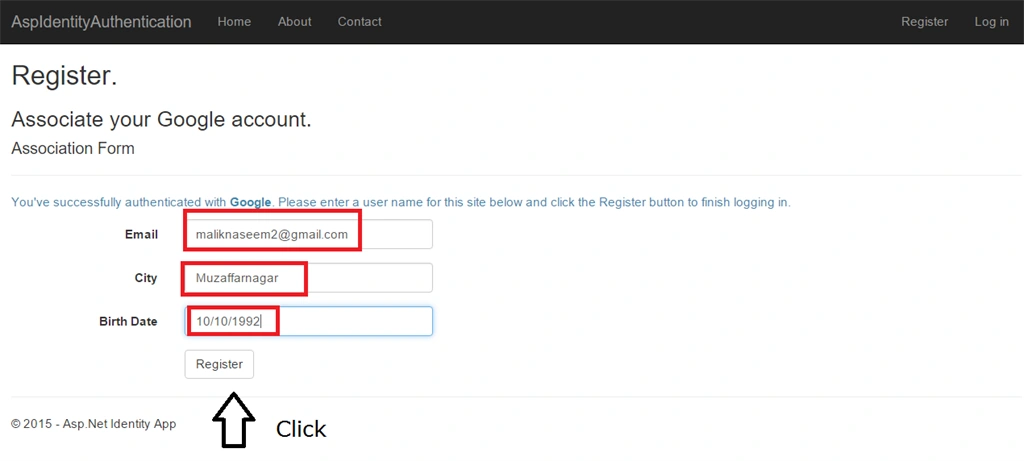
- Now you will be redirected back to the Register page and enter the user name to register.
- Now you will be logged in with Google. Check it out.
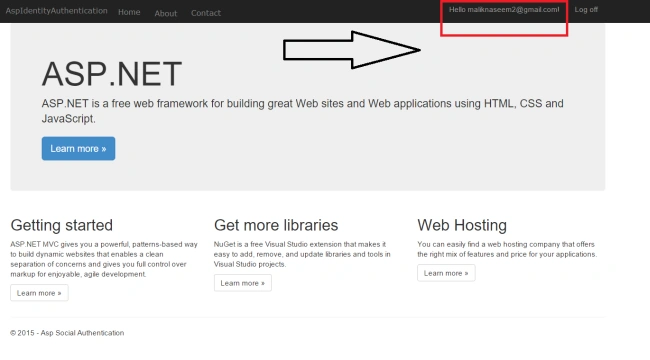
- In the browser navigate to https://developers.facebook.com/?ref=pf and log in by the Facebook Credentials.
- On the Apps tab, click Create New App.
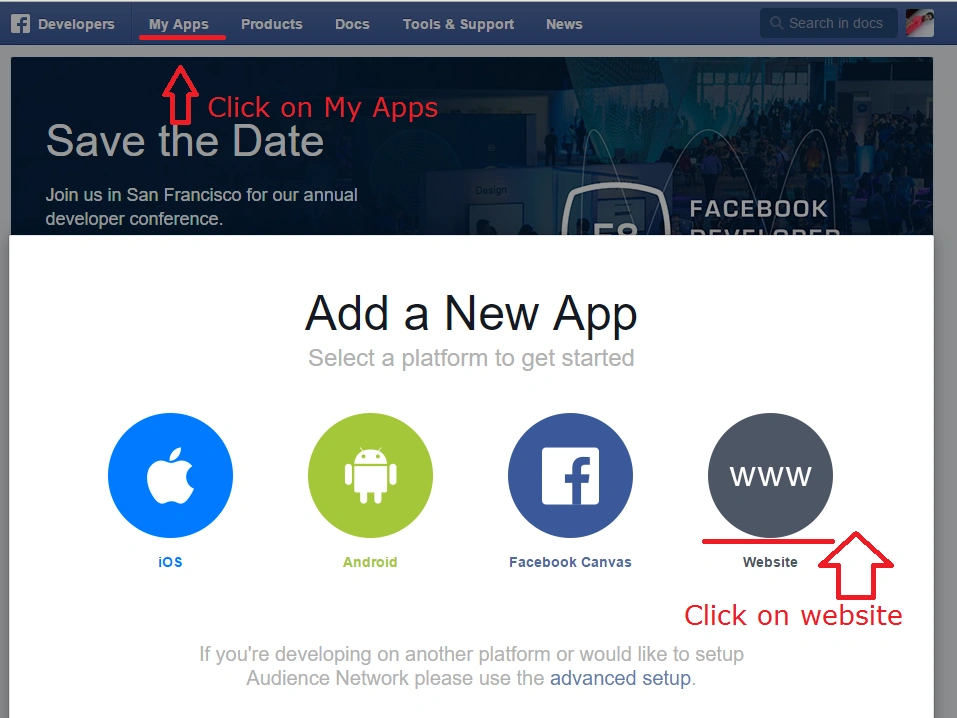
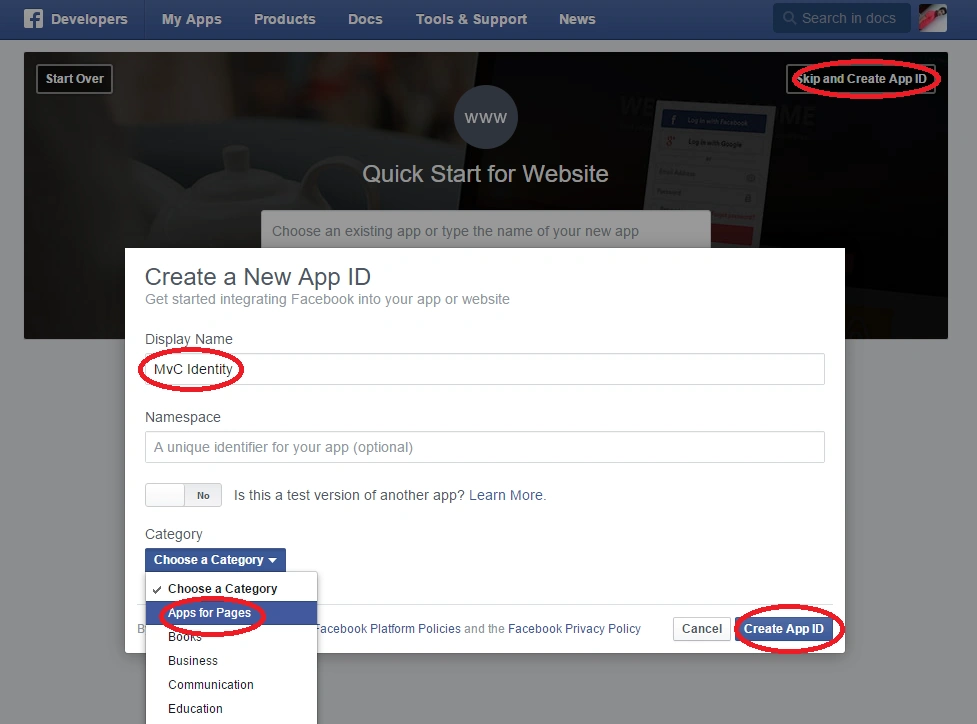
- Enter the App Name and select the Category. After that click Create App ID.
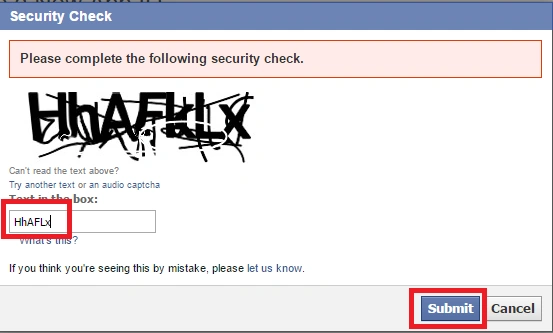
- Submit the standard Security Check.
- You can now create the AppID and App Secret. Also, you can show the App Secret by clicking on the Show button.
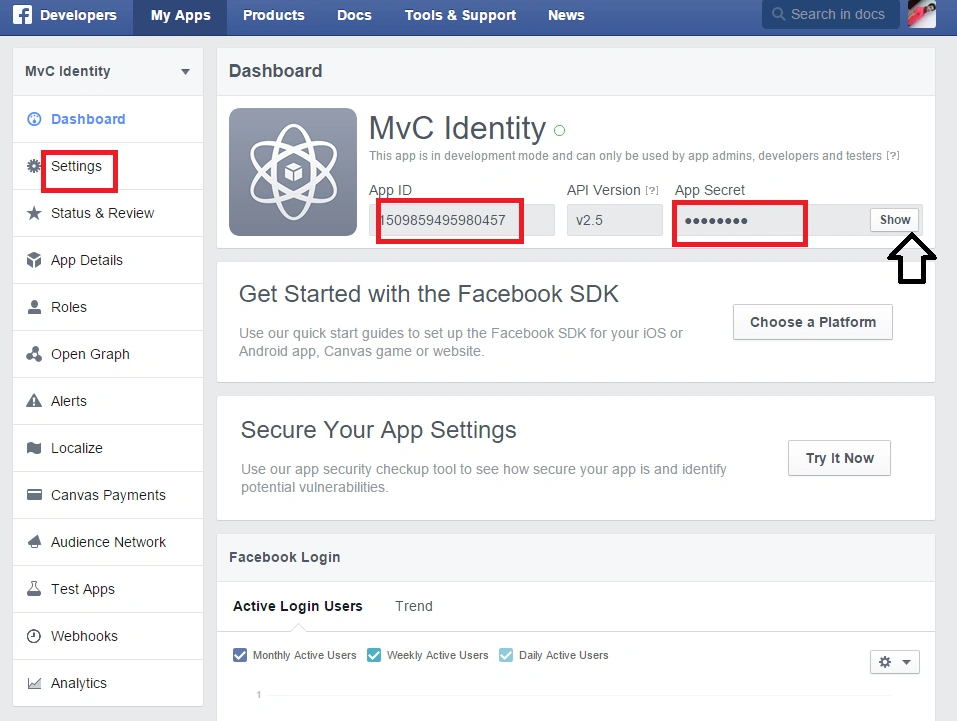
- After that click on the Settings section of the page select and Add Platform to specify that you are adding a website application.

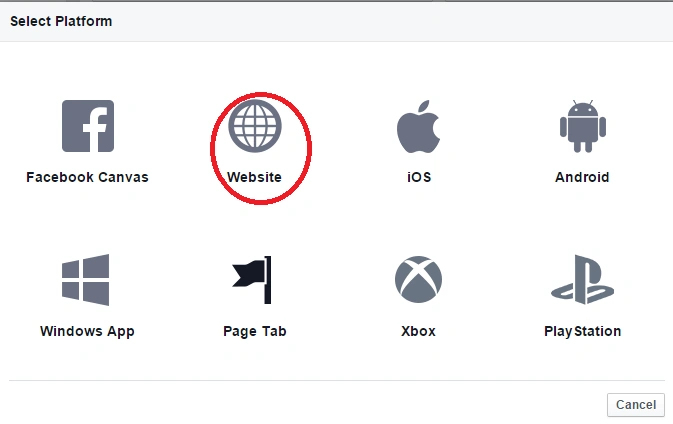
- Select Website from the platform choice.
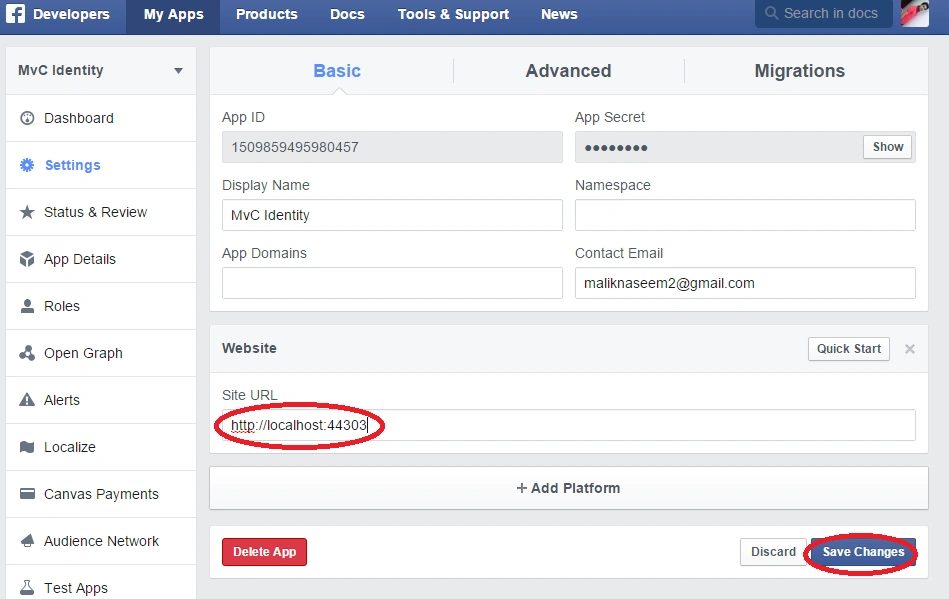
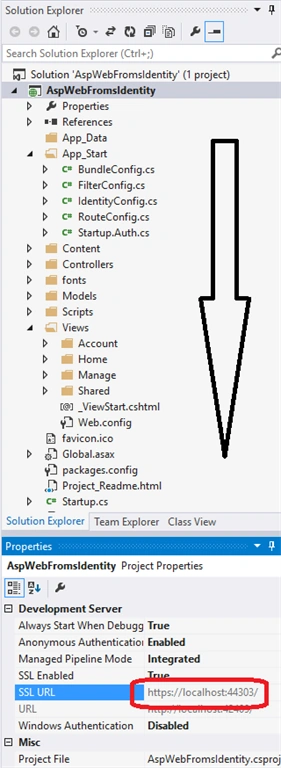
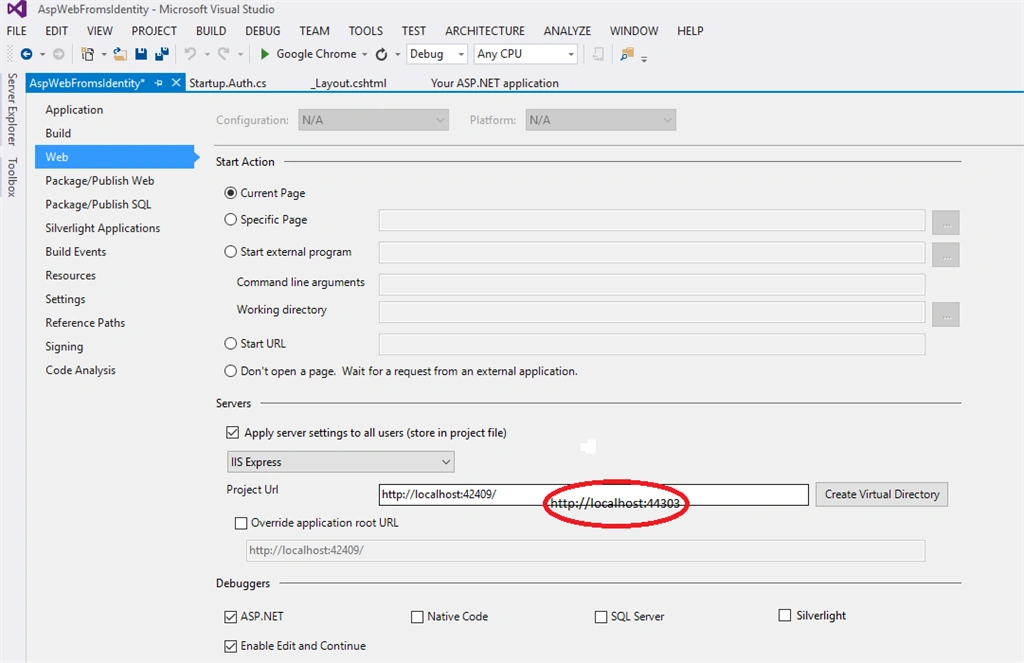
- Note your App ID and your App Secret so that you can add both into your MVC application. Also, Add your Site URL (https://localhost:44303/) to test your MVC application. Also, add a Contact Email, then select Save Changes.
Step 1: Now we'll Open the Startup_Auth.cs file for enabling the authentication.
Step 2: Now Uncomment the code to enable Facebook Authentication and copy and past the app Id, and App Secret as in the following code,



NASEEM AHAMADPosted Dec 10, 2015, 5:52 AM
Thanks everyone........
Santhakumar MunuswamyPosted Dec 4, 2015, 7:33 AM
Good article
Humayun Kabir MamunPosted Dec 3, 2015, 3:15 AM
Nice...
Mukesh KumarPosted Dec 2, 2015, 10:45 AM
Nice share
Ravi PatelPosted Dec 2, 2015, 5:34 AM
good one