

To find the contact entity and lead matching the email address, set the reference to Event Registration Form in Dynamics 365 portal.
I have got a requirement from the client, which says “Event Registration Form” has a “Related Contact and Lead”, which should be automatically filled, if it has an email address matching “Event Registration Form – email address”. All these should happen when the user registers for an event from “Dynamics 365 – Customer Self Service Portal”.
Steps to achieve this are given below.
Step 1
Create a plugin to find out the email address, which has any matching contact or lead and set the reference to Related Contact and Lead.
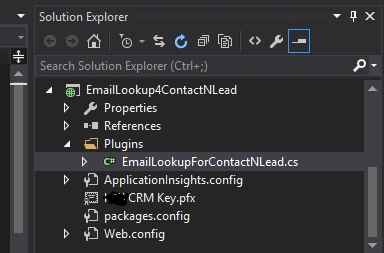
Go to Visual Studio and create a Class Library project, as shown below.
Step 2
Now, use the code given below to create plugin class like “EmailLookupForContactNLead.cs”, as shown in the step 1.
- using System;
- using System.Collections.Generic;
- using System.Linq;
- using System.Text;
- using System.Threading.Tasks;
- using Microsoft.Xrm.Sdk;
- using System.ServiceModel.Description;
- using Microsoft.Xrm.Sdk.Query;
- using System.Runtime.Serialization;
- namespace Dynamics_365_Portal.EmailLookupForContactsNLead
- {
- public class EmailLookup IPlugin
- {
- public void Execute(IServiceProvider serviceProvider)
- {
- string eventRegEmail = "";
- //Extract the tracing service for use in debugging sandboxed plug-ins.
- ITracingService tracingService =
- (ITracingService)serviceProvider.GetService(typeof(ITracingService));
- // Obtain the execution context from the service provider.
- Microsoft.Xrm.Sdk.IPluginExecutionContext context = (Microsoft.Xrm.Sdk.IPluginExecutionContext)
- serviceProvider.GetService(typeof(Microsoft.Xrm.Sdk.IPluginExecutionContext));
- IOrganizationServiceFactory serviceFactory = (IOrganizationServiceFactory)serviceProvider.GetService(typeof(IOrganizationServiceFactory));
- IOrganizationService orgService = serviceFactory.CreateOrganizationService(context.UserId);
- // The InputParameters collection contains all the data passed in the message request.
- if (context.InputParameters.Contains("Target") &&
- context.InputParameters["Target"] is Entity)
- {
- // Obtain the target entity from the input parameters.
- Entity entity = (Entity)context.InputParameters["Target"];
- //</snippetAccountNumberPlugin2>
- #region Core Operations
- if (entity.LogicalName == "new_eventregistration")
- {
- if (entity.Attributes.Contains("new_email"))
- {
- eventRegEmail = entity.Attributes["new_email"].ToString();
- // To check the Contact for matching email address
- #region contact lookup
- EntityCollection ContactsEC = GetRelatedEntity(orgService, "contact", "emailaddress1", eventRegEmail, new ColumnSet("fullname", "contactid","emailaddress1"));
- if (ContactsEC.Entities.Count >= 1)
- {
- entity.Attributes["new_relatedcontact"] = new EntityReference("contact", ContactsEC.Entities[0].Id) ;//refContact;
- }
- #endregion contact lookup
- #region lead lookup
- else
- {
- EntityCollection LeadsEC = GetRelatedEntity(orgService, "lead", "emailaddress1", eventRegEmail, new ColumnSet("fullname", "leadid", "companyname"));
- if (LeadsEC.Entities.Count >= 1)
- {
- entity.Attributes["new_relatedlead"] = new EntityReference("lead", LeadsEC.Entities[0].Id);//refLead;
- }
- }
- #endregion lead lookup
- }
- }
- #endregion Core Operations
- }
- }
- #region lookup method
- // Generic method to query Contact and lead based on the parameters supplied
- private static EntityCollection GetRelatedEntity(IOrganizationService orgSvc, string entityName, string searchItem, string searchItemValue, ColumnSet colSet)
- {
- QueryExpression query = new QueryExpression
- {
- EntityName = entityName,
- ColumnSet = colSet,
- Criteria = new FilterExpression
- {
- Conditions =
- {
- new ConditionExpression
- {
- AttributeName = searchItem,
- Operator = ConditionOperator.Equal,
- Values = { searchItemValue }
- }
- }
- }
- };
- return orgSvc.RetrieveMultiple(query);
- }
- #endregion lookup method
- }
- }
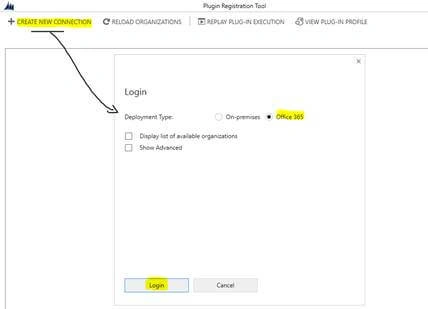
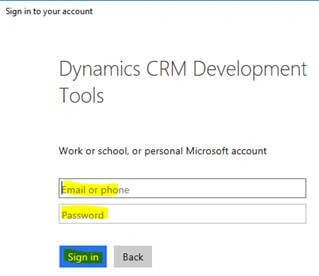
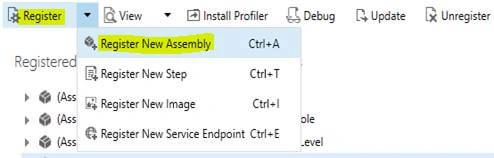
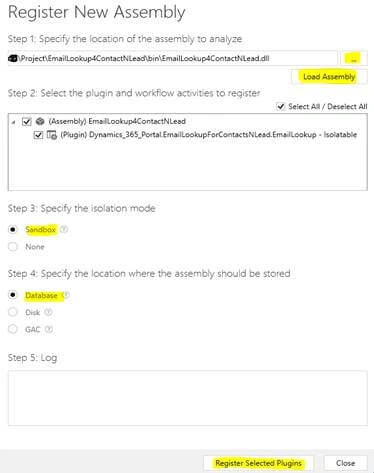
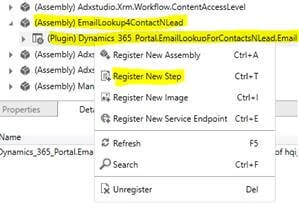
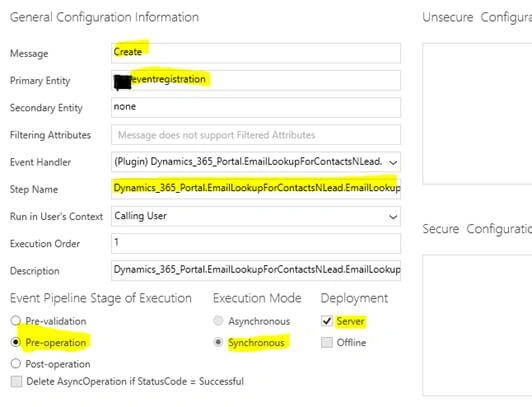
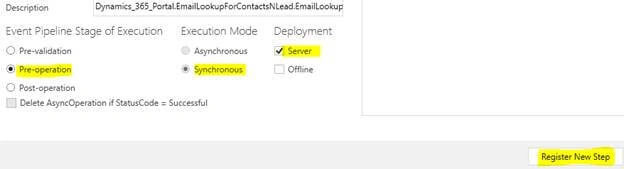
Join the conversation! Your thoughts help the community grow.