Introduction

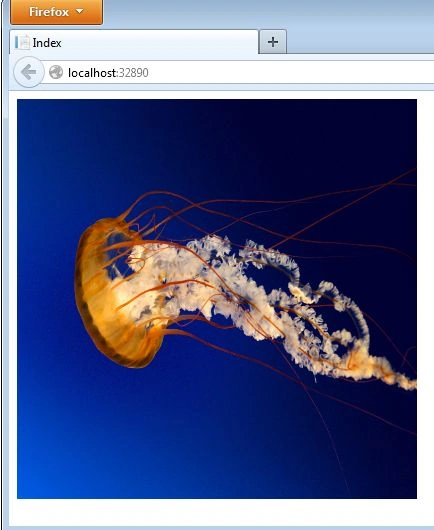
This article explains the Auto Refresh Partial View in the ASP .NET Web API. It is something that, used together, gives a way to refresh a partial view in a specified time period. Here we use three images that will change on refreshing the partial view in 2 seconds.

Follow these procedures for using Auto refresh Partial View in Web API.

Step 1

Create a web API Application.

  • Start Visual Studio 2012.

  • From the start window select "New Project".

  • In the Template Window select "Installed" -> "Visual C#" -> "Web".

  • Select "ASP.NET MVC 4 Web Application" and click on "OK".
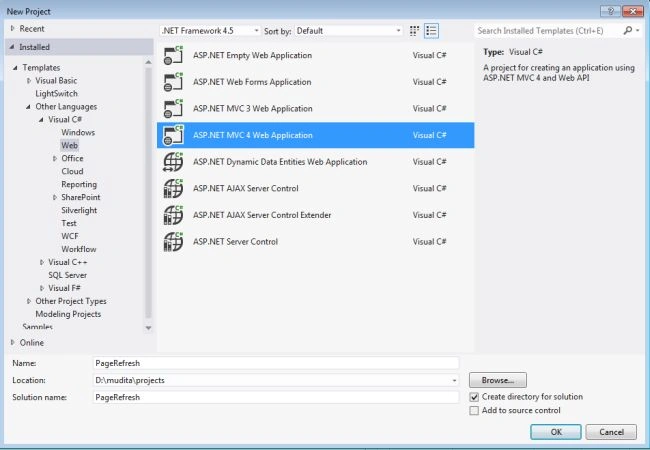
    add3.jpg

  • From the "MVC4 Project" window select "Web API".
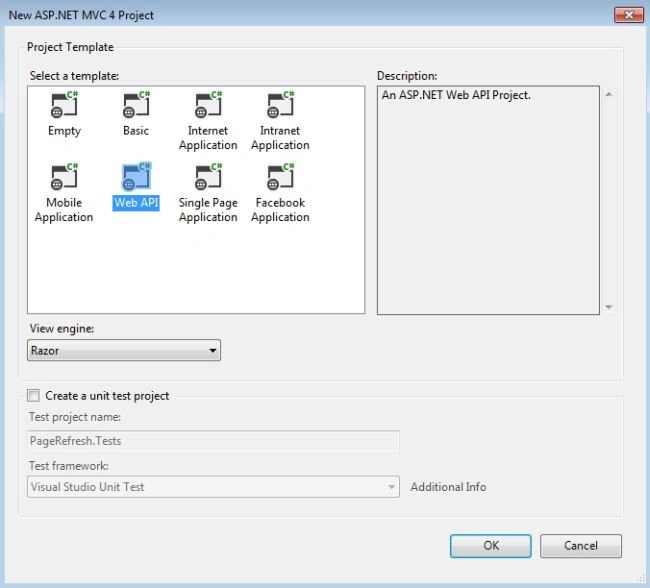
    add4.jpg

Step 2

Create a Model Class "Show.cs".

  • In the "Solution Explorer".

  • Right-click on the "Modelfolder" -> "Add" -> "Class".
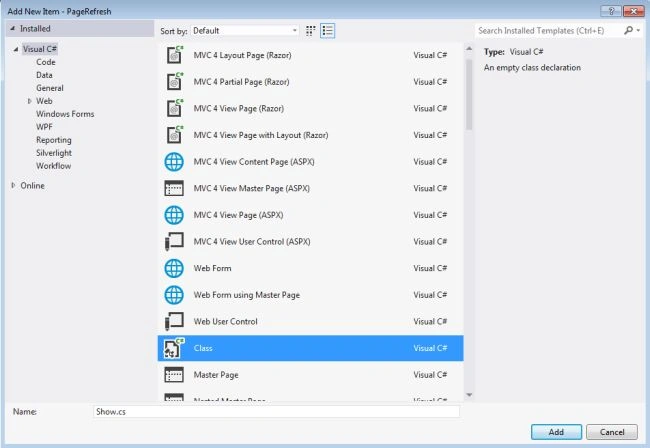
    add2.jpg

  • Select the class and click on the "OK" button.

Add this code to this class.

  1. using System;
  2. using System.Collections.Generic;
  3. using System.Linq;
  4. using System.Web;
  5. namespace PageRefresh.Models
  6. {
  7. public class Show
  8. {
  9. public int id { get; set; }
  10. public string Name_alter { get; set; }
  11. public string Image_src { get; set; }
  12. }
  13. public class IRepository
  14. {
  15. public static List<Show> GetData()
  16. {
  17. List<Show> detail = new List<Show>
  18. {
  19. new Show
  20. {
  21. id = 1,
  22. Name_alter = "Mudita",
  23. Image_src = "Images/Jellyfish.jpg"
  24. },
  25. new Show
  26. {
  27. id = 2,
  28. Name_alter = "Tayna",
  29. Image_src ="Images/Tulips.jpg"
  30. },
  31. new Show
  32. {
  33. id = 3,
  34. Name_alter = "Neeju",
  35. Image_src = "Images/Lighthouse.jpg"
  36. }
  37. };
  38. return detail;
  39. }
  40. }
  41. }

Step 3

Open "HomeController".

  • In the "Solution Explorer".

  • Select "Controller folder" -> "Home Controller".
Add this code.

  1. using System;
  2. using System.Collections.Generic;
  3. using System.Linq;
  4. using System.Web;
  5. using System.Web.Mvc;
  6. using System.Web.UI;
  7. using PageRefresh.Models;
  8. namespace PageRefresh.Controllers
  9. {
  10. public class HomeController : Controller
  11. {
  12. public ActionResult Index()
  13. {
  14. IEnumerable<Show> detail = IRepository.GetData();
  15. return View(detail);
  16. }
  17. [OutputCache(NoStore = true, Location = OutputCacheLocation.Client, Duration = 2)]
  18. public ActionResult GetPicture()
  19. {
  20. IEnumerable<Show> detail = IRepository.GetData();
  21. int min = detail.Min(n => n.id);
  22. int max = detail.Max(n => n.id);
  23. int randomid = new Random().Next(min, (max + 1));
  24. Show model = detail.FirstOrDefault(n => n.id == randomid);
  25. return PartialView("Picture", model);
  26. }
  27. }
  28. }

Step 4

Create a view.

  • In the "HomeController".

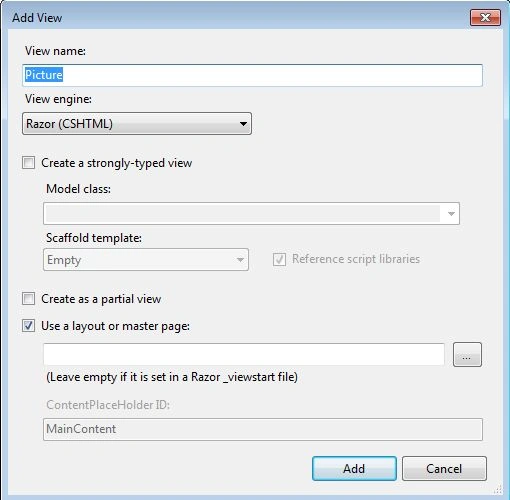
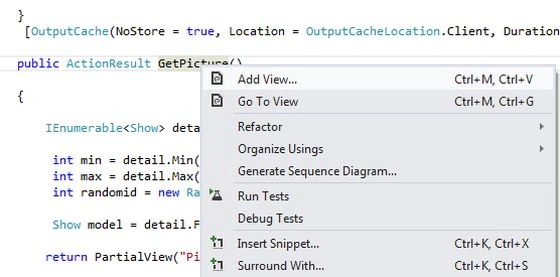
  • Right-click on the "GetPicture" Action Method and then select "AddView".

add.jpg

  • Change the name of the View to "Picture" and click on the "Add" button.

    add9.jpg

Add this line of code:

  1. @model PageRefresh.Models.Show
  2. <img src="@Model.Image_src" alt="@Model.Name_alter" title="@Model.Name_alter" width="400px" height="400px"/>

Step 5

Open the "index.cshtml" file.

  • In the "Solution Explorer".

  • Select "View" -> "Home" -> "index.cshtml".

Add this line of code:

  1. @model IEnumerable<PageRefresh.Models.Show>
  2. @{
  3. Layout = null;
  4. }
  5. <!DOCTYPE html>
  6. <html>
  7. <head>
  8. <meta name="viewport" content="width=device-width" />
  9. <title>Index</title>
  10. <script src="@Url.Content("~/Scripts/jquery-1.8.2.min.js" )" type="text/javascript"></script>
  11. </head>
  12. <body>
  13. <div id="pictures">
  14. @Html.Partial("Picture", Model.FirstOrDefault())
  15. </div>
  16. </body>
  17. </html>
  18. <script type="text/javascript">
  19. $(function () {
  20. setInterval(function () { $('#pictures').load('/Home/GetPicture'); }, 2000;
  21. });
  22. </script>

Step 6

Now execute the application; "Press F5".

add7.jpg

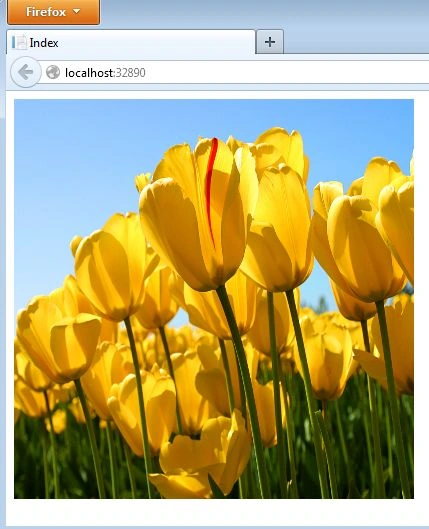
After 2 seconds a second image will display.

add6.jpg

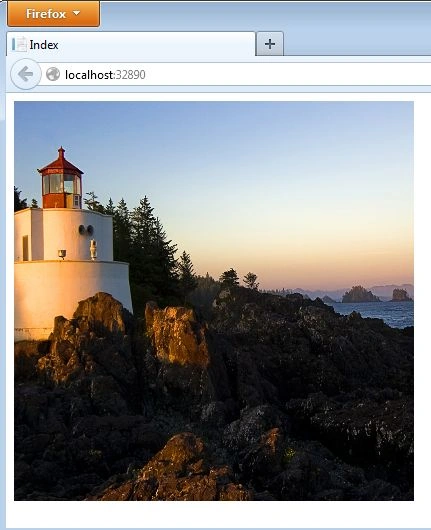
After 2 seconds:

add5.jpg