

Silverlight AutoCompleteBox Control
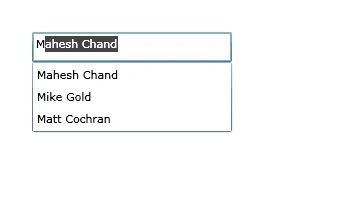
If you type a keyword or character in a Google or Live search boxes, you see your word is being typed automatically based on the character you type. This control that provides this functionality is called an AutoCompleteBox. This article demonstrates how to create and use a AutoCompleteBox control in Silverlight using XAML and C#.
Note: The AutoCompleteBox control is a part of Silverlight Toolkit. This article is written by using the Silverlight Toolkit November 2008 that you can download from here: Silverlight Toolkit - Release: Silverlight Toolkit November 2008. This control may be a part of Silverlight in near future versions.
Adding Silverlight Toolkit Reference
Before you can use an AutoCompleteBox control, you must download the Silverlight Toolkit. After that you need to add a reference to the library.
To add a reference, right click the References folder of your project in Solution Explorer and select Add Reference. This action will open the Add Reference dialog as you can in the following Figure 1. On this dialog, select Browse option and browse the Microsoft.Windows.Controls.dll assembly from the folder where you installed the Silverlight Toolkit. This assembly resides in the Binaries folder.
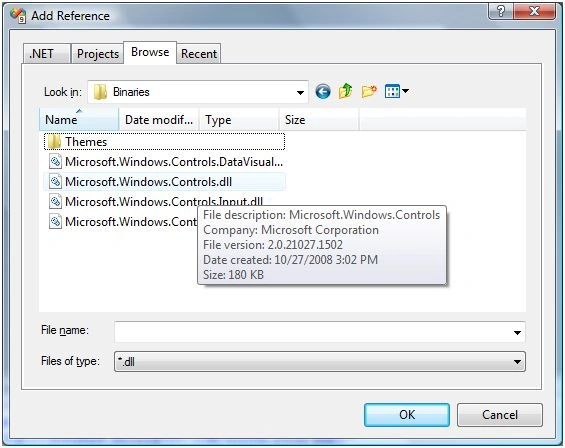
Figure 1
Once you add the reference, you will see the Microsoft.Windows.Controls added to your References dialog as you see in Figure 2.
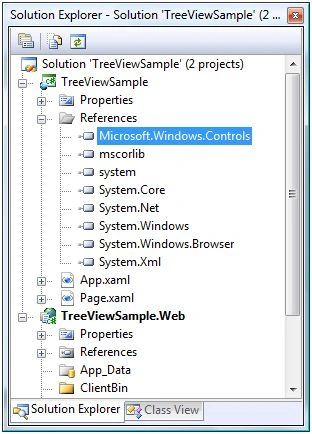
Figure 2
Now, the next step is to import the Microsoft.Windows.Controls namespace to the page. Once you type xmlns= in your page, you will see Microsoft.Windows.Controls listing in Intellisense. Select it as shown in Figure 3.
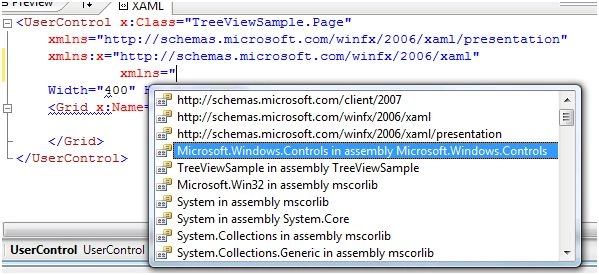
Figure 3
The final reference added to the page looks like following. As you can see here, I added name of this reference to ToolkitRef.
xmlns:ToolkitRef="clr-namespace:Microsoft.Windows.Controls;assembly=Microsoft.Windows.Controls"
Now you will see ToolkitRef in your page and once you select it, you will notice AutoCompleteBox added to the Intellisense. To add the AutoCompleteBox control to your page, just select it as you can see in Figure 4.
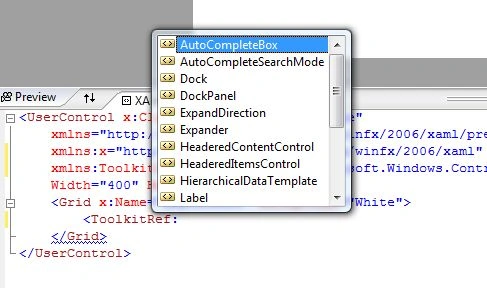
Figure 4
Creating an AutoCompleteBox
The AutoCompleteBox element represents a Silverlight AutoCompleteBox control in XAML.
<ToolkitRef:AutoCompleteBox></ToolkitRef:AutoCompleteBox>
The code snippet in Listing 1 creates an AutoCompleteBox by setting its width and height properties to 200 and 30 respectively.
<AutoCompleteBox Width="200" Height="30" />
Listing 1
The Text property of the AutoCompleteBox control represents the selected text box in the control.
string curText = ACB.Text;
Data Binding in AutoCompleteBox
Similar to other data bound controls in Silverlight, the ItemsSource property is used to bind a collection of object to the AutoCompleteBox.
The code snippet in Listing 2 creates a object collection called Authors and binds it to the AutoCompleteBox by using the ItemsSource property.
<!-- ObjectCollection -->
<UserControl.Resources>
<ToolkitRef:ObjectCollection x:Key="Authors">
<coreLib:String>Mahesh Chand</coreLib:String>
Gowtham RajamanickamPosted Apr 26, 2016, 3:08 AM
good article
NCH CHeditedPosted Sep 22, 2010, 2:01 PMEdited Sep 22, 2010, 2:02 PM
I am trying to use the AutoCompleteBox in my Silverlight 4 app using this sdk. I have tried to follow the instructions as mentioned in the example above. But I get this error when I run the App. Message = "Element is already the child of another element." StackTrace = " at MS.Internal.XcpImports.MethodEx(IntPtr ptr, String name, CValue[] cvData)\r\n at MS.Internal.XcpImports.MethodEx(DependencyObject obj, String name)\r\n at MS.Internal.XcpImports.FrameworkElement_ApplyTemplate(FrameworkElement frameworkElement)\r\... Any help or clue. Thanks,
Chhavi Nath SinghPosted Sep 1, 2009, 11:17 PM
i m new to this control. and i find it very usefull