

Introduction
In this article, we will learn how with tag-based mentions in Microsoft Teams, you can target specific groups of users and ensure your messages reach the intended audience. In this article, we’ll explore how to automate these tag mentions using Microsoft Power Automate.
Tags allow you to mention specific groups of users while also providing the flexibility to notify everyone in a Microsoft Teams channel.
When sending notifications to a large group in Teams, there are two practical approaches to notify everyone effectively:
Approach 1: @Team / @Channel Mention (Using JSON) . For this you can refer: Click Here..
Approach 2: Using Tags in Teams
In this article we will focus on approach 2
Step-By-Step Implementation
Step1: Go to the channel where you want to create the tag
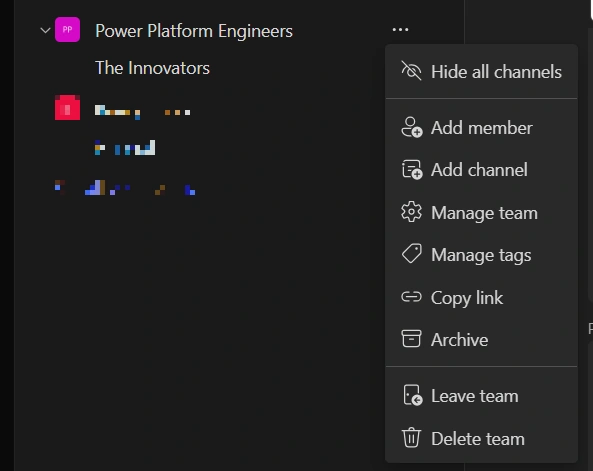
Click on the three dots (⋯) next to the channel/team
Select “Manage tags”
Click on “Create tag”
Enter a Tag Name
Add a Description (optional but recommended)
Add the members you want to include in the tag
Click Create/Save
Step 2: Create a Flow to Send Tag-Based Notifications
Flow Setup in Microsoft Power Automate
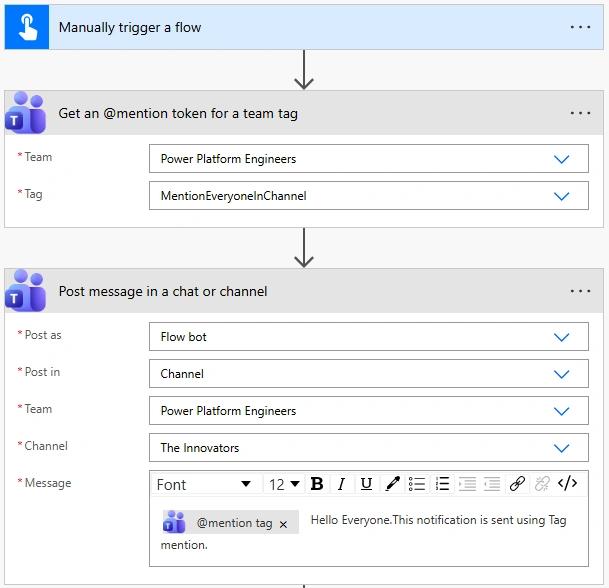
Create a new flow
You can trigger the flow based on your use case (e.g., file processing, approvals, etc.)
For demonstration, use a Manual Trigger
Get the Tag Mention Token
Add the action: “Get an @mention token for a team tag”
Select:
Team
Tag Name
Important: This step is required—you cannot directly mention a tag without this token
Post Message in Teams Channel
Add action: “Post a message in a chat or channel”
Configure as follows:
Post as: Flow bot
Post in: Channel
Team: Select your team
Channel: Select your target channel
In the Message field:
Insert dynamic content: @mention tag (from previous step)
Add your custom message
Example:
@{outputs('Get_an_@mention_token_for_a_team_tag')?['body/atMention']} Hello Everyone.This notification is sent using Tag mention.Result
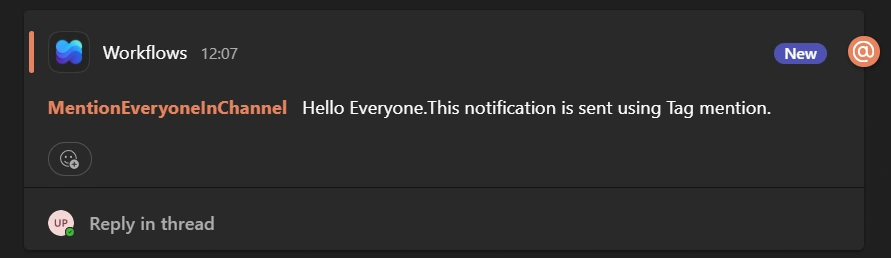
Conclusion:
In conclusion, using tags in Microsoft Teams with Microsoft Power Automate allows you to send targeted notifications to specific groups or effectively notify everyone in a channel. This approach ensures better communication by reaching the right audience without unnecessary noise.
Join the conversation! Your thoughts help the community grow.