

In Power Automate, flows that do not run for 30 consecutive days are automatically turned off by the platform. This behavior can unexpectedly disrupt business-critical processes, especially for flows that run monthly, quarterly, or only on specific events.
Imagine a monthly billing flow or compliance report that silently stops working simply because it hasn’t run recently.
To avoid this risk, we can build an administrative automation that automatically detects and re-enables suspended flows.
This article shows how to use Power Automate itself to automatically monitor and re-enable inactive flows.
Objective
Create a daily scheduled cloud flow that:
Scans environments for suspended flows
Identifies flows disabled due to inactivity
Automatically turns them back on
Prevents business interruptions
Scenario
You maintain several business-critical flows that:
Run once a month
Trigger quarterly
Execute only when rare events occur
Since they don’t run frequently, Power Automate may automatically disable them after 30 days of inactivity, causing:
Missed reminders
Delayed approvals
Broken integrations
Manual intervention
To prevent this, we build a self-healing automation that keeps these flows active.
Step-by-Step Implementation in Power Automate
Step 1: Create a Scheduled Flow
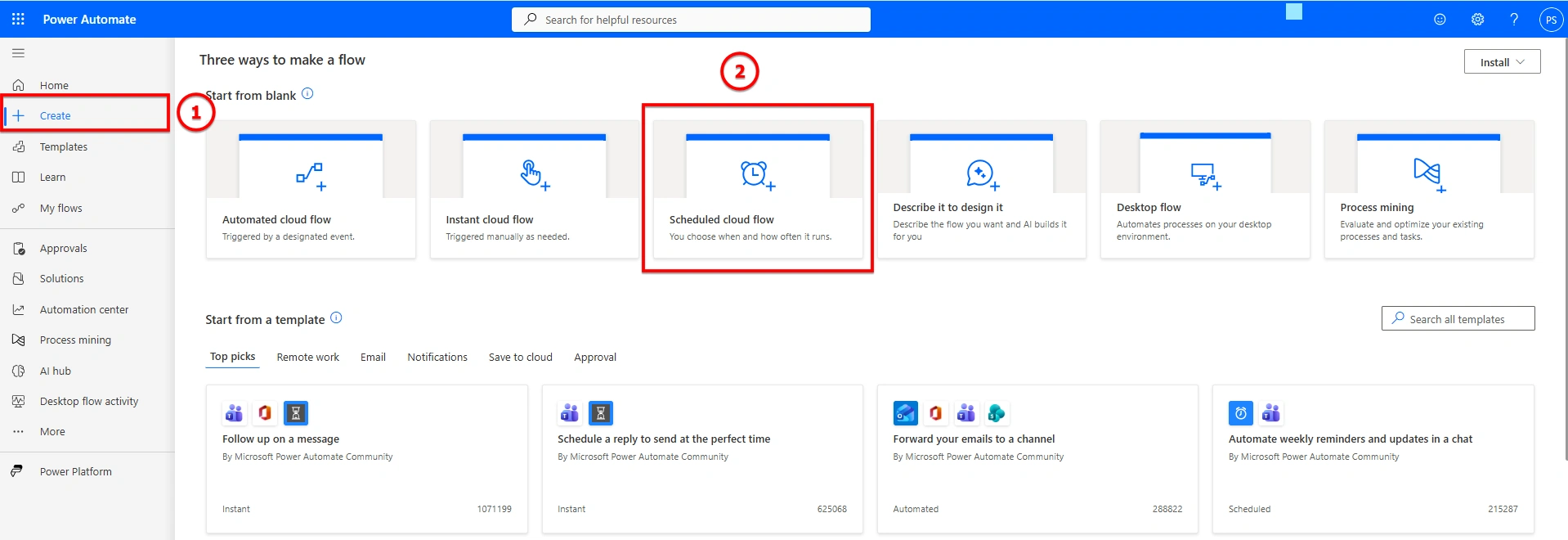
Go to Power Automate.
Click Create > Scheduled cloud flow.
Enter Flow Name: Auto-Reenable Suspended Flows.
Set Recurrence to once per day.
Click Create.
Step 2: Recurrence Trigger
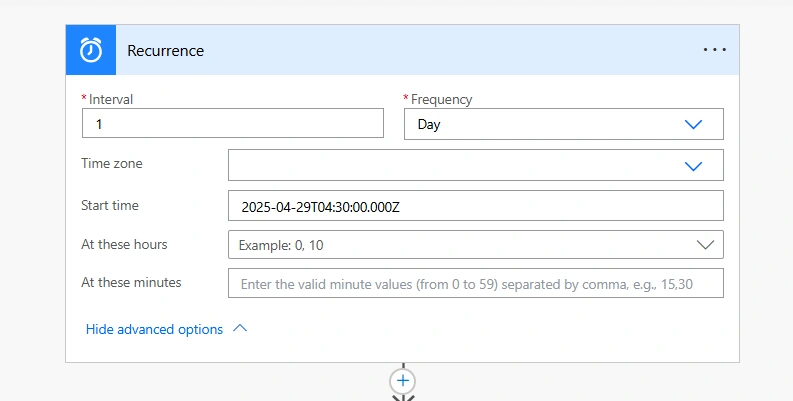
Action: Recurrence
Purpose: Defines how often the flow should check for suspended flows.
Configuration
Interval: 1
Frequency: Day
This ensures the flow runs once a day to scan for suspended flows.
Step 3: List Flows as Admin (V2)
Action: List Flows as Admin (V2)
Purpose: Fetch all flows from the selected environment.
Configuration
Environment: xyz (default)
Expand Suspension Info: Yes
Include Soft-Deleted Flows: No
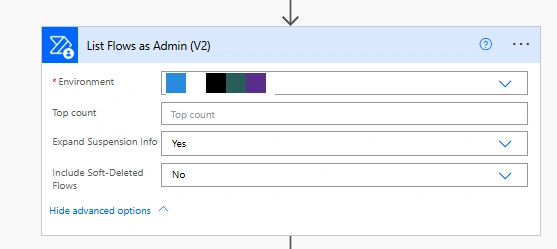
This action retrieves the list of flows with their statuses and suspension information for the specified environment.
Step 4: Filter Array
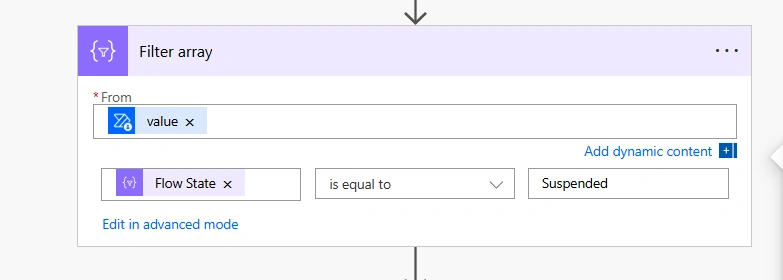
Action: Filter array
Purpose: Identify only the flows that are currently in a "Suspended" state.
Configuration
From: value (output from previous step)
Condition: item()['properties']['state'] is equal to Suspended
Filters the fetched list and isolates only the suspended flows.
The primary states of flows are as follows, each indicating a different health status for your automation
1. Started (Enabled) : This is the active state. The flow is running, listening for triggers (e.g., email arrival), or executing on a schedule.
2. Stopped (Disabled) : This state indicates that a user (owner or admin) has manually turned off the flow. The flow is inactive. No new runs are initiated.
3. Suspended (Auto-Disabled) : This state is a special type of "stopped" status where Microsoft automatically disables the flow, usually due to errors, policy violations, or inactivity.
| State | Who Controls? | Behavior | Cause |
|---|---|---|---|
| Started | User/System | Active | Normal Operation |
| Stopped | User/Admin | Inactive | Manual turn-off for maintenance |
| Suspended | System (Microsoft) | Inactive | Errors, Throttling, DLP Violation |
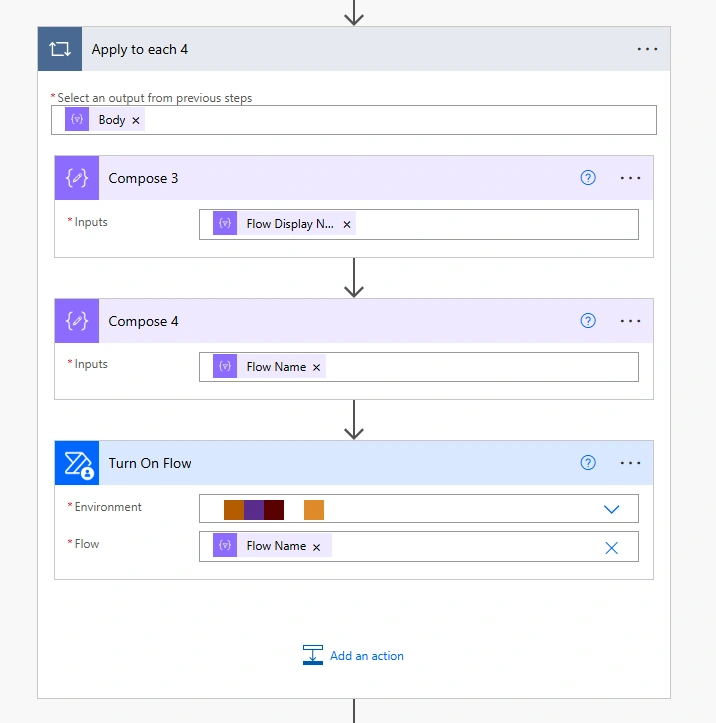
Step 5: Apply to Each
Action: Apply to each
Purpose: Iterate over each suspended flow to prepare for re-enablement.
Input: Output of the filtered array (Suspended flows).
Inside the loop:
Compose - Flow Display Name
Action: Compose
Purpose: Store and optionally log the display name of the flow.
Expression: items('Apply_to_each')?['properties']?['displayName']Compose - Flow Name
Action:Compose
Purpose: Get the internal name (GUID) of the flow needed to perform admin actions.
Expression:items('Apply_to_each')?['name']
3.Turn On Flow
Action: Turn On Flows
Configuration
Environment:
xyz (default)Flow: Value from Compose - Flow Name action.
Output Summary
Example
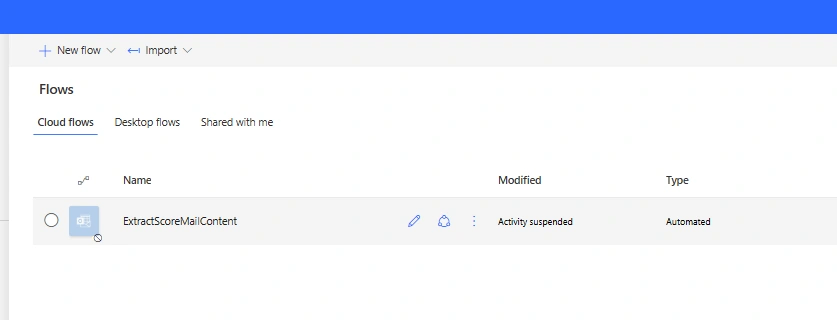
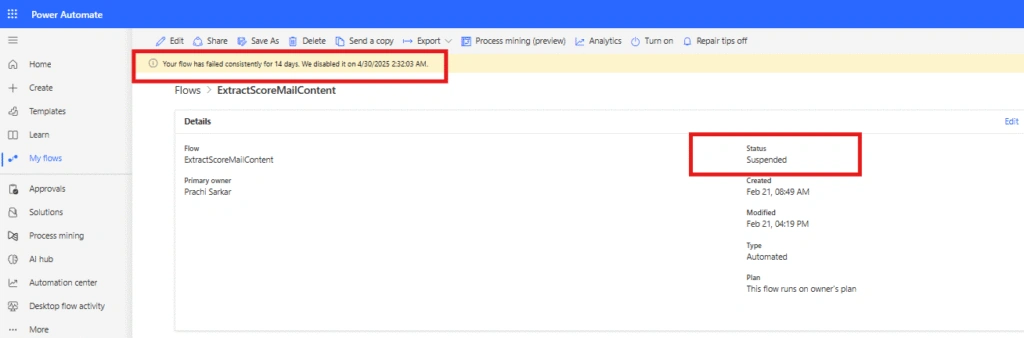
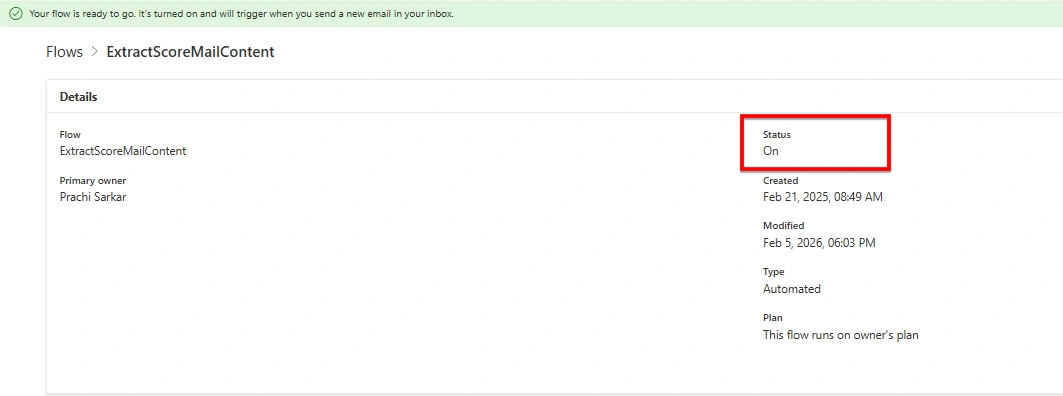
Before the flow run - one flow in my current environment was "Suspended".
After the flow runs:
All flows that were suspended are automatically turned back on.
This prevents interruptions due to inactivity-based auto-disablement.
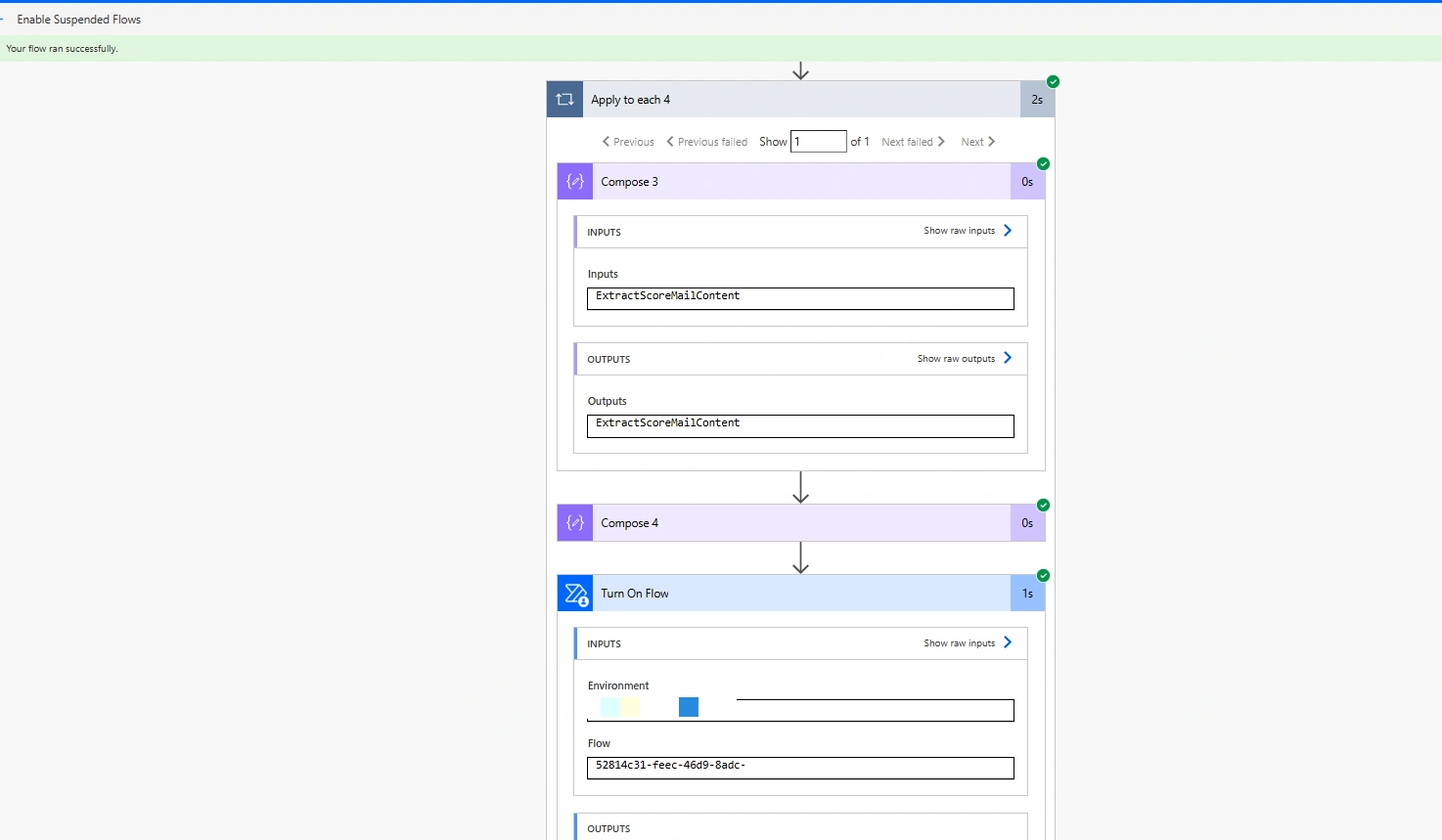
And Status for the flow is "On".
Conclusion
Using Power Automate to re-enable suspended flows helps keep low-frequency automations alive without manual checks. It’s an efficient way to ensure your automations stay reliable, especially for scheduled or rarely triggered workflows.
Join the conversation! Your thoughts help the community grow.