

Chartered Accountancy (CA) firms are constantly inundated with emails, attachments, and client documentation. Whether it’s invoices, bank statements, tax documents, or compliance reports, managing these files efficiently while maintaining audit readiness is critical.
To address this, we implemented an end-to-end automation solution using Microsoft Power Automate, Gmail, Google Sheets, and Google Drive with the objective of streamlining document management from the moment a client sends an email to when their documents are stored and logged properly.
Business Scenario
Let’s consider a typical workflow at a CA firm. Clients send compliance-related documents over email sometimes once a week, sometimes multiple times a day. These documents must be saved to the correct client folder and logged into a tracker sheet for future reference, audit readiness, and internal accountability.
Initially, one of our team members was manually downloading attachments and storing them in designated folders on Google Drive. Simultaneously, they maintained a spreadsheet recording the date, subject, and folder path of each document received. As volume grew, this process became error-prone and consumed nearly two hours daily. That’s when we decided to build an automated solution.
Technical Flow Overview
We built the automation using:
Trigger : Gmail (when a new email arrives)
Data Lookup : Google Sheet (Clients list with Email → Folder mapping)
Storage : Google Drive
Logging : Google Sheet (Receiving Log)
Logic & Workflow : Microsoft Power Automate
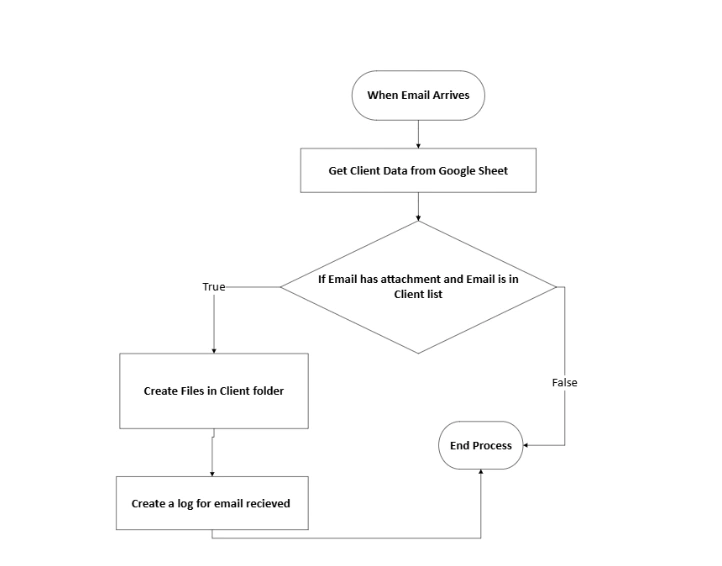
Step-by-Step Breakdown
Here is the Power Automate flow which we are going to discuss in this post:
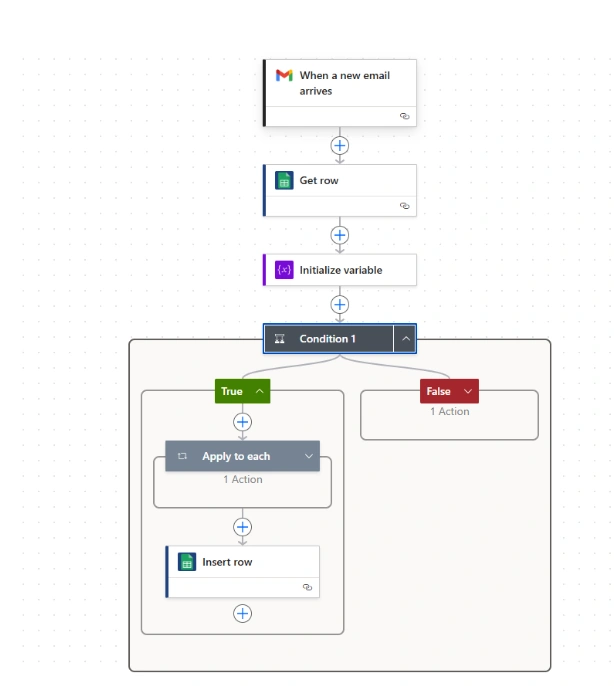
1. Trigger: New Email from Client
The Power Automate flow is triggered when a new email arrives in Gmail . This is filtered further to ensure it includes attachments.
2. Lookup Client Information
We query a Google Sheet titled Clients to determine
Who sent the email?
What is their designated storage folder path?
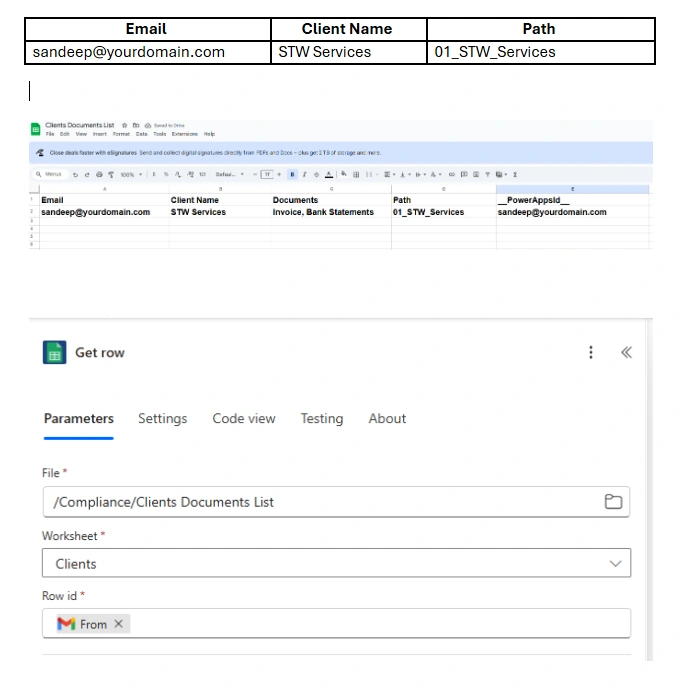
Row Id’ is value which you have in column ‘ PowerAppsId ’.
Put value ‘triggerOutputs()?['body/From']’
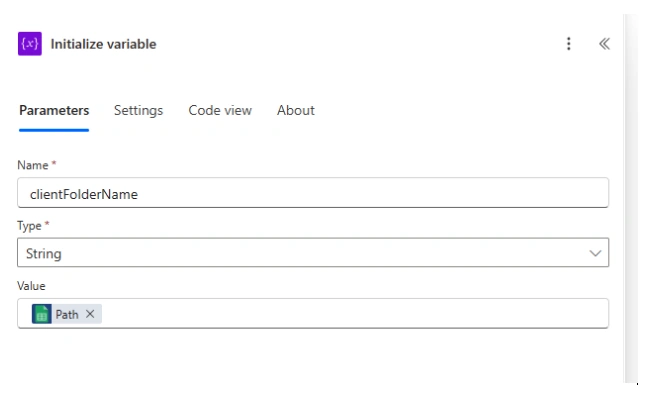
3. Set Folder Path Dynamically
We initialize a variable called clientFolderName with the value of the Path column. This is used in file creation later.
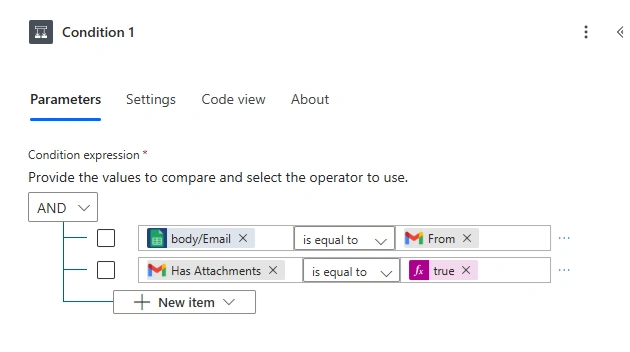
4. Condition: Validate Sender and Attachment
We ensure:
The email is from a known client (matched from Sheet).
It contains at least one attachment.
5. Store Files in Client Folder (Google Drive)
For each attachment:
File is stored inside the dynamic folder path.
Naming is retained from the original attachment.
Content is stored using the ContentBytes property.
concat('/Compliance/', variables('clientFolderName'))
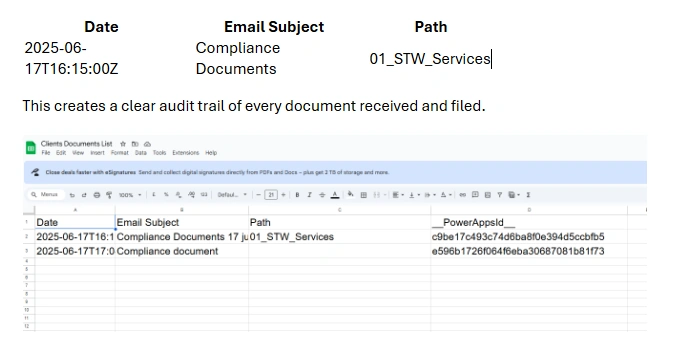
6. Log Entry in Receiving Log (Google Sheet)
We write a new row in another worksheet to maintain traceability.
Conclusion
For any compliance-heavy business like a CA firm, automation of document workflows ensures operational efficiency and security. With Power Automate and Google Workspace , even small firms can implement smart document handling without writing a single line of code.
Join the conversation! Your thoughts help the community grow.