

In modern reporting systems, dashboards are only valuable if the data behind them is up to date. Manually refreshing datasets is not practical in production environments. This is where Scheduled Refresh in Power BI becomes essential.
This article explains how scheduled refresh works, when to use it, configuration steps, limitations, and best practices.
What is Scheduled Refresh in Power BI?
Scheduled Refresh allows Power BI Service to automatically refresh your dataset at predefined intervals without manual intervention.
When enabled:
Power BI connects to your data source
Re-runs the queries defined in Power Query
Updates the dataset
Reflects new data in reports and dashboards
This ensures stakeholders always see updated insights.
Where Scheduled Refresh Works
Scheduled refresh is configured in:
Power BI Service (app.powerbi.com)
It does not run inside:
Power BI Desktop
Power BI Desktop is only used for development and publishing.
Types of Refresh in Power BI
Understanding refresh types is important before configuring schedules.
1. Import Mode Refresh
Data is loaded into Power BI storage.
Scheduled refresh is required.
Most common scenario.
2. DirectQuery
Data is not stored in Power BI.
Queries run live against the source.
No scheduled refresh needed (but caching may apply).
3. Live Connection
Connected to Analysis Services.
Refresh handled at source system.
Real-World Use Case Example
Imagine a Sales Dashboard:
Data comes from SQL Server.
Refresh scheduled at 8 AM daily.
Sales team logs in at 9 AM.
They always see updated numbers.
Without scheduled refresh, reports become outdated and unreliable.
How to Configure Scheduled Refresh
Step 1: Publish Report
From Power BI Desktop → Publish to Workspace.
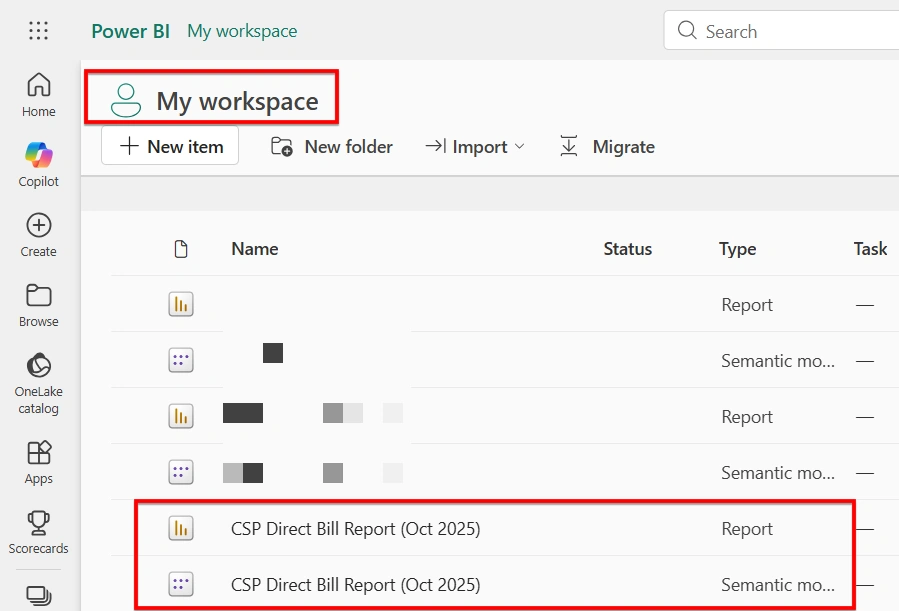
Step 2: Open Dataset Settings
In Power BI Service:
Go to Workspace
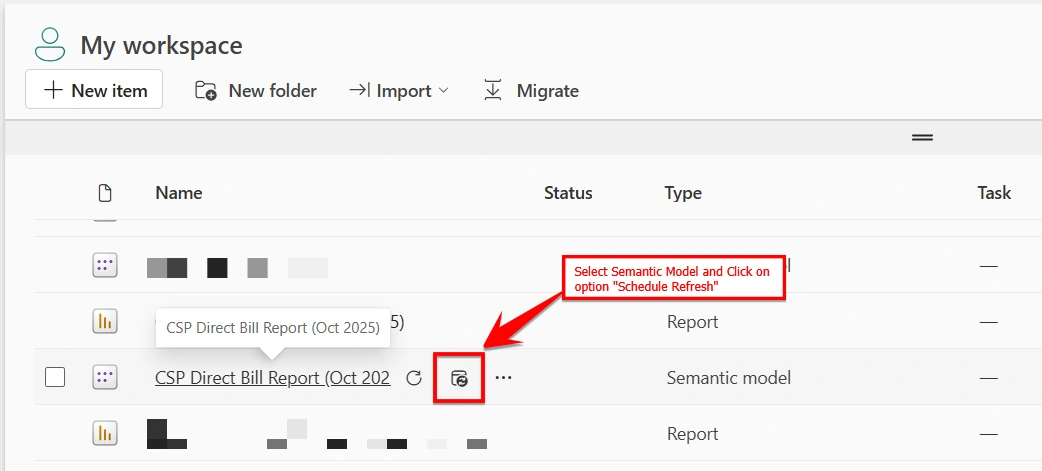
Select your Report Name with Type as : Semantic Model
Click the "Schedule Option"
OR
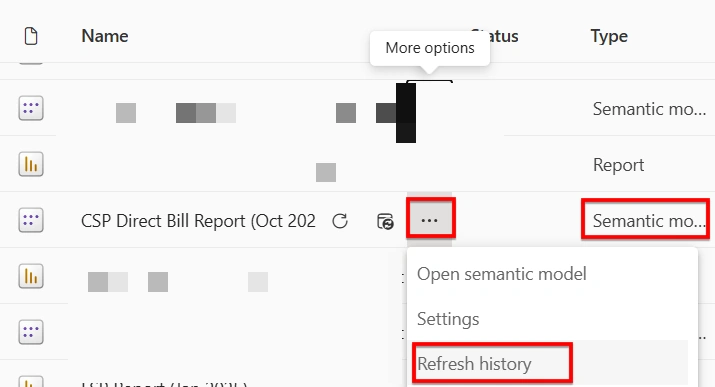
Click on Horizontal dots (...) and Open Settings
OR

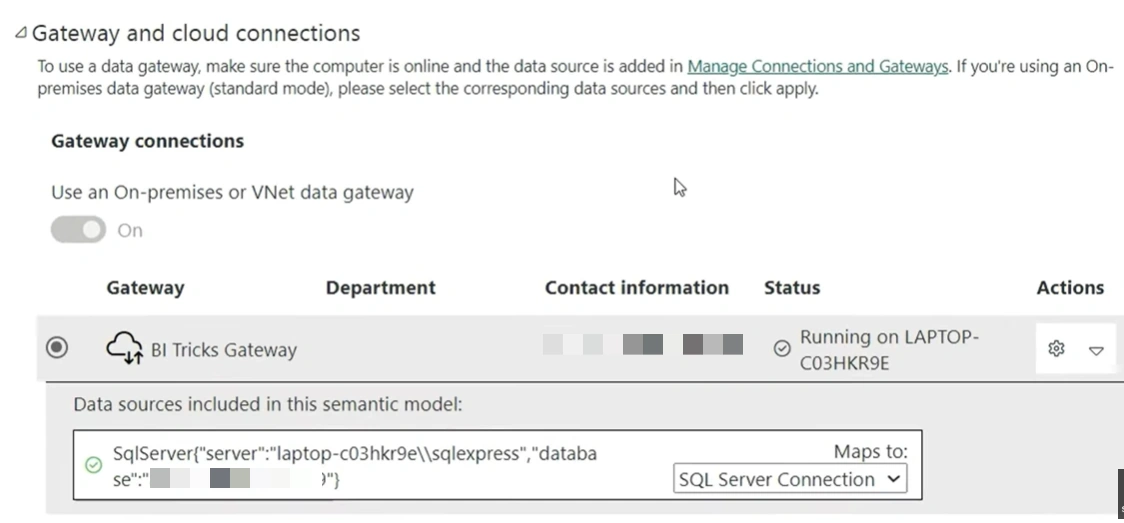
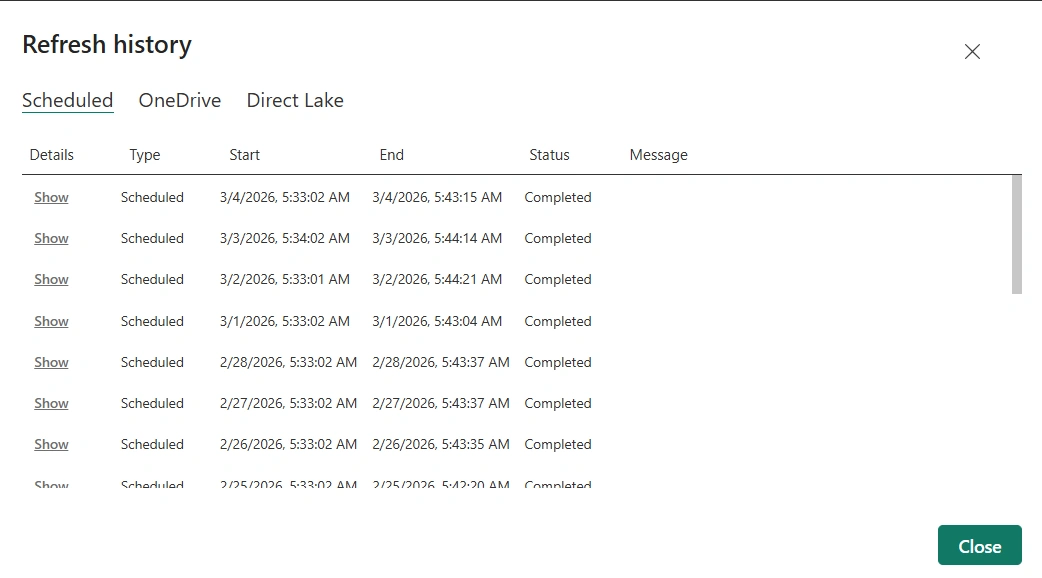
Settings would look like this:




Join the conversation! Your thoughts help the community grow.