

Introduction
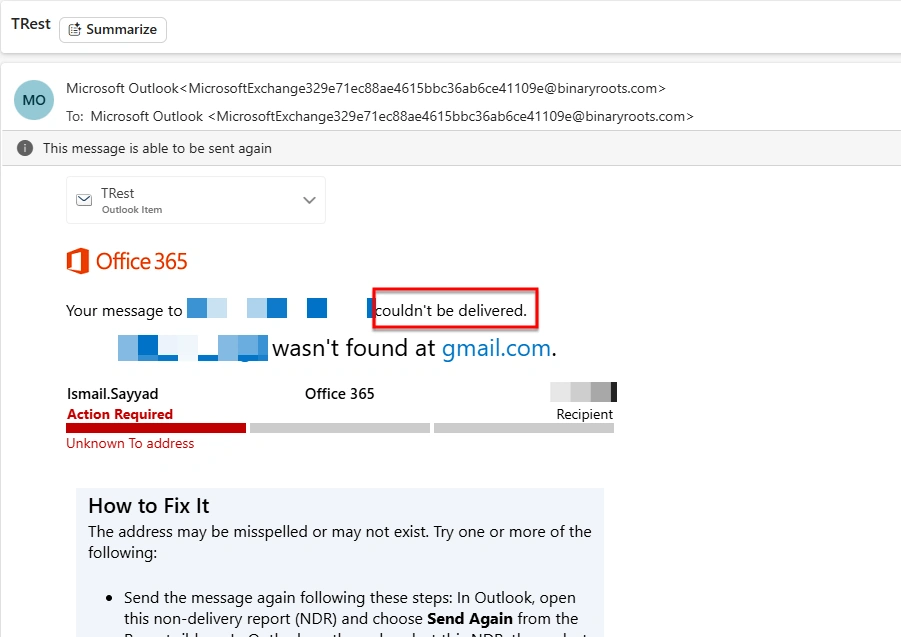
In many organizations, one service account is used to send automated emails from systems and workflows. When an email fails to deliver (for example, wrong email address, blocked domain, or mailbox not found), Microsoft 365 sends a failure email such as:
“Your message couldn’t be delivered…”
Most of the time, these failure emails are:
Not noticed
Checked manually
Not sent to the right team
As a result, issues are missed, actions are delayed, and some automated processes stop working properly.
By using Power Automate, we can create a simple monitoring flow that:
Monitors a mailbox
Identifies email delivery failure messages
Automatically sends them to the correct distribution group or support team
Avoids repeated forwarding loops
This helps teams quickly see email failures and fix problems before they impact business processes.
Use Case
A service account receives system-generated failure emails such as:
“Your message to [email protected] couldn’t be delivered…”
These emails indicate that an automated message failed to reach the intended recipient.
The requirement is to build a Power Automate flow that will:
Monitor the service account mailbox
Detect email delivery failure (NDR) messages
Automatically forward or notify the support team at: "[email protected]"
This ensures the responsible team is informed immediately and can take quick action to resolve the issue.
Solution Architecture
The Power Automate flow follows a simple and reliable logic:
Monitor the Inbox: The flow continuously watches the service account mailbox for new incoming emails.
Detect Delivery Failure Emails: It checks whether the email is a delivery failure message (for example, subject contains “Your message couldn’t be delivered”).
Prevent Auto-Reply Loops: The flow verifies that the email was not already sent or generated by the flow itself, to avoid repeated forwarding.
Forward to the Support Group: If the email is confirmed as a delivery failure, it is automatically forwarded to the distribution group.
Outlook Inbox
     ↓
Delivery Failure Check
     ↓
Loop Prevention Check
     ↓
Send Email Group
Step-by-Step Power Automate Configuration:
Step 1: Create the Flow
Go to Power Automate
→ Click Create
→ Select Automated cloud flowChoose the trigger:
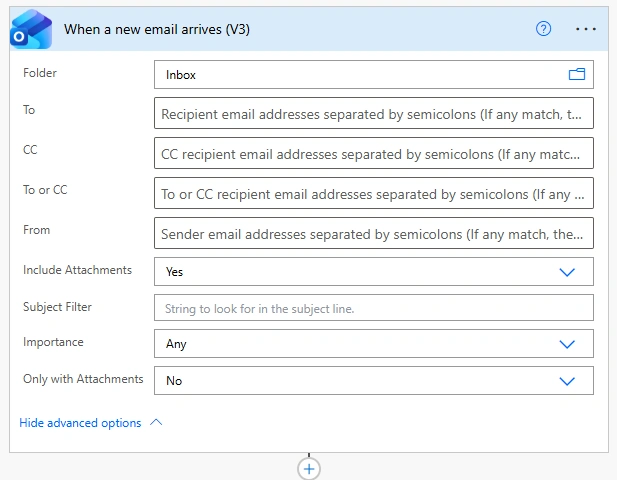
When a new email arrives (V3)Configure the trigger with the following settings:
Folder: Inbox
Include attachments: Yes
Importance: Any
This setup ensures the flow monitors all new emails that arrive in the service account’s inbox.
Step 2: Identify Delivery Failure Emails
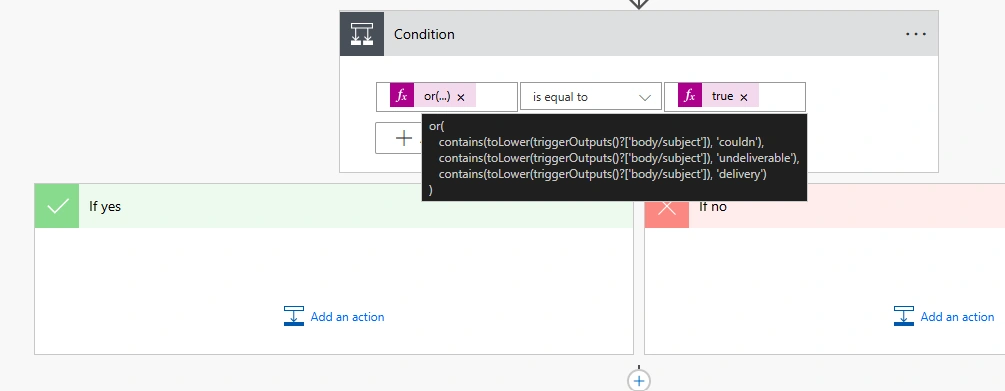
Add action: Condition
Click Expression and paste:
or(
   contains(toLower(triggerOutputs()?['body/subject']), 'couldn'),
   contains(toLower(triggerOutputs()?['body/subject']), 'undeliverable'),
   contains(toLower(triggerOutputs()?['body/subject']), 'delivery')
)
Set condition as:
Expression result → is equal to → true
This captures common Microsoft 365 failure subjects like:
couldn't be delivered
undeliverable
delivery has failed
Step 3: Prevent Infinite Loop (Critical)
When this flow sends or forwards an email, that email can return to the same mailbox.
If we do not block these emails, the flow may keep triggering itself again and again, creating an infinite loop.
To avoid this, we must add one more validation.
Action to add:
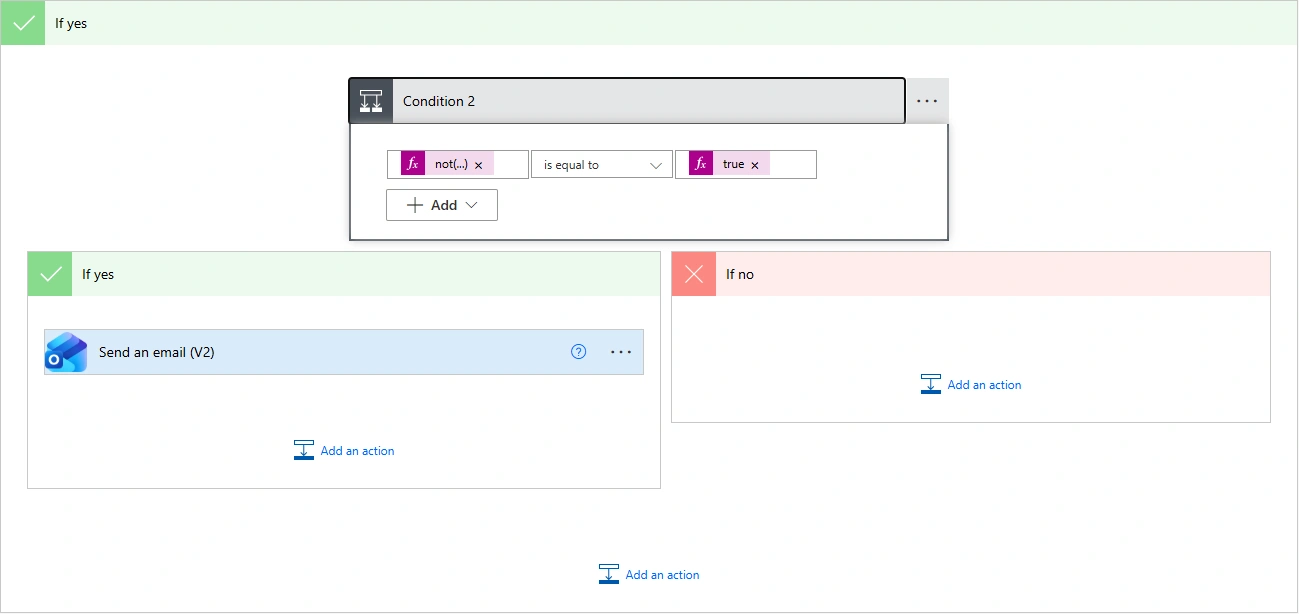
👉 Condition (inside the YES branch of the delivery failure check)
Purpose: Confirm that the email was not sent by the service account / flow itself.
not(contains(toLower(triggerOutputs()?['body/subject']), 'delivery failure alert'))
Condition:
is equal to
true
This blocks emails already processed by the flow.
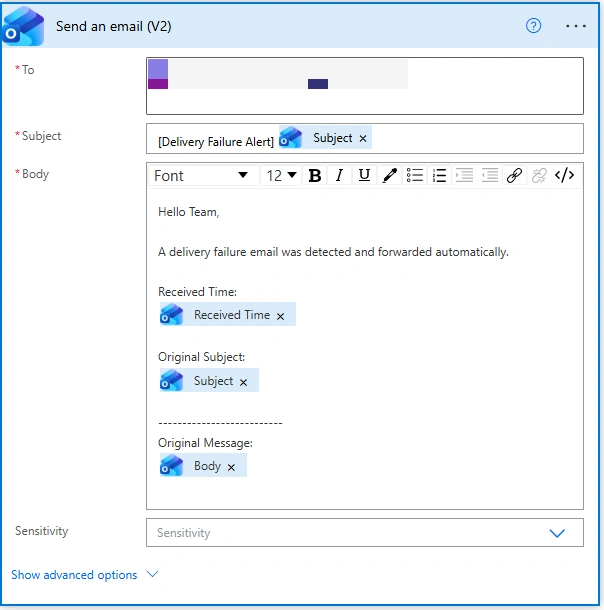
Step 4: Send Email to the Group
Inside: Condition 1 → YES → Condition 2 → YES
Add action: Send an email (V2)
Testing the Flow
Send an email to an invalid address
Example:[email protected]Wait for the failure email
Check Power Automate → Run history
Verify:
Condition 1 = True
Condition 2 = True
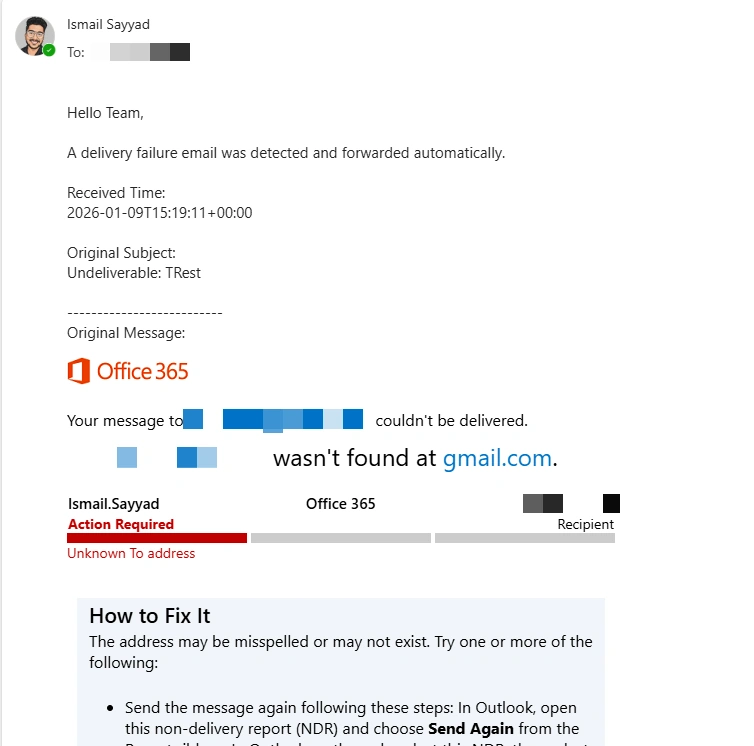
Email received by
[email protected]
Output:
Conclusion
Email delivery failures often go unnoticed, but they can silently block important business processes.
By using a simple Power Automate flow, organizations can create a centralized and automated system to monitor email failures. This ensures that issues are quickly identified, routed to the right team, and resolved on time.
This approach turns a normal mailbox into an active monitoring and alert system, improving system reliability, team accountability, and overall response time.
Join the conversation! Your thoughts help the community grow.