

Selenium + .NET is a good combination to create automated tests for web and desktop applications.
To create our first automation project for a web application, we only need to create a dotnet library using the following command (or using Visual Studio),
dotnet new classlib
After that, you must add a library for unit testing, you can use your favorite one. I suggest using xUnit because it is very simple and easy to implement. You can use the following command (or NuGet package manager in Visual Studio).
dotnet add package xunit
Then we need to add the Selenium library using the following command,
dotnet add package Selenium.WebDriver
Also, for web applications, you need to install a Chrome web driver. However, there are drivers for other browsers, but the chrome driver is always updated (it's recommended).
You can get it from this URL: ChromeDriver - WebDriver for Chrome (chromium.org)
And you need to install the Selenium Chrome web driver in your project using the following command,
dotnet add package Selenium.WebDriver.ChromeDriver
NOTE
ChromeDriver must be updated depending on the Chrome version. This is very important because the test is not going to start if you are using an old version. ChromeDriver version depends on the Chrome browser version.
At this point, you can start with your first test.
For this demo, we will perform a test over this Site - https://mango-flower-00e2aa010.azurestaticapps.net/
This is a simple React.js application where we can choose a color, the idea is to test if the div container is changing the background depending on the selected color.
To do this, we only need to create a chromedriver session, navigate to the site, and then using the FindElement method we can interact with the site.
using System;
using System.Collections.Generic;
using System.Linq;
using System.Threading.Tasks;
using Microsoft.Extensions.Configuration;
using OpenQA.Selenium;
using OpenQA.Selenium.Chrome;
using Xunit;

namespace dotnetseleniumdemo
{    public class ChangeColorTest
    {
        public IWebDriver driver;

        public readonly string site;

        public ChangeColorTest()
        {
            driver = new ChromeDriver();
            driver.Manage().Window.Maximize();
            site = "https://mango-flower-00e2aa010.azurestaticapps.net/";
        }

        [Fact]
        public void ChangeToBlueColor()
        {
            driver.Navigate().GoToUrl(site);
            System.Threading.Thread.Sleep(2000);
            var blueBox =  driver.FindElement(By.ClassName("color-blue"));
            blueBox.Click();
            System.Threading.Thread.Sleep(2000);
            var container =  driver.FindElement(By.ClassName("color-container"));

            Assert.Equal("color-container color-blue", container.GetAttribute("class"));
            driver.Close();
            driver.Quit();
            driver.Dispose();
        }
     }
}
In the example, we are using classname to get the element using the method FindElement(By.ClassName()) but you can get the element ById, XPath, and others.
The Sleeps methods are useful to see the process with some delays and review how selenium navigate in the browser,

Also, it is very important to use Asserts to check if we got the expected result. Remember, you are creating a test, and even the whole workflow works the result could be wrong.
In this case, we are using xUnit and Assert.Equal method to verify the value. The method GetAttribute("class") is returning the current CSS class of the div container and "color-container color-blue" is the expected result,
Assert.Equal("color-container color-blue", container.GetAttribute("class"));
This is another example for red color but this time using XPath to get the element,
[Fact]
public void ChangeToRedColor() {
    driver.Navigate().GoToUrl(site);
    System.Threading.Thread.Sleep(1000);
    var redBox = driver.FindElement(By.XPath("//*[@id=\"root\"]//button[3]"));
    redBox.Click();
    System.Threading.Thread.Sleep(1000);
    var container = driver.FindElement(By.ClassName("color-container"));
    Assert.Equal("color-container color-red", container.GetAttribute("class"));
    driver.Close();
    driver.Quit();
    driver.Dispose();
}
Check out the code.
NOTE
To execute the test update the chrome driver library to the last version.
Include="Selenium.WebDriver.ChromeDriver" Version="94.0.4606.81"
Azure DevOps
Now let’s execute our tests in Azure DevOps. Azure DevOps is an amazing DevOps suite that has functionalities and tools for the whole development process.
To deploy and execute automation tests automatically in Azure DevOps we need to use the pipelines module and release.
For this project, we must create a simple pipeline that includes the normal commands for .NET applications (restore, build, publish), and finally, we have to publish the artifact to use it in the next step.

YAML code
pool:
  name: Azure Pipelines

steps:
- task: DotNetCoreCLI@2
  displayName: Restore
  inputs:
    command: restore
    projects: '$(Parameters.RestoreBuildProjects)'

- task: DotNetCoreCLI@2
  displayName: Build
  inputs:
    projects: '$(Parameters.RestoreBuildProjects)'
    arguments: '--configuration $(BuildConfiguration)'

- task: DotNetCoreCLI@2
  displayName: Publish
  inputs:
    command: publish
    publishWebProjects: false
    projects: '$(Parameters.RestoreBuildProjects)'
    arguments: '--configuration $(BuildConfiguration) --output $(build.artifactstagingdirectory)'
    zipAfterPublish: false
    modifyOutputPath: false

- task: PublishBuildArtifacts@1
  displayName: 'Publish Artifact'
  inputs:
    PathtoPublish: '$(build.artifactstagingdirectory)'
  condition: succeededOrFailed()
Then, navigate to the release section and create a new release,
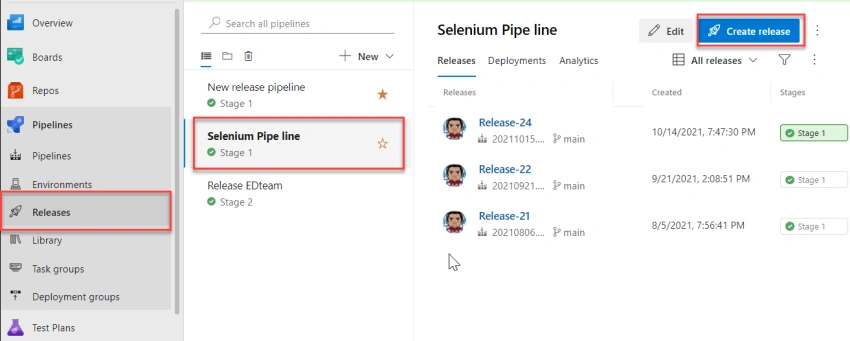
Our new release has to choose the artifact to create by the pipeline, and then execute it in the release pipeline,
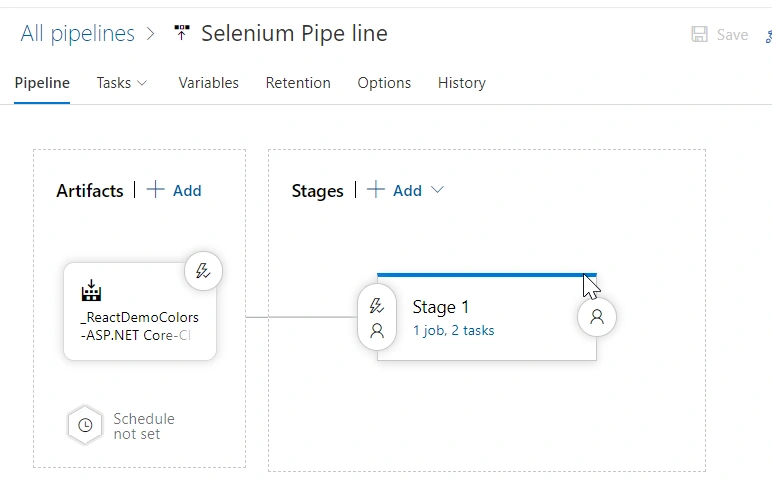
Stage 1 is going to take the artifact and execute the tests using "dotnet test" command but first, we need to install in the agent ChromeDriver because it's not installed by default and we need to choose the version that we want to use.
On the following page, you can find all the versions available and select the zip file to install in the Agent.
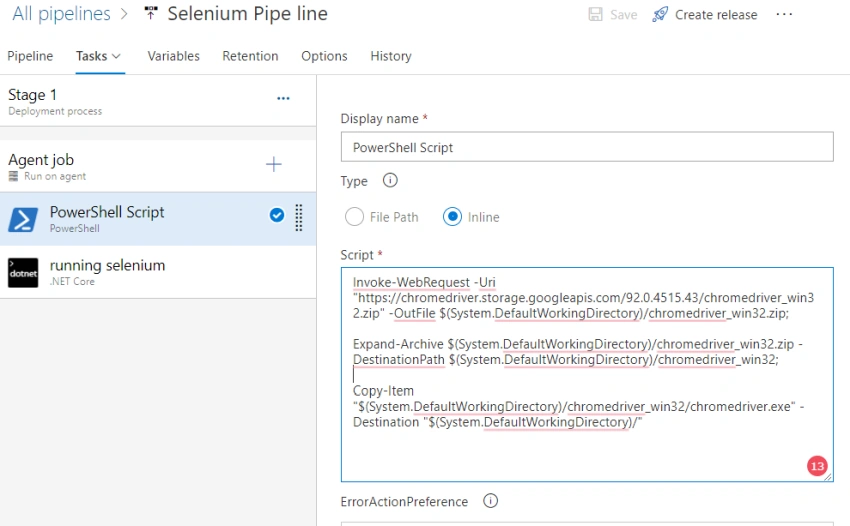
This PowerShell script is incharge of getting ChromeDriver and install it in the Agent,
Invoke-WebRequest -Uri "https://chromedriver.storage.googleapis.com/92.0.4515.43/chromedriver_win32.zip" -OutFile $(System.DefaultWorkingDirectory)/chromedriver_win32.zip;
Expand-Archive $(System.DefaultWorkingDirectory)/chromedriver_win32.zip -DestinationPath $(System.DefaultWorkingDirectory)/chromedriver_win32;
Copy-Item "$(System.DefaultWorkingDirectory)/chromedriver_win32/chromedriver.exe" -Destination "$(System.DefaultWorkingDirectory)/"
YAML file
steps:
- powershell: |
   Invoke-WebRequest -Uri "https://chromedriver.storage.googleapis.com/92.0.4515.43/chromedriver_win32.zip" -OutFile $(System.DefaultWorkingDirectory)/chromedriver_win32.zip;
   Expand-Archive $(System.DefaultWorkingDirectory)/chromedriver_win32.zip -DestinationPath $(System.DefaultWorkingDirectory)/chromedriver_win32;
   Copy-Item "$(System.DefaultWorkingDirectory)/chromedriver_win32/chromedriver.exe" -Destination "$(System.DefaultWorkingDirectory)/"
  displayName: 'PowerShell Script'
And then, in the next step, we need to execute the tests using the dotnet CLI,
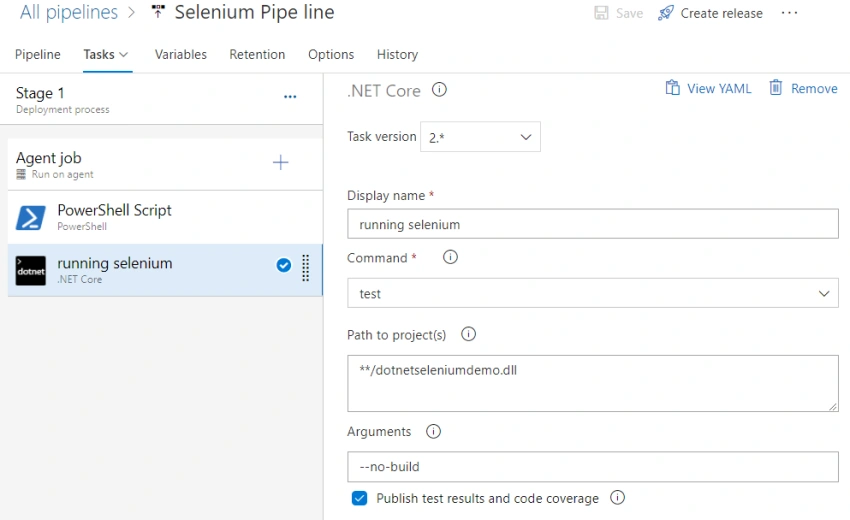
YAML file
steps:
- task: DotNetCoreCLI@2
  displayName: 'running selenium'
  inputs:
    command: test
    projects: '**/dotnetseleniumdemo.dll'
    arguments: '--no-build'
    workingDirectory: '$(System.DefaultWorkingDirectory)/_ReactDemoColors-ASP.NET Core-CI/drop'
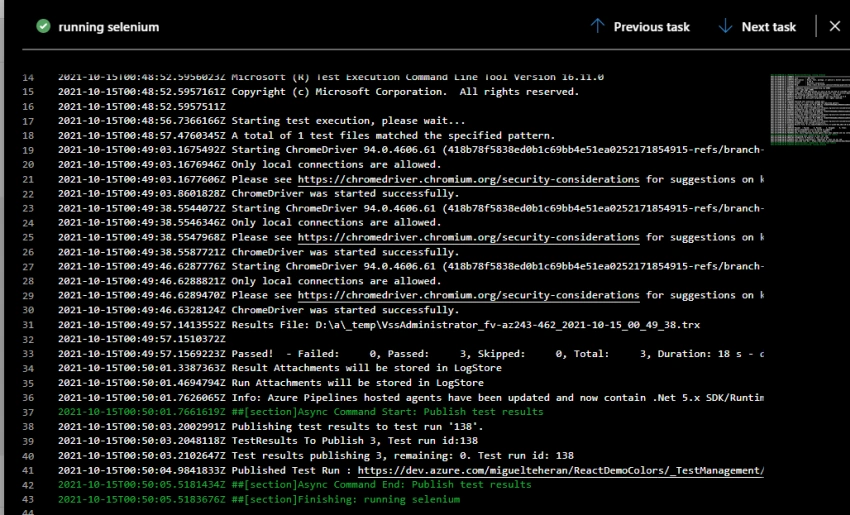
Following these steps, we will have our tests running in Azure DevOps and then we get the results checking the logs,
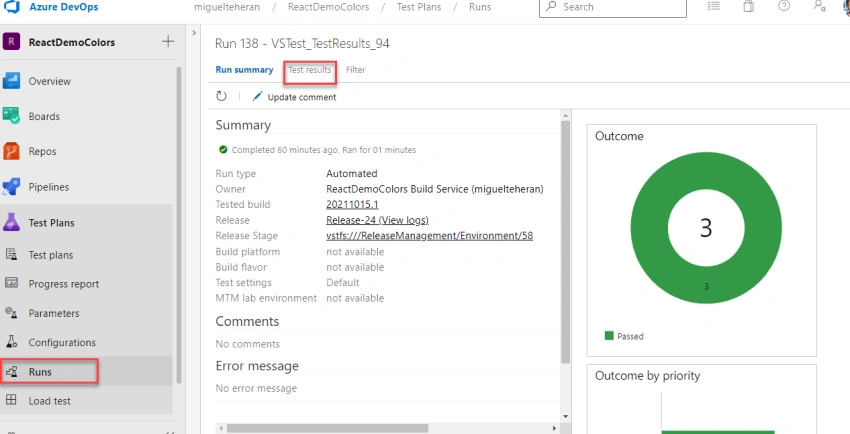
Finally, if you have tests sections available, you can go to the "runs" section and see the results with more details,
Robert KaiPosted Mar 3, 2022, 5:20 AM
Miguel Teheran! Wonderful article! It aids in understanding the approaches of Selenium + .NET as one of the best combinations to create automated tests for web and desktop applications. I agree that We need to use the pipelines module and release in Azure DevOps to deploy and execute automation tests automatically. What’s daunting is setting up the pipelines for Selenium automation testing is more challenging than setting up other CI/CD systems. This article provides insights on how to perform the daunting task effortlessly and is explained simply with images for a better understanding. I would like to share a few more articles that would make a difference to the topic. https://bit.ly/3ID9Wty