

In today's digital-first world, reliable and scalable email communication is crucial for businesses whether for marketing campaigns, transactional notifications, or internal communications. Azure Communication Services (ACS) offers a powerful, cloud-native solution for securely and efficiently sending bulk emails. This article walks you through setting up ACS for email, integrating custom domains, and automating email delivery using enterprise applications.
Why Azure Communication Services for Email?
Azure Communication Services provides a unified platform for voice, video, chat, SMS, and email. For email, ACS offers:
High deliverability with built-in SPF, DKIM, and DMARC support
Scalability to handle millions of emails per day
Security with Azure’s enterprise-grade compliance and encryption
Cost-effectiveness with pay-as-you-go pricing
Seamless integration with Azure Active Directory and other Microsoft services
Step-by-Step: Setting Up Azure Communication Services for Email
1. Register a Domain
Before you begin, ensure you own a domain (e.g., yourcompany.com) that you’ll use for sending emails. This domain will be verified in Azure to prevent spoofing.
2. Understand SMTP Ports
ACS supports SMTP over port 587 (recommended) or port 25. Port 587 uses TLS encryption, making it more secure for email transmission.
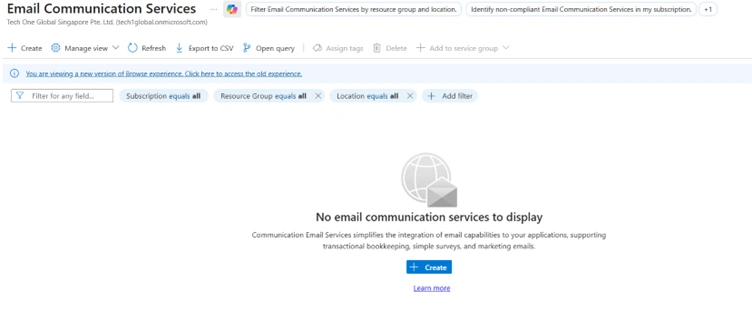
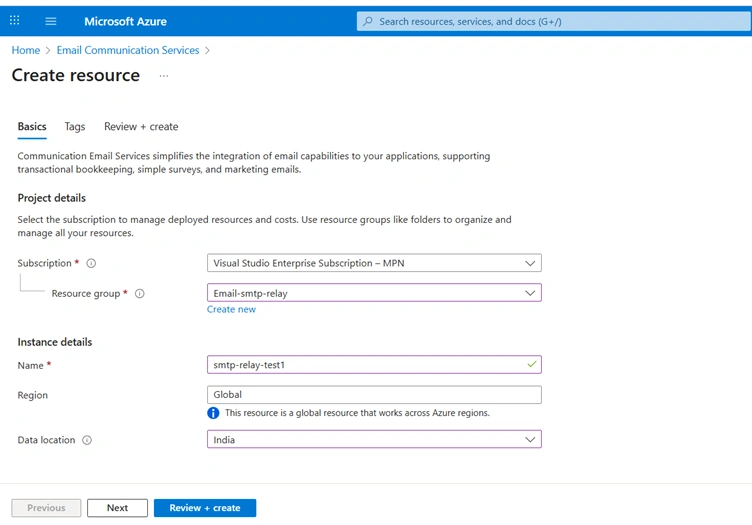
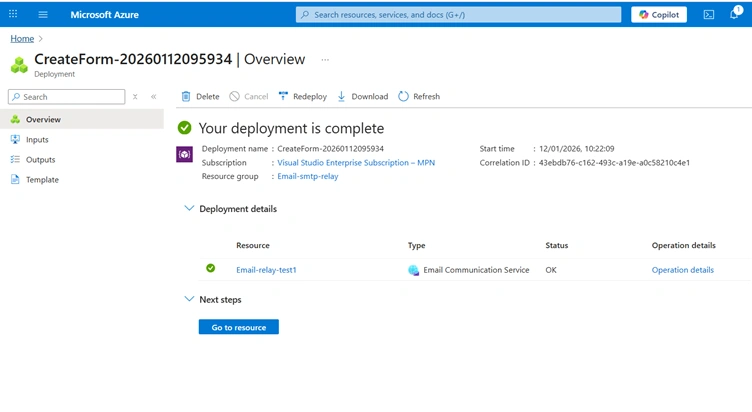
3. Create an Email Communication Service Resource
Navigate to the Azure Portal → Email Communication Service and create a new resource. This service will manage your email domain and sending configurations.
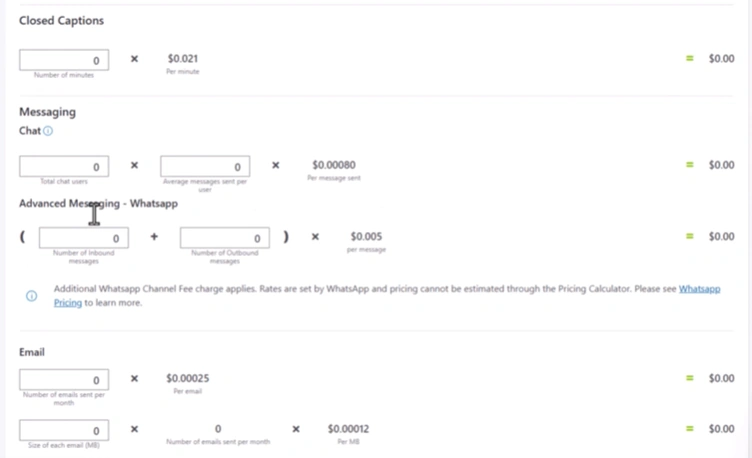
📌 Tip: Use the Azure Pricing Calculator to estimate costs based on your expected email volume. Bulk email pricing is competitive and scales with usage.
4. Add and Verify Your Custom Domain
Under Set up a custom domain, add your registered domain. Azure will require you to add TXT, SPF, and DKIM records to your DNS provider to verify ownership and authenticate your emails. This step is critical for ensuring your emails don’t land in spam folders.
Goto newly added resource → Provision Domains


5. Create a Communication Services Resource
Once your domain is verified, create a Communication Services resource. This will act as your email sending hub.
Go to the Resource & Go to Email


Then assign created resources.

6. Assign Resources and Configure Access
Link your Email Communication Service to the Communication Services resource. Then, go to Access Control (IAM) and assign the Communication & Email Service Owner role to your enterprise application.
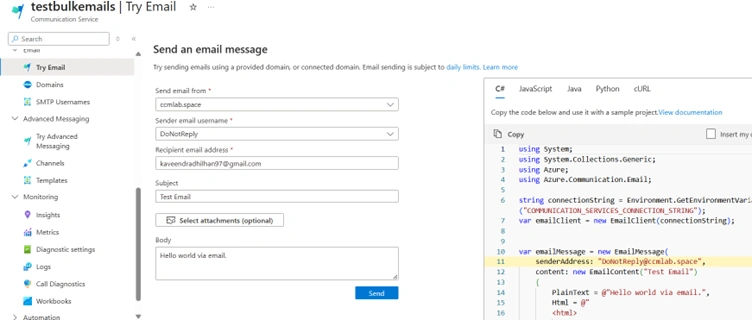
7. Test
Sending Bulk Emails via Enterprise Applications
For automated, large-scale email campaigns, integrating ACS with an Enterprise Application in Azure AD is the recommended approach.
How to Set Up:
Register an Enterprise App in Azure Active Directory.
Generate a Client Secret (or use a certificate) for secure authentication.
Assign the app the necessary permissions in your Communication Services resource via IAM.

4. Use the app’s Tenant ID, Client ID, and Secret in your sending scripts or applications.
Example: Sending Email via PowerShell with App Credentials
powershell
# Define parameters
$smtpServer = "smtp.azurecomm.net"
$smtpPort = 587
$smtpUsername = "your-service-username"
$smtpPassword = "your-app-secret"
$from = "[email protected]"
$to = "[email protected]"
$subject = "Bulk Email via ACS"
$body = "This email is sent securely via Azure Communication Services."

# Create secure credentials
$securePassword = ConvertTo-SecureString $smtpPassword -AsPlainText -Force
$credential = New-Object System.Management.Automation.PSCredential($smtpUsername, $securePassword)

# Send email
Send-MailMessage -From $from -To $to -Subject $subject -Body $body -SmtpServer $smtpServer -Port $smtpPort -UseSSL -Credential $credential
Benefits of Using an Enterprise App:
Secure authentication without exposing user credentials
Centralized management of email sending permissions
Auditability through Azure AD logs
Scalability for high-volume sending
Testing Your Setup
Before going live, use the Test Service feature in the Azure portal to send a trial email. Verify that:
Emails are delivered successfully
Headers (SPF, DKIM) are correctly signed
The sender domain appears as trusted
Change Sender Address
By default you cannot change the sender from address in GUI. You need to change from CLI with below command.
az communication email domain sender-username create --domain-name ccmlab.space --email-service-name Email-relay-test1 (Email Communication Service Name) -g Email-smtp-relay (Email Communication Resource Group) --sender-username support --username support --display-name support
You can get the Email Communication Service name & Resource group from Email Communication Services Domain

Limitations
By default Email send number is 30 per minute.
By default Email size is 10mb
You can make a request to Microsoft to increase these limits referring below.
Quota increase for email domains - An Azure Communication Services concept document | Microsoft Lea…
Service limits for Azure Communication Services - An Azure Communication Services article | Microso…
Best Practices for Bulk Email with ACS
Warm up your domain by gradually increasing sending volume.
Monitor deliverability metrics using Azure Metrics and external tools like Microsoft 365 Advanced Delivery.
Segment your audience to improve engagement and reduce spam complaints.
Implement bounce handling to manage invalid emails automatically.
Conclusion
Azure Communication Services provides a reliable, secure, and scalable foundation for enterprise bulk email needs. By integrating custom domains, leveraging enterprise applications for authentication, and following email best practices, organizations can ensure high deliverability and maintain trust with their audiences.
Whether you’re sending transactional emails, newsletters, or system notifications, ACS equips you with the tools to communicate effectively at scale all within the trusted Azure ecosystem.
Join the conversation! Your thoughts help the community grow.