

In this article, we’ll learn about Azure Data Lake. In my previous article, we’ve discussed about various tools Azure provides for Data Warehousing – Azure Synapse Analytics. Azure Data Lake is a part of it. We’ll dive deep into Azure Data Lake, detail some differences in Azure Data Lake Storage Gen1 and Gen2, learn about the files system supported in Azure Data Lake Gen1 and Gen2 and finally go through a step-by-step tutorial to create both Azure Data Lake Gen1 and Gen2.
Before we dive into Azure Data Lake, let us understand what Data Lake actually is.
Data Lake
Data Lakes are often used by Data Scientists. Synonymous to its name, Data Lake can be understood just like a repository that is mainly used for the storage of a huge amount of raw structured and unstructured data for its possible usage at some point in time. Unlike Data Warehouses that stores data in files, the data lake stores data in a flat architecture.
Azure Data Lake
Azure Data Lake Storage is Microsoft’s way to provide storage for Data Lake. Also known as ADLS, it is designed to run a massive-scale analytic system that requires humongous capabilities of computing in order to analyze and process large amounts of data. Azure Data Lake Storage is an elastic, scalable secure file system that supports the HDFS semantics and is used with Apache Hadoop Ecosystem.
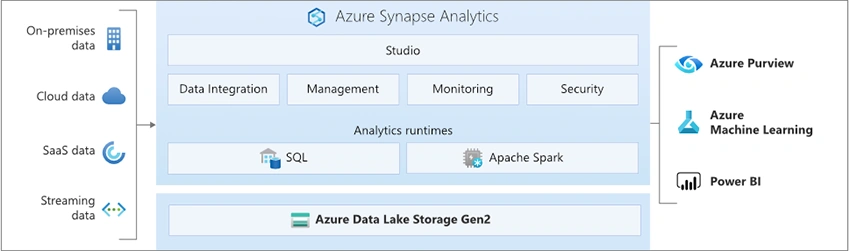
With Azure Data Lake, files of petabytes sizes with billions and trillions of objects can be analyzed and stored. We can easily optimize and debug the big data programs we work on in an extremely convenient manner. Moreover, we can just start the Data Lake in seconds and it can be scaled instantly as it is all based in cloud itself. Besides, we can develop huge parallel programs simply and obtain enterprise-grade security with auditing and supporting features with the Azure Data Lake. Azure Data Lake has been built on YARN and been designed specifically for the cloud itself, thus making it function extremely well in cloud for Big Data storage and analysis works.
How to Create Azure Data Lake Storage Gen1
Step 1
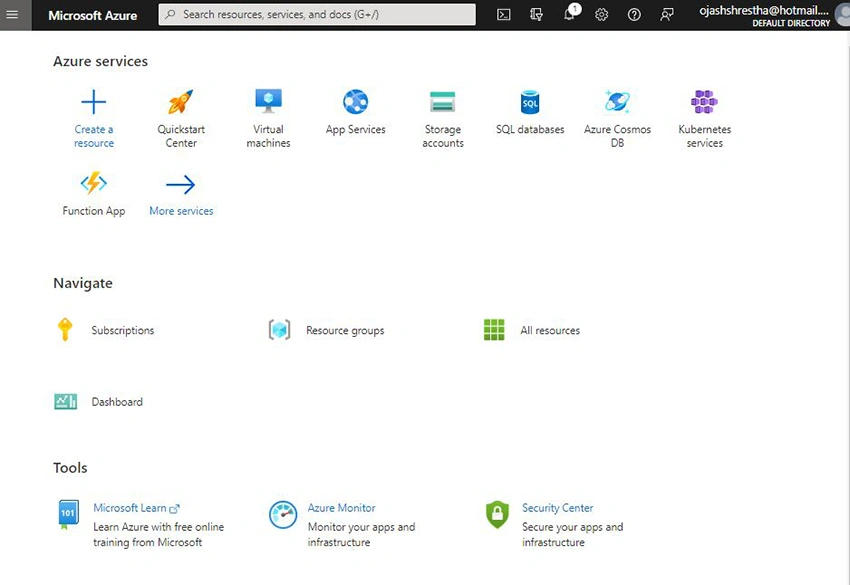
Visit the Azure Portal. You’ll be welcomed to the home page as you sign in.
Step 2
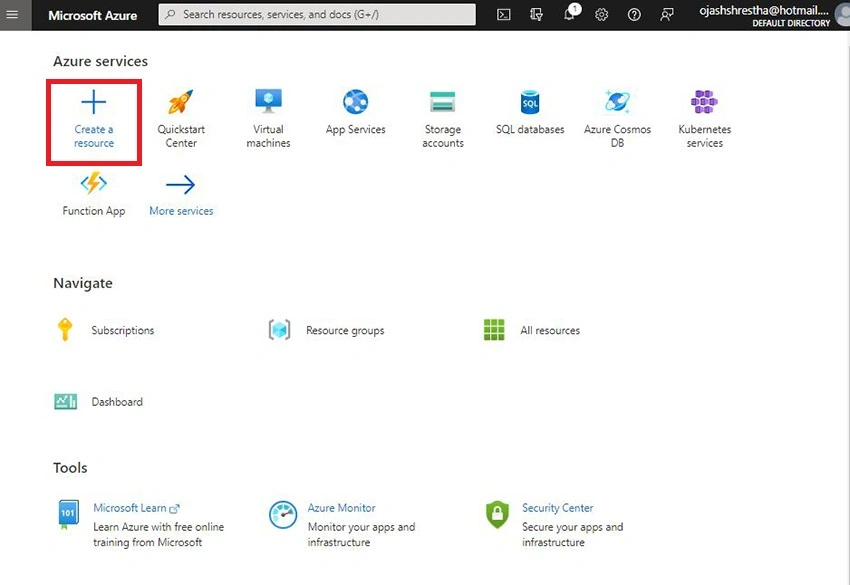
Click on Create a Resource
Step 3
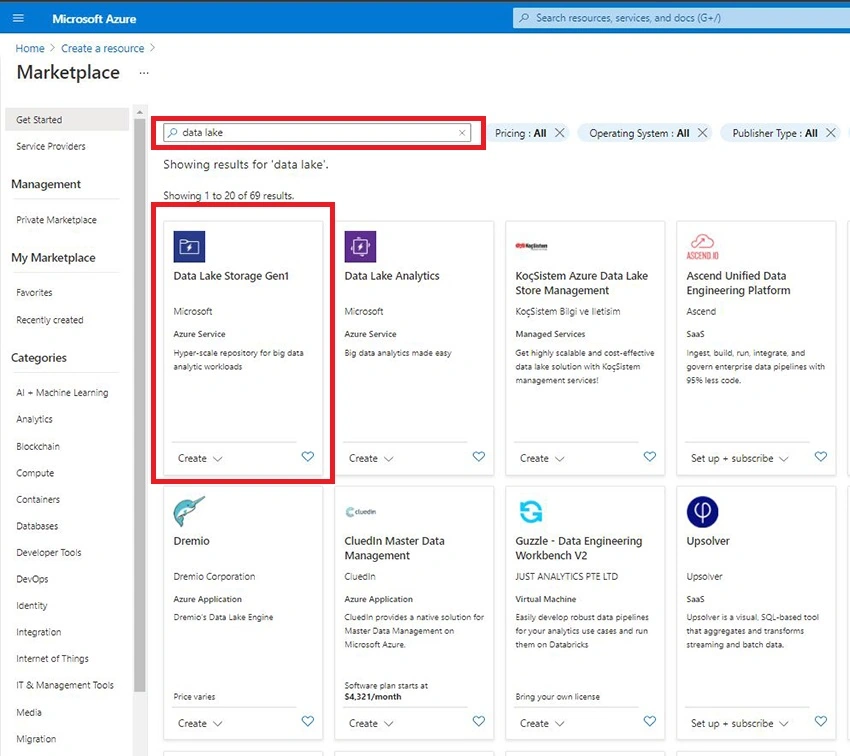
Search for Data Lake. You can see the Data Lake Storage Gen1. Click on that.
Step 4
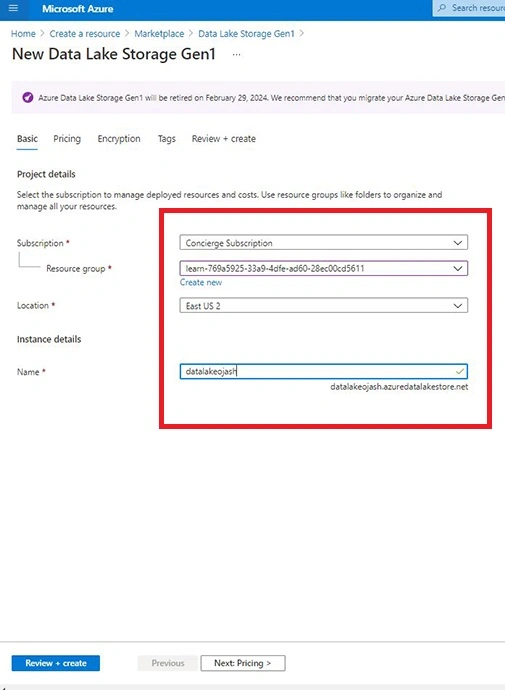
Now, fill up the details for your Subscription, Resource Group, Location and name for the Instance.
Step 5
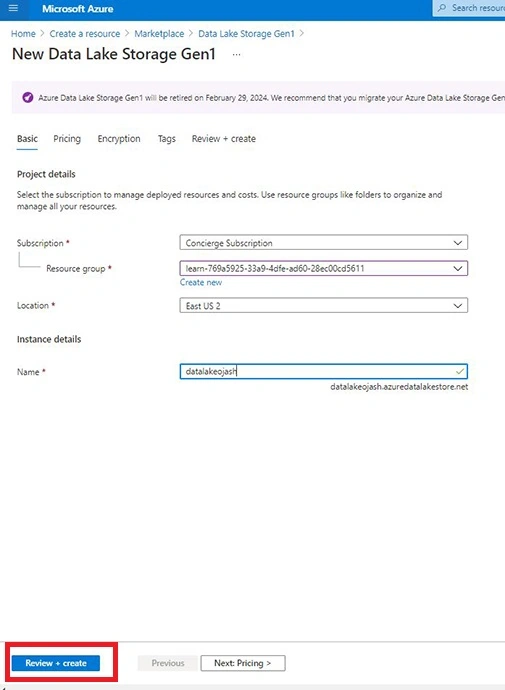
Click on Review + Create
Step 6
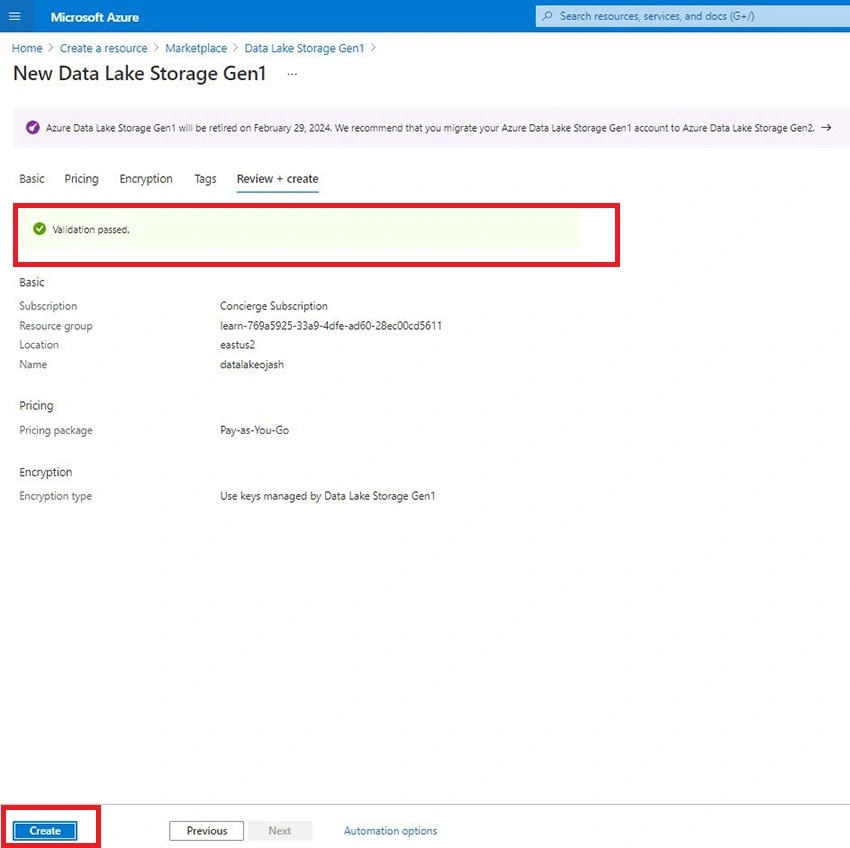
Azure will now validate and once done notify will the Validation Passed.
Finally, you can click on Create. This will now create the new Data Lake Storage Gen1 in your Azure.
Azure Data Lake Storage Gen1 is scheduled to deprecate on 29th Feb, 2024. This would require us to migrate the Azure Data Lake Storage Gen1 account and all its data to the new Azure Data Lake Storage Gen2. Let us first learn to create the Azure Data Lake Storage Gen2.
Azure Data Lake Storage Gen2
Azure Data Lake Storage Gen2 has been built into Azure Blob Storage to provide different sets of capabilities to enable big data analytics. Using object storage paradigms or file system we can interface with our data.
Azure Data Lake in Gen2 supports numerous source type formats. They are listed as follows.
- Excel format.
- JSON format.
- XML format.
- Binary format.
- Delimited text format.
- Avro format.
- ORC format.
- Parquet format.
Differences between Azure Data Lake Gen1 and Data Lake Gen2.
|
Azure Data Lake Gen1 |
Azure Data Lake Gen2 |
|
In Azure Data Lake Gen1, the data is distributed across blocks where storage is done in a hierarchical file system as Gen1 is primarily as file system storage. |
Azure Data Lake Gen2 provides files system storage for both object storage focused for scalability as well as system storage for security and performance. |
|
Redundancy storage support is not provided. |
It provided Redundant storage functionality. |
|
It doesn’t support Hot and Cold Storage tier. |
Both Hot and Cold Storage tier is enabled. |
How to Create Azure Data Lake Storage Gen2?
Unlike, Azure Data Lake Storage Gen1, we cannot create the Storage Gen2 account directly from resource itself. Currently, there are basically two methods to do this. First one through the Azure Data Factory and the other through the Azure Synapse.
Step 1
Firstly, we need to create Azure Data Factory initially. So, from the home page, click on Create a Resource.
Step 2
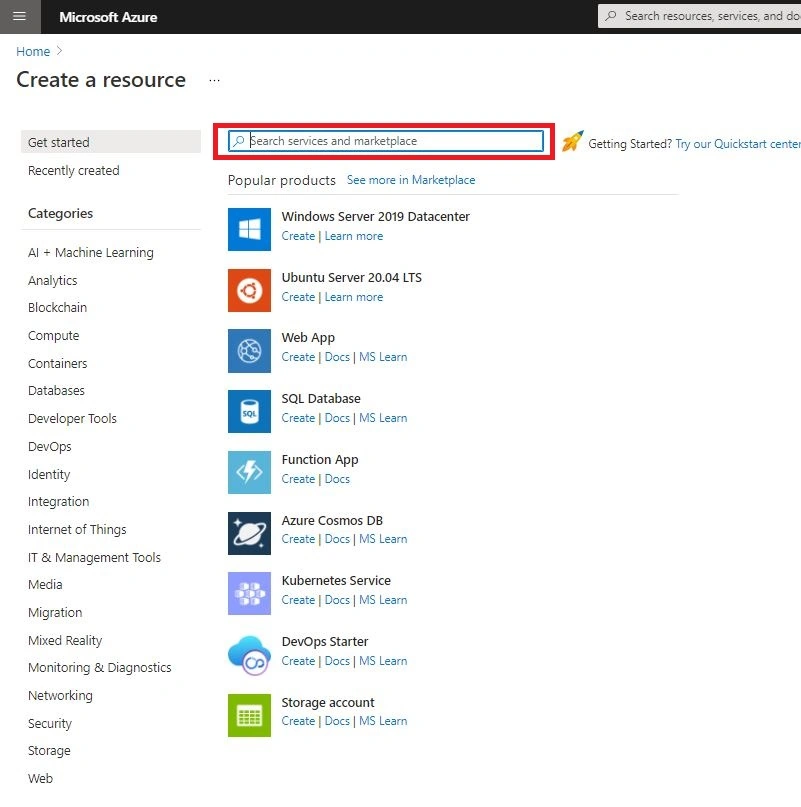
Search for Azure Data Factory
Step 3
Click on Data Factory
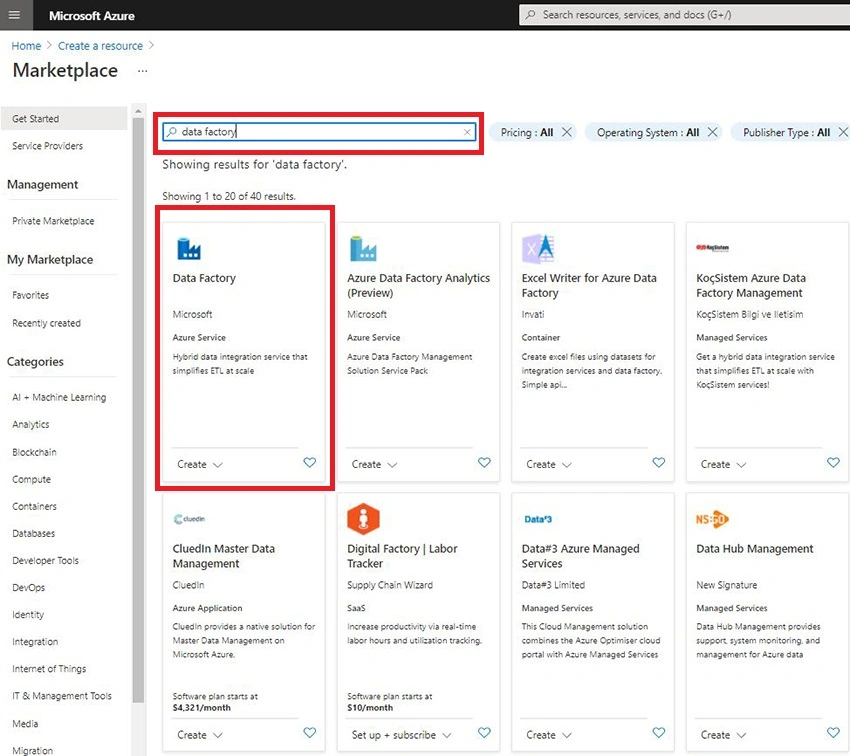
Step 4
Now, Click on Create
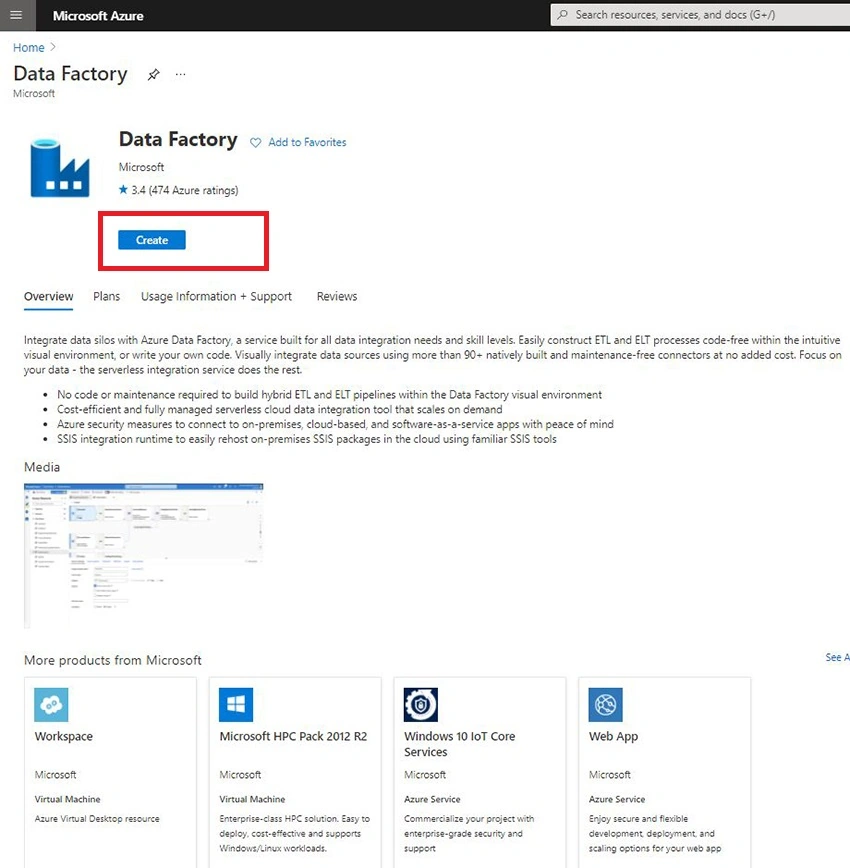
Step 5
Fill up the details for the Project with your Subscription, Resource Group and Instance Details. Select V2 for the Version
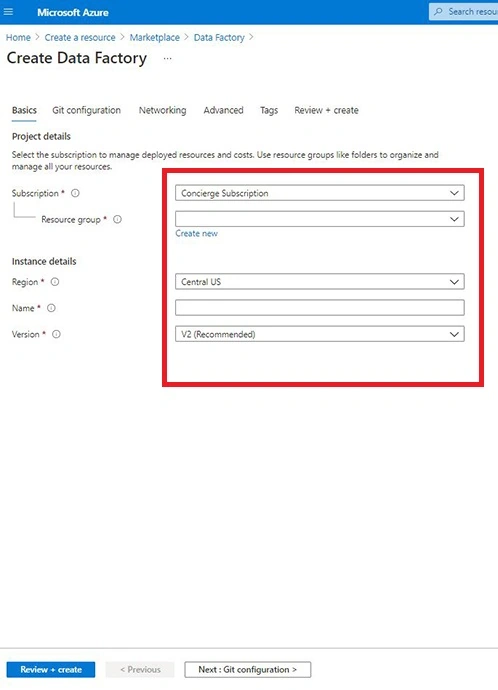
Step 6
Click on Review + Create. Once Validation is passed, Click on Create.
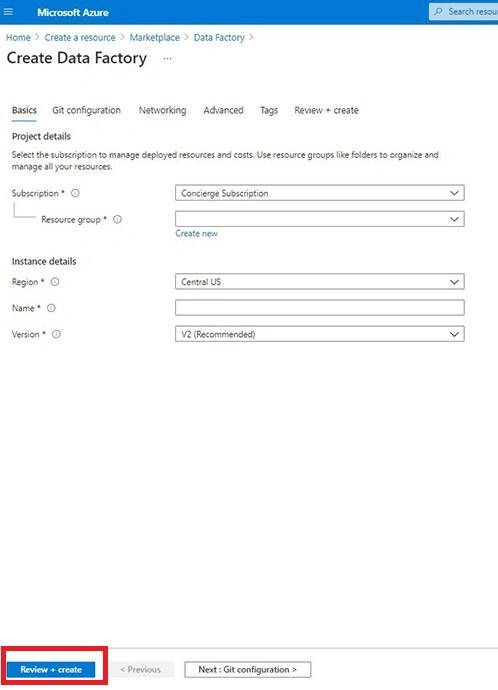
Step 7
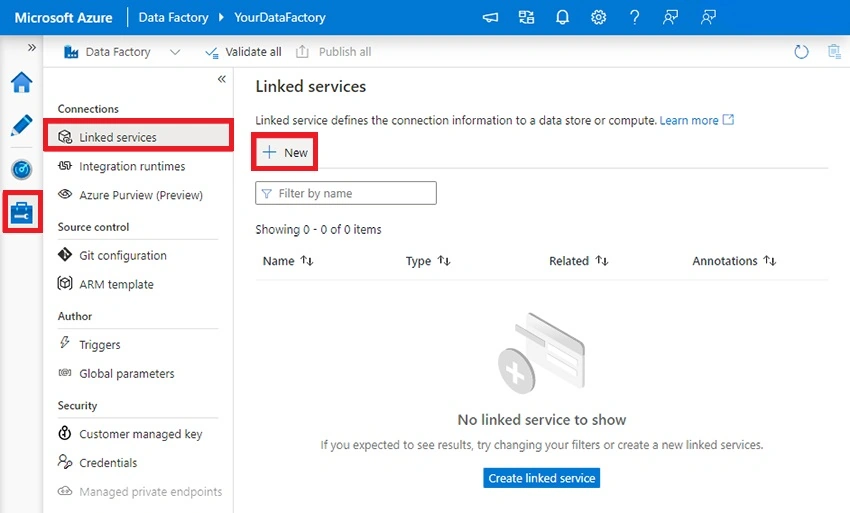
Now, Visit the Azure Data Factory Resource. Click on Linked Services and Select New.
Step 8
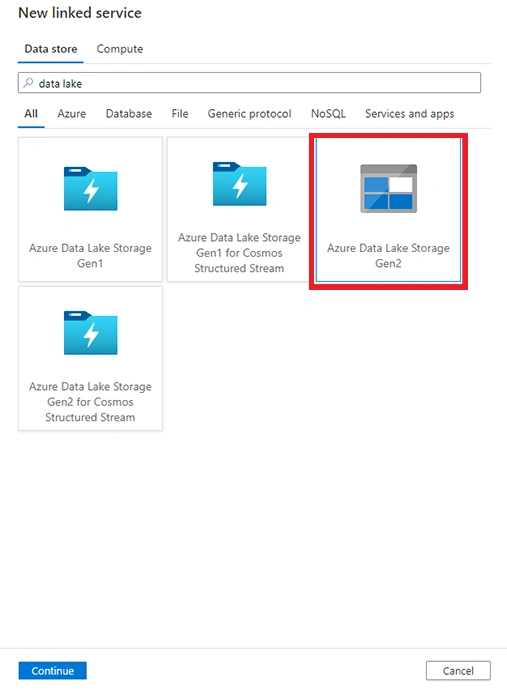
There’ll be numerous options for Storage. We now Select the Azure Data Lake Storage Gen2.
Step 9
Now, Configure the service and fill up the required details to test the new connection and create the linked service. You’ve finally setup the new Azure Data Lake Storage Gen2.

Conclusion
Thus, in this article, we learnt about Azure Data Lake and then learnt to Create Azure Data Lake Storage Gen1 and through creating Azure Data Factory linked service created the Azure Data Lake Storage Gen2. Moreover, we also learnt in brief about Azure Data Lake Storage Gen2 and dived into some differences between Azure Data Lake Storage Gen1 and Gen2.
Join the conversation! Your thoughts help the community grow.