

What is Azure Function?
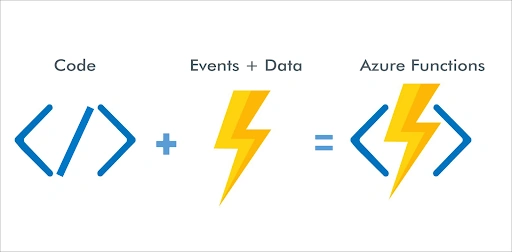
Azure Functions is a serverless computing service provided by Microsoft Azure that allows us to run our code without worrying about the infrastructure.
Let's Break this term into two, Azure and Function, as Azure is a well-known cloud provider from Microsoft and Function in the sense we can write small pieces of code called "functions", which can be executed on a wide variety of triggers.
These functions can be written in several programming languages, including C#, Java, JavaScript, Python, and PowerShell, and can be deployed, triggered, and scaled quickly and easily in the cloud.
What are triggers, and how are they related to functions?
Triggers are events that cause functions to execute. When a specific event occurs, a function is executed accordingly. Azure provides a variety of triggers that can be used to initiate work.
Here are some of the triggers that can be helpful to us in further going.
- HTTP Trigger- executes a function when an HTTP request is made to a specified URL.
- Timer Trigger- executes a function on a predefined schedule.
- Blob Trigger- executes a function when a new or updated blob is detected in Azure Blob Storage.
- Cosmos DB Trigger- executes a function when a new or updated document is added to an Azure Cosmos DB collection
In our tutorial, we will use HTTP Trigger for our Function to Execute.
So that was a brief about the Azure Function App. Let's now get Started with Creating an Azure Function.
Create an Azure Function Using .Net 6 in Visual Studio 2022
Open your Visual Studio 2022 and Create a New Project for Azure Function.
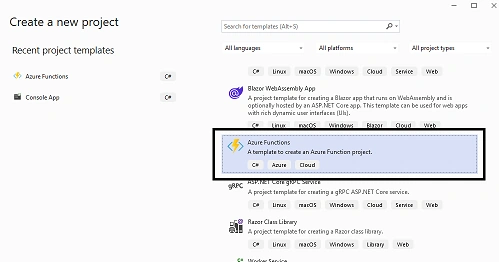
After selecting the Azure Functions Template, click "Next" and proceed to fill in the required details, including the project name, solution name, and directory where the project will be stored.
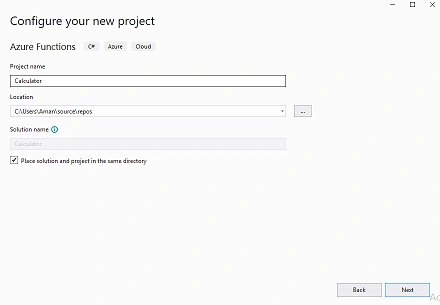
Now, Click the "Create" button.
Next, select the type of application you want to create.
Azure Functions utilize triggers, which are events that initiate a function. Each function is associated with only one trigger.
Review the available triggers in the following screen, which illustrates the various triggers available in Visual Studio for an Azure Functions application. Here we are using HTTP Trigger, so we will use that and now click on create.
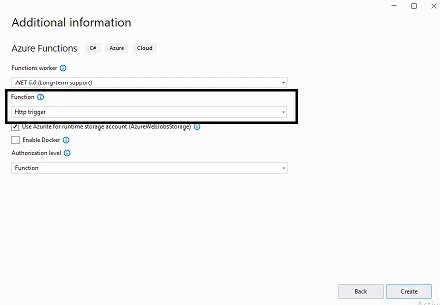
Once the project is created, we will land on the First File Function1.cs, and there is code written for the HTTP Trigger Function.
We will modify that code and get it to work according to us.
using System;
using System.IO;
using System.Threading.Tasks;
using Microsoft.AspNetCore.Mvc;
using Microsoft.Azure.WebJobs;
using Microsoft.Azure.WebJobs.Extensions.Http;
using Microsoft.AspNetCore.Http;
using Microsoft.Extensions.Logging;
using Newtonsoft.Json;
namespace Calculator {
    public static class Function1 {
        [FunctionName("Calculator")]
        public static async Task < IActionResult > Run(
            [HttpTrigger(AuthorizationLevel.Function, "get", "post", Route = null)] HttpRequest req, ILogger log) {
            log.LogInformation("C# HTTP trigger function processed a request.");
            int num1 = Convert.ToInt32(req.Query["num1"]);
            int num2 = Convert.ToInt32(req.Query["num2"]);
            int result = num1 + num2;
            string responseMessage = $ "Hello, This HTTP triggered function executed successfully. Sum of {num1} and {num2} is {result}";
            return new OkObjectResult(responseMessage);
        }
    }
}
Now, Save the File, and then let's build and execute it.
Once the function is ready to use, it will show this message, and from there, we can get the Localhost URL to execute it in our local environment.
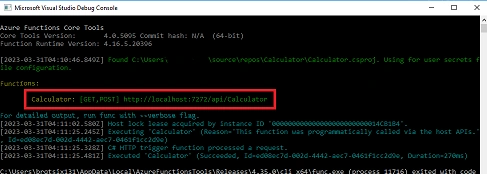
To Execute the Function. Copy this Link http://localhost:7272/api/Calculator. And execute this in Browser.
In the Browser, we will pass the URL with two Numbers in the Query String, and then it will generate desired output as shown below.
http://localhost:7272/api/Calculator?num1=5&num2=10

So this was about creating a Function that gets executed when the HTTP request is triggered, and it will take two values from the Query String and Display the resultant sum of both values.
Now Let's Create Azure Function App on Azure
To provision a Function App on Azure, an Azure Subscription is required, which can be obtained through a Free Trial. The Azure Free Trial Pack can be accessed by referring to the relevant documentation (https://azure.microsoft.com/en-in/offers/ms-azr-0044p/).
To create an Azure Function App on Azure, open the Azure Portal at https://portal.azure.com/ and use the search bar in the top menu to find "Function App".
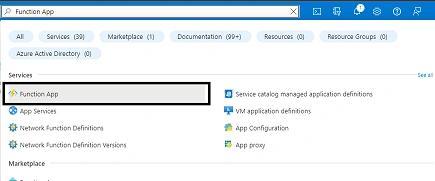
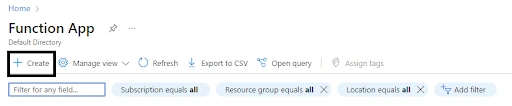
Now It will open the resource collection of Azure Function App; in the top left corner, press 'Create'.
Please fill in all the details below, and select a Region near your region for optimal performance.
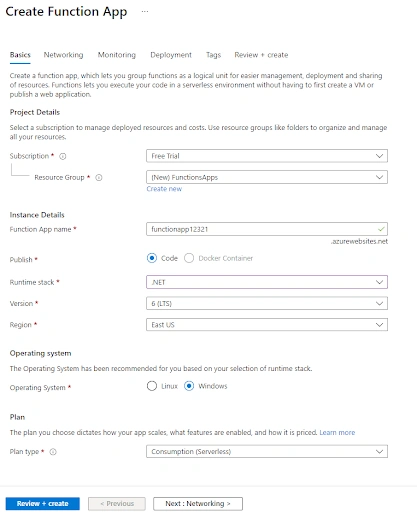
Click on Review + create, and the Panel will Open now. Ensure all the details are filled in correctly. Once you have confirmed everything is accurate, press "Create" to proceed.
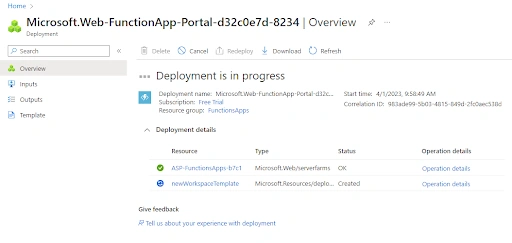
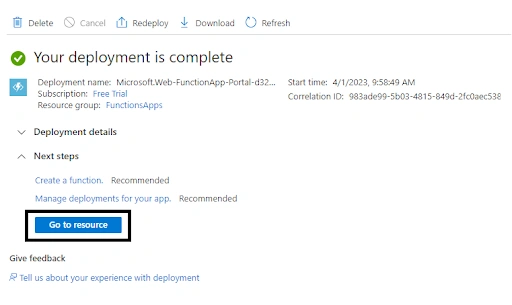
Deployment of our Azure Function App has started and will open this window. Once the deployment completes, click on Go to the resource.
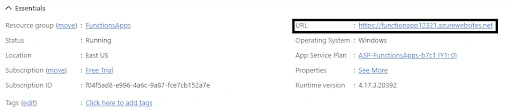
To test the Function App working, navigate to the URL
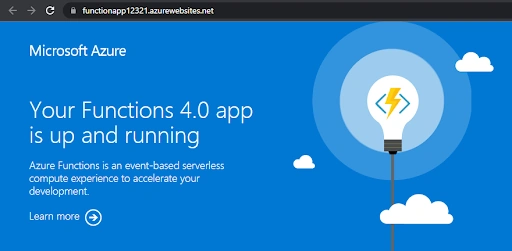
It will open this window showing Your Functions 4.0 app is running.
To deploy our Function App Built on .Net, Download the Publish Profile and use that in our project.

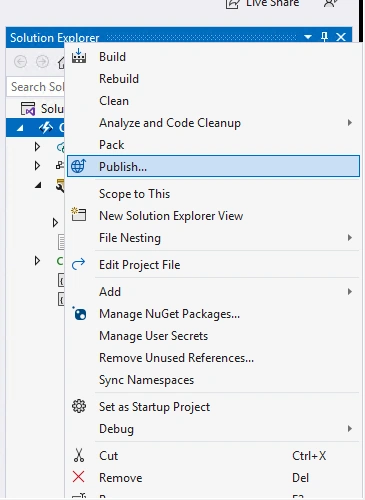
To publish the project, right-click on it in Visual Studio and select "Publish".
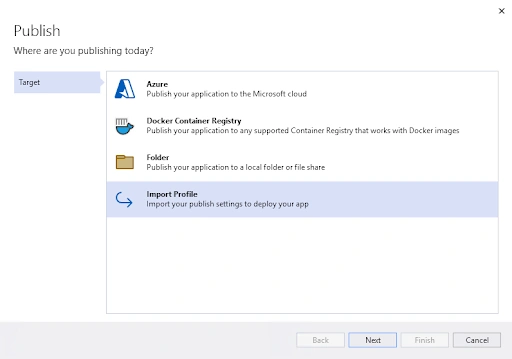
Make Sure the Import Profile is Selected and Press Next.
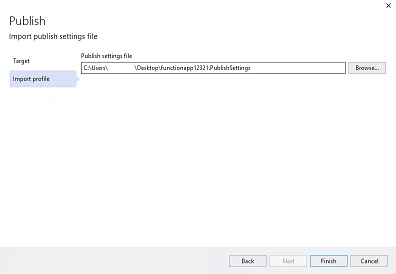
Now in the next window, Open "Browse," choose the Azure profile downloaded, and proceed with the Finish steps.
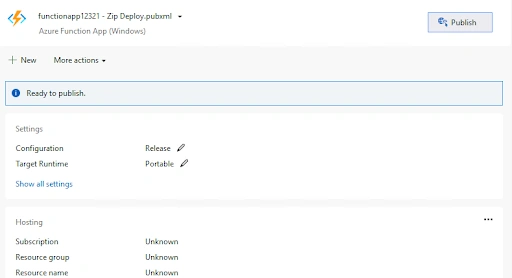
In the Next Step, we will see the Message that Our Function is ready to Publish. Now click on Publish to Get it Publish to Azure Function.
Once the Function is published successfully, we need to verify it from the Azure Portal.
Navigate to Function App Resource and Click on Functions from the Left Panel, and then you can see the function that we Just Deployed.
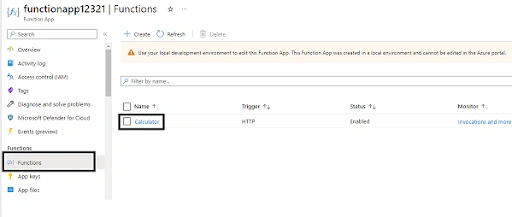
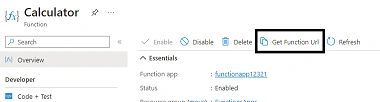
In the Calculator, we can see the Get Function Url. Click on that we will be able to see the Url.
Copy that and Paste it into the new tab with the two value Parameters in the Query String.
<<your function app site>>&num1=10&num2=10

So this is the actual behavior in the Local Environment, and our function will get executed when the HTTP trigger is Fired, generating the desired output.
That's all about the Azure Function App and Running .Net 6 on Function App. Also, this is an excellent choice for modern software development.
Conclusion
Azure Function Provides a Seamless experience of running a Function that can be written in a wide variety of Programming languages like C#, Java, JavaScript, Python, TypeScript, and many more. Also, Azure Functions can be used to Run the Background Process, tasks, services, and even some simple tasks such as scheduling and sending emails without affecting the main application.
You can Join me on LinkedIn to follow my learning journey and stay updated with my latest insights and discoveries.
Join the conversation! Your thoughts help the community grow.