

Introduction
This article will give you a basic idea about how to Get Data from SharePoint List using Azure HTTP PowerShell Function App with the help of Client ID, Tenant & Thumbprint.
Steps
- To authenticate a SharePoint Site with Azure function App, we require a Private & Public certificate.
You can generate an Azure Security certificate using the following PowerShell Commands.
Open your windows Powershell or Windows ISE to run the below command.
Note- $password = "*******" | ConvertTo-SecureString -AsPlainText -Force
- New-PnPAzureCertificate -CommonName "[Name]" -ValidYears 2 -CertificatePassword $password -OutPfx "D:\Laptop Backup\Certificates\[filename.pfx]" -OutCert "D:\Laptop Backup\Certificates\[filename.cer]"
Specify password, Common Name, proper path and filename
- Log in to the Azure Portal: https://portal.azure.com
- To fetch data from SharePoint using Function App we need to register App and provide required Permission to API.
- Go to Azure Active Directory

- Click on App Registration
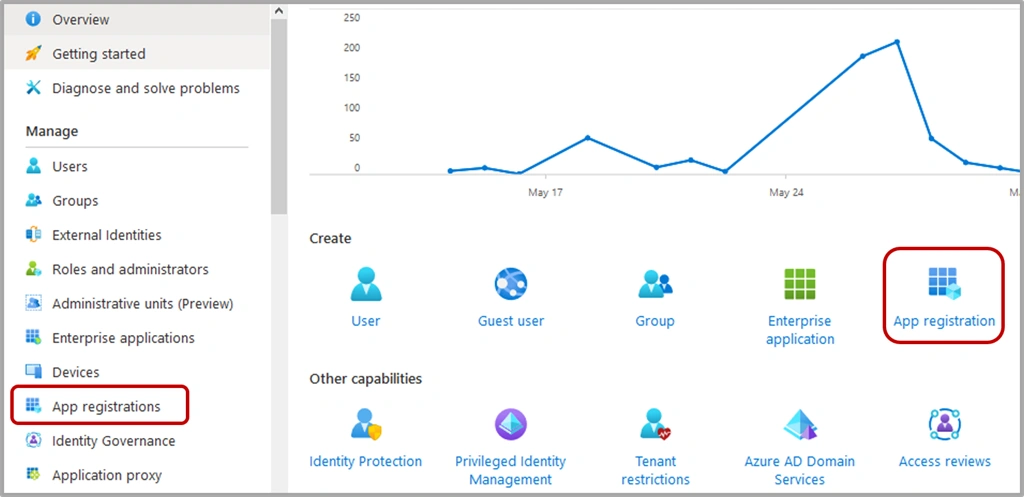
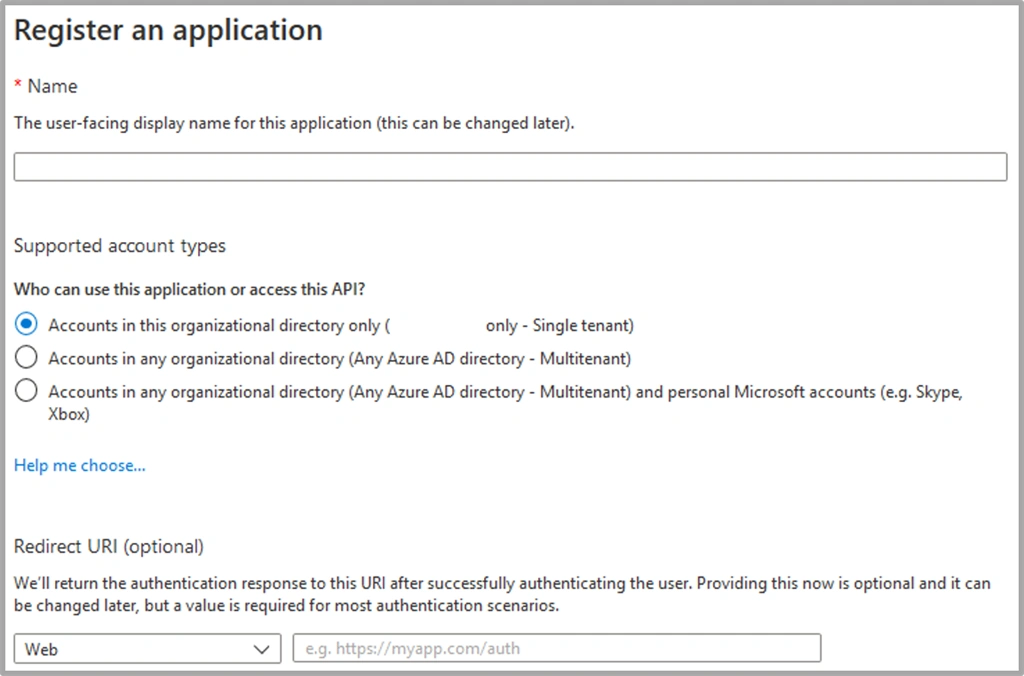
- Give an App Name and select Access API.
- If you want to fetch data from the current Tenant, then select "Account in this organizational Directory only (Single Tenant)".
Note
I have provided name as “ADAppAZSPPnP”
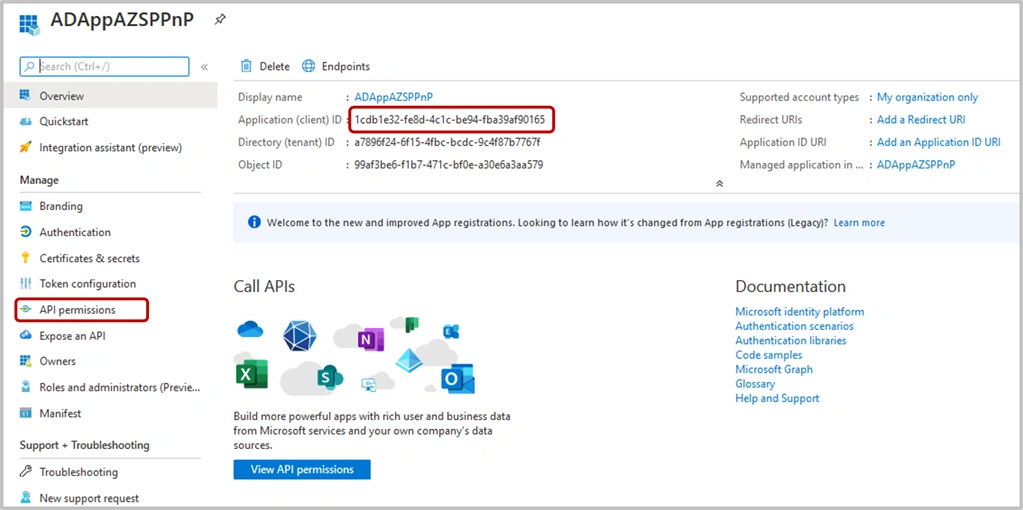
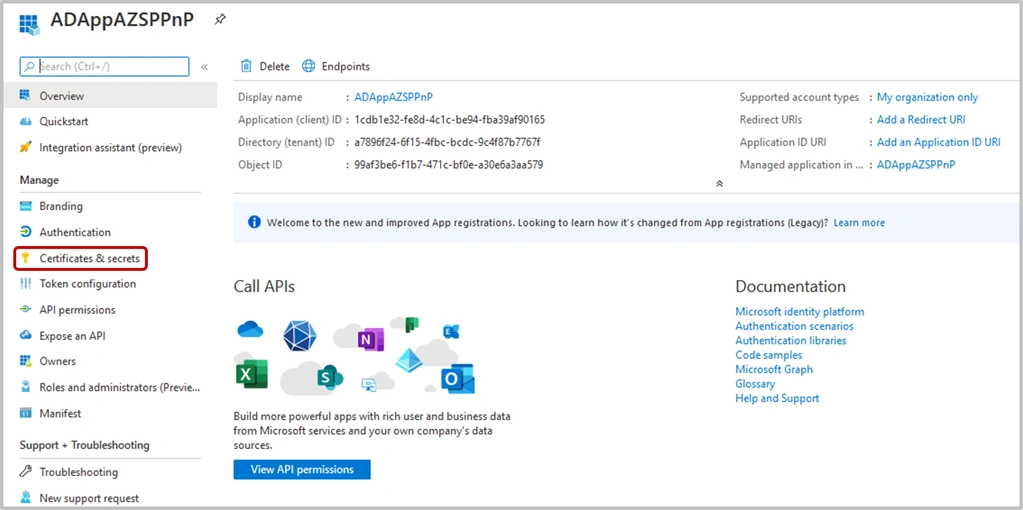
- Once App Registration is done, go to the App.
- Copy Application (Client ID)
- To access SharePoint data, we need to provide Permission to this API. For that, click on API Permission
- Click on Add Permission.
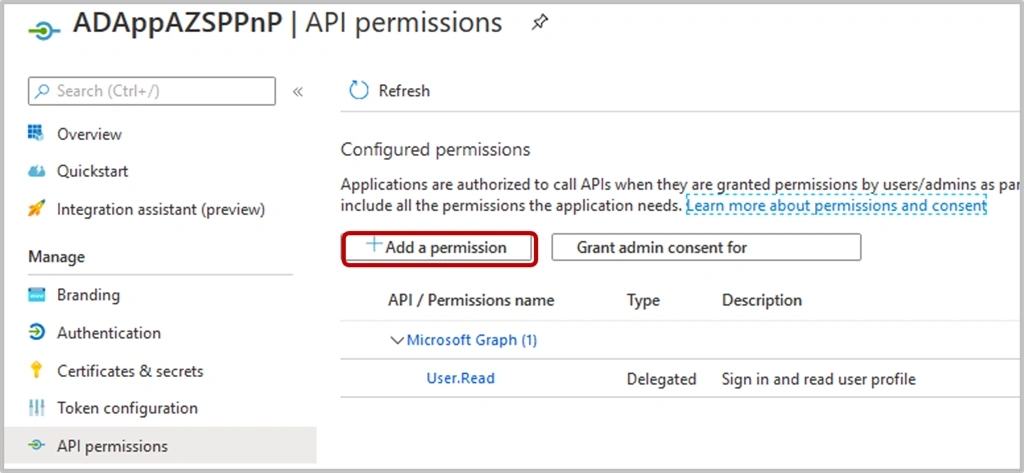
- Here, we can select connectors. We can also select any API supported by Azure.
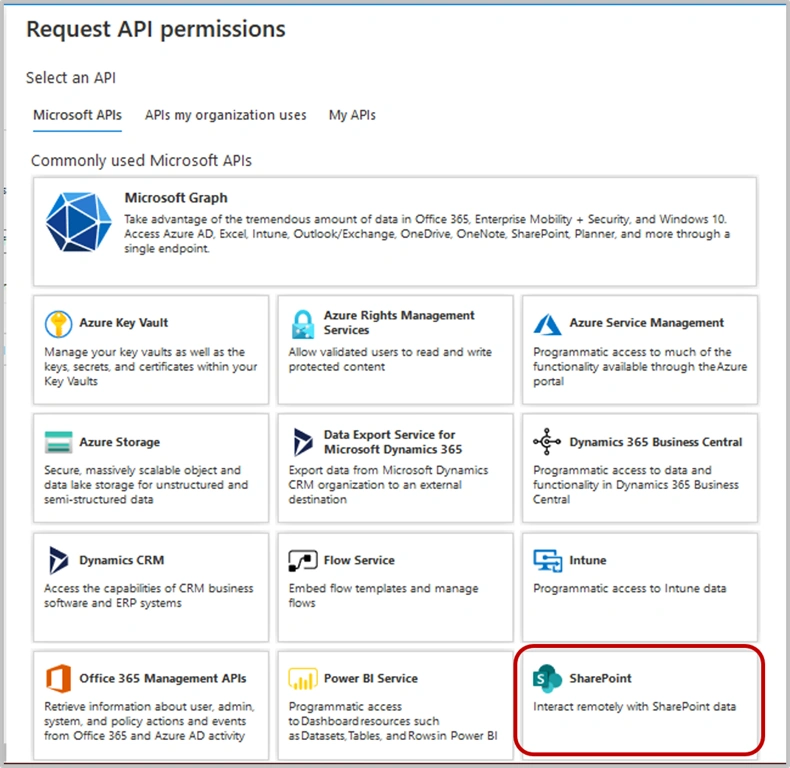
- Select SharePoint.
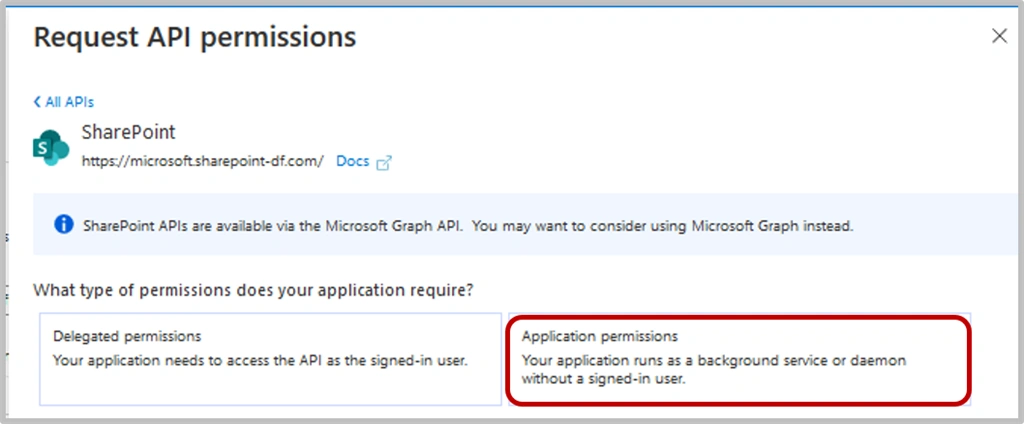
- On SharePoint API Permissions, request select “Application Permissions”.
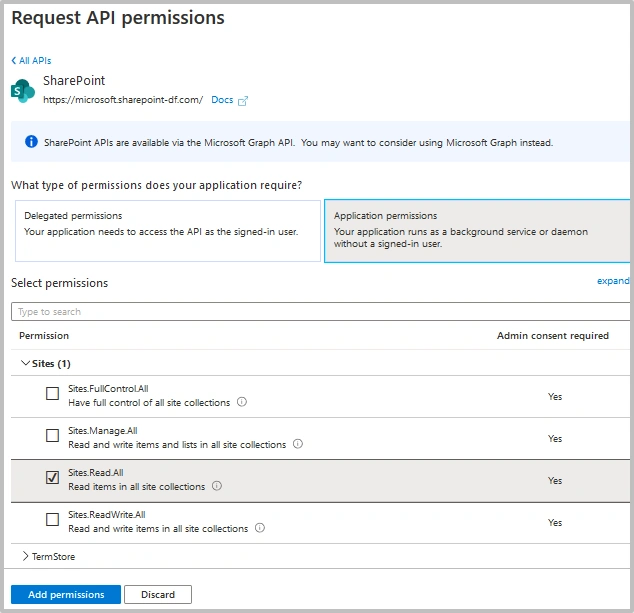
- Select the required permission level. In this case, we need to fetch data, so I selected “Sites.Read.All”.
Note
This will provide selected Permission to the whole SharePoint tenant.
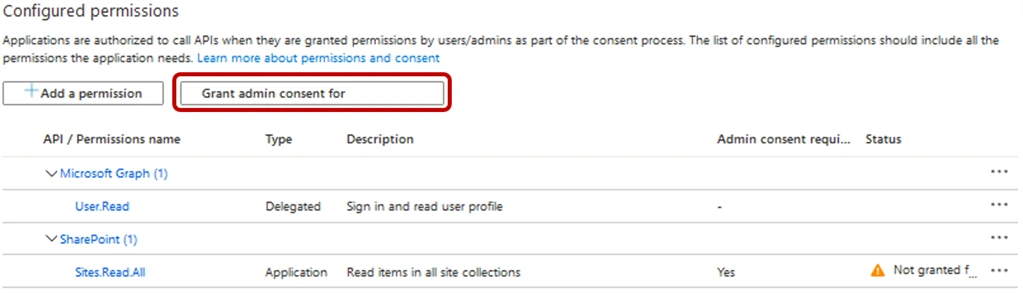
- Once permission is selected, we need to grant permission. Click on Grant Admin consent.
- For the registered app, we need to add certificates, which we created earlier.
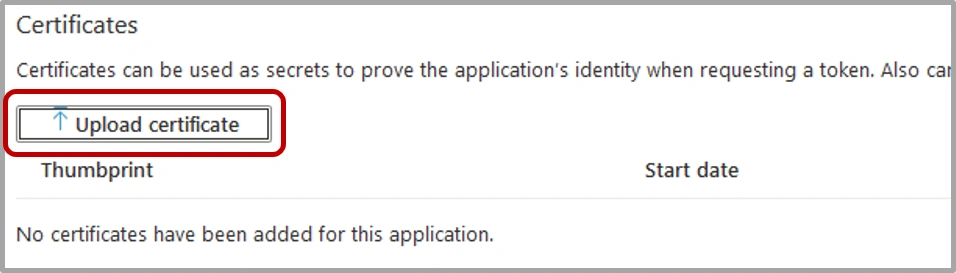
- For App registration, we need to upload a public certificate “.cer”
- Click on Certificates & secrets.
- Click on Upload Certificate.
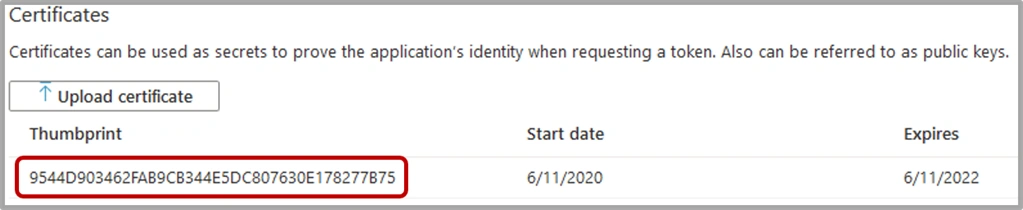
- After uploading a certificate, copy your Thumbprint. It will be required in PowerShell script for Site Authentication.
- Go to the Function App. On function app, we need to update configuration settings of the App.
- Click on Configuration.
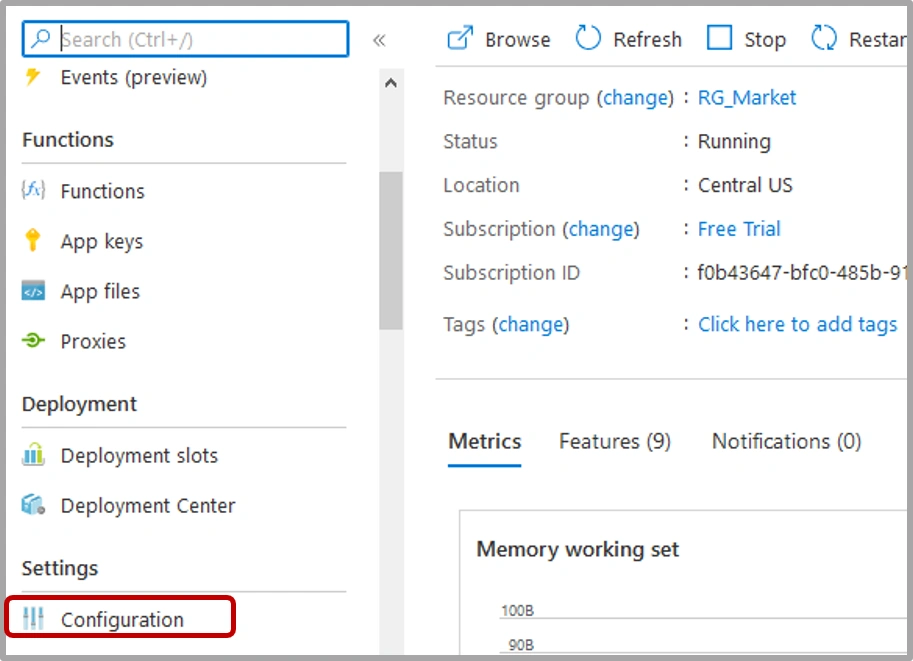
- On configuration settings, click on New Application Setting.
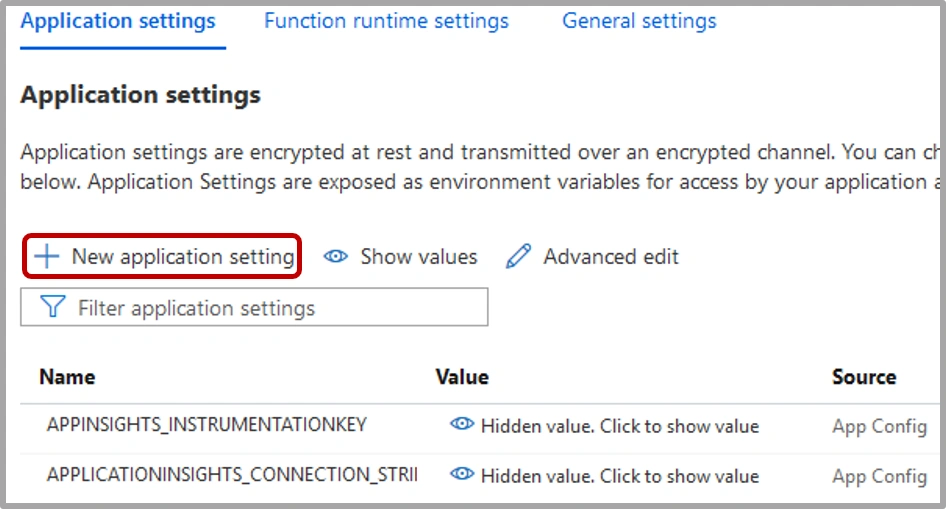
Add the following application settings:
ClientID Paste Client ID which is copied from App Registration SiteURL SharePoint SiteURL to fetch data Tenant [tenantname].onmicrosoft.com Thumbprint Paste Thumbprint ID which is copied from Certificate WEBSITE_LOAD_CERTIFICATES *
- To Authenticate Function App with SharePoint using API, we need to upload the Private Key certificate. For that, go to the TLS/SSL settings of the Function App.
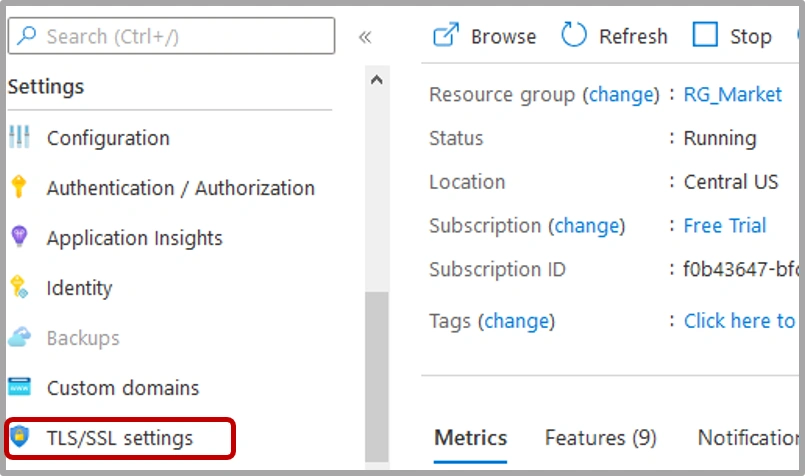
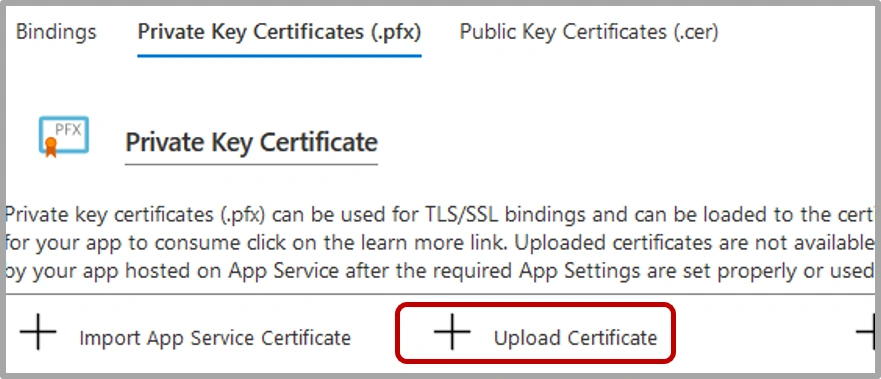
- Go to the Private Key Certificate tab and upload the private certificate which we created with the extension “.pfx”
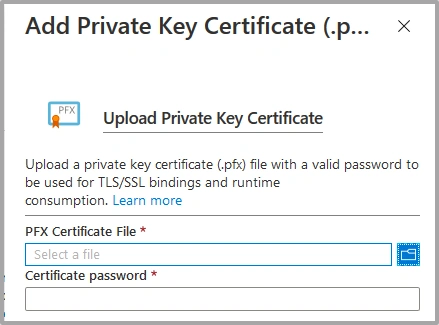
- While uploading the certificate, provide a password which we added while creating the certificate
- Go to the Function App, if already function is Available, we can use the same or we can create a new one.
To create a new function, refer to post 1.
If you create a new function then you need to upload SharePointPnP dll files under the root folder of a function. For more info, refer to the below article.
Create an Azure HTTP Trigger PowerShell Function App
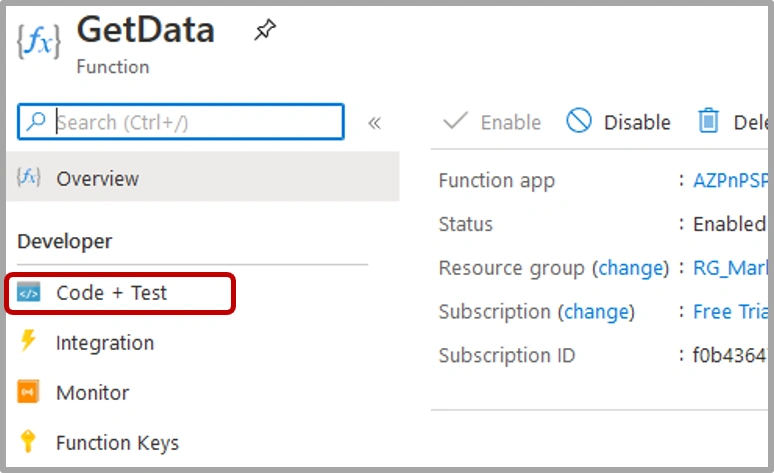
- using namespace System.Net
- Import-Module 'D:\home\site\wwwroot\[FunctionName]\modules\SharePointPnPPowerShellOnline\Newtonsoft.Json.dll'
- Write-Host "Powershell http trigger"
- $requestBody = Get-Content $req -Raw | ConvertFrom-Json
- $tenant = $env:Tenant
- $cleintid = $env:ClientID
- $thumbprint = $env:Thumbprint
- $siteurl = $env:SiteURL
- $listname = "[ListName]"
- Connect-PnPOnline -Url $siteurl -ClientId $cleintid -Thumbprint $thumbprint -Tenant $tenant
- $web = Get-PnPWeb
- $title = $web.Title
- $listitems = Get-PnPListItem -List $listname
- $listArray = New-Object System.Collections.Generic.List[System.Object]
- foreach ($item in $listitems)
- {
- $listArray.Add([hashtable]@{
- DisplayTitle=$item["Title"];
- Id= $item["ID"]
- }
- )
- }
- $json = $listArray | ConvertTo-Json
- Out-File -Encoding Ascii -FilePath $res -inputObject $json
- To check output, click on run or Copy the Function URL and run in a browser.
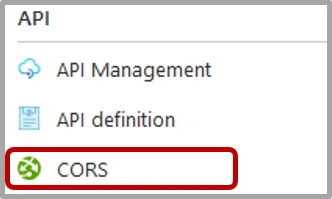
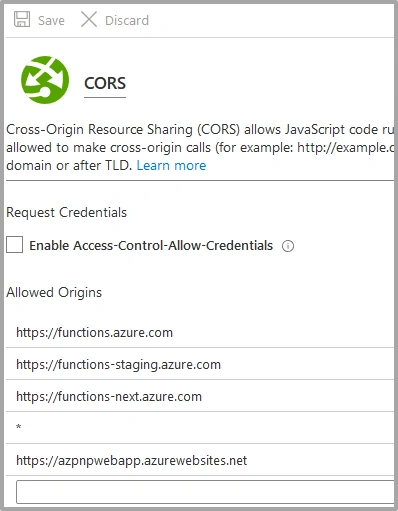
- If you are trying to call this API from a specific application, then you need to add an application hostname in Function App CORS settings.
Go to Function App API managment ==> CORS
Under CORS settings add the hostname of the application, if you want to make it open for all External applications then set "*"
Summary
Using the Azure Function App, we can use SharePoint Data to Open source, any HTML, or other systems.
With the use of Client ID, thumbprint & tenant, we don't need to enter the credentials of the user.
Join the conversation! Your thoughts help the community grow.