

In Azure, Microsoft provides app services. The app services include web apps, logic apps, mobile apps, etc.
All these services are coming under PaaS.
As per Microsoft's definition, a logic app is a cloud service that can be used to schedule, automate, and orchestrate tasks, business processes, and workflows.
Logic apps can be used to integrate applications, data, services, and systems across various enterprises or organizations.
The business process model in software is called Workflow.
We can use the Azure logic app to automate a common business process that can be shared by multiple applications or enterprises.
For example, we can use the logic app to send email notifications to different users when an event happens in various applications, services, and systems, etc.
Similarly, we can use the logic app to transfer/copy a file uploaded to the blob storage to another location based on specific conditions.
Another example might be to create a thumbnail image when a new image is uploaded to the blob storage.
In the logic app, we can create a business process graphically using the workflow engine and visual designer and connect them through connectors.
Microsoft already developed connectors to interact with different applications.
We have a connector to connect to MS SQL, a connector for MySQL, a connector for Facebook, a connector for Twitter, etc.
The beauty of the Azure logic app is we can do this all without writing a single line of code
In short, we can say the Azure logic app helps us to automate business processes.
Let's create an Azure logic app in the Azure portal.
Create an Azure Logic App
In this article, we are going to create a logic app to read Azure database records and send mail to the users by checking the value of the email sent column value.
I have already published an article about Azure database creation and use.
You can find the article here >>Create And Use SQL Database In Microsoft Azure
I am using the same database and table for our logic app.
In our Azure database, we have a table called tbl_problemTickets.
This table has 4 columns - ID, prblm_description, user mail, and mailSent.
Let's discuss our requirements next.
Just assume we have an application to create client issues as problem tickets. The client can create different problem tickets for support.
And, we need to send an email to the client when they create a new ticket like an acknowledgment mail.
Once the email is sent, we should update the email sent column as 1 (initially it will be 0)
Let's discuss how we can accomplish this task using the Azure logic app.
To create a logic app please follow the below steps.
- Open Azure portal
- Search for Logic App
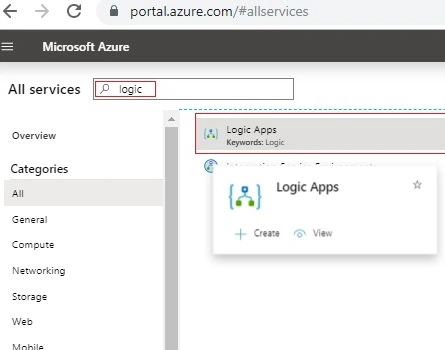
- We will be navigated to the below screen.
- Click either the Add button or the Create Logic app button to create the logic app
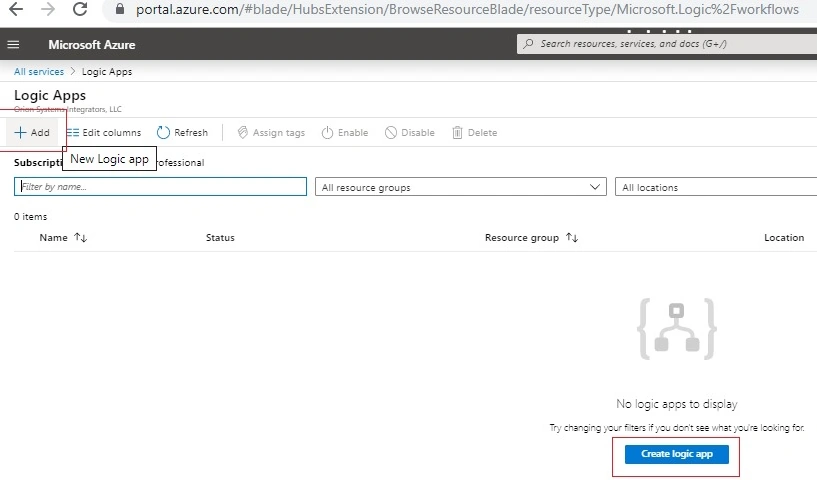
- A new section will be visible to provide the basic details about our logic app like name, resource group, location, etc.
- Fill in the details and click the Create button. Please refer to the screenshot below.
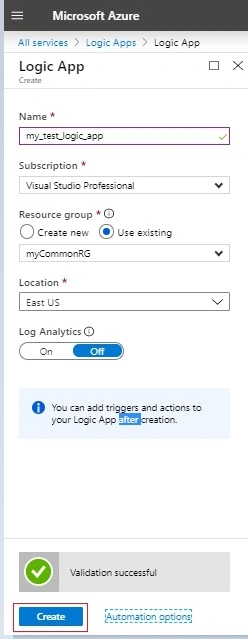
- This will take a few minutes to create the Logic app.
- Once it has been created, We can see the success notification in the notification section.
- We can enter into the newly created Logic app by clicking the Go to resource button in the notification.
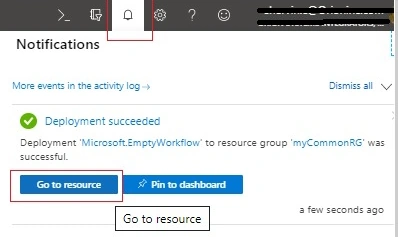
- In the Logic app Designer home screen, we can see two sections. Trigger selection section and Template selection section.
- In the trigger selection section, we can see a few commonly used triggers. Similarly, we can see different types of commonly used templates under the template selection section.
- Please refer to the below screenshot to get an idea about different types of triggers and templates. From its name, we can understand its purpose.
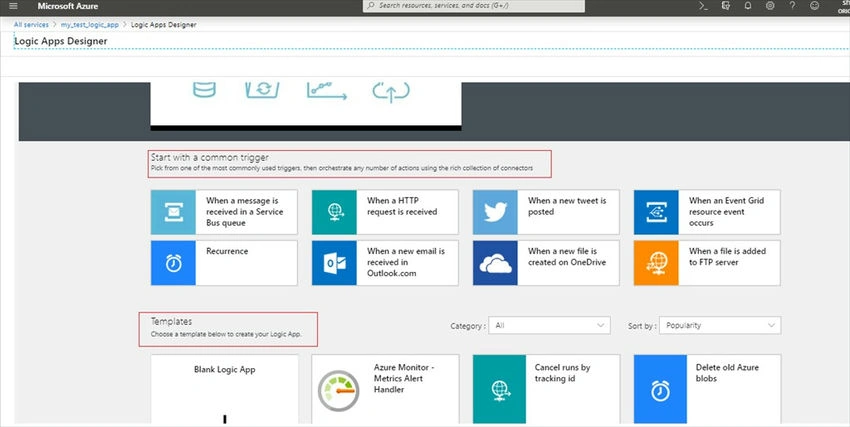
- I am going to select the Recurrence trigger for our logic app. As its name implies, this trigger is used to repeat an event after a time period.
- We can set the interval and frequency as below screenshot.
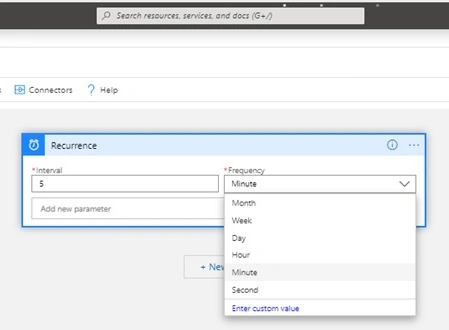
- For this logic app, I've selected 5 minutes as the interval-which means our logic app will trigger every 5 minutes.
- Click the New step button to add a new action. We need to connect the database to read newly added records with an email-sent column containing 0.
- To do this, we need to add the SQL server. So type SQL in the search column and select the SQL server.
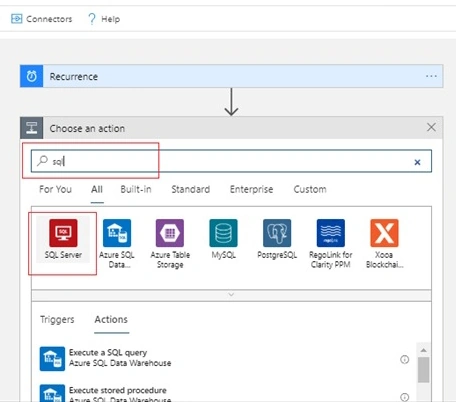
- Then choose the Getrows(V2) action from the list. This action is used to read rows from the database tables.
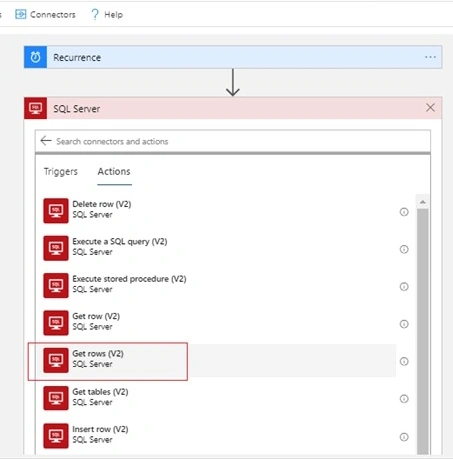
- We will get the below screen to fill in the server details
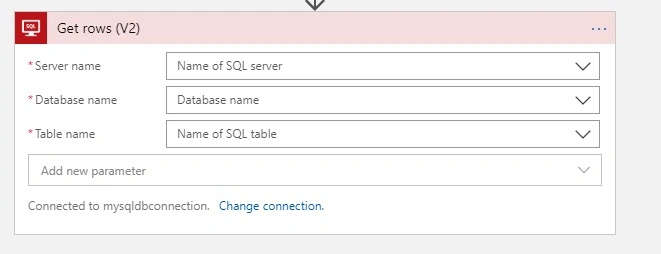
- Select the SQL server name from the drop-down box. It will show all available SQL servers in our Azure account
- Once the server is selected we can select the database from the next dropdown box. This will list all databases present in the selected SQL server.
- From the third dropdown box, we can select the table.
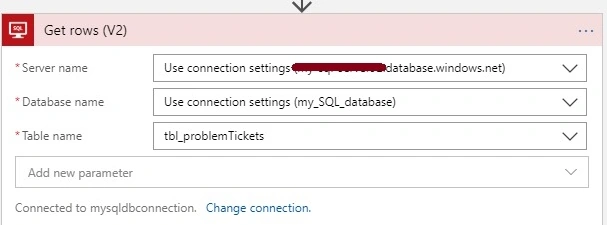
- We only need to select the records with the mailSent status column containing the value 0 (mail not sent).
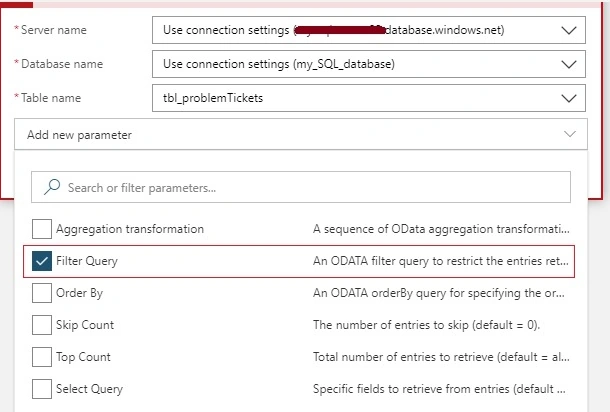
- To filter this data, we can add one more parameter by clicking the Add new parameter text box in the above screenshot.
- Then select the Filter Query item from the list.
- Then provide the filter as mailSent eq 0.
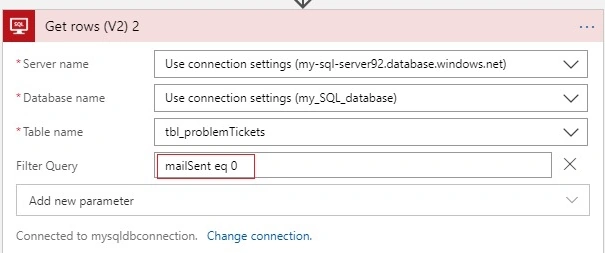
- At this point, our logic app is capable of fetching the user records from our database every 5 minutes.
- Next, we need to loop through the records, set and send mail to each user.
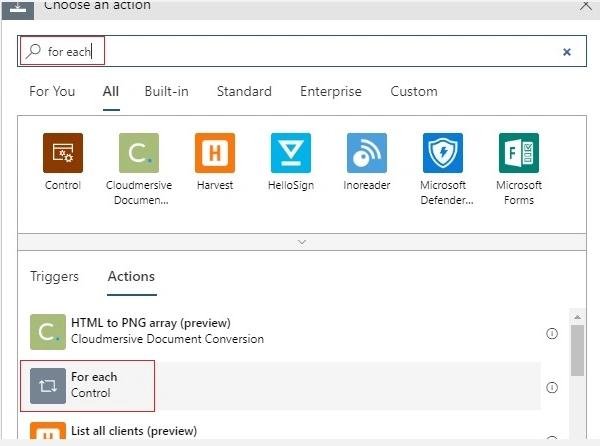
- Add a new action and search for each loop.
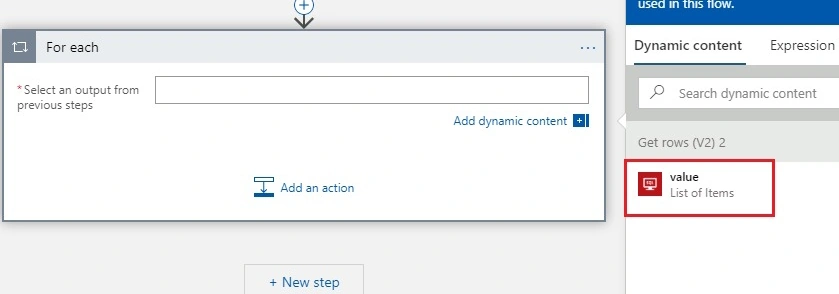
- Click the Select an Output from the previous steps text box.
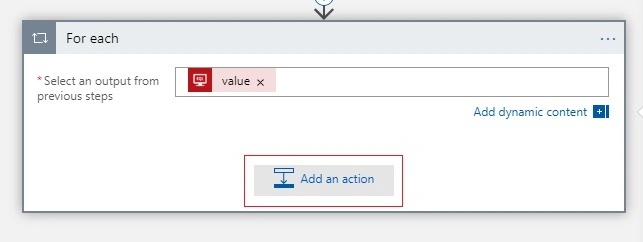
- Now we can see the value from the previous step. Select the value from the Dynamic content window.
- Then click the Add an action button.
- Next, we need to add a mail service to send mail. Here I am using my gmail account to send mail.
- Search for Gmail and select Gmail action as below.
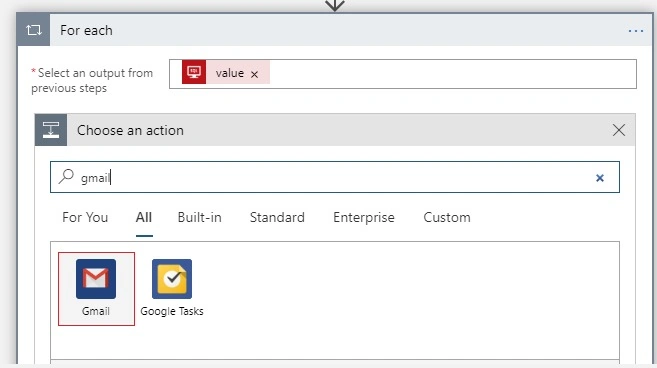
- Then select the Send mail action from the list.
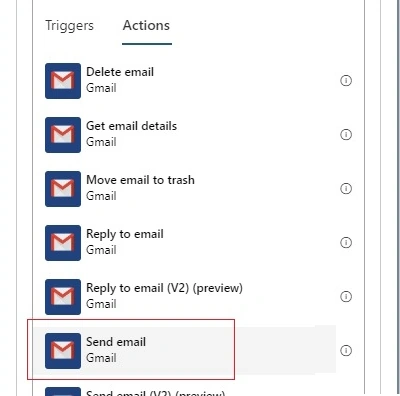
- This will prompt us to provide the Gmail account credential and permission to use the Gmail. This will be a one-time task.
- Next, we need to set the email configuration like To, subject, body, etc.
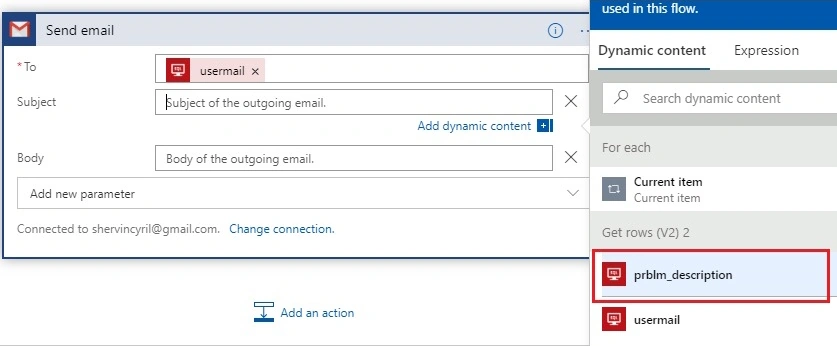
- Click the To text box. It will list all columns in the data set value in the Dynamic content window. Click the see more link to see all columns.
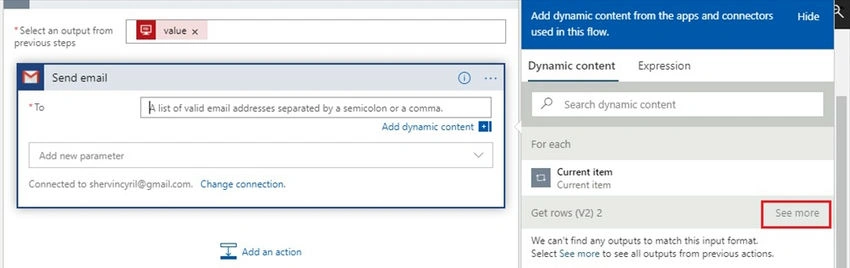
- This will list all columns available in the data set.
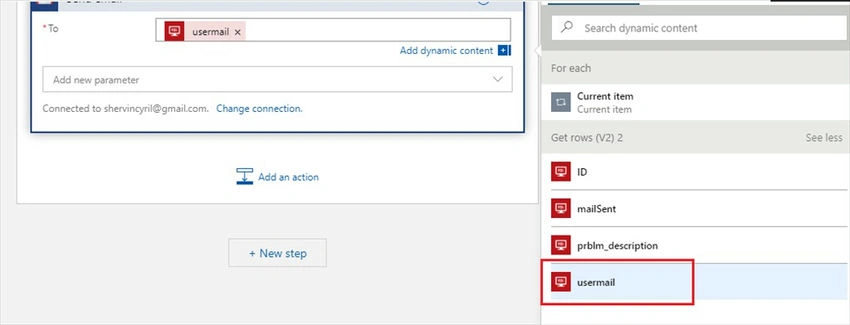
- From the list select the user mail column.
- Then, we need to add the subject and body for the mail. To add these fields, click the Add new parameter text box. Select the subject and body items from the list.
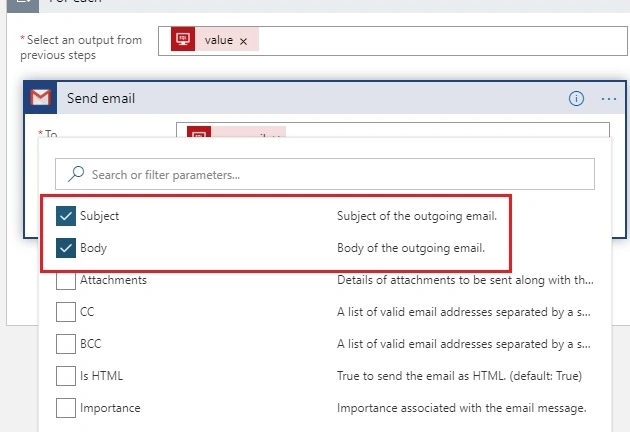
- Click the subject text box and select the prblm_description column from the Dynamic content window.
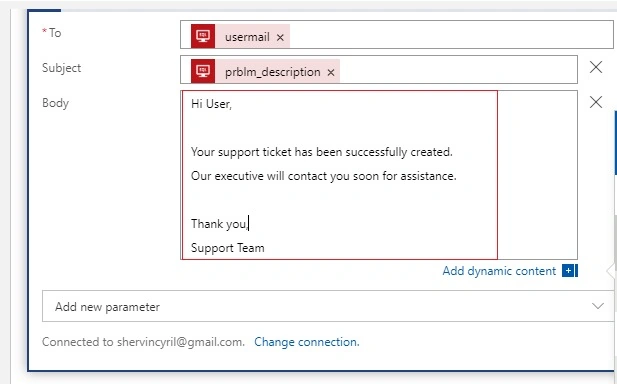
- Provide some content for the body section as below.
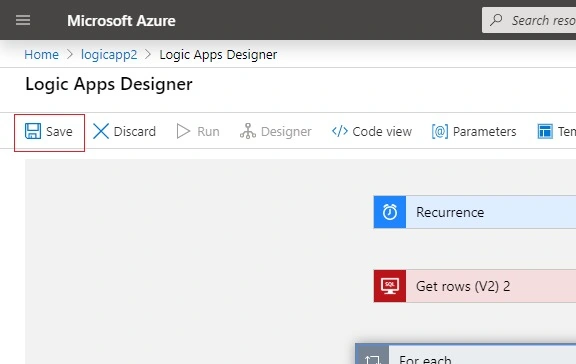
- Save the logic app by clicking the save button.
- Finally, we created our Azure logic app successfully.
- Let's run our logic app by clicking the Run button and checking the mailbox(I provided my other mail id as the user email value in the database.
- We can see our logic app mail below.

- Next, we should update the database by changing the mailSent column value to 1. Otherwise same user details will be read from the database and sent to mail again.
- To update the database back, we can add one more action by clicking the Add an action button in the loop action.
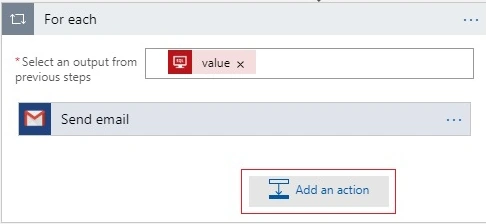
- Then, select the SQL Update row(V2) action
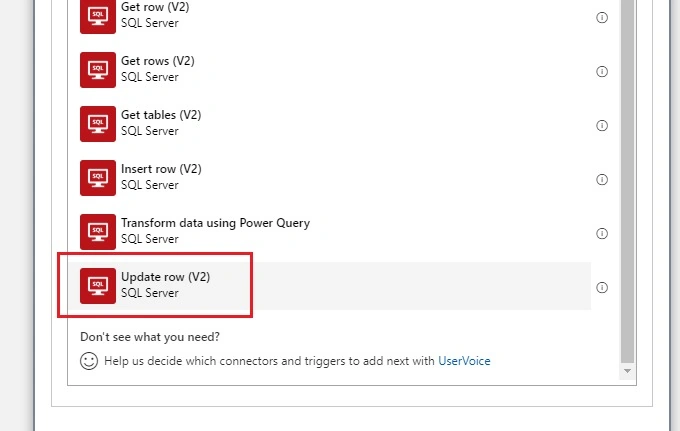
- Select the SQL server, database, and table from the corresponding dropdown boxes.
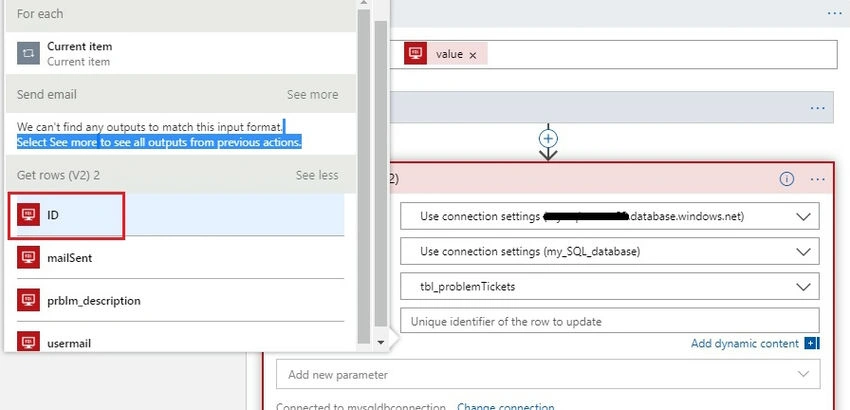
- For the Row Id column, select the primary key column name from the dynamic content window
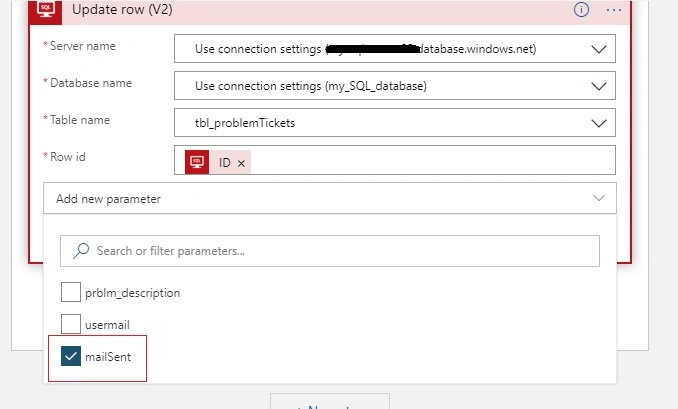
- Click the add parameter text box and select the themailSent column from the list
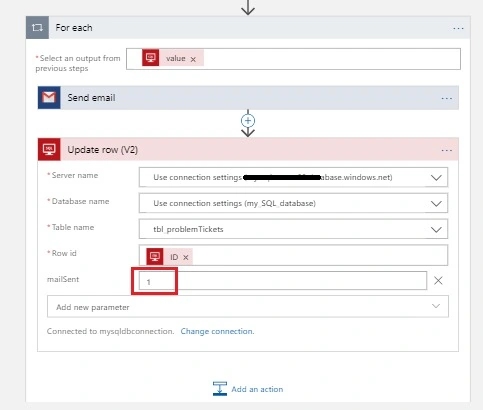
- Give the value of the email sent text box as 1. This value will be used to update the mailSent column in the database table.
That's All !!
All Completed.
Save our logic app and trigger it again. We will receive the same mail as earlier.
Check the table in the database. mailSent column will be updated to 1. During the next run, these rows will not be considered.
Once tested the logic app, disable it by clicking the Disable button in the Logic app home screen. Otherwise, it will trigger every 5 minutes.
Happy Learning!
Sai MukkaPosted Aug 25, 2021, 9:46 AM
Update row is not working .. getting error like "Incorrect syntax near 'WHERE'.\r\nclientRequestId: 0c3791b0-90e9-4182-a2c5-899196c4143".. can you please help?
Mageshwaran RPosted Nov 27, 2019, 8:50 AM
Nice Article...