

Introduction
Logic Apps is a part of Azure App Service and it is basically used to automate the access and use of data across clouds without writing code. Logic Apps is basically designed to orchestrate Business processes and System Integration based on some workflow defined according to the process by the user. Logic Apps is a fully managed iPaaS (integration Platform as a Service) which allows developers to not worry about building hosting, scalability, availability, and management; in fact, Logic Apps will scale up automatically to meet demand. Such applications are “no code” solutions that are authored by dragging and dropping elements onto a design canvas. This empowers developers and IT pros alike to create useful integration workflows that solve a variety of needs.
It’s suitable in the scenarios like when you have a predefined series of events that need to be followed in a business process, such as - if you want to replicate records from a line of business systems back to a SQL database and notify the front desk via an email; Send an SMS notification when a certain condition is met; Identify negative Tweets and post into a Slack channel. Logic Apps can help each of these scenarios and more.
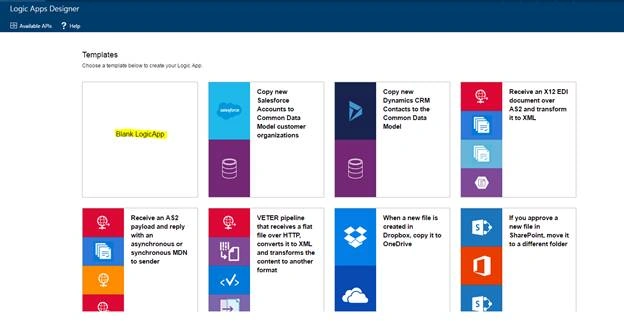
Workflows are initiated with a “trigger” event, such as a particular email, or a change in an Azure Storage account. Workflow steps then take place as “actions”, which operate against a series of “connectors” for data flow. To get going even more quickly, check out the numerous pre-built Logic app templates in the Azure Marketplace.
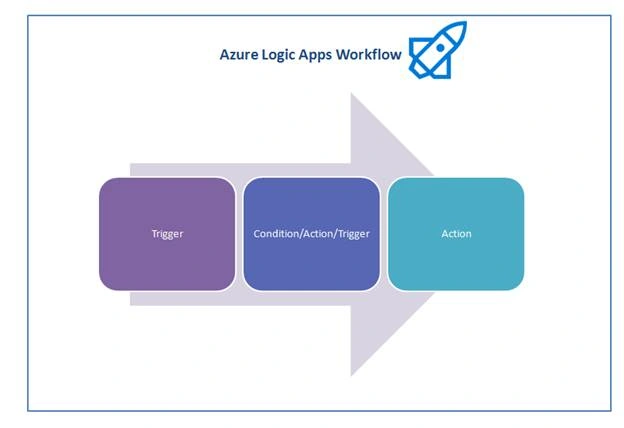
Let us discuss about a few of the terminologies we used above :
- Workflow
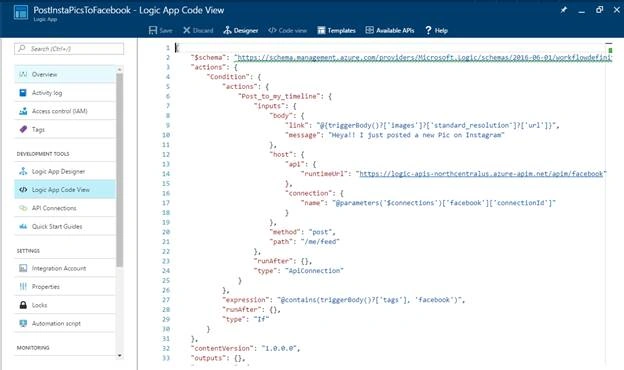
It is a graphical representation of a series of steps required in a business processes. Constructing such workflows is now super easy with Azure App Services. You can define a workflow either declaratively using a JSON file (which you can check-in as source code) or using the new Logic/Workflow designer introduced today within the Azure Portal.
- Parameters
are things that you want to reuse across workflows. Re-using values or even complex objects throughout the definition makes it easier to comprehend. Separating out configuration from the definition itself makes sharing easy as well across different environments.
- Managed Connectors
Connectors are the pre defined APIs that you used in your processes. They are created specifically to aid you when you are connecting or working with your data. Some of the most common connectors are Bing, Google sheets, Search, Facebook, Twitter, Twilio etc. You can find the whole list of connectors here. If your needs are not fullfilled using the existing connectors, you can always roll on your own API app and integrate it with your logic app.
- Triggers
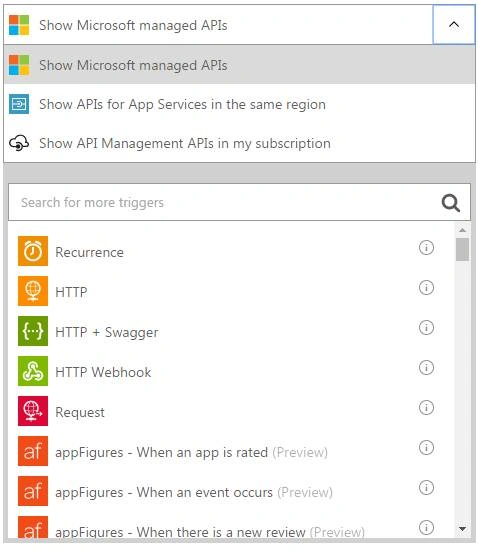
A trigger is an event that starts the new instance of a workflow on a specific event like adding a new record in the database or arrival of an email. You can poll for a trigger or manually initiate it or schedule it as per your need.
- Actions
Each step after the trigger in a workflow is called an action. Each action typically maps to an operation on your managed connector or custom API app.
Advantages of using Logic Apps include the following,
- Easy and convenient to design complex processes using user friendly design tools.
- Logical Implementation of workflow without code.
- Many templates available for common scenario.
- Easy to customize logic app with your own custom APIs, code, and actions
- Can work seamlessly with On-prem and cloud Services.
- Build off of BizTalk server, API Management, Azure Functions, and Azure Service Bus with first-class integration support
Shortcomings of the Azure Logic Apps
- Logic App Designer is not present in Visual Studio which is painful if you’re directly working with Visual Studio.
- Triggers on Cutom API only support the POST verb as of now.
- Batch facility is not present as of now which means if there are multiple records that are validating the conditions in that case the trigger will be triggered that no of times only instead of grouping them and process them in one batch Example: if there are multiple tweets with some hastag and you want to see the tweets in a mail then it will trigger multiple mails instead of one mail with all the tweets.
Cost
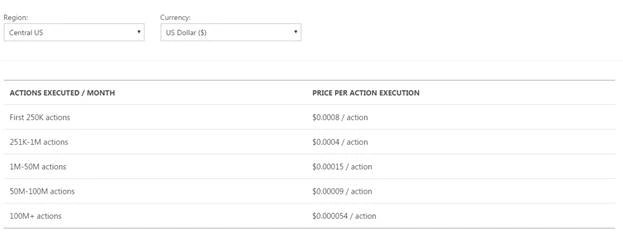
Cost of the logic app is directly related to the actions and based on the slab below it will be charged.
Note
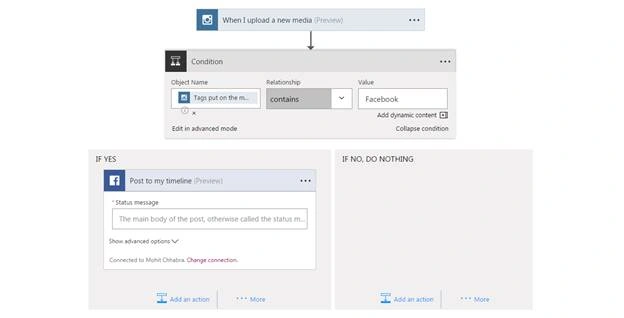
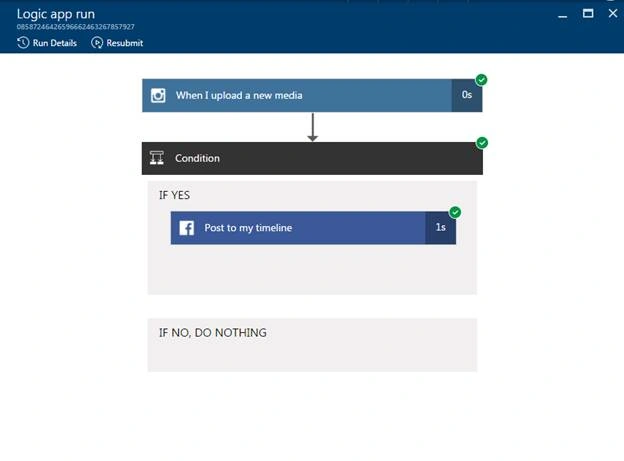
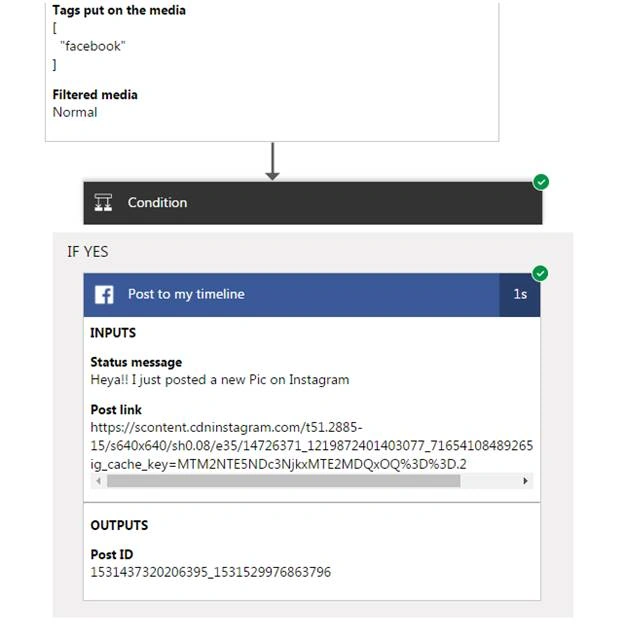
Even polling for a new record is considered as an action. In our example we are polling for new Instagram media upload every minute so if this logic apps runs for 7 days then it will be 7(days) * 24 (hours) * 60 (minute) = 10080 actions for the polling. In addition to that Posting on Facebook will also be considered as an action and will be charged according to the plan below. However if the condition dissatisfies or fails it will not be charged.
Developer Tools Required
- An Azure Subscription(Mandatory)
- Visual Studio 2013/2015 (Optional)
- Azure SDK for .Net (Optional)
Working Demo
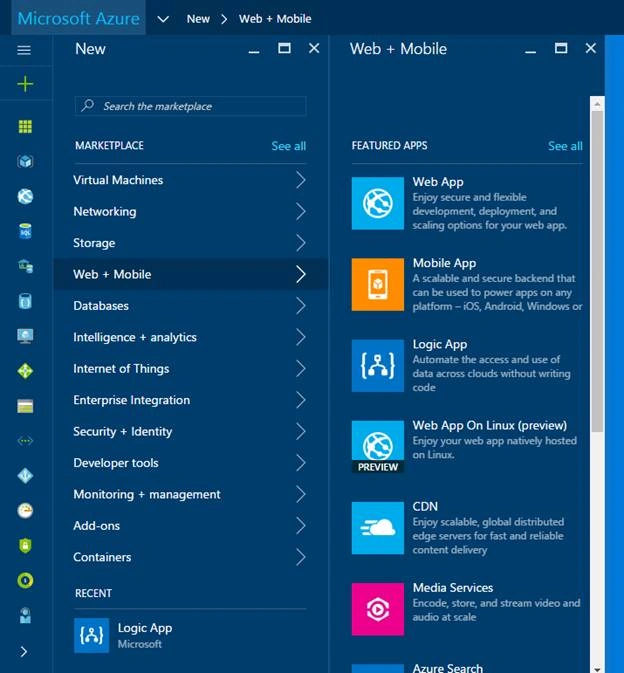
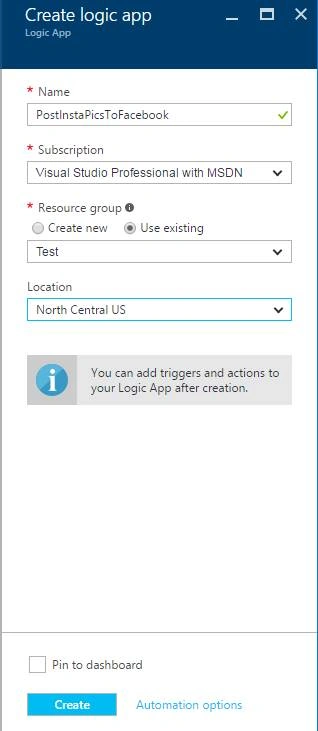
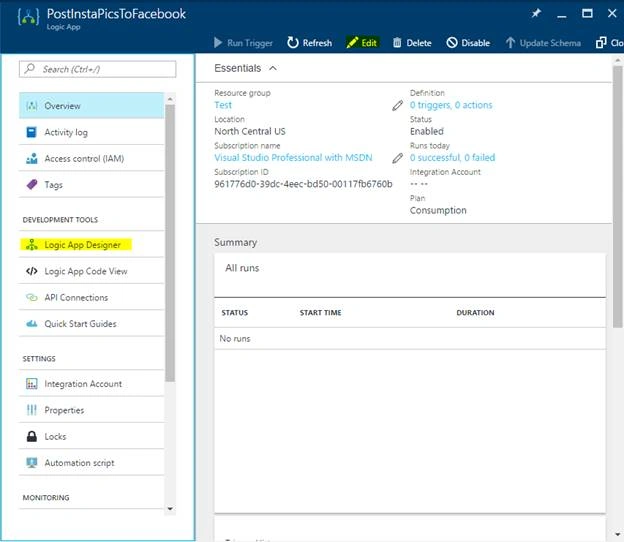
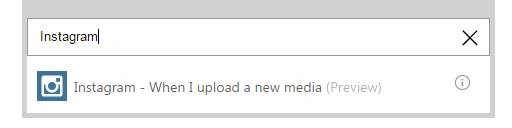
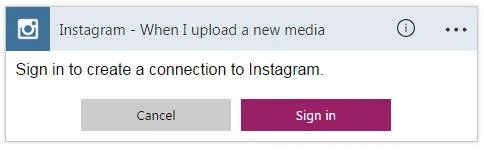
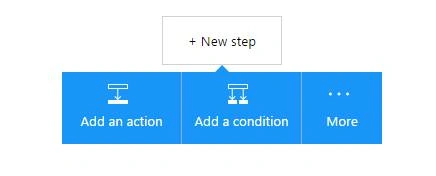
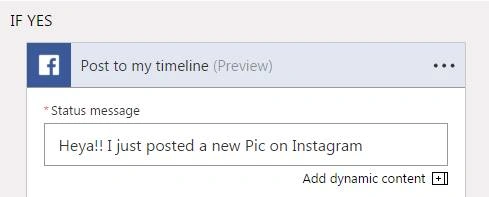
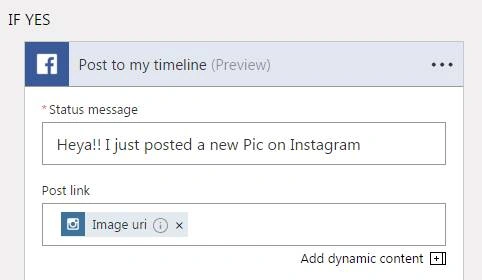
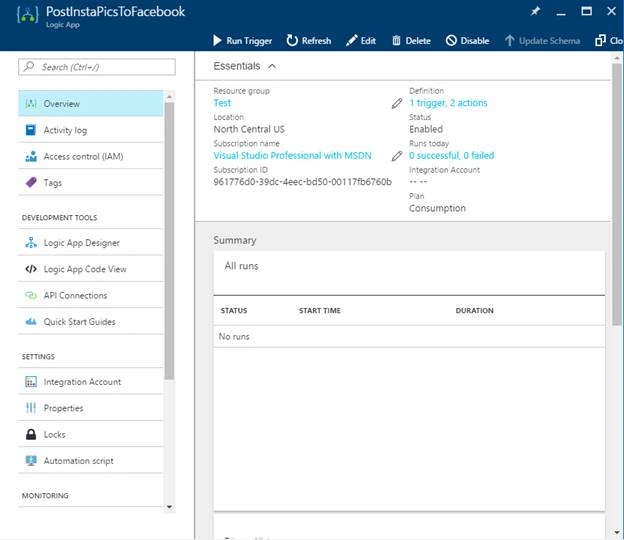
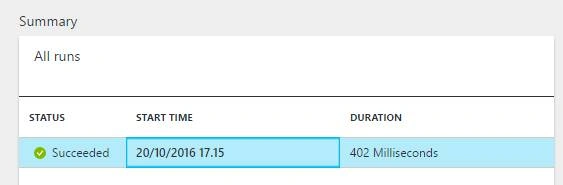
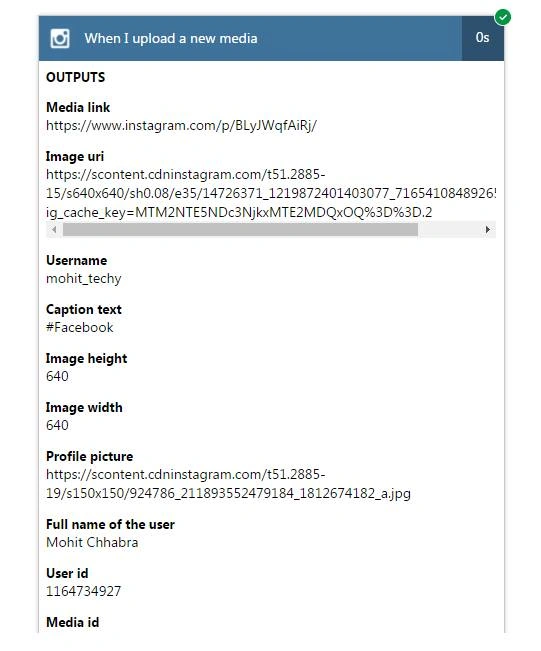
We will create a sample Logic App in our Azure Portal that’s going to look out for new media in my Instagram account and post it to facebook .

SI KaleelPosted May 15, 2019, 7:45 AM
Hi Mohit thanks for the article. just curious, is it possible to create multiple action for single app or is it only one action for an app
Sachin KumarPosted Jun 3, 2017, 11:15 PM
Nice and Easy explanation. could you please post some more examples ?