

Workflow of Azure Logic Apps
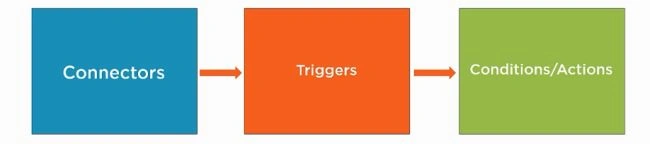
- Connectors just correspond to Web APIs behind the scenes. A user could go into the Logic App Service and they could build one of these workflows.
- They would not know how the API works because the service would abstract that, they would just choose the correct connectors.
- Microsoft has over 200 built-in connectors for all kinds of operations.
- So, in a nutshell, connectors correspond to Web APIs.
Triggers and Conditions/Actions
- We can trigger different operations in the APIs. Suppose we have a connector for Twitter, we could create a trigger for every time a new tweet is sent out to Twitter and then we could grab that information and then based on some conditions, we could take desired actions.
- Conditions/Actions are optional but we can take the triggers and then send that over to an action and we can go off and send that information to somebody and we can also save it in a database.
- You can have a connector for Azure blob storage so when someone saves a blob into Azure blob storage, you could have a trigger to send an email notification.
Demo - Connecting Software as a Service application with Logic Apps
Step 1
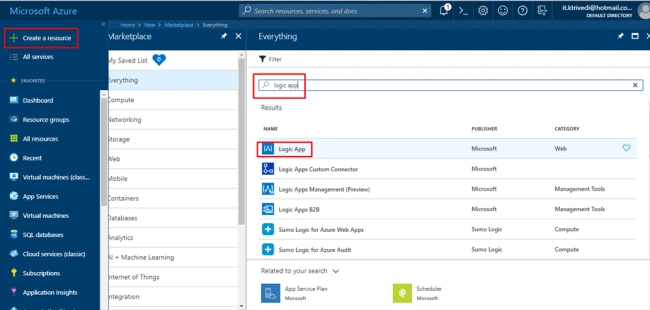
Go to the Azure portal and create a new resource, a logic app.
Step 2
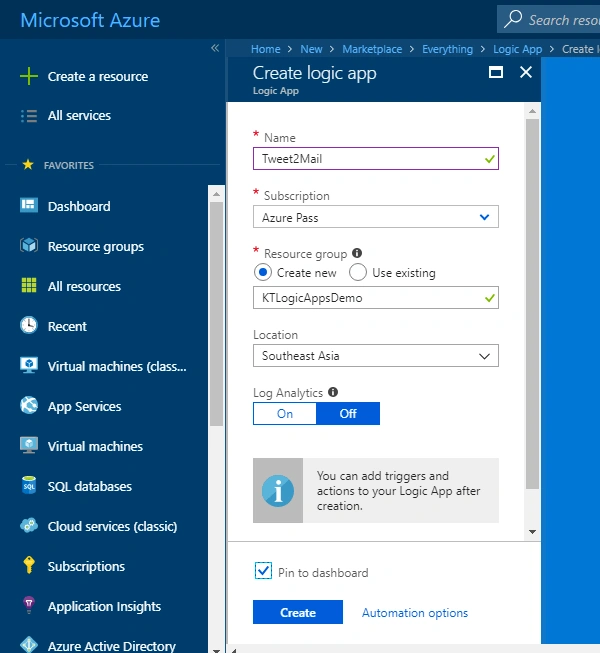
Give a name to the logic app, select the subscription, create a new resource group, choose location and keep the log analytics off. Click on create.
Step 3
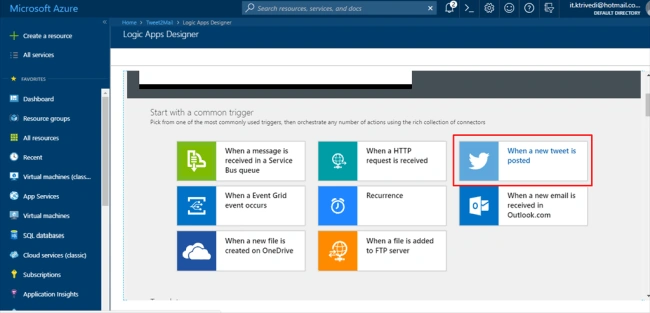
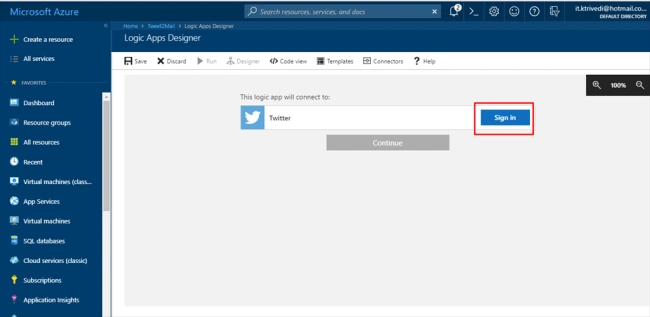
Once it gets created, go to the Logic App resource and select the Twitter trigger.
Step 4
Click on Sign in.
Step 5
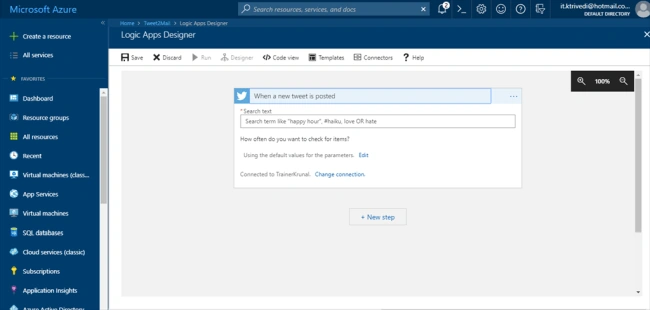
Once you are signed in, it will look something like this.
Step 6
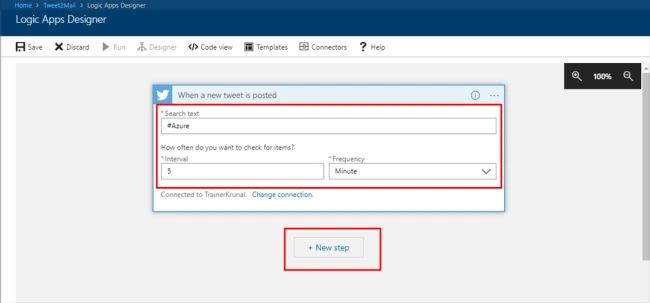
Select the search text as #Azure or whatever topic you want to receive tweets from. Set the interval time of 5 minutes. So after every 5 minutes, it is going to check the tweets with #Azure or whatever hashtag/text that you have selected. Then click on next step.
Step 7
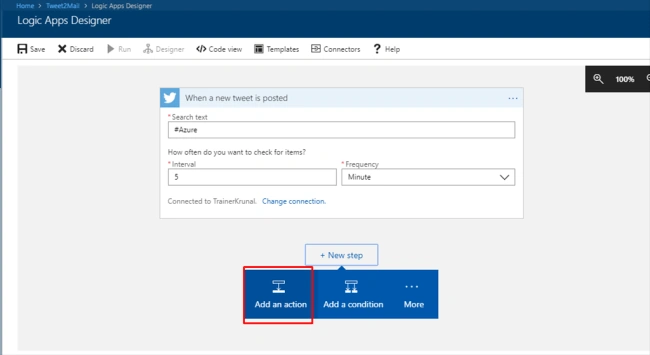
Click on "Add an action".
Step 8
Search for Gmail and select it.
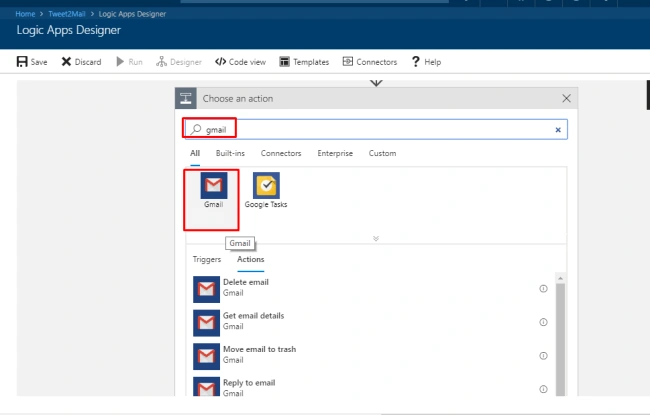
Step 9
You will be able to see multiple actions. Out of them, select Send Email. It will prompt you to sign in.
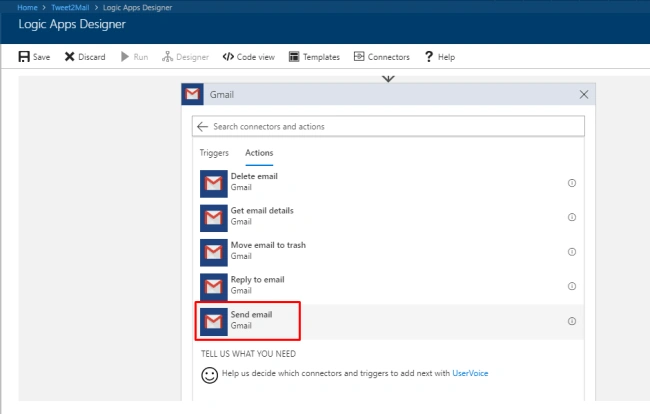
Step 10
Fill out the necessary fields. In the body section, we are going to display the dynamic data, that is the tweet text and who it is tweeted by.
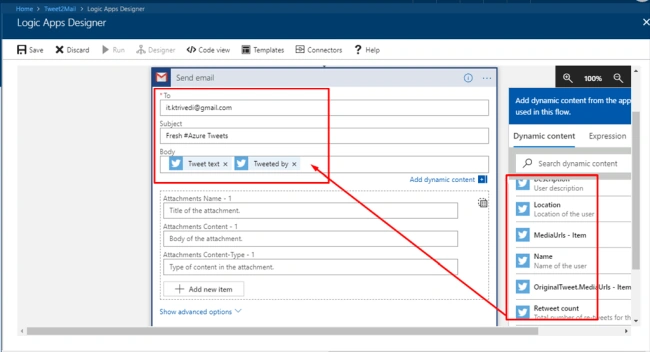
Step 11
Click on save. So, now we have a basic workflow connecting two different SaaS applications together.
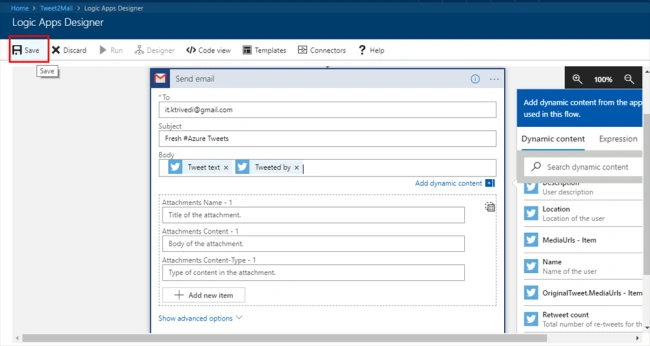
Step 12
So far in the demo that I have performed, it has fetched 11 tweets, hence making 11 successful runs.
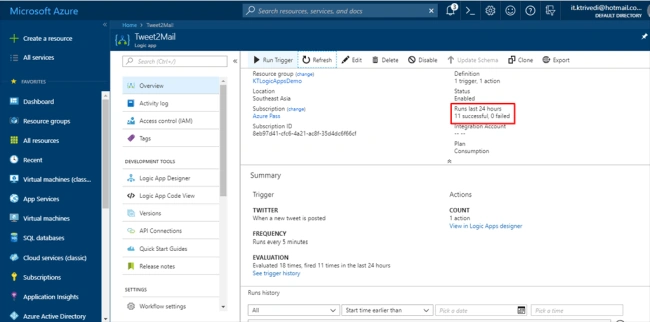
Step 13
Here is a glimpse of successful runs.
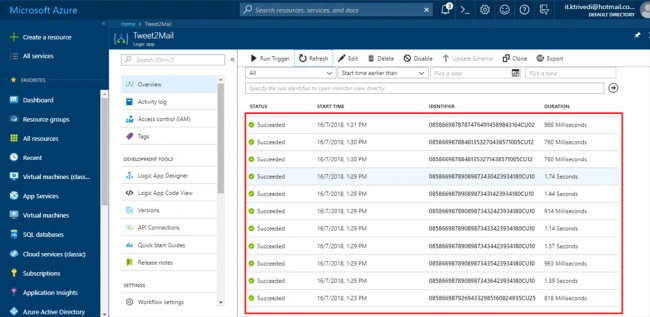
Step 14
In the resource group, you will find the logic app and Gmail and Twitter API connections as resources themselves. By clicking on Twitter/Gmail, you can edit the API connection.
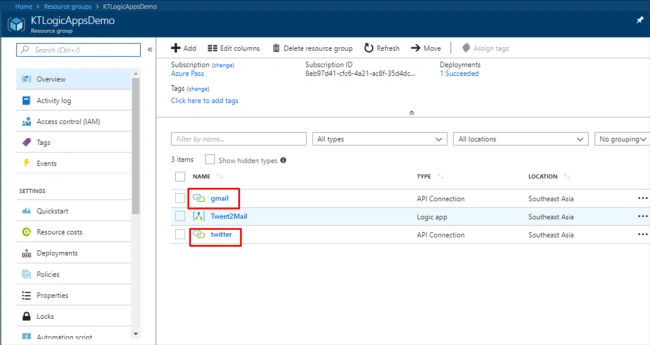
Step 15
You can edit the API connection from here if you want to change the authorization.
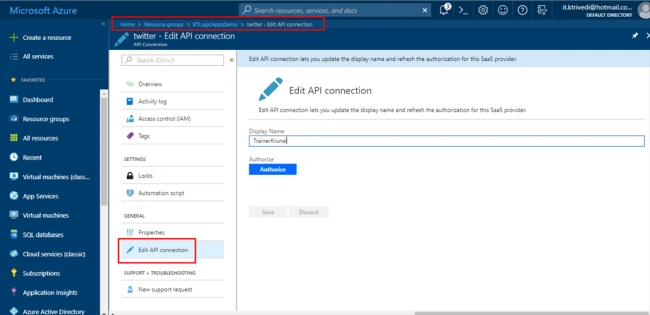
Step 16
Check your email and you will find the results mailed to your email ID. You can delete the resource group after successful completion of the demo or else, you will keep receiving emails until and unless you either delete the resources/resource group or your subscription runs out of credits.
So, this is how you can connect two different Software as a Service application with the help of Microsoft Azure Logic Apps.
Go to the Azure portal and create a new resource, a logic app.
Step 2
Give a name to the logic app, select the subscription, create a new resource group, choose location and keep the log analytics off. Click on create.
Step 3
Once it gets created, go to the Logic App resource and select the Twitter trigger.
Step 4
Click on Sign in.
Step 5
Once you are signed in, it will look something like this.
Step 6
Select the search text as #Azure or whatever topic you want to receive tweets from. Set the interval time of 5 minutes. So after every 5 minutes, it is going to check the tweets with #Azure or whatever hashtag/text that you have selected. Then click on next step.
Step 7
Click on "Add an action".
Step 8
Search for Gmail and select it.
Step 9
You will be able to see multiple actions. Out of them, select Send Email. It will prompt you to sign in.
Step 10
Fill out the necessary fields. In the body section, we are going to display the dynamic data, that is the tweet text and who it is tweeted by.
Step 11
Click on save. So, now we have a basic workflow connecting two different SaaS applications together.
Step 12
So far in the demo that I have performed, it has fetched 11 tweets, hence making 11 successful runs.
Step 13
Here is a glimpse of successful runs.
Step 14
In the resource group, you will find the logic app and Gmail and Twitter API connections as resources themselves. By clicking on Twitter/Gmail, you can edit the API connection.
Step 15
You can edit the API connection from here if you want to change the authorization.
Step 16
Check your email and you will find the results mailed to your email ID. You can delete the resource group after successful completion of the demo or else, you will keep receiving emails until and unless you either delete the resources/resource group or your subscription runs out of credits.
So, this is how you can connect two different Software as a Service application with the help of Microsoft Azure Logic Apps.
Sachin SuryawanshiPosted Aug 10, 2018, 12:02 AM
To start with, this is good one.
Kapil Singh KumawatPosted Aug 8, 2018, 8:03 AM
Krunal, Is this service is free ?
Ankur MistryPosted Aug 8, 2018, 6:18 AM
Great, thanks for Sharing Krunal
Abhishek MishraPosted Jul 26, 2018, 7:31 AM
I tried this today. It came handy for one of my friend who was building a logic app for his project. Thanks sharing.
Prabu ElavarasanPosted Jul 25, 2018, 1:44 AM
Nice article. Thanks much for sharing!
Viknaraj ManogararajahPosted Jul 24, 2018, 10:24 AM
Nice lab session...