

Introduction:
In this article we are going to see how to subscribe to Azure Reporting Services using the subscription code provided by Microsoft.Overview:
SQL Azure Reporting CTP is a beta version provided for developers to take an early look at the product before it's commercial release. To get the CTP version we need to register with the product using the Windows Azure credentials and we get the subscription code from Microsoft as shown below.
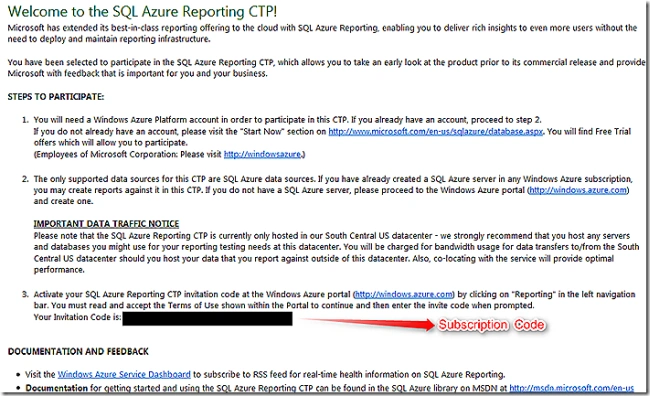
With the subscription mail we will get the subscription code we need to use to subscribe to the Azure Reporting Services online.
Now login to the Management Portal using the following link:
http://www.microsoft.com/windowsazure/
We will see a screen like below. Select "Sign into Management Portal" at the top right corner
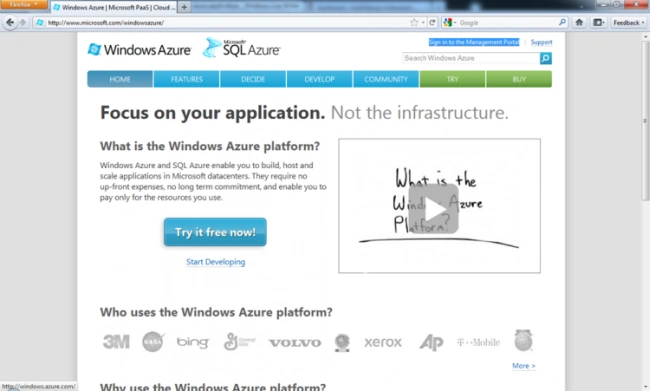
After selecting "Sign into Management Portal" you will be asked for the Username and Password to authenticate the process as shown in the following screen:
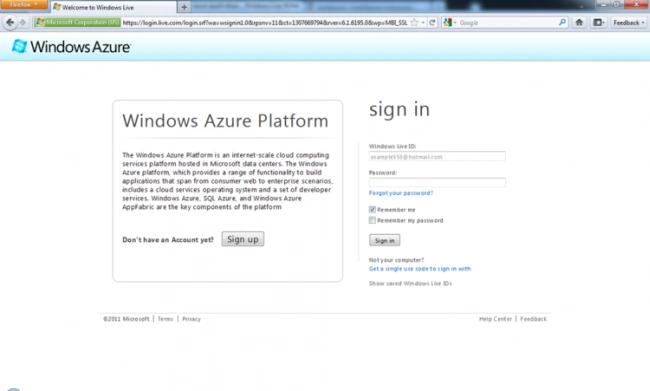
After providing the correct credentials and clicking on the submit button it will navigate to the main screen of the portal as shown in the following screen:
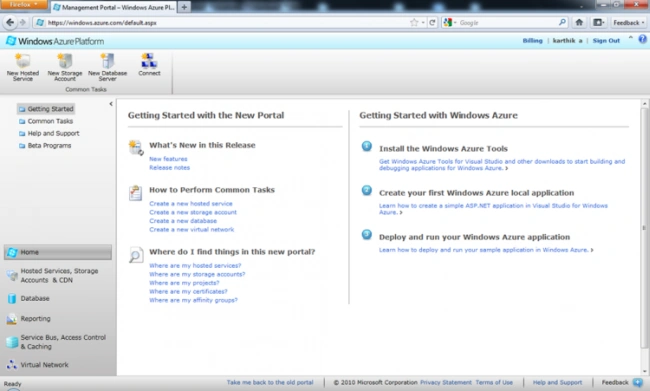
Now navigate to the Reporting tab and we will see 2 options as shown in the screen below:
- Sign Up - For the first time to sign up for getting the Subscription Code
- Provision - Once we got the subscription code, to configure the Reporting Service


Join the conversation! Your thoughts help the community grow.