

In the demo used in part one of this article series, we have seen the geographical routing methods. Here, we will see the performance routing method. For that, you have to change the routing method to performance in the dashboard of the Azure Traffic Manager.
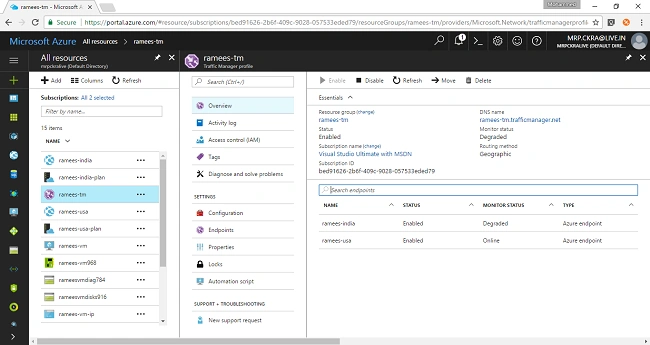
On doing this, if you came back to the portal, you can see that the monitoring status of India is degraded.
And if you try the same URL from your machine, you see the response from USA instead of India, as while checking, the Server has gotten no response from the India end-point.

One more thing that you have to take care of here is TTL. The duration of the cache is determined by the 'time-to-live' (TTL) property of each DNS record. Shorter values result in faster cache expiry and thus more round-trips to the Traffic Manager Name Servers. Longer values mean that it can take longer to direct traffic away from a failed end-point in case of any failure and will result in being locked-in. Traffic Manager allows you to configure the TTL used in Traffic Manager DNS responses, enabling you to choose the value that best balances the needs of your application.
Here, it is 300 seconds that means - go to selected end-point and have the communication directly until 5 minutes. It will check back with the Traffic Manager only after 5 minutes.
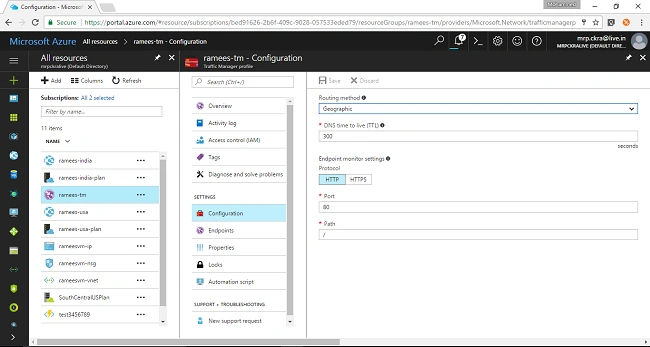
The next thing you have to take care of is the monitoring settings. The only way Traffic Manager checks whether an end-point is up and running is by querying the port 80 for the root page. As we know, whenever we request a web page and it loads, it gets an HTTP protocol code 200 which is for OK.
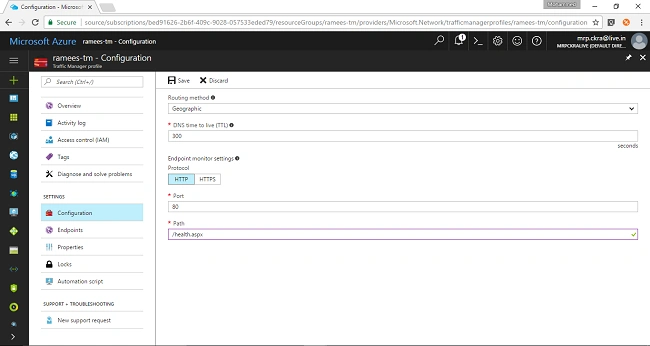
Here, health.aspx will return the code 200 only if all the connected resources are working and Traffic Manager will check the response from this page only.
Thiruppathi RPosted May 18, 2017, 12:24 AM
Nice Article thanks for sharing...