
Here are the steps:
Open a site where we want to create a backup.
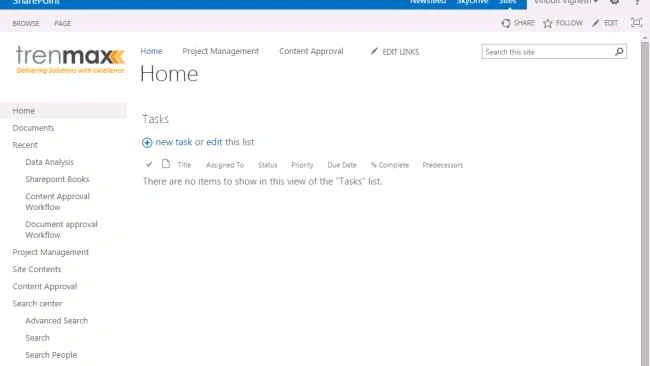
Now I am going to backup the site.
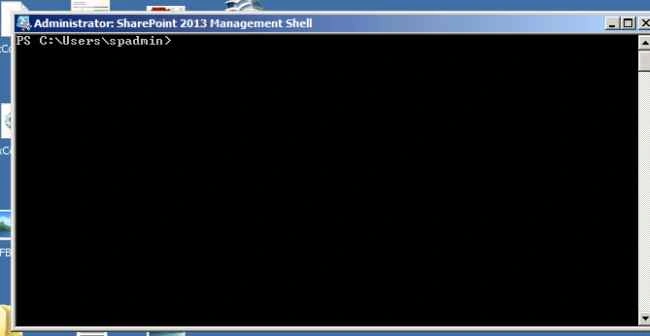
Open “SharePoint management shell”.
Run as elevated privileges.
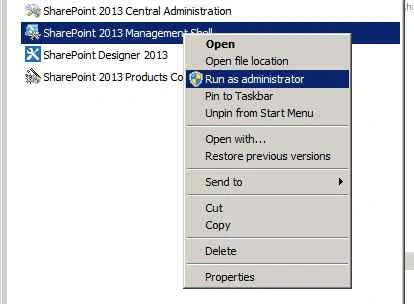
Command: Backup-SPSite -Identity URL -Path “location”.
Example:
Backup-SPSite -Identity “http://site/test” -Path “c:\backup\test.bak”.
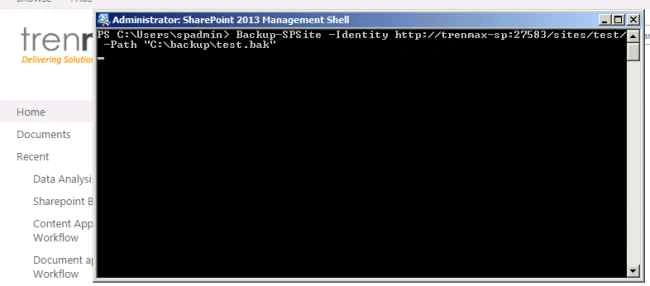
So site backup has been taken successfully.
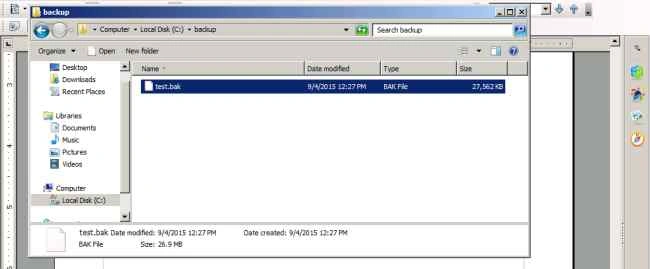
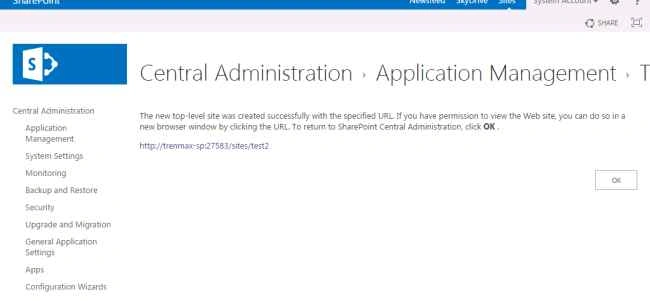
Open central administration.
Now create a team site to restore the backup.
Now we will restore the backup to this site.
Command
Restore-SPSite -Identity URL -Path “backup file location” -Force.
Example:
Restore-SPSite -Identity “http://trenmax-sp/sites/test2/” -Path “c:\backup\test.bak” -Force.
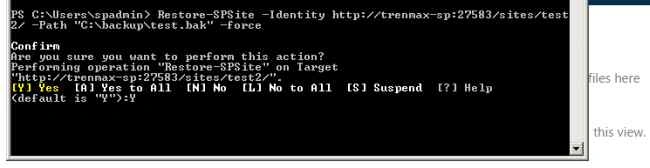
Type: Yes
Select the default is 'Y', so the site has now start restoring.
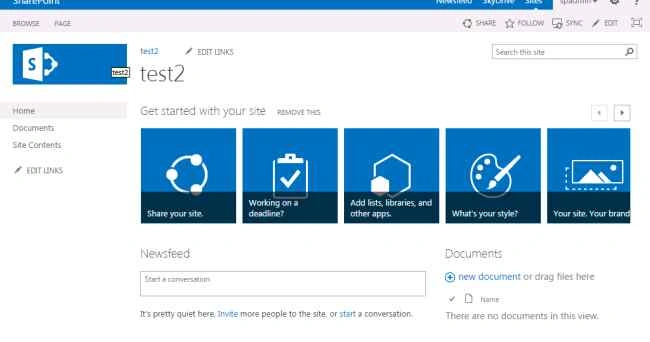
Now the site has been restored successfully into this site.
Now refresh the page.
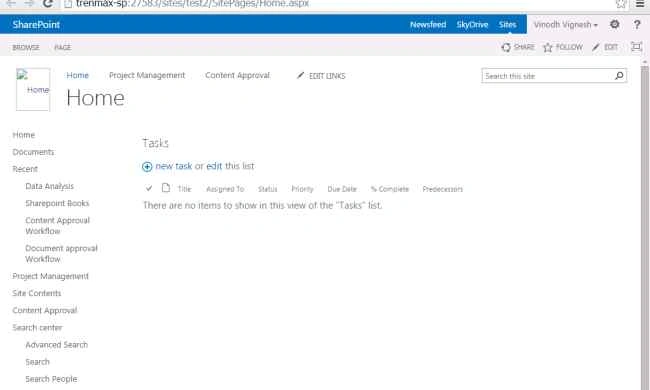
It has been restored successfully into test2 site.

Vinodh NarayananPosted Sep 6, 2015, 3:58 AM
Rakesh Chavda thanks a lot
RakeshPosted Sep 6, 2015, 12:35 AM
Nice one
Vinodh NarayananPosted Sep 5, 2015, 4:18 AM
Santhakumar MunuswamyThanks a lot sir
Santhakumar MunuswamyPosted Sep 5, 2015, 4:02 AM
Thanks for nice share
Vinodh NarayananPosted Sep 5, 2015, 1:01 AM
Karthikeyan K Thanks
Karthikeyan KPosted Sep 5, 2015, 12:59 AM
Good one sir...Thanks for sharing
Vinodh NarayananPosted Sep 5, 2015, 12:12 AM
Thanks a lot guys
Abhay ShankerPosted Sep 4, 2015, 8:08 PM
Nice ...
Mohammed IbrahimPosted Sep 4, 2015, 3:40 PM
Nice Article