

Introduction
Basic Navigation Among Pages using XAML & C# In Windows Store Apps
Description
Navigation is the process of navigating from one page to another page among multiples pages within the application. Microsoft Visual Studio Express 2012 provides page templates for Windows 8 that provides basic navigation support for Windows Store Apps using C# or XAML code. In this article we will use the page templates to manage navigation among multiple pages in Windows Store apps.
Step 1
Create a new project with the name "NavigationDemo" using the following:
- Open Visual Studio Express 2012 for Windows 8
- Choose "File" -> "New" -> "Project..."; here the New Projects Dialog Box will be opened
- From the installed application panel select "Visual C#" then Select "Windows Store Apps"
- From the middle panel select "Blank application" & press the Enter key for the project name "NavigationDemo"
- Click the "Ok" button; the project will be created with the specified name
Now you need to add two pages to the project for doing the navigation, so the next step is to add the two pages.
Step 2
Add the two pages to the project using the following procedure:
- Go to the Solution Explorer.
- Right-click on the projects then select "Add New Item". The Add New Item dialog box opens.
- In the "Installed" pane, expand "Visual C#"
- Select the "Windows Store app" template type
- From the middle panel, select "Basic Page" with the name "BasicPage1"
- Click "Add".
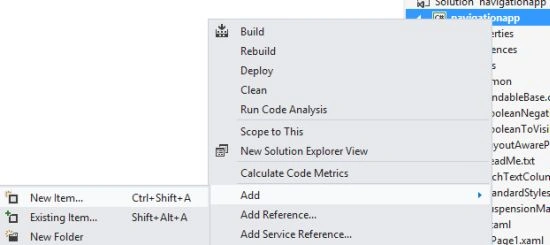
After adding the first basic page, repeat this process again to add the second page with the name "Basic Page2".
We will see the following page details in the Solution Explorer: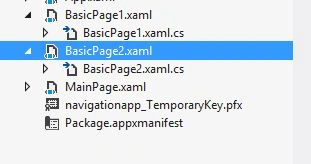
BasicPage1.Xaml
BasicPage1.Xaml.cs
BasicPage2.Xaml
BasicPage2.Xaml.cs
Step 3
A. Add two "Button on MainPage.xaml " for navigation 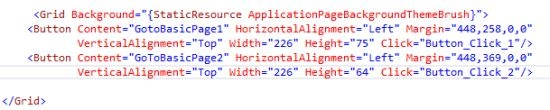
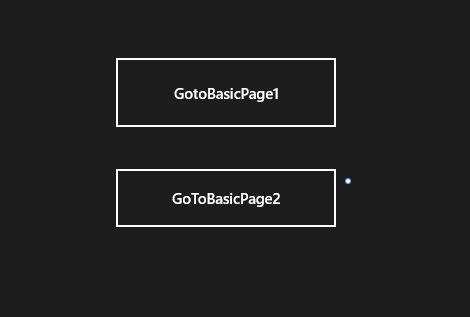
A. And set the name through XAML code as Content="GoToBasicPage1" given here and the Navigation Page Detail here MainPage->Page1 Navigation.
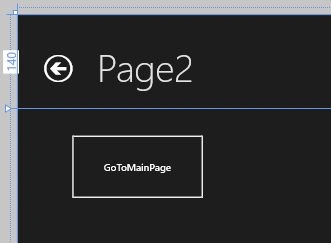
B. And set the name through XAML code as Content="GoToBasicPage2" given here and the Navigation Page Detail here MainPage->Page2 Navigation.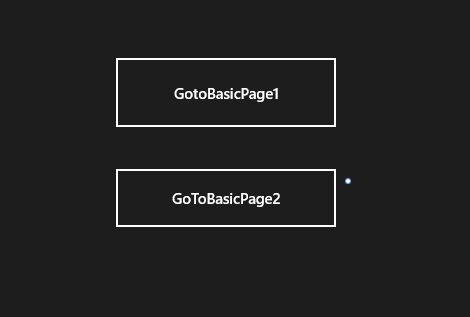
C. Put the following code in MainPage.xaml.cs to show navigation for various pages from the main page to other pages.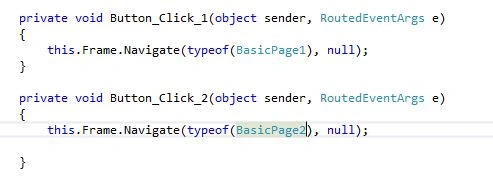
Step 4


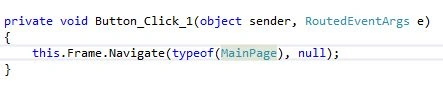
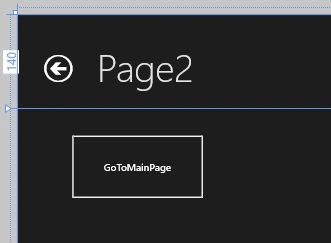



Sultan ZamanPosted Sep 13, 2015, 2:08 AM
What if I want to navigate to a page without any button click event?
raj jariwalaPosted Aug 18, 2015, 3:27 PM
same error like mayanja lawrence what can i do?
James CroftPosted Jan 17, 2015, 6:09 AM
Beginner developers will find this very useful. There are plenty of ways of expanding on this tutorial using MVVM Light and creating navigation aware view models tied together with a navigation provider which will do the work for you with very little code.
mayanja lawrencePosted Jul 14, 2014, 10:07 AM
Error 1 'navigation_Demo.MainPage' does not contain a definition for 'Frame' and no extension method 'Frame' accepting a first argument of type 'navigation_Demo.MainPage' could be found (are you missing a using directive or an assembly reference?) c:\users\pml\documents\visual studio 2010\Projects\navigation Demo\navigation Demo\MainPage.xaml.cs 26 17 navigation Demoit showed the above error