

SQL Server Logins
In this part, we will try to understand each and everything related to logins. So let's move ahead to explore SQL Server logins and if you missed Part 1 & Part 2 you can check them out on the following link:
- Basics of Database Administration in SQL Server: Part 1
- Basics of Database Administration in SQL Server: Part 2
Login
A login is simply a set of credentials to gain access to SQL Server that requires proper authentication.
Users need login to connect to SQL Server or we can say logins are associated to a user and the association is done by a Security Identifier (SID). We can create a login based on a Windows Authentication (like a domain user or a Windows domain group) or we can create a login with SQL Server Authentication.
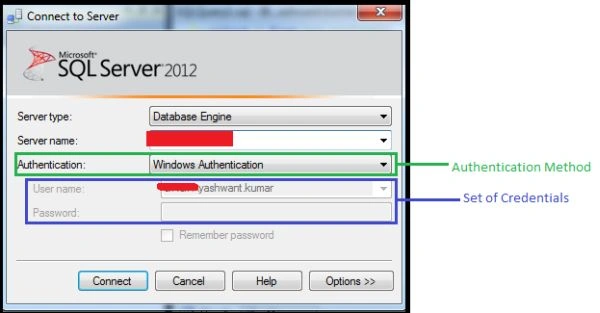
Figure 1: Illustration of SQL Server Login
You can refer to Abhishek Yadav's article on “Logins and Users in SQL Server“ for more information in which he explained very well about SQL Server logins and users.
Properties of logins
- It is a server level entity.
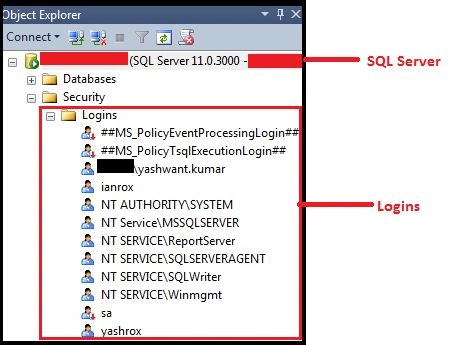
Figure 2: Demonstrating that login is a server level entity
- It is a set of credentials, in other words, username and password are required. Refer to Figure 1.
- Login information is stored in the sys.syslogins/sys.server_principals table in the master database. In Figure 3, the output in my case is of 27 rows, I have taken only those rows that covered all the types of logins, for example Windows, SQL, certificate mapped and server role, so don't be confused here.
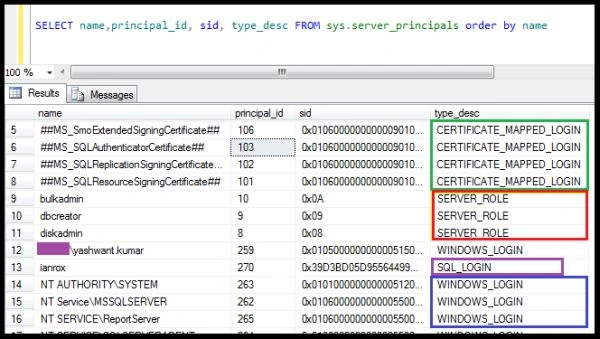
Figure 3: Showing sys.server_principals output
Note 1: Here I want to emphasize what the difference is between sys.syslogins & sys.server_principals and it is very important to know that:
sys.syslogins: It is a compatibility view to support 2000 databases and hence not recommended for use from SQL Server 2005 onwards.
This includes logins that are Windows, certificate mapped, or SQL authentication based.
sys.server_principals: It is recommended to use this view from SQL Server 2005 onwards.
Apart from Windows, certificate mapped or SQL authentication based logins it also includes server role information.
Note 2: SQL Server logins enclosed in double hash signs (##) represent internal logins created from certificates. The installation process will create users like "##MS_PolicyEventProcessingLogin##", so do not be surprised when you see them on SQL Server. It is very clear from Figure 3.
- Logins are associated with users by a Security Identifier (SID), in other words we can say if a database user exists but there is no login associated, then in this case the user will not able to log into SQL Server. We can check it by Stored Procedure sp_helplogins or sp_msloginmappings.

Figure 4: Showing "XYZ\yashwant.kumar" associated with the user "yashwant" by SID
"0x01050000000000051500000094F29E736A3CA94F37C329CD7B540000" using sp_helplogins in a query window and in the Object Explorer also.
or
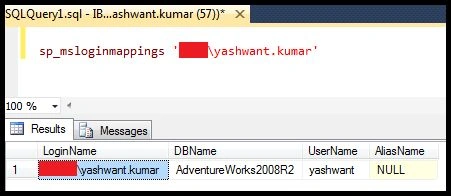
Figure 5: Showing output of sp_msloginmappings that also shows that "XYZ\yashwant.kumar" login is associated with the user "yashwant".
Exploring More about Logins
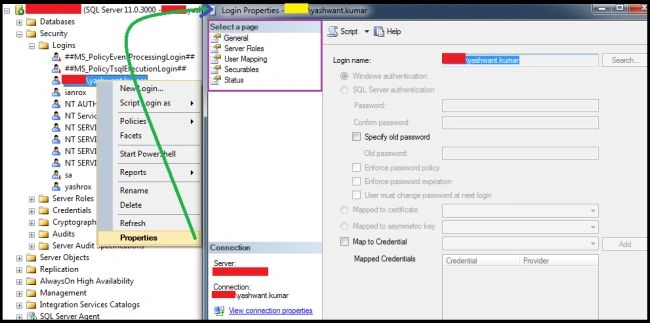
Figure 6: Login Properties Page.
The Login Properties page is divided into the following five sections:
- General
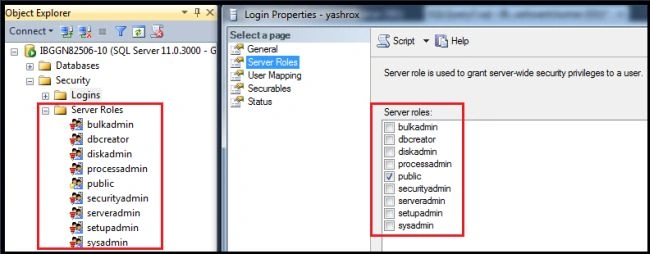
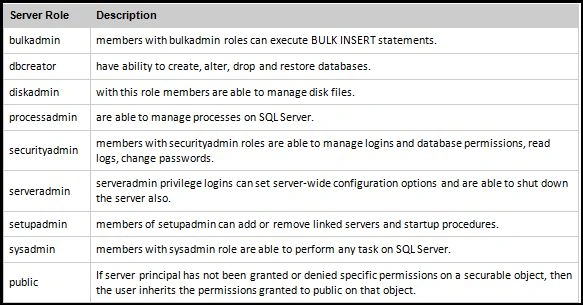
- Server Roles
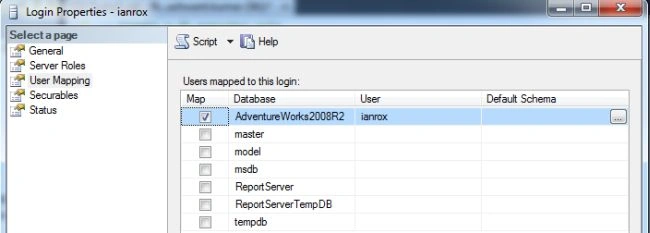
- User Mapping
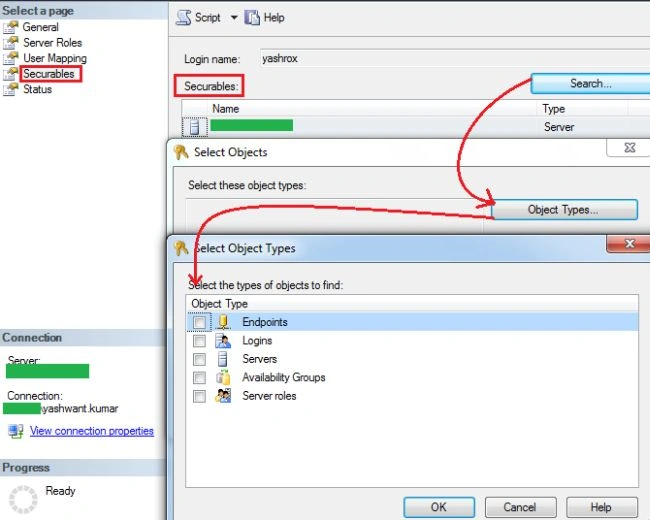
- Securables
- Status
1. General
When we open the General tab of the login properties page we can see the following information:
- Login Name: Information about the name of the login including the authentication types information.
- Password: It is a password for the login name.
- Specify Old Password: If we want to change the password. The following is the procedure to change the password:
- Right-click on login test1 then click on properties.
- Delete the old password and enter a new password in the password box.
- Again enter the new password in the confirm password box.
- Enable the check box to specify the old password and input the old password.
- Click OK. It's done now. Login with new password and check that it's done.
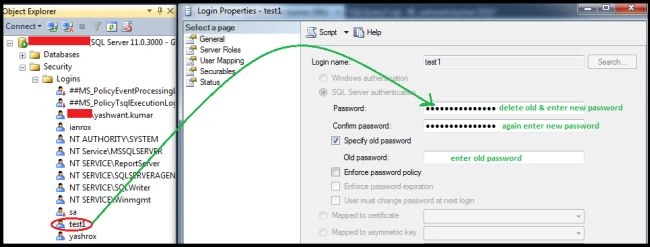
Figure 7: Demonstration of changing password of login
- Enforce password policy: enable this checkbox, if you want to enforce the password policy.
See more about password policy from the following link.
- Enforce Password Expiration: enable this checkbox if you want a password expiration time for the login.
- Mapped to Certificate: Certificates are the way to encrypt with a digitally signed object.
The certificate provides database-level security control.
We can execute sys.certificates views to see the certificates, for example:
- select name,certificate_id,principal_id, pvt_key_encryption_type_desc from
- sys.certificates;

Figure 8: Querying sys.certificates
- Mapped to Asymmetric Key: These are the keys in SQL Server for encrypting and decrypting data that is being transmitted from one place to another.
We can see the asymmetric keys by querying the view for sys.asymmetric_keys, for example:
- select name,principal_id,pvt_key_encryption_type_desc,algorithm_desc from sys.asymmetric_keys

Figure 9: Querying sys.asymmetric_keys
Note: SQL Server suports three algorithms for asymmetric key encryption: RSA_512, RSA_1024 & RSA_2048.
- RSA is made of the initial letters of the surnames of Ron Rivest, Adi Shamir and Leonard Adleman, who first publicly described the algorithm in 1977.
- All three RSA_512, RSA_1024 & RSA_2048 algorithms are all based on the RSA cryptosystem. The difference in these RSA is the key length: 512, 1024 or 2048 bits. The longer the key (the more bits it has) results in more security of the encrypted data is and more bits also means that more CPU resources will be used.
- Map to Credential: A credential is a record that contains the authentication information required to connect to a resource outside SQL Server. ( Source: msdn.microsoft.com.)
Note: A single credential can be mapped to multiple SQL Server logins. However, a SQL Server login can be mapped to only one credential.
We can see the credentials using sys.credentials view, for example:
- select * from sys.credentials

Figure10: Querying sys.credentials view

Raja TPosted Dec 23, 2015, 2:36 AM
Nice Sir, Thanks for sharing
Sibeesh VenuPosted Dec 23, 2015, 2:35 AM
Nice Share
Yashwant VishwakarmaPosted Aug 6, 2015, 7:11 AM
Thank You all for your warm support, feeling blessed :) :)
Jitendra KumarPosted Aug 6, 2015, 5:50 AM
Nice Article..Thank u..
Debasis SahaPosted Aug 6, 2015, 1:26 AM
Nice article..
sreenivasa kPosted Aug 5, 2015, 6:18 PM
good one
Neeraj KumarPosted Aug 5, 2015, 5:44 PM
Nice Article
Pankaj Kumar ChoudharyPosted Aug 5, 2015, 2:04 PM
Nice Work Sir........
Shridhar SharmaPosted Aug 5, 2015, 10:39 AM
thanks for sharing.
Gopi ChandPosted Aug 5, 2015, 9:57 AM
Excellent sir
Yashwant VishwakarmaPosted Aug 5, 2015, 8:02 AM
Thank You Nilesh Jadav :)
Nilesh JadavPosted Aug 5, 2015, 7:21 AM
Nice article sir
Sibeesh VenuPosted Aug 5, 2015, 6:30 AM
Nice Share
Debasis SahaPosted Aug 5, 2015, 1:02 AM
Nice one..
Nilesh JadavPosted Aug 5, 2015, 12:47 AM
Nice one sir, good article
Rajeesh MenothPosted Aug 5, 2015, 12:31 AM
Good One,Thanks for sharing..
Chervine BhiwooPosted Aug 4, 2015, 11:20 PM
Good work!
Santhakumar MunuswamyPosted Aug 4, 2015, 10:53 PM
Nice Article