This is part 2 of Basics of JQuery.
In part 1 of this series we discussed the purpose of using JQuery.
This article discusses the following topics:
- Introduction to JQuery Selector
- Different types of Selectors
- Id selector
- Element TagName selector
- Class selector
- Attribute selector
- Attribute value selector
- Case insensitive attribute selector
- Input and :input selector.
- Checked selector
- Selected selector
In a CSS article we discussed the purpose of using selectors. In order to select and manipulate the HTML element using its id we used id selector and for class we used class selector. Just like that in JQuery we use the same selector to manipulate the elements.
Let’s look at each of the selectors one by one with a help of a demo.
Id Selector
To select element using its id, we use Id selector.
Demo
In this demo we will see how to select and manipulate an HTML element using its Id.
First thing we need to do is add a textbox control and a button control.
- <body>
- <input type="text" id="txtOne" />
- <input type="button" id="btn" value="Click" />
- </body>
In the above HTML element, the id of textbox control is txtOne and id of button is btn.
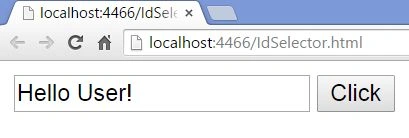
Now what we want to achieve here is that whenever a user clicks the button, a welcome text should be displayed in the textbox.
Add the following JQuery file reference in the head section your document.
- <script src="scripts/jquery-2.1.4.js"></script>
Write the following JavaScript code.
- <script type="text/javascript" lang="ja">
- $(document).ready(function () {
-
- });
- </script>
We have already discussed the purpose of $(document).ready() function in the previous article.
In CSS whenever we want to select an element based on its id, we used #idName whereas in JQuery we use JQuery() function or simply $() and pass an id prefixed with #.
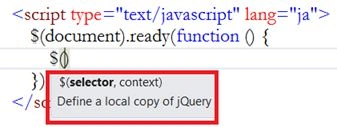
Pass the button id as a parameter in the JQuery function and on this function invoke the click event on which create a new anonymous function.
- $(document).ready(function () {
- $('#btn').click(function () {
-
- });
- });
Whenever a user clicks the button, we want to display a greeting message. So, write the following inside the anonymous function block.
- <script type="text/javascript" lang="ja">
- $(document).ready(function () {
- $('#btn').click(function () {
- $('#txtOne').val('Hello User!');
- });
- });
- </script>
Entire HTML look like this.
- <!DOCTYPE html>
- <html>
- <head>
- <script src="scripts/jquery-2.1.4.js"></script>
- <script type="text/javascript" lang="ja">
- $(document).ready(function () {
- $('#btn').click(function () {
- $('#txtOne').val('Hello User!');
- });
- });
- </script>
- <title></title>
- </head>
- <body>
- <input type="text" id="txtOne" />
- <input type="button" id="btn" value="Click" />
- </body>
- </html>
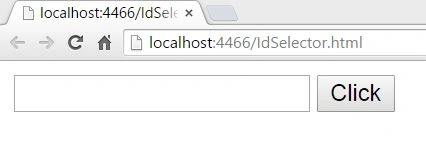
Click the button.
 Useful Tips
 - JQuery(‘#idSelector’) uses the JavaScript’s document.getElementById() function.
- The id of each and every element in your HTML document must be unique. If there are more than one element having the same id then JQuery #id selector returns only the first element.
- <body>
- <input type="text" id="txtOne" />
- <input type="text" id="txtOne" placeholder="text box two" />
- <input type="button" id="btn" value="Click" />
- </body>
Currently in our document we have two textbox with a same id.
Let’s see what will happen if we click the button.
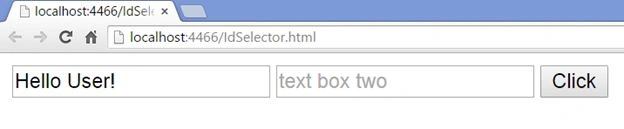
In the output above, the JQuery #id selector returns only the first element.
Note
All the selector returns a collection of elements. And since id selector returns only the first element back, so it will have only one element in the collection.
- If the element with a given id is not found then JavaScript’s document.getElementById() function throws an error whereas the #id selector JQuery will not throw any error.
- Use document.getElementById() over JQuery #id selector unless you need some extra functionality provided by the JQuery object as document.getElementById() is faster than JQuery #id selector.
Element Selector or TagName Selector
To select an element or elements by tag name, use JQuery Element Selector.
Syntax –
$(‘ElementName’)
Demo
In this demo we will see how to count and retrieve total td present in a table, we will also see how to change the background color of all the table row and in addition to that we will see how to display the table content in an alert window.
Create a new HTML document and write the following –
- <!DOCTYPE html>
- <html>
- <head>
- <script src="scripts/jquery-2.1.4.js"></script>
- <title></title>
- </head>
- <body>
- <table border="1" style="border-collapse:collapse">
- <tr>
- <th>Name</th>
- <th>Gender</th>
- <th>Course</th>
- </tr>
- <tr>
- <td>James</td>
- <td>Male</td>
- <td>ASP.NET</td>
- </tr>
- <tr>
- <td>Sara</td>
- <td>Female</td>
- <td>C++</td>
- </tr>
- <tr>
- <td>Michael</td>
- <td>Male</td>
- <td>PHP</td>
- </tr>
- </table>
- </body>
- </html>
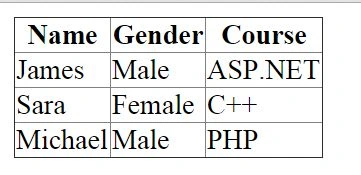 Example 1
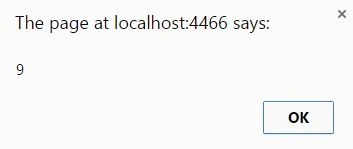
In this example we will see how to count the table td present in the above table.
- <script type="text/javascript">
- $(document).ready(function () {
- alert($('td').length);
- });
- </script>
 Example 2
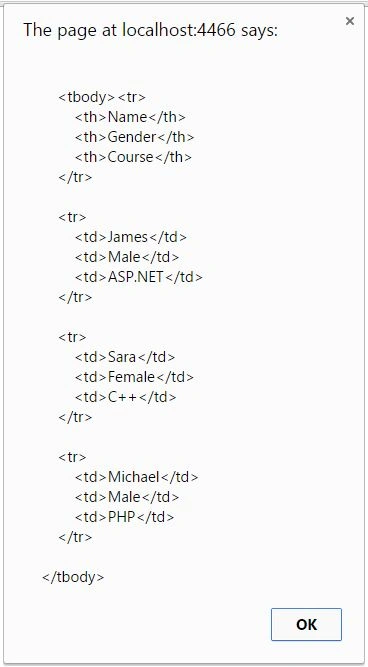
In this example we will display all the data in an alert window.
- <script type="text/javascript">
- $(document).ready(function () {
- alert($('table').html());
- });
- </script>
 Example 3
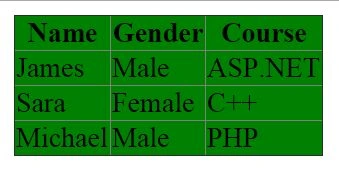
In this example we will see how to change the background color of the table rows.
- <script type="text/javascript">
- $(document).ready(function () {
- $('tr').css('background-color', 'green');
- });
- </script>
 Example 4
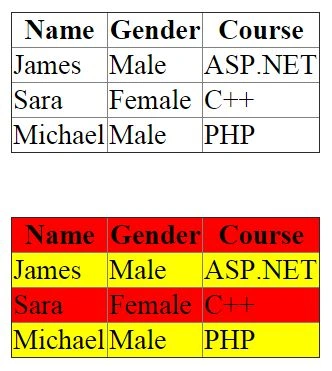
In this example we will create two tables and we will see how to change the background color of one and both the tables using even and odd selector.
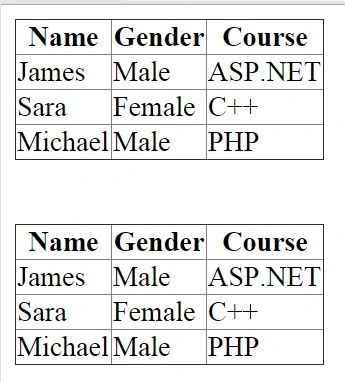
The first table have an id of t1 and second table have an id of t2.
Now let’s see how to change the background color of both these tables.
- $(document).ready(function () {
- $('tr').css('background-color', 'red');
- });
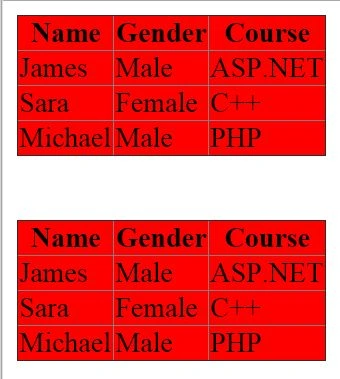
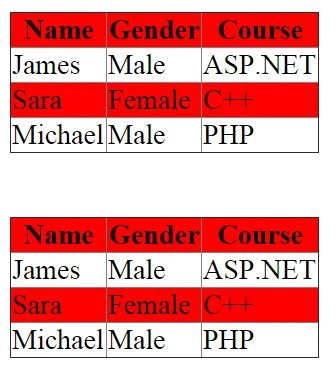
Let’s say our requirement is such that we want to change the 1st and 3rd row color to red and the rest of the rows to yellow. To achieve this functionality we can use even and odd selector.
- $(document).ready(function () {
- $('tr:even').css('background-color', 'red');
- });
- $(document).ready(function () {
- $('tr:even').css('background-color', 'red');
- $('tr:odd').css('background-color', 'yellow');
- });
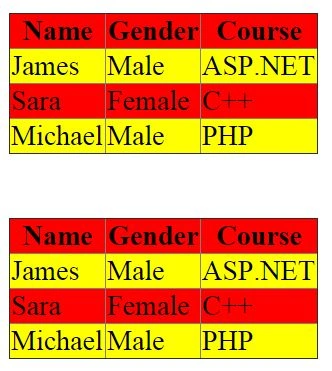
In the output above, both the tables works exact the same way. But what if we want only the second table background color to be manipulated. Is it possible to achieve that functionality? Absolutely.
- $(document).ready(function () {
- $('#t2 tr:even').css('background-color', 'red');
- $('#t2 tr:odd').css('background-color', 'yellow');
- });
 Class Selector
To select one or more than one element using their css class name, class selector can be used. In JavaScript for selecting and manipulating an element using its class name we use the native document.getElementByClassName function. In JQuery we use JQuery “.class” selector.
Demo
Create a new HTML document and write the following within the body section.
- <body>
- <p class="p1">This is paragraph one</p>
- <div>
- <p class="p2">This is paragraph two</p>
- <p class="p2">This is paragraph three</p>
- <p class="p4">This is paragraph four</p>
- </div>
- <p class="p5">This is paragraph five</p>
- </body>
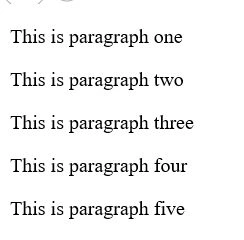
Currently we have five paragraphs out of which the three paragraphs are inside a div section i.e. paragraph two, three, and four. Paragraph two and three have a same class name.
Now let’s see how to select and manipulate all the above elements using JQuery.
Example 1
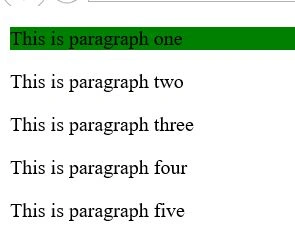
In this example we will change the background color of paragraph one.
Write the following JavaScript within the head section of your HTML document.
- <script src="scripts/jquery-2.1.4.js"></script>
- <script type="text/javascript" lang="ja">
- $(document).ready(function () {
- $('.p1').css('background-color', 'green');
- });
- </script>
 Example 2
In this example we will see how to change the background color of p1 and p2.
- <script type="text/javascript" lang="ja">
- $(document).ready(function () {
- ('.p1, div .p2').css('background-color', 'red');
- });
- </script>
To select and manipulate more than one element, we specify class name each separated by comma(,).
.p1, div .p2, where .p1 is a class name of paragraph one and div .p2 is like a descendent selector which means inside the div section there is an element with a class name p2.
Run the application 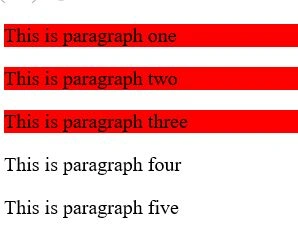 Attribute and Attribute value selector
The Attribute Selector of JQuery is used to select elements that have specific attributes.
The Attribute Value Selector of JQuery is used to select elements that have a specified attribute values.
Syntax
$(‘[AttributeName]’)
$(‘[AttributeName = Value]’) Let’s look at some of the examples of it.
Example 1
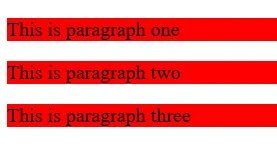
In this example we will see how to select and change the background color of three paragraph elements using its attribute and in order to do that we need to create a new HTML document.
Add three paragraphs in the body section.
- <p title="p1">This is paragraph one</p>
- <p title="p1">This is paragraph two</p>
- <p title="p2">This is paragraph three</p>
Add the following reference to the JQuery file in the head section.
- <script src="scripts/jquery-2.1.4.js"></script>
Write the following JQuery code.
- <script type="text/javascript" lang="ja">
- $('[title]').css('background-color', 'red');
- </script>
It is mandatory to wrap the attribute name inside the square bracket.
The entire HTML look like this.
- <!DOCTYPE html>
- <html>
- <head>
- <title></title>
- <script src="scripts/jquery-2.1.4.js"></script>
- </head>
- <body>
- <p title="p1">This is paragraph one</p>
- <p title="p1">This is paragraph two</p>
- <p title="p2">This is paragraph three</p>
- <script type="text/javascript" lang="ja">
- $('[title]').css('background-color', 'red');
- </script>
- </body>
- </html>
 Example 2
In this example we will see how to change the background color of the above three paragraphs using its attribute values and in order to do that we need to make some changes in our script.
- <!--Attribute value-->
- <script type="text/javascript" lang="ja">
- $('[title=p1]').css('background-color', 'orange');
- </script>
where title is an attribute and p1 is a value of this title attribute.
As we know, in our application there are two paragraphs whose title value is p1. So, when we run the application the background color of those two paragraphs will change to orange.
Run the application 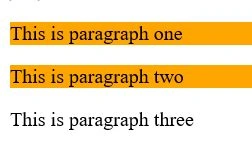 Example 3
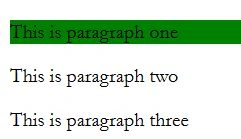
In this example we will see how to manipulate only those paragraphs which is present inside a div section and in order to do that we need to make some modification in our body section.
Wrap the first paragraph inside a div section.
- <div>
- <p title="p1">This is paragraph one</p>
- </div>
- <p title="p1">This is paragraph two</p>
- <p title="p2">This is paragraph three</p>
Write the following JQuery –
- <script type="text/javascript" lang="ja">
- $('div p[title=”p1”]').css('background-color', 'green');
- </script>
 Example 4
In this example we will see how manipulate elements based on two attributes. In order to achieve it we need to make some changes in the body section.
- <p title="p1" class=".p1">This is paragraph one</p>
- <p title="p1" class=".p2">This is paragraph two</p>
- <p title="p2" class=".p1">This is paragraph three</p>
At the moment, we have two attributes in the first two paragraphs i.e. title with a value of p1 and class with a value of p1 and p2 respectively.
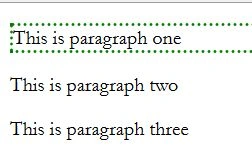
Now in order to add a background-color or a border to the first paragraph we can use title attribute. But at present all the three paragraphs have title attributes. We can use attribute value but still there are two paragraphs whose value is same. So in order to add border to the first paragraph, we can specify two attribute with its values.
- <!--More than one attribute-->
- <script type="text/javascript" lang="ja">
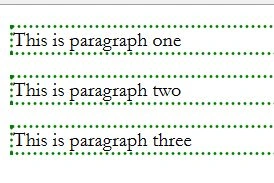
- $("[title='p1'][class='.p1']").css('border', '3px green dotted');
- </script>
How does it works?
- [title='p1'][class='.p1']
Add a border to an element whose title is p1 and class is .p1.
Now you might be wondering what will happen if we specify a comma between those attributes.
If you specify comma between the two attributes, it will be treated as
OR.
- <script type="text/javascript" lang="ja">
- $("[title='p1'],[class='.p1']").css('border', '3px green dotted');
- </script>
Some important points to remember when working with Attribute Value selector.
Attribute Value Selectors can be categorized into following –
Equal Selector [title=”value”] => The EqualTo Value Selector can be used in a situation where you want to manipulate only those element which matches the specified attribute value.
Example - <!DOCTYPE html>
- <html>
- <head>
- <title></title>
- <script src="../scripts/jquery-2.1.4.js"></script>
- <meta charset="utf-8" />
- </head>
- <body>
- <p title="title1">This is paragraph one</p>
- <p title="title2">This is paragraph two</p>
- <p title="title1">This is paragraph three</p>
- <script type="text/javascript" lang="ja">
- $(document).ready(function () {
- $('[title=\'title1\']').css('color', 'green');
- });
- </script>
- </body>
- </html>
-
- $('[title=\'title1\']').css('color', 'green');
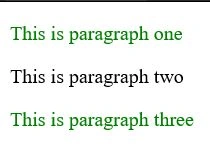
The above syntax states, fore-color will be changed for those elements whose title attribute value is equal to title1.
Output 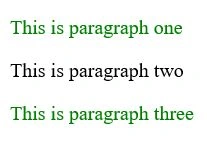
Not Equal Selector [title!=”value”] => Not EqualTo Value Selector can be used in a situation where you want to manipulate only those element which does not matches the specified attribute value.
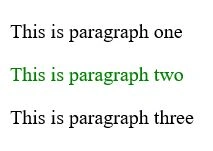
Example- $('[title!=\'title1\']').css('color', 'green');
The above syntax states, the fore-color will be changed for those elements whose attribute value is not equal to title1.
Output
 StartsWith Selector [title^=”valu
e”] => StartsWith Attribute Selector selects all the elements whose attribute value starts with a specified string and here the string is ‘value’.
Example- <p title="title1">This is paragraph one</p>
- <p title="title2">This is paragraph two</p>
- <p title="21">This is paragraph three</p>
In the above HTML, the title value of the first two paragraph is title1 and title2. The title value of the last paragraph is 21.
Write the following JQuery.
- <script type="text/javascript" lang="ja">
- $(document).ready(function () {
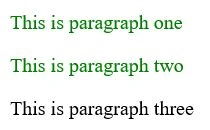
- $('[title^="t"]').css('color', 'green');
- });
- </script>
In the above JQuery syntax, we are looking for only those title attributes whose value starts with t and once those elements are found, the CSS function will change the fore-color of those elements.
Entire HTML look like this.
- <!DOCTYPE html>
- <html>
- <head>
- <title></title>
- <script src="../scripts/jquery-2.1.4.js"></script>
- <meta charset="utf-8" />
- </head>
- <body>
- <p title="title1">This is paragraph one</p>
- <p title="title2">This is paragraph two</p>
- <p title="21">This is paragraph three</p>
- <script type="text/javascript" lang="ja">
- $(document).ready(function () {
- $('[title^="t"]').css('color', 'green');
- });
- </script>
- </body>
- </html>
Output h
 EndsWith Selector [title$=”value”] =>
 EndsWith Selector is just opposite of StartsWith Attribute value selector. To check if the element value ends with a specific string, we use “$”.
Example- $('[title$="1"]').css('color', 'green');
There are some more selectors that you can use.
Contains Selector [title*=”value”] => element must contain the word “value” in the title attribute.
Syntax –
<p title=”thisvalue”></p>Contains Word Selector [title~=”value”] => element must contain the word “value” in the title attribute, but it should be delimited by space.
Syntax –
<p title=”this value”></p>Contains Prefix Selector [title |=”value”] => element attribute value must be equal to the word “value” or the word “value” must be followed by a hypen(-).
Syntax –
<p title=”value”></p>
<p title=”value-title”></p>
Case In-Sensitive Attribute Selector
JQuery Attribute value selector is case-sensitive, meaning attribute value ABC is different from abc.
First let’s look at an example of case-sensitive attribute value then we will see how to make it case-insensitive.
Example
In the body section of my HTML document, I have three paragraphs.
- <p title="title1">This is paragraph one</p>
- <p title="Title1">This is paragraph two</p>
- <p title="TiTle1">This is paragraph three</p>
Look at the title attribute values of all the paragraphs. Each title value is a mixture of upper and lower case.
Let’s say we want to change the fore-color of those elements whose title value is title1.
- <script type="text/javascript" lang="ja">
- $('[title="title1"]').css('color', 'green');
- </script>
Entire HTML look like this.
- <!DOCTYPE html>
- <html>
- <head>
- <title></title>
- <script src="../scripts/jquery-2.1.4.js"></script>
- <meta charset="utf-8" />
- </head>
- <body>
- <p title="title1">This is paragraph one</p>
- <p title="Title1">This is paragraph two</p>
- <p title="TiTle1">This is paragraph three</p>
- <script type="text/javascript" lang="ja">
- $(document).ready(function () {
- $('[title="title1"]').css('color', 'green');
- });
- </script>
- </body>
- </html>
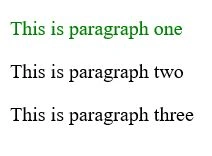
Since JQuery attribute value selector is case-sensitive, so only the first paragraph fore-color will change.
Now let’s see how to make it case-insensitive.
Example 2
There are three ways to make attribute value case-insensitive.
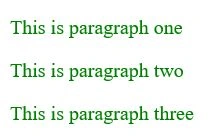
- To make attribute value case-insensitive we can use the filter function.
- <script type="text/javascript" lang="ja">
- $(document).ready(function () {
- $('[title]').filter(function () {
- return $(this).attr('title').toLowerCase() == 'title1';
- }).css('color', 'green');
- });
- </script>
$('[title]').filter(function () {})
In this piece of code, we invoked the filter function on the JQuery function.
The filter function expects a selector as a parameter.
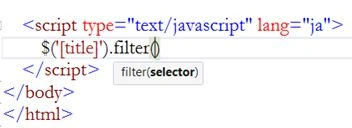
So, we have created a new anonymous function which will give us the case-insensitive selector back.
- return $(this).attr('title').toLowerCase() == 'title1';
Output
- There is also another way to achieve the same. We can use the test function.
- <script type="text/javascript" lang="ja">
- $(document).ready(function () {
- $('[title]').filter(function () {
- return (/title1/i).test($(this).attr('title'));
- }).css('color', 'green');
- });
- </script>
-
- return (/title1/i).test($(this).attr('title'));
/title1/i “i” stands means the comparison must be case-insensitive.
- We can use the RegExp function itself and on that we can call the test function and these expression must be wrapped inside the filter function.
- <script type="text/javascript" lang="ja">
- $('[title]').filter(function () {
- return(RegExp('title1','i').test($(this).attr('title')));
- }).css('color', 'green');
- </script>
Input and : input selectors
$(:input)selector selects all input tag elements, select elements, textarea, button, etc.
Let’s look at an example.
- <!DOCTYPE html>
- <html>
- <head>
- <title></title>
- <script src="scripts/jquery-2.1.4.js"></script>
- <meta charset="utf-8" />
- </head>
- <body>
- <p>Input element type text</p>
- State
- <input type="text" value="Jharkhand" />
- City
- <input type="text" value="Bokaro" />
- <br />
- <p>Input element type radio</p>
- Gender:
- <input type="radio" name="Gender" checked="checked" value="Male" />Male
-
- <input type="radio" name=" Gender" value="Female" />Female
-
-
- <p>Dropdownlist using Select element</p>
- <select>
- <option value="Microsoft" selected="selected">Microsoft</option>
- <option value="Google">Google</option>
- <option value="Apple">Apple</option>
- </select>
- <br />
- <p>Text area and button</p>
- <textarea>This is text area</textarea>
- <br />
- <input type="button" value="Button" />
- </body>
- </html>
In the above HTML, we have five input elements, one select element, and a textarea.
Output 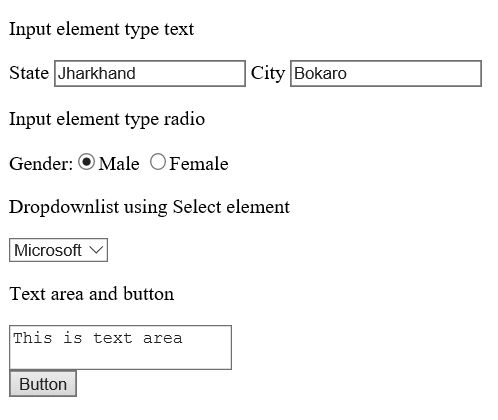
Let’s see how to print the values in a JavaScript alert box.
- <script type="text/javascript" lang="ja">
- $(document).ready(function () {
- $(':input').each(function () {
- alert($(this).val());
- });
- });
- </script>
Each function is used to iterate through a condition until the condition remains true.
Val function is used to retrieve the value back.
Since, we are using “:input” selector, it will print all the element values on the alert box.
Output 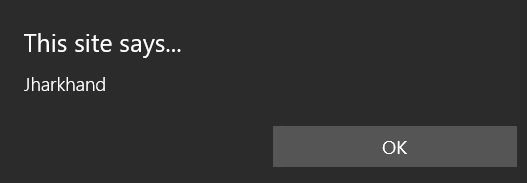
Click ok
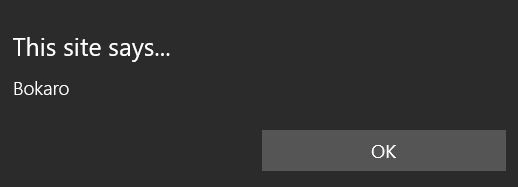
Click ok
It will print the rest and in the end it will print button value.
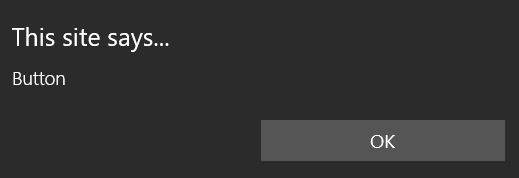 $(input)
 selector selects only the input tag elements.
Let’s look at the same example that we discussed in :input selector.
In the script section, remove the “:” from the input element and run the application.
- <script type="text/javascript" lang="ja">
- $(document).ready(function () {
- $(‘input').each(function () {
- alert($(this).val());
- });
- });
- </script>
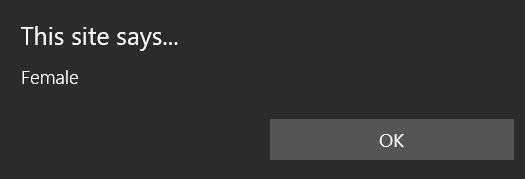
It will print the textbox, radio button, and button value because these elements are of type input and the rest is different.
Now let’s say for some reason we want to retrieve the value of only those input element whose type is radio and for that we can combine the input or :input selector with attribute value selector.
For input element- $('input[type=\'radio\']').each(function () {
- alert($(this).val());
- });
- </script>
- $('input[type=\'radio\']').each(function () {
- alert($(this).val());
- });
- </script>
 Click ok
  Checked Selector
The JQuery
:checked selector selects all the checked radio buttons and checkboxes.
Let’s look at an example of radio button first.
Add two radio buttons and a button control.
- <body>
- <input type="radio" name="Gender" value="Male" />Male
-
- <input type="radio" name="Gender" value="Female" />Female
-
- <br/>
- <input type="button" id="btn" value="Click" />
- </body>
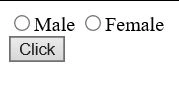
Whenever user selects a radio button and clicks the button, we want to display the value of that particular radio button in an alert window and for that we need to write some JQuery codes.
- < script type = "text/javascript"
- lang = "ja" >
-
- $(document).ready(function() {
- $('#btn').click(function() {
-
- var value = $('input[type=\'radio\']:checked');
-
- if (value.length > 0) {
-
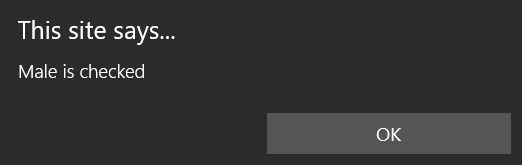
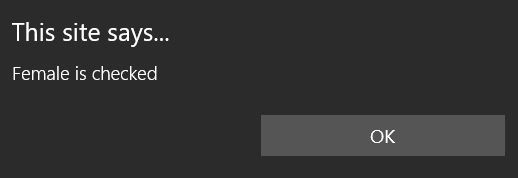
- alert(value.val() + ' is checked');
- } else {
- alert('Please select an option');
- }
- });
- }); < /script>
As we know radio button will give us only a single checked item back, so there is no point in looping through each radio button element.
Output 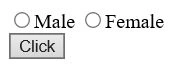
Click the button without selecting any option.
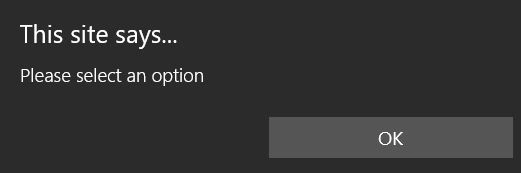
Select Male and click the button.
Select Female.
Now let’s see how to achieve the same thing in checkbox control.
Example
Write the following to generate four checkbox control, a button control and a span element.
- <body>
- Interests:
-
- <input type="checkbox" value="Programming" />Programming
-
- <input type="checkbox" value="Gaming" />Gaming
-
- <input type="checkbox" value="Blogging" />Blogging
-
- <input type="checkbox" value="Photography" />Photography
-
- <br />
- <input type="button" value="Submit" id="btn" />
- <span id="spanArea" style="display:block"></span>
- </body>

Whenever user clicks the button, we want to display the selected value. So, write the following JQuery.
- < script type = "text/javascript"
- lang = "ja" > $(document).ready(function() {
- $('#btn').click(function() {
-
- var checkedItems = $('input[type=\'checkbox\']:checked');
- if (checkedItems.length > 0) {
-
- var NumberOfCheckedItems = "";
- $(checkedItems).each(function() {
-
- NumberOfCheckedItems += $(this).val() + "<br/>";
- });
- $('#spanArea').html(NumberOfCheckedItems);
- } else {
- $('#spanArea').html('No checkbox checked');
- }
- });
- }); < /script>
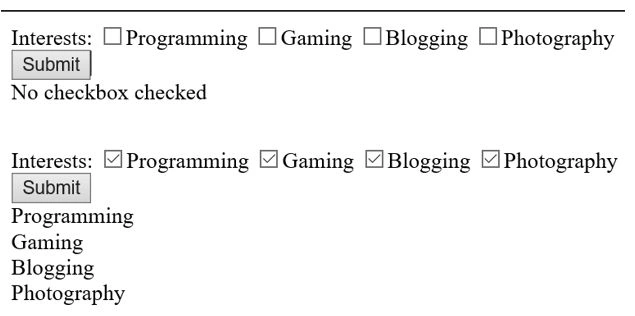
If checkboxes belongs to the same group it is very easy to select the values of the selected checkboxes. But what if the checkboxes are in different groups and we want to select the values of those checked checkboxes.
At the moment in our there is only one group of checkboxes i.e. Interests group.
Let’s add another group.
Movie Genres:- <input type="checkbox" value="Biography" />Biography
- <input type="checkbox" value="Thriller" />Thriller
- <input type="checkbox" value="Action" />Action
- <input type="checkbox" value="Romance" />Romance

So we have two different groups of checkboxes.
Now, what will happen if we write the same JQuery we wrote for the single checkbox group?
- < script type = "text/javascript"
- lang = "ja" > $(document).ready(function() {
- $('#btn').click(function() {
- var checkedItems = $('input[type=\'checkbox\']:checked');
- if (checkedItems.length > 0) {
- var NumberOfCheckedItems = "";
- $(checkedItems).each(function() {
- NumberOfCheckedItems += $(this).val() + "<br/>";
- });
- $('#spanArea').html(NumberOfCheckedItems);
- } else {
- $('#spanArea').html('No checkbox checked');
- }
- });
- }); < /script>
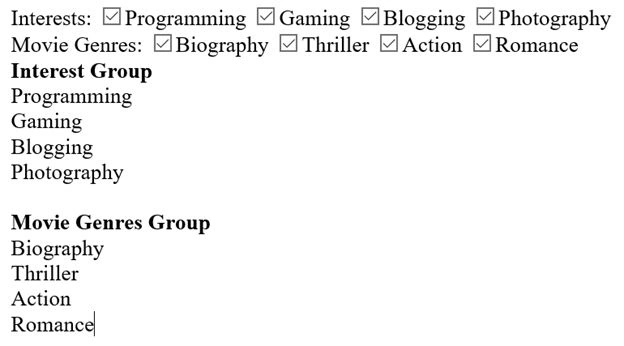
This
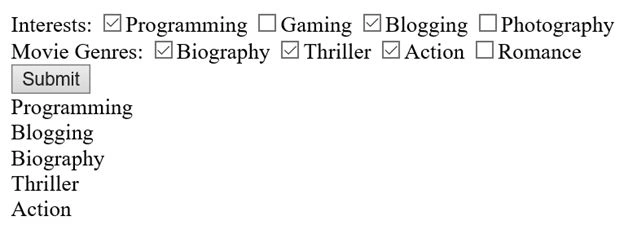
$('input[type=\'checkbox\']:checked') is going to select all the checked items from both the groups.
Output
So, how to overcome this problem?
Let’s divide the procedure into multiple steps.
- Remove the button control and add another span element.
- <span id="spanInterest" style="display:block"></span>
- <br/>
- <span id="spanMovie" style="display:block"></span>
Interests:
- <input type="checkbox" value="Programming" name="Interest" />Programming
- <input type="checkbox" value="Gaming" name="Interest" />Gaming
- <input type="checkbox" value="Blogging" name="Interest" />Blogging
- <input type="checkbox" value="Photography" name="Interest" />Photography
- <br />
- <input type="checkbox" value="Biography" name="Movie" />Biography
- <input type="checkbox" value="Thriller" name="Movie" />Thriller
- <input type="checkbox" value="Action" name="Movie"/>Action
- <input type="checkbox" value="Romance" name="Movie"/>Romance
- Create a separate function.
-
- var checkedFunction = function(Group) {
- var checkedItems = $('input[name="' + Group + '"]:checked');
- if (checkedItems.length > 0) {
- var numberOfCheckedItems = "";
- $(checkedItems).each(function() {
- numberOfCheckedItems += $(this).val() + "<br/>";
- });
- $('#span' + Group).html(numberOfCheckedItems);
- } else {
- $('#span' + Group).html('no item selected');
- }
- };
- Generate two click events inside which create a new anonymous function which will invoke the checkedFunction(Group).
- $('input[name="Interest"]').click(function() {
- checkedFunction('Interest');
- });
-
- $('input[name="Movie"]').click(function() {
- checkedFunction('Movie');
- });
- <!DOCTYPE html>
- <html>
- <head>
- <title></title>
- <meta charset="utf-8" />
- <script src="../scripts/jquery-2.1.4.js"></script>
- </head>
- <body>
- <input type="checkbox" value="Programming" name="Interest" />Programming
-
- <input type="checkbox" value="Gaming" name="Interest" />Gaming
-
- <input type="checkbox" value="Blogging" name="Interest" />Blogging
-
- <input type="checkbox" value="Photography" name="Interest" />Photography
-
- <br />
- <input type="checkbox" value="Biography" name="Movie" />Biography
-
- <input type="checkbox" value="Thriller" name="Movie" />Thriller
-
- <input type="checkbox" value="Action" name="Movie" />Action
-
- <input type="checkbox" value="Romance" name="Movie" />Romance
-
- <br />
- <span>
- <b>Interest Group</b>
- </span>
- <span id="spanInterest" style="display:block"></span>
- <br />
- <span>
- <b>Movie Genres Group</b>
- </span>
- <span id="spanMovie" style="display:block"></span>
- <script type="text/javascript" lang="ja">
-
- var checkedFunction = function (Group) {
- var checkedItems = $('input[name="' + Group + '"]:checked');
- if (checkedItems.length > 0) {
- var numberOfCheckedItems = "";
- $(checkedItems).each(function () {
- numberOfCheckedItems += $(this).val() + "
- <br/>";
- });
- $('#span' + Group).html(numberOfCheckedItems);
- }
- else {
- $('#span' + Group).html('no item selected');
- }
- };
-
- $('input[name="Interest"]').click(function () {
- checkedFunction('Interest');
- });
-
- $('input[name="Movie"]').click(function () {
- checkedFunction('Movie');
- });
-
-
- </script>undefined</body>undefined</html>
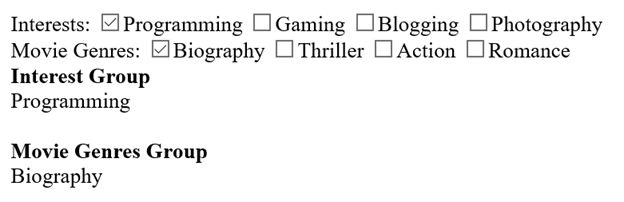
If you uncheck any of the checkbox, it will remove the un-checked one.
Selected Selector
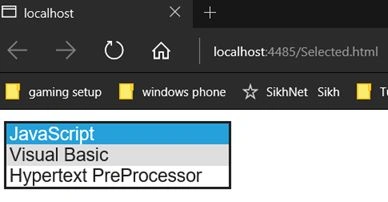
To select all the selected options from a select element, use :selected selector.
Let’s look at an example.
Write the following HTML code.
- <!DOCTYPE html>
- <html>
- <head>
- <title></title>
- <meta charset="utf-8" />
- </head>
- <body>
- <select id="selectLang">
- <option value="js">JavaScript</option>
- <option value="vb">Visual Basic</option>
- <option value="php">Hypertext PreProcessor</option>
- </select>
- <br />
- <span id="spanLang" style="display:block"></span>
- </body>
- </html>
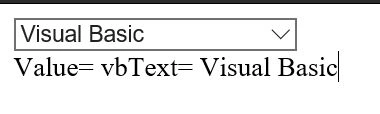
Whenever a user selects any of the option, we want to display the value and text of the selected option.
Write the following JQuery –
- < script type = "text/javascript" > $(document).ready(function() {
-
- $('#selectLang').change(function() {
-
- var selectedOption = $('#selectLang option:selected');
-
- $('#spanLang').html('Value= ' + selectedOption.val() + 'Text= ' + selectedOption.text());
- });
- }); < /script>
Now let’s see how to retrieve the value and text of more than one selected option.
- < script type = "text/javascript"
- lang = "ja" > $(document).ready(function() {
- $('#selectLang').change(function() {
- var choice = $('#selectLang option:selected');
- if (choice.length > 0) {
- var selectedOption = '';
- choice.each(function() {
- selectedOption += 'Value = ' + $(this).val() + " Text = " + $(this).text();
- });
- $('#spanLang').html(selectedOption);
- } else {
- $('#spanLang').html('no option selected');
- }
- });
- }); < /script>
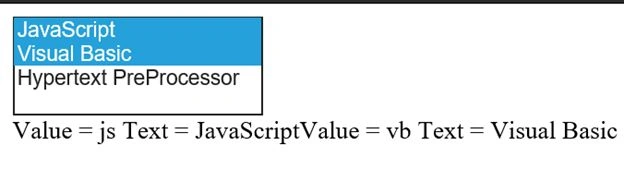 Note:
Note: Checked selector and Selected sector is exactly the same.
Summary
In this article, we discussed about some of the most useful selectors of JQuery.
To know more about JQuery selector,
click here.
I hope you like it. Thank you


Arjunan SelvamPosted Aug 19, 2015, 10:02 AM
Nice work with clear examples
Manas MohapatraPosted Aug 18, 2015, 6:32 AM
Consolidated in a Single article. Good.
Sharad GuptaPosted Aug 12, 2015, 4:53 AM
Excellent work...
sreenivasa kPosted Aug 11, 2015, 12:36 PM
nice . thx for sharing
Debendra DashPosted Jul 28, 2015, 5:25 AM
great one......
Santhakumar MunuswamyPosted Jul 27, 2015, 2:36 PM
Good Article. Thanks for sharing
SharadPosted Jul 27, 2015, 6:23 AM
nice series..
Gowtham RajamanickamPosted Jul 27, 2015, 5:19 AM
good ne
Gopi ChandPosted Jul 27, 2015, 12:45 AM
Excellent work...with rich content :)
Sibeesh VenuPosted Jul 27, 2015, 12:42 AM
Nice Share. Thanks
Debasis SahaPosted Jul 27, 2015, 12:24 AM
Good One..
RakeshPosted Jul 26, 2015, 11:47 PM
Good Explain