

Business Connectivity Services (BCS) provides the centralized infrastructure that enables SharePoint 2013 and Office 2013 to get data from those external systems into a central system.
The following is a step-by-step description of how to connect with a SQL Server External data source.
Step 1
Create a database (say Mydeal) and Product table as in the following: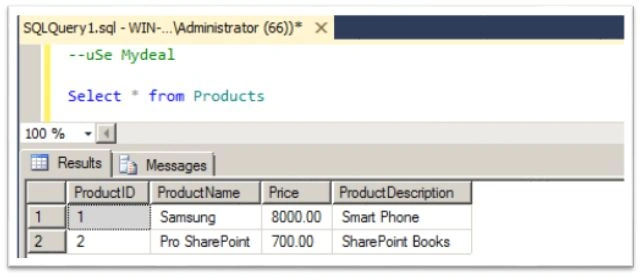
Step 2
Open SharePoint Designer 2013.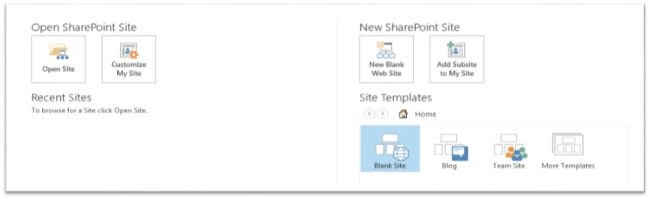
Step 3
Connect to your site. 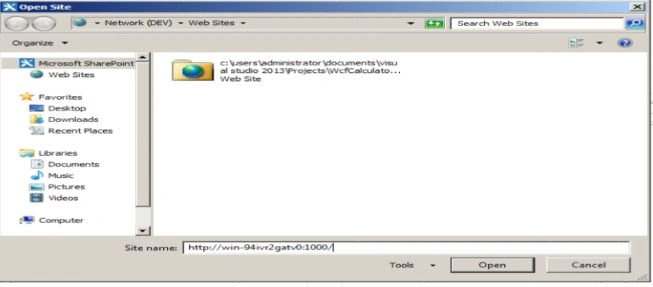
Step 4
Select External Content type.
Step 5
Click on the External Content type in the ribbon.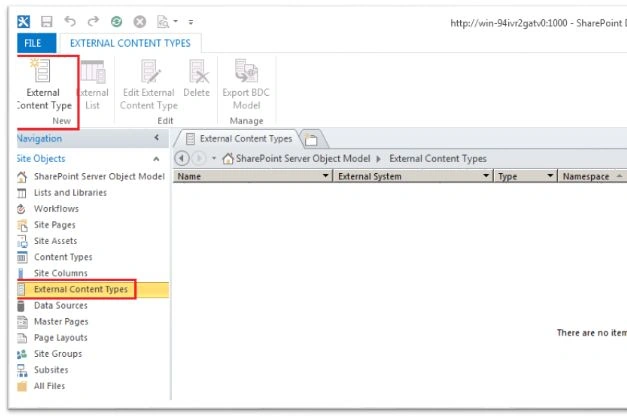
Step 6
In this window the external content type will open in the “Summary view”. Here you have the option to click and change the “Name” .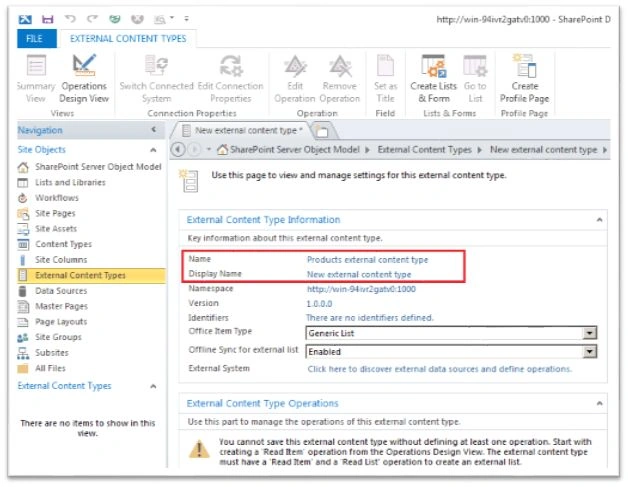
Step 7
Next we need to create the new external content type. Click on the hyperlink ”Click here to discover external data sources and define operations”.
Step 8
Click on the “Add Connection” button to create a new connection.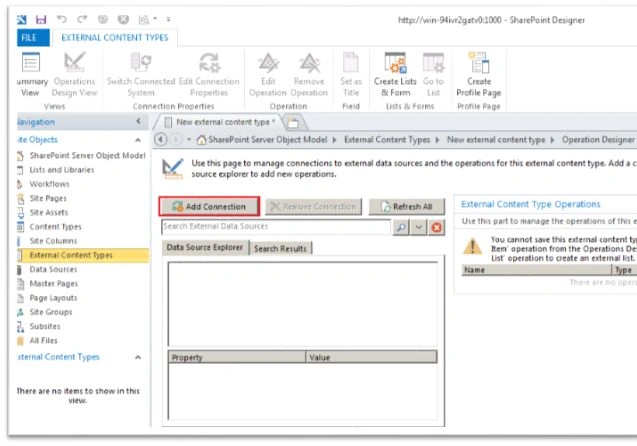
Step 9
We have three options, either to select .NET type, SQL Server or WCF Service. Select SQL Server for connecting to a SQL Server Database table. 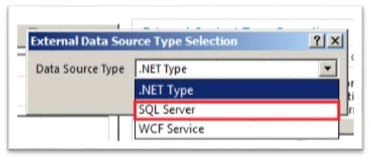
Step 10
Provide the SQL Server Credentials and click the button “OK”.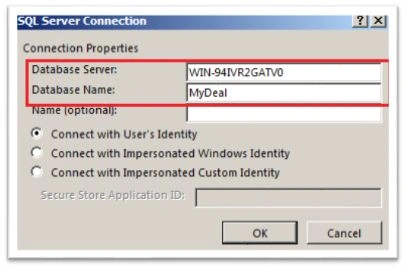
Step 11
Now we can see all the tables and views from the selected database.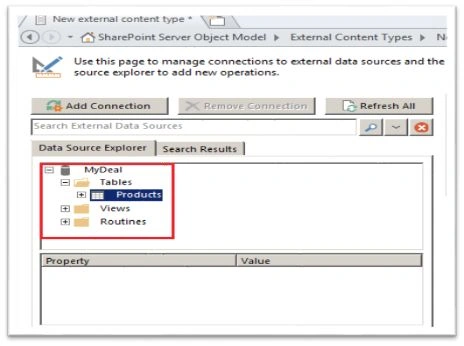
Step 12
Now we have options to create various types of operations against the selected table. In our scenario since we need to perform all the operations. Select “create all operations”.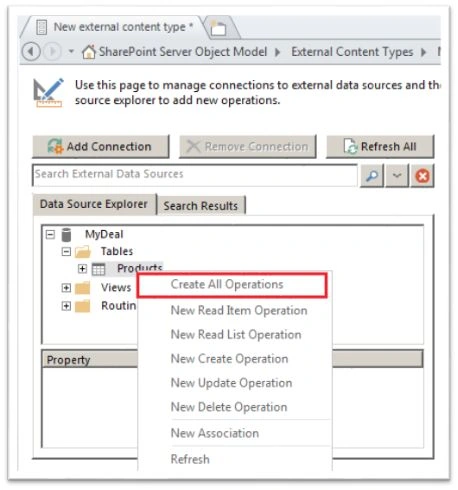
Step 13
Click Next.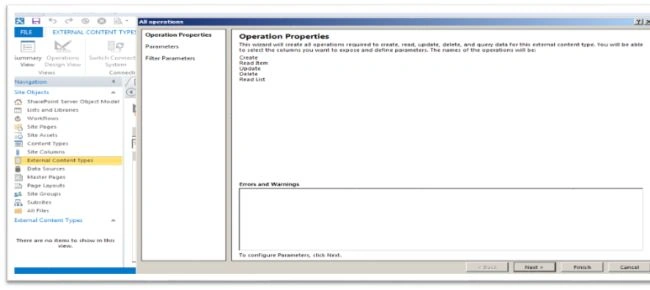
Step 14
Select parameters configuration and other settings as in the following.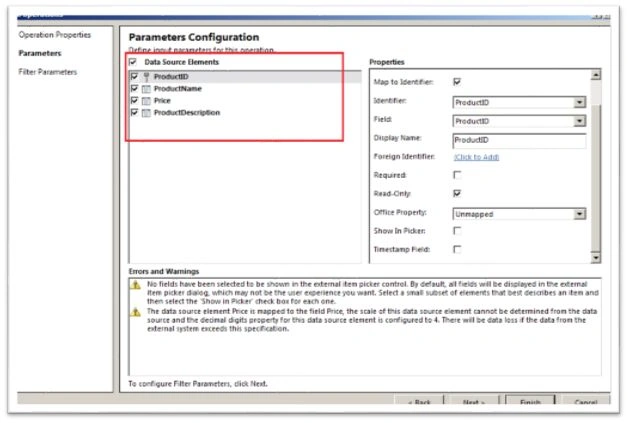
Step 15
Click the Next button.
Step 16
Do the filter parameter configuration and click the Finish button.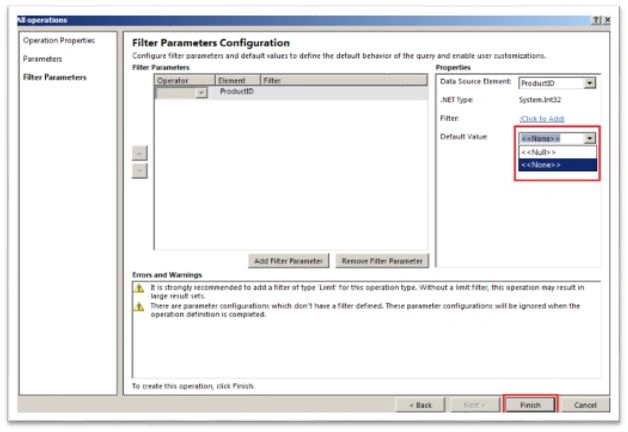
Step 17
Now we need to add the new external list. So, click LIST AND LIBRARIES and select External List as in the following.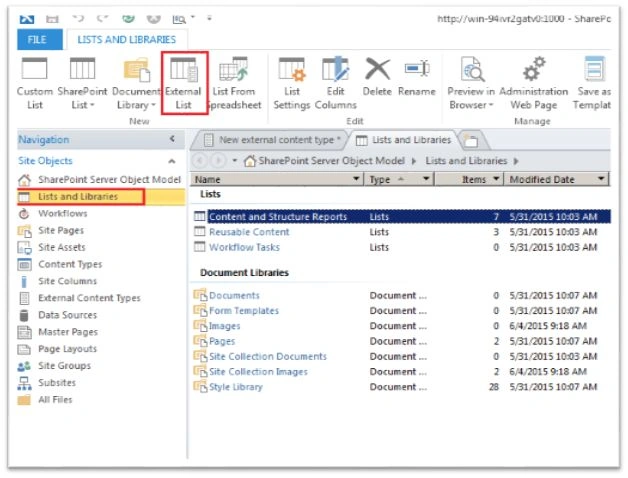
Step 18
Select the site, external content type and click the button “OK”.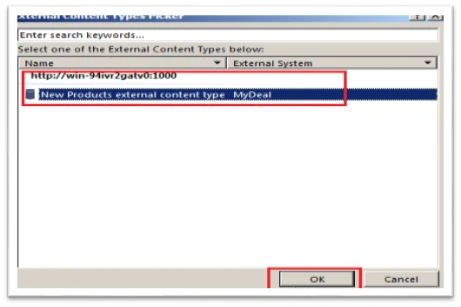
Step 19
Enter the list name, description and click the button ”OK”.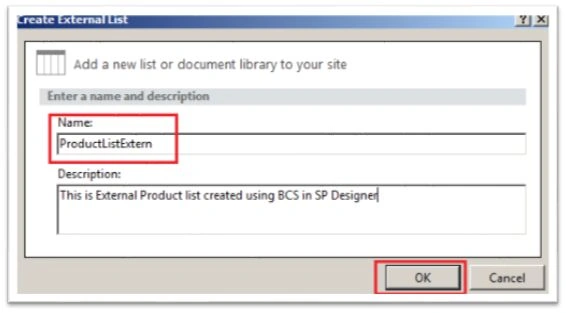
Step 20
Go to the site and select all the site contents. The External list will be visible there.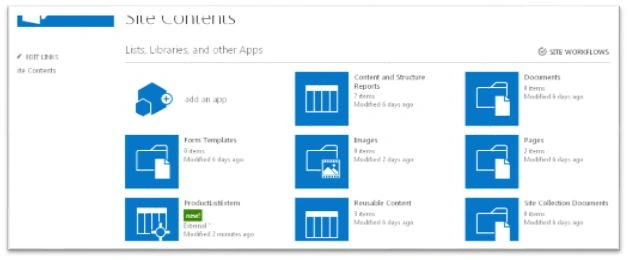
Step 21
Open the list and make a new entry.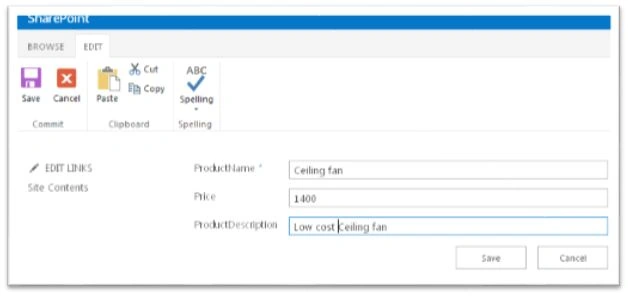
Step 22
Verify the entry in the back end (SQL Server).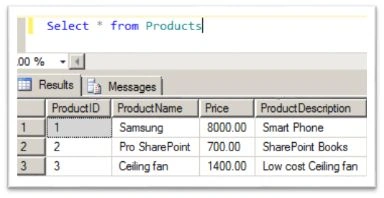
Note
You may encounter permission issues after the completion of the preceding procedure. In this case you need to set the permission for the external list. Go to the SharePoint Central Admin -> Manage Service Application -> Business Data Connectivity Services and select the newly created external content type from the list to set permission.
Jagadish MPosted Dec 3, 2018, 8:04 AM
Hi its really nice article . While I am trying to do that I am getting error at Step5 . Error : "The Business Data Connectivity MetaData Store is Currently not available". Could you please help me solve.
Mohammad KhalidPosted Oct 22, 2015, 3:13 PM
Good article...........
Santhakumar MunuswamyPosted Jul 23, 2015, 3:10 PM
Thanks for nice article:)
Gopi ChandPosted Jul 20, 2015, 12:55 PM
Great...
Nilesh JadavPosted Jul 20, 2015, 9:48 AM
Informative article sir
Sibeesh VenuPosted Jul 20, 2015, 9:07 AM
Good one :)
Gowtham RajamanickamPosted Jul 20, 2015, 6:51 AM
good one...