

Introduction
While working with real-world datasets in Power BI, you may often encounter a column like this:
| Month |
|---|
| Jan_2025 |
| Feb_2025 |
| Mar_2025 |
At first glance, this looks fine. But for proper reporting, filtering, and time-based analysis, combining Month and Year in a single column is not ideal. In this article, you’ll learn:
Why splitting Month and Year is important
How to split it correctly in Power BI (Step - by - Step Implementation)
What is the best practice to Split.
Why Should We Split Month and Year?
Keeping Jan_2025 in one column creates limitations:
Cannot create separate Year slicer
Hard to sort months properly
Difficult to build relationships with Date table
Time intelligence functions may not work properly
Splitting the column helps you:
Create Year-wise filters
Sort months correctly (Jan, Feb, Mar…)
Build clean data models
Improve report flexibility
Practical Steps to Split Month and Year
We’ll do this using Power Query Editor (Recommended approach).
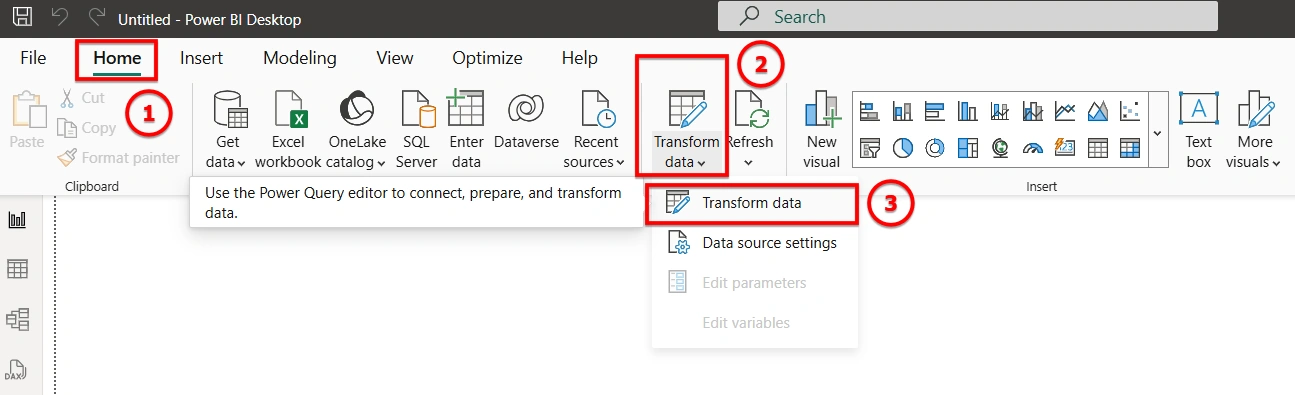
Step 1: Open Power Query
Open Power BI Desktop
Click Home → Transform Data
Power Query Editor will open
Step 2: Select the Column
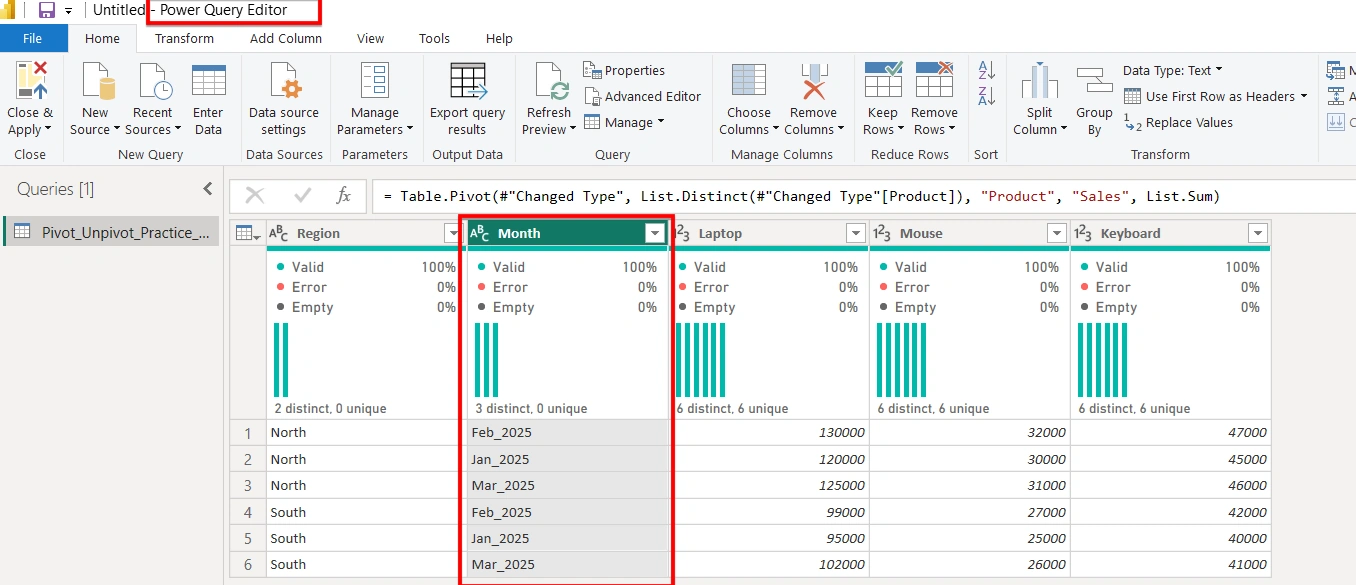
Click the Month column that contains: Jan_2025
Step 3: Split by Delimiter
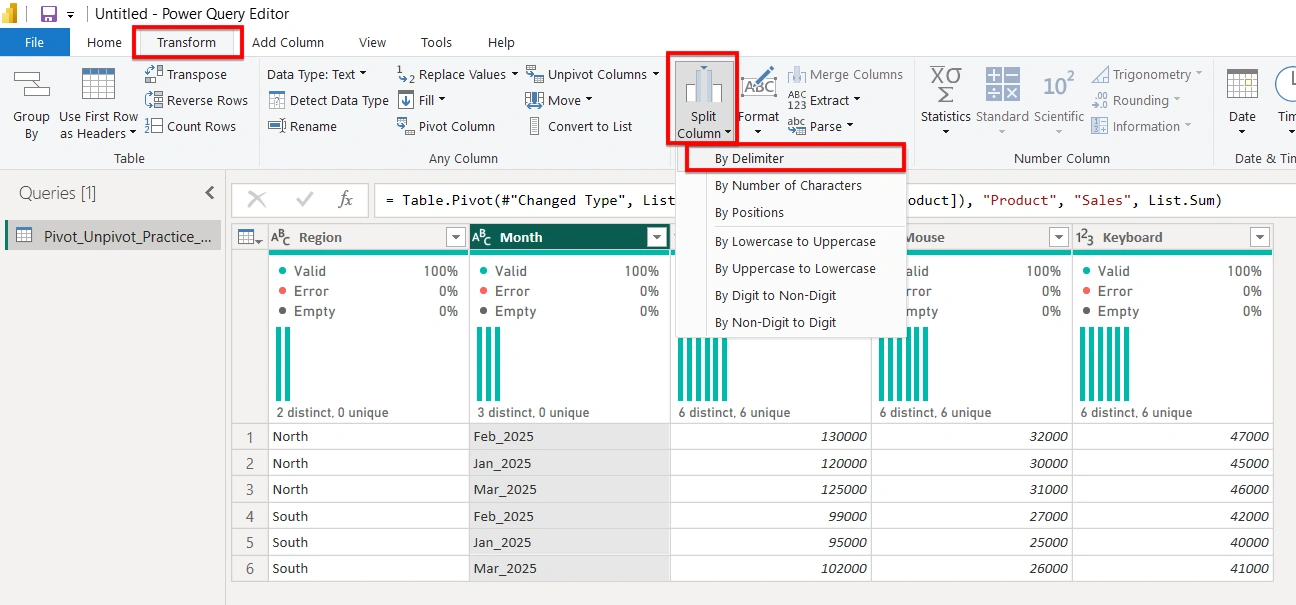
Go to the Transform tab in Power Query Editor.
Click Split Column → By Delimiter
Choose delimiter:
_Select Each occurrence of the delimiter
Click OK

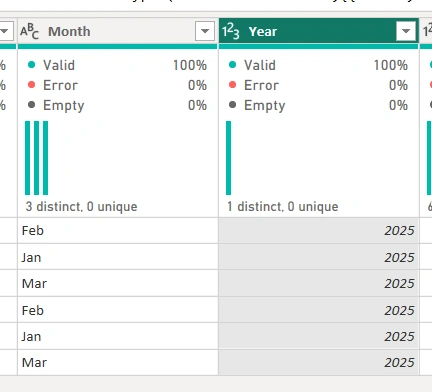
Step 4: Result :
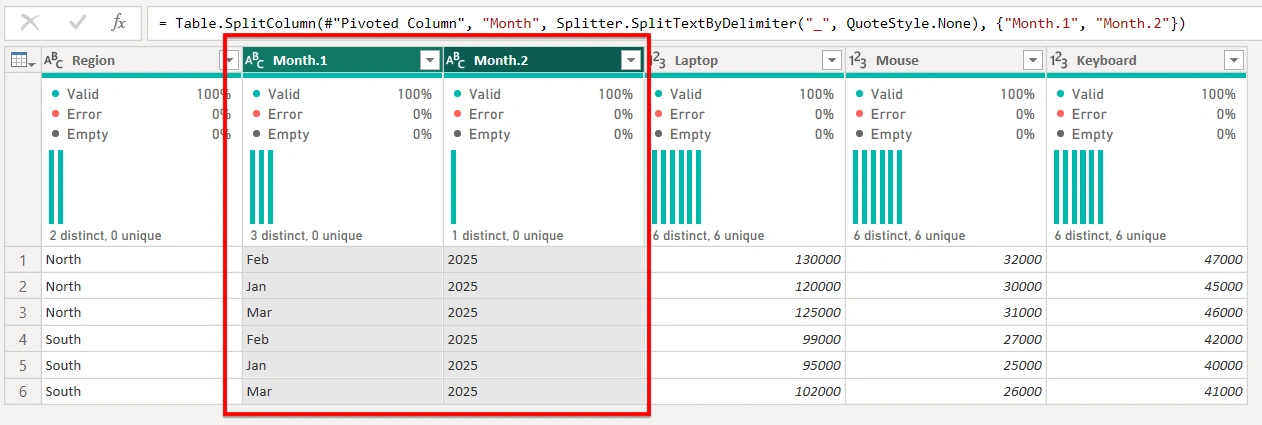
Rename Columns to :
Month.1→ MonthMonth.2→ Year
Step 5: Change Data Types
Select Year column → Change to Whole Number
Keep Month as Text.
After splitting and following the above steps, your data becomes structured and analysis-ready:
Why Use Split Column Instead of DAX?
Although it is possible to split Month and Year using DAX calculated columns, Power Query is the recommended and professional approach for structural transformations. Here’s why:
Better Performance:
Power Query transformations occur during data load (ETL stage).
DAX calculated columns are computed after data is loaded and consume memory in the data model.
Cleaner Data Model:
Structural changes (split, pivot, unpivot, etc.) should be handled before data enters the model.
This keeps your model simple, optimized, and easier to maintain.
Reduced Model Size:
DAX calculated columns increase model size.
Power Query transformations do not increase memory consumption in the same way.
Easier Maintenance:
If your dataset structure changes in the future, Power Query steps are easier to adjust compared to modifying multiple DAX columns.
Note : Data shaping should always be done in Power Query, not in DAX.
Conclusion
Clean data structure is the foundation of powerful dashboards. Small transformations like splitting Month and Year may look simple, but they significantly improve data modeling, report usability, and analytical accuracy in Power BI.
Join the conversation! Your thoughts help the community grow.