

Introduction
“Teams is a collection of people who gather together around a common goal. This group of people may be within a department or across the organization. What brings them together is the outcome they are driving toward. Members of a team may work at a different pace or create assets differently, but in our experience, they often collaborate quickly with each other, a process we call "high-velocity teamwork.” – Microsoft.
However, Teams needs a process of validating users, tools, licenses and much more, you must be more proactive to check the limits for each toolset used in teams. Before you start rolling out Teams, admin should assign security and compliance policies wherever applicable.
If you are new to Microsoft Teams, please visit my previous articles to get more understanding on teams- Introduction, Teams Differently, Guest Users In Teams
Understanding New Team in Microsoft Teams
In this article, we'll understand how the creation of a new Team impacts Administration and which are the best methods to follow to avoid confusion.
- Firstly, the Team name is always public, even for a privately owned team, you cannot modify it later in all internal places.
- If you choose a team name like this “This Is New Team For Sales Support Calls” – it will create a new email at [email protected]. It is annoying, right?
You should prefer to include the prefix for each team by business or department or project names to differentiate from other team names in your organization.
- Do your self-analysis on - is my new team name is already present in company? If yes, choose another name or join an existing team in case it comes under the same context.
- Admin needs to organize teams’ configurations for predefined terms (names) for the team for the overall organization, such as – HR, CEO, Payroll, etc.,
These names will not be allocated to other users of teams, internally it will allocate its own naming convention. For example, If an employee tries to create a new “CEO” team– Team user will not get any warning for an existing team name but his team name will be given a random number, to get more clarity read below step.
- Team naming will especially affect you in the below areas,
- SharePoint site collection
- Outlook email address
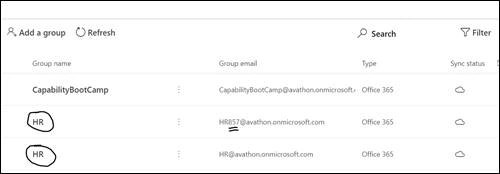
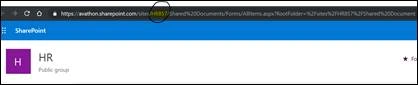
If you choose to give the same name, then Office365 will give your team a random number at the end of the group as well as the newly created SharePoint site.
For example, let’s create a new HR Team in Teams - it generates a new HR group as below.



Sagar PardeshiPosted Aug 12, 2019, 8:07 AM
Is it possible to create a team using PowerShell??