
Introduction
In my previous article I described how to convert Octal to binary. But in this article you will learn how to convert binary to octal in simple and easy ways. So let use understand the procedure.
Use the following procedure to create it.
Step 1
First of all you must create a new Windows Store Application.
Open Visual Studio 2012
"File" -> "New" -> "Project..."
Choose "Template" -> "Visual C#" -> "Window Store app"
Choose "Blank App (XAML)" then rename the application
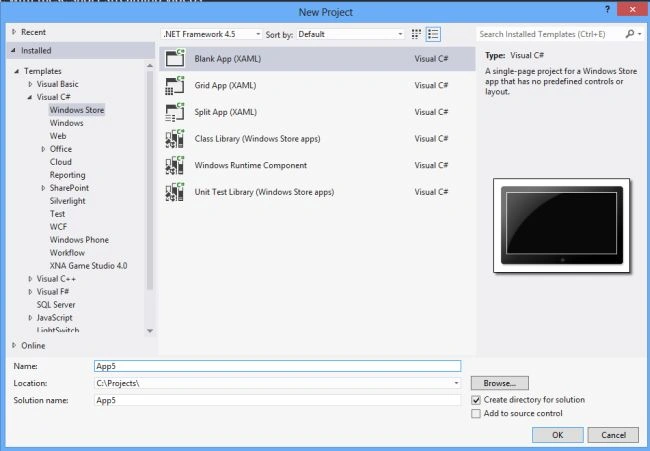
Step 2
Write the following XAML code in "Mainpage.Xaml" (that is available in Solution Explorer):
<Page
x:Class="Binary_to_octal_converter_app.MainPage"
xmlns="http://schemas.microsoft.com/winfx/2006/xaml/presentation"
xmlns:x="http://schemas.microsoft.com/winfx/2006/xaml"
xmlns:local="using:Binary_to_octal_converter_app"
xmlns:d="http://schemas.microsoft.com/expression/blend/2008"
xmlns:mc="http://schemas.openxmlformats.org/markup-compatibility/2006"
mc:Ignorable="d">
<Grid Background="red">
<Grid.ColumnDefinitions>
<ColumnDefinition Width="316*"/>
<ColumnDefinition Width="256*"/>
<ColumnDefinition Width="295*"/>
<ColumnDefinition Width="499*"/>
</Grid.ColumnDefinitions>
<Grid.RowDefinitions>
<RowDefinition Height="78*"/>
<RowDefinition Height="49*"/>
<RowDefinition Height="37*"/>
<RowDefinition Height="40*"/>
<RowDefinition Height="39*"/>
<RowDefinition Height="525*"/>
</Grid.RowDefinitions>
<TextBlock Text="binary to octal Converter app" Grid.ColumnSpan="4" Grid.Row="1" Foreground="White" FontSize="20" FontFamily="Arial" TextAlignment="Center" FontWeight="ExtraBold"></TextBlock>
<TextBlock Text="Enter binary Number :" FontFamily="Arial" FontSize="15" Foreground="White" Grid.Column="1" Grid.Row="2" Grid.RowSpan="4" FontWeight="ExtraBold"></TextBlock>

Sam HobbsPosted Feb 22, 2013, 1:40 PM
Looks good. Yes, that is a simple and easy way.