

We use one GridView and a database. We enter some data into the database and then bind that data to a GridView.
Initial chamber
Step 1
Open your Visual Studio 2010 then go to File -> New -> Project then under Visual C# select the Windows node.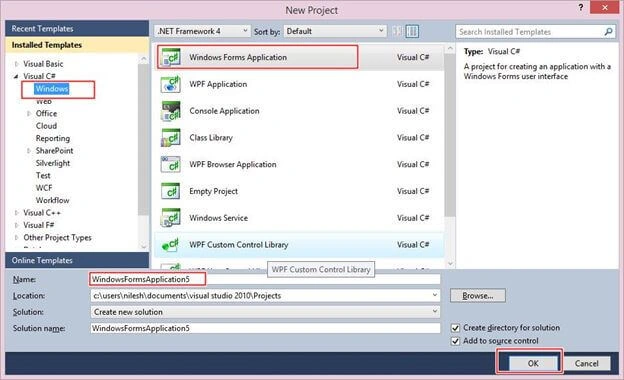
You can change the name of the project and you can browse to create your project in a different location too. And then press OK.
Step 2
In Solution Explorer you get your project, then add a Service-Based database by going to your project then right-click and Add New Item then select Service Based database.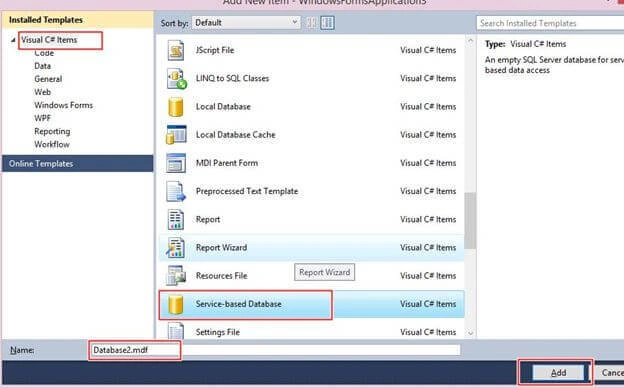
Database chamber
Step 3
Get to your database (Database.mdf). We will create a table (tbl_Data). Go to the database.mdf then select Table then select Add New table. Design your table like this:
Table -> tbl_data (Don't forget to set ID -> Identity Specification -> Yes).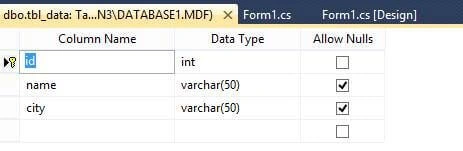
Design chamber
Step 4
Now open your Form1.cs file where we created our design for GridView binding.
We will drag a DataGridView from the toolbox to Form1.cs. You will see your form look like the following.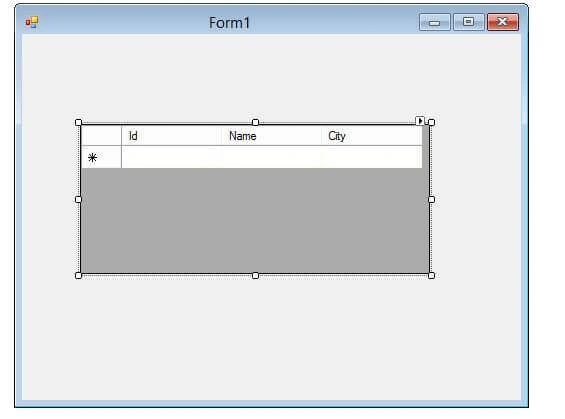
You will see your GridView is empty when you dragged it to the form, we must add these headers for ID, Name and City By Going like this.
Right-click on the small arrow on the GridView then select Edit Column. The Edit Column window will open, on the bottom-left there is an “ADD” button, click on that. You will see an Add Colum window will open like this.
There you must add a field as we do for a bound field in ASP.NET. Here I had done it for Id. You must only do the same for name and city.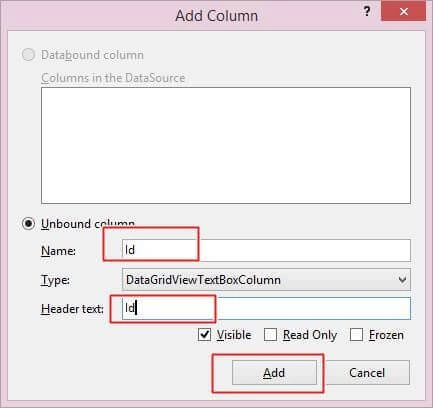
After adding all that you will see something like these images.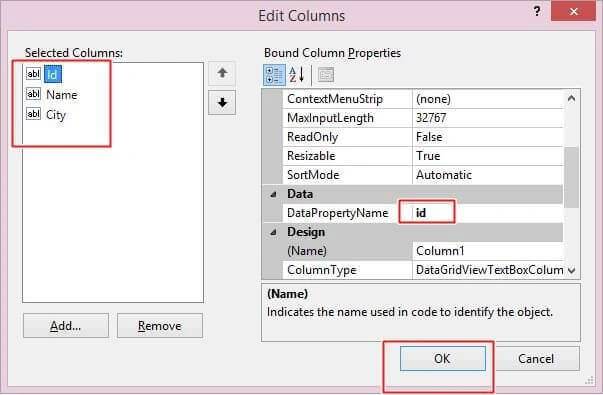
Here in the Bound Column Property there is a field, Data Property Name. It is the same as a Data Field in ASP.Net, so you must do something with Data Property Name, like for Id I had Included Id in my database, then for Name, name; for City, city. So fill that out and press OK.
Then you will see your GridView completed by header text. Now we must bind that.
Code chamber
Right-click on the blank part of Form1.cs then select View Code. You will see you are shown the code part of the form. Write the following code and then press F5 to run the project.
- using System;
- using System.Collections.Generic;
- using System.ComponentModel;
- using System.Data;
- using System.Drawing;
- using System.Linq;
- using System.Text;
- using System.Windows.Forms;
- using System.Data.SqlClient;
- namespace WindowsFormsApplication3
- {
- public partial class Form1 : Form
- {
- public Form1()
- {
- InitializeComponent();
- refreshdata();
- }
- private void refreshdata()
- {
- SqlConnection con = new SqlConnection(@"Data Source=.\SQLEXPRESS;AttachDbFilename=|DataDirectory|\Database1.mdf;Integrated Security=True;User Instance=True");
- SqlCommand cmd = new SqlCommand("select * from tbl_data",con);
- con.Open();
- SqlDataAdapter sda = new SqlDataAdapter(cmd);
- DataTable dt = new DataTable();
- sda.Fill(dt);
- con.Close();
- dataGridView1.DataSource=dt;
- }
- }
- }
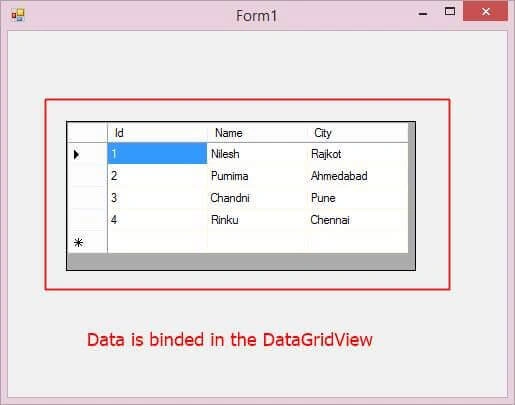
I hope you like this. Thank you for reading. Have a good day.
Sandip G PatilPosted Sep 13, 2022, 6:47 PM
Nice article.....
Jiyaul MustaphaPosted Sep 2, 2019, 1:55 AM
Private void BindProductsGrid() { dataGridView1.Rows.Clear(); DataTable dt = new DataTable(); dt = bl.BindProducts(); if (dt.Rows.Count > 0) { for (int i = 0; i < dt.Rows.Count; i++) { dataGridView1.Rows.Add(); dataGridView1.AllowUserToAddRows = false; dataGridView1.Rows[i].Cells[1].Value = dt.Rows[i]["Product_id"].ToString(); dataGridView1.Rows[i].Cells[2].Value = dt.Rows[i]["Product_name"].ToString(); dataGridView1.Rows[i].Cells[3].Value = dt.Rows[i]["Quantity"].ToString(); } } }
Arul RPosted Oct 28, 2015, 5:37 AM
Good one !!!
Vignesh ManiPosted Aug 3, 2015, 6:34 AM
Nice one
Upendra Pratap ShahiPosted Aug 3, 2015, 2:12 AM
nice one dear..
Debasis SahaPosted Aug 3, 2015, 12:55 AM
Nice one..
Nipesh JanghelPosted Aug 2, 2015, 2:46 PM
Nice
Neeraj KumarPosted Aug 2, 2015, 11:14 AM
Nice Article Nilesh Jadav
Rajeesh MenothPosted Aug 2, 2015, 5:17 AM
Good One
Pankaj Kumar ChoudharyPosted Aug 2, 2015, 4:45 AM
Nice Show Sir.........
Sibeesh VenuPosted Aug 2, 2015, 4:00 AM
Nice Share. Thank you
Gopi ChandPosted Aug 2, 2015, 2:52 AM
Nice
Santhakumar MunuswamyPosted Aug 2, 2015, 2:25 AM
Good article. Thanks for sharing
RakeshPosted Aug 2, 2015, 1:09 AM
Good one