

We will learn here how to bind controls with data without a database and how to handle paging on controls. This binding of data depends on the link button text on link button click event.
Also read:
Initial Chamber
Step 1
Open your Visual Studio and create an empty website then provide a suitable name such as ListViewLinkBtn.
Step 2
In Solution Explorer you will get your empty website, then add some web forms.
ListViewLinkBtn (your empty website). Right-click and select Add New Item Web Form. Name it ListViewLinkBtn.aspx.
Design Chamber
Step 3
Open the ListViewLinkBtn.aspx file and write some code for the design of the application.
Step 3.1
Add the following style sheet code to the head chamber of the page:
- <style type="text/css">
- .linkCat {
- background-color:aqua;
- }
- </style>
Set your style of page depending on your needs.
Step 3.2
Choose the control from the toolbox and make your design page like:
- <div>
- <h3>ListView</h3>
- <%-- Linkbutton --%>
- <asp:LinkButton ID="lnkCat1" CssClass="linkCat" runat="server" ClientIDMode="Static" Text="Cat1" OnClick="ENameLinkBtn_Click" CommandArgument="Cat1"></asp:LinkButton>
- <asp:LinkButton ID="lnkCat2" CssClass="linkCat" runat="server" ClientIDMode="Static" Text="Cat2" OnClick="ENameLinkBtn_Click" CommandArgument="Cat2"></asp:LinkButton>
- <asp:LinkButton ID="lnkCat3" CssClass="linkCat" runat="server" ClientIDMode="Static" Text="Cat3" OnClick="ENameLinkBtn_Click" CommandArgument="Cat3"></asp:LinkButton>
- <asp:HiddenField ID="hdnText" runat="server" ClientIDMode="Static" Value="" />
- <%-- end --%>
- <asp:ListView ID="lvCustomers" runat="server" GroupPlaceholderID="groupPlaceHolder1"
- ItemPlaceholderID="itemPlaceHolder1" OnPagePropertiesChanging="OnPagePropertiesChanging">
- <LayoutTemplate>
- <table border="1">
- <tr>
- <th>Product
- </th>
- <th>Quantity
- </th>
- <th>Price
- </th>
- <th>Category
- </th>
- </tr>
- <asp:PlaceHolder runat="server" ID="groupPlaceHolder1"></asp:PlaceHolder>
- <tr>
- <td colspan="3">
- <asp:DataPager ID="DataPager1" runat="server" PagedControlID="lvCustomers" PageSize="2">
- <Fields>
- <asp:NextPreviousPagerField ButtonType="Link" ShowFirstPageButton="false" ShowPreviousPageButton="true"
- ShowNextPageButton="false" />
- <asp:NumericPagerField ButtonType="Link" />
- <asp:NextPreviousPagerField ButtonType="Link" ShowNextPageButton="true" ShowLastPageButton="false" ShowPreviousPageButton="false" />
- </Fields>
- </asp:DataPager>
- </td>
- </tr>
- </table>
- </LayoutTemplate>
- <GroupTemplate>
- <tr>
- <asp:PlaceHolder runat="server" ID="itemPlaceHolder1"></asp:PlaceHolder>
- </tr>
- </GroupTemplate>
- <ItemTemplate>
- <td>
- <%# Eval("Product_Name") %>
- </td>
- <td>
- <%# Eval("Quantity") %>
- </td>
- <td>
- <%# Eval("Price") %>
- </td>
- <td>
- <%# Eval("Category") %>
- </td>
- </ItemTemplate>
- </asp:ListView>
- </div>
Here I've designed the ListView Control and used some property as in the following.
Design Page
- <%@ Page Language="C#" AutoEventWireup="true" CodeFile="ListViewLinkBtn.aspx.cs" Inherits="ListViewLinkBtn" %>
- <!DOCTYPE html>
- <html xmlns="http://www.w3.org/1999/xhtml">
- <head runat="server">
- <title></title>
- <style type="text/css">
- .linkCat {
- background-color:aqua;
- }
- </style>
- </head>
- <body>
- <form id="form1" runat="server">
- <div>
- <h3>ListView</h3>
- <%-- Linkbutton --%>
- <asp:LinkButton ID="lnkCat1" CssClass="linkCat" runat="server" ClientIDMode="Static" Text="Cat1" OnClick="ENameLinkBtn_Click" CommandArgument="Cat1"></asp:LinkButton>
- <asp:LinkButton ID="lnkCat2" CssClass="linkCat" runat="server" ClientIDMode="Static" Text="Cat2" OnClick="ENameLinkBtn_Click" CommandArgument="Cat2"></asp:LinkButton>
- <asp:LinkButton ID="lnkCat3" CssClass="linkCat" runat="server" ClientIDMode="Static" Text="Cat3" OnClick="ENameLinkBtn_Click" CommandArgument="Cat3"></asp:LinkButton>
- <asp:HiddenField ID="hdnText" runat="server" ClientIDMode="Static" Value="" />
- <%-- end --%>
- <asp:ListView ID="lvCustomers" runat="server" GroupPlaceholderID="groupPlaceHolder1"
- ItemPlaceholderID="itemPlaceHolder1" OnPagePropertiesChanging="OnPagePropertiesChanging">
- <LayoutTemplate>
- <table border="1">
- <tr>
- <th>Product
- </th>
- <th>Quantity
- </th>
- <th>Price
- </th>
- <th>Category
- </th>
- </tr>
- <asp:PlaceHolder runat="server" ID="groupPlaceHolder1"></asp:PlaceHolder>
- <tr>
- <td colspan="3">
- <asp:DataPager ID="DataPager1" runat="server" PagedControlID="lvCustomers" PageSize="2">
- <Fields>
- <asp:NextPreviousPagerField ButtonType="Link" ShowFirstPageButton="false" ShowPreviousPageButton="true"
- ShowNextPageButton="false" />
- <asp:NumericPagerField ButtonType="Link" />
- <asp:NextPreviousPagerField ButtonType="Link" ShowNextPageButton="true" ShowLastPageButton="false" ShowPreviousPageButton="false" />
- </Fields>
- </asp:DataPager>
- </td>
- </tr>
- </table>
- </LayoutTemplate>
- <GroupTemplate>
- <tr>
- <asp:PlaceHolder runat="server" ID="itemPlaceHolder1"></asp:PlaceHolder>
- </tr>
- </GroupTemplate>
- <ItemTemplate>
- <td>
- <%# Eval("Product_Name") %>
- </td>
- <td>
- <%# Eval("Quantity") %>
- </td>
- <td>
- <%# Eval("Price") %>
- </td>
- <td>
- <%# Eval("Category") %>
- </td>
- </ItemTemplate>
- </asp:ListView>
- </div>
- </form>
- </body>
- </html>
Your design looks as in Figure 1.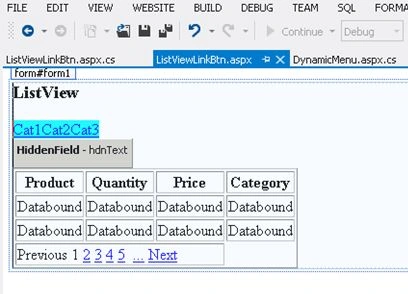
Figure 1
Code Chamber
Step 4
In the code Chamber we will write some code so that our application works.
Add the following namespaces to the namespace section of your code behind page.
- using System;
- using System.Collections.Generic;
- using System.Data;
- using System.Data.SqlClient;
- using System.Linq;
- using System.Web;
- using System.Web.UI;
- using System.Web.UI.WebControls;
Now your page looks as in the following.
Code behind Page
- using System;
- using System.Collections.Generic;
- using System.Data;
- using System.Data.SqlClient;
- using System.Linq;
- using System.Web;
- using System.Web.UI;
- using System.Web.UI.WebControls;
- public partial class ListViewLinkBtn : System.Web.UI.Page
- {
- protected void Page_Load(object sender, EventArgs e)
- {
- if (!IsPostBack) {
- BindListView("");
- }
- }
- protected void BindListView(string sGroup)
- {
- //Creating a dataset
- DataSet ds = new DataSet();
- DataTable dt;
- DataRow dr;
- DataColumn pName;
- DataColumn pQty;
- DataColumn pPrice;
- DataColumn pCategory;
- //create an object of datatable
- dt = new DataTable();
- //creating column of datatable with datatype
- pName = new DataColumn("Product_Name", Type.GetType("System.String"));
- pQty = new DataColumn("Quantity", Type.GetType("System.Int32"));
- pPrice = new DataColumn("Price", Type.GetType("System.Int32"));
- pCategory = new DataColumn("Category", Type.GetType("System.String"));
- //bind data table columns in datatable
- dt.Columns.Add(pName);
- dt.Columns.Add(pQty);
- dt.Columns.Add(pPrice);
- dt.Columns.Add(pCategory);
- //creating data row and assiging the value to columns of datatable
- dr = dt.NewRow();
- dr["Product_Name"] = "Product 1";
- dr["Quantity"] = 2;
- dr["Price"] = 200;
- dr["Category"] = "Cat1";
- dt.Rows.Add(dr);
- dr = dt.NewRow();
- dr["Product_Name"] = "Product 2";
- dr["Quantity"] = 5;
- dr["Price"] = 480;
- dr["Category"] = "Cat2";
- dt.Rows.Add(dr);
- dr = dt.NewRow();
- dr["Product_Name"] = "Product 3";
- dr["Quantity"] = 8;
- dr["Price"] = 100;
- dr["Category"] = "Cat1";
- dt.Rows.Add(dr);
- dr = dt.NewRow();
- dr["Product_Name"] = "Product 4";
- dr["Quantity"] = 2;
- dr["Price"] = 500;
- dr["Category"] = "Cat2";
- dt.Rows.Add(dr);
- dr = dt.NewRow();
- dr["Product_Name"] = "Product 5";
- dr["Quantity"] = 8;
- dr["Price"] = 1050;
- dr["Category"] = "Cat3";
- dt.Rows.Add(dr);
- dr = dt.NewRow();
- dr["Product_Name"] = "Product 6";
- dr["Quantity"] = 2;
- dr["Price"] = 5005;
- dr["Category"] = "Cat3";
- dt.Rows.Add(dr);
- dr = dt.NewRow();
- dr["Product_Name"] = "Product 7";
- dr["Quantity"] = 8;
- dr["Price"] = 1000;
- dr["Category"] = "Cat3";
- dt.Rows.Add(dr);
- dr = dt.NewRow();
- dr["Product_Name"] = "Product 8";
- dr["Quantity"] = 2;
- dr["Price"] = 5000;
- dr["Category"] = "Cat3";
- dt.Rows.Add(dr);
- //Add datatable to the dataset
- ds.Tables.Add(dt);
- if (sGroup != "")
- {
- var dv = ds.Tables[0].DefaultView;
- dv.RowFilter = "Category='" + sGroup + "'";
- DataSet ds1 = new DataSet();
- var newdt = dv.ToTable();
- ds1.Tables.Add(newdt);
- //bind data to data controls
- lvCustomers.DataSource = ds1.Tables[0];
- lvCustomers.DataBind();
- }
- else {
- lvCustomers.DataSource = ds.Tables[0];
- lvCustomers.DataBind();
- }
- }
- //paging code
- protected void OnPagePropertiesChanging(object sender, PagePropertiesChangingEventArgs e)
- {
- (lvCustomers.FindControl("DataPager1") as DataPager).SetPageProperties(e.StartRowIndex, e.MaximumRows, false);
- if (hdnText.Value != "")
- {
- string yourValue = hdnText.Value.ToString();
- this.BindListView(yourValue);
- }
- else
- {
- this.BindListView("");
- }
- }
- protected void ENameLinkBtn_Click(object sender, EventArgs e)
- {
- LinkButton btn = (LinkButton)(sender);
- string yourValue = btn.CommandArgument;
- // do what you need here
- hdnText.Value = yourValue;
- BindListView(yourValue);
- }
- }
Output
On initial load: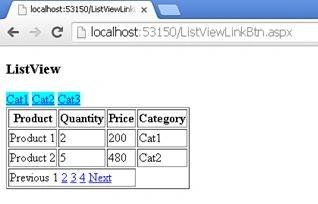
Figure 2
On first link button click: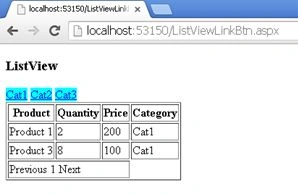
Figure 3
On second link button click: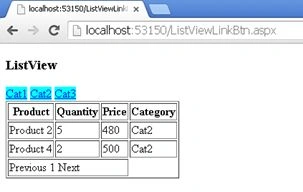
Figure 4
On third link button click: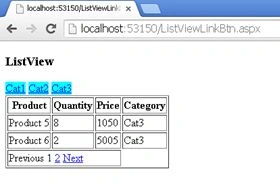
Figure 5
On third link page click: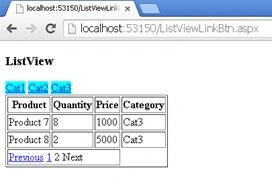
Figure 6
I hope you liked this. Have a good day. Thank you for reading.
kalu singh raoPosted Jul 11, 2016, 2:37 AM
Nice...
Santhakumar MunuswamyPosted Jul 16, 2015, 3:54 PM
Good Article! Thanks for sharing
Narasimha Reddy ChennupalliPosted Jul 16, 2015, 8:50 AM
Nice one..
Sibeesh VenuPosted Jul 16, 2015, 12:57 AM
Thanks for the information
Nilesh JadavPosted Jul 16, 2015, 12:01 AM
Nice article sir
RakeshPosted Jul 15, 2015, 11:41 PM
Good one Sir