

Introduction
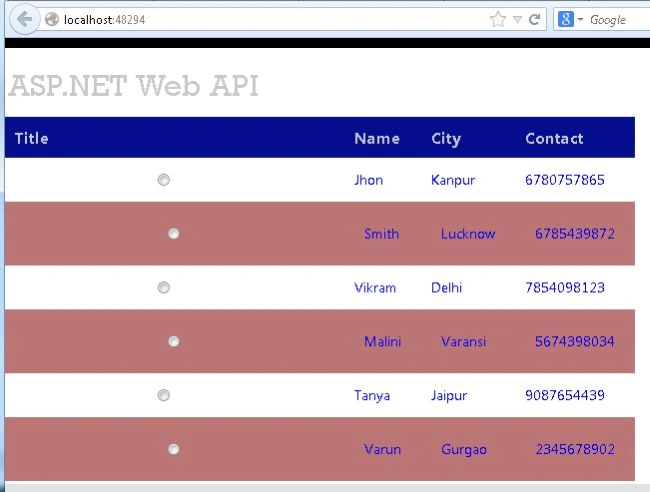
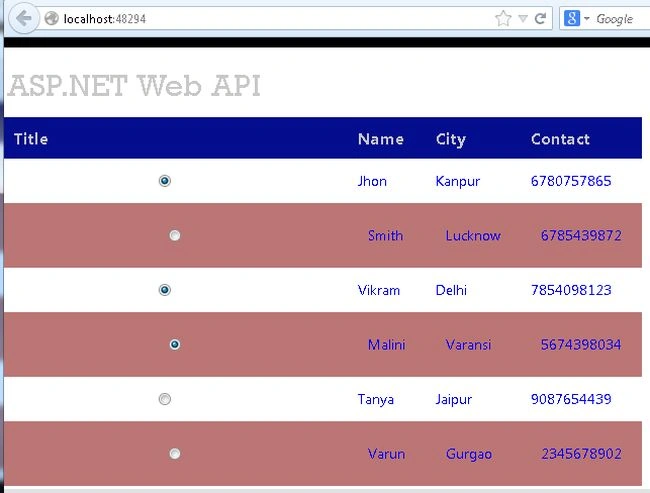
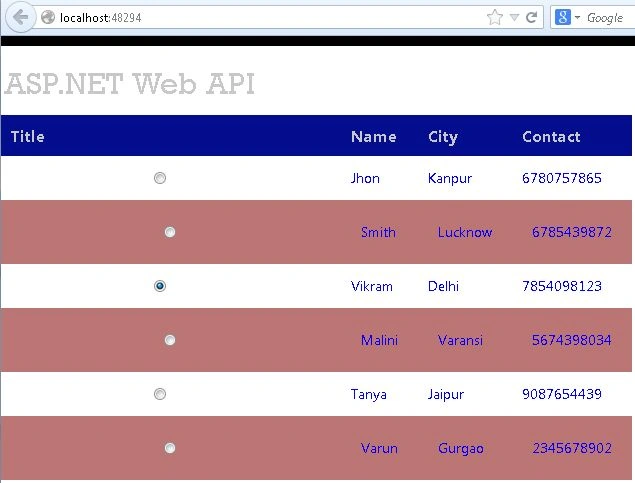
This article describes how to bind the WebGrid with a Radio Button in the Web API.
Procedure for creating the application.
Step 1
First create an Web API application as in the following:
- Start Visual Studio 2013.
- From the Start window select "New Project".
- From the new project window Select "Installed" -> "Visual C#" -> "Web" -> "Visual Studio2012".
- Select "ASP.NET MVC4 Web Application" and click the "Ok" button.

- From the "MVC4 project" window select "Web API".
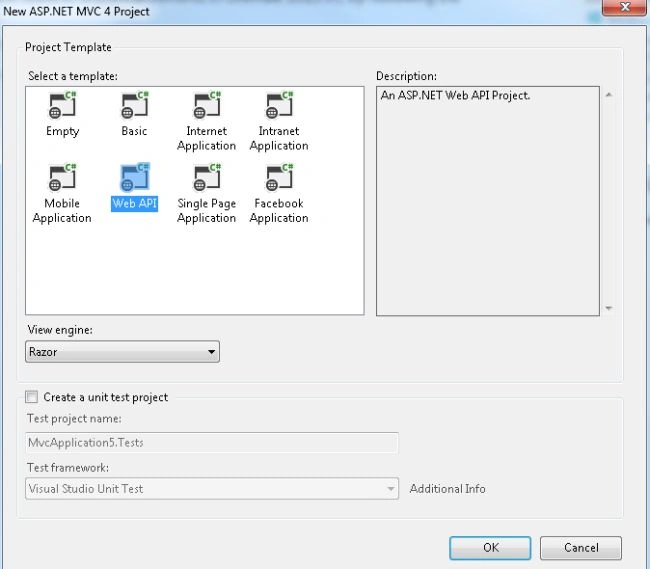
- Click the "OK" button.
Step 2
Create a Model class as in the following:
- In the Solution Explorer.
- Right-click on the "Model" folder.
- Select "Add" -> "Class".
- From the add item window select "Installed" -> "Visual C#".

- Select "Class" and click the "Add" button.
Add the following code:
- using System;
- using System.Collections.Generic;
- using System.Linq;
- using System.Web;
- namespace MvcApplication5.Models
- {
- public class EmployeeModel
- {
- public List<Employee> EmployeeModelcollection { get; set; }
- }
- public class Employee
- {
- public string Name { get; set; }
- public string Contact { get; set; }
- public string City { get; set; }
- }
- }
Step 3
In the "HomeController" write some code for the details of the employee as in the following:
- In the "Solution Explorer".
- Expand the "Controller" folder.
- Select the "HomeController".
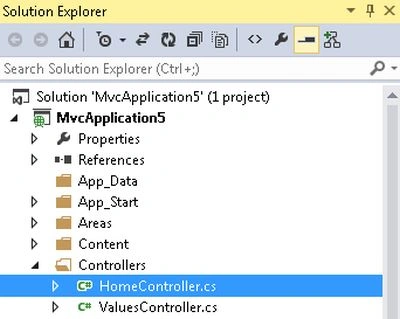
Add the following code.
- using System;
- using System.Collections.Generic;
- using System.Linq;
- using System.Web;
- using System.Web.Mvc;
- using MvcApplication5.Models;
- namespace MvcApplication5.Controllers
- {
- public class HomeController : Controller
- {
- public ActionResult Index()
- {
- EmployeeModel obj = new EmployeeModel();
- obj.EmployeeModelcollection = GetEmployeeDetail();
- return View(obj);
- }
- public List<Employee> GetEmployeeDetail()
- {
- List<Employee> objemployee = new List<Employee>();
- objemployee.Add(new Employee { Name = "Jhon", City = "Kanpur", Contact = "6780757865" });
- objemployee.Add(new Employee { Name = "Smith", City = "Lucknow", Contact = "6785439872" });
- objemployee.Add(new Employee { Name = "Vikram", City = "Delhi", Contact = "7854098123" });
- objemployee.Add(new Employee { Name = "Malini", City = "Varansi", Contact = "5674398034" });
- objemployee.Add(new Employee { Name = "Tanya", City = "Jaipur", Contact = "9087654439" });
- objemployee.Add(new Employee { Name = "Varun", City = "Gurgao", Contact = "2345678902" });
- return objemployee;
- }
- }
- }
Join the conversation! Your thoughts help the community grow.