

In today's article we will learn how to set data binding properties using the XAML Designer in Windows Store Apps. You can set data binding properties using the Properties window.
This article shows an example for learning how to bind data to a control at design time without write any code-behind coding.
Follow these steps to bind the data using Property windows through designer.
Step 1
Create a C# project in the Blank App template.
Step 2
Create a class to use as a data source.
Add a Class file to the Project.

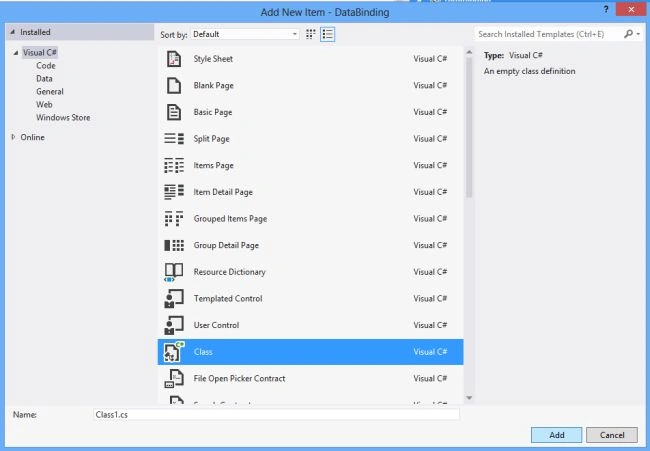
Here is the code of the class file:
public class EmployeeDetail
{
public string Name
{
get { return "Amit"; }
set { value = "Amit"; }
}
public string desig
{
get { return "Accountant"; }
set { value = "Accountant"; }
}
public int salary
{
get { return 10000; }
set { value = 10000; }
}
}
Step 3
Click Build > Build Solution.
Step 4
Create the UI to show the bound data output; see:
<Grid Background="{StaticResource ApplicationPageBackgroundThemeBrush}">
<StackPanel VerticalAlignment="Center" HorizontalAlignment="Center">
<TextBlock x:Name="name" FontSize="30" Width="194" ></TextBlock>
<TextBlock x:Name="desig" FontSize="30" Width="194" ></TextBlock>
<TextBlock x:Name="sal" FontSize="30" Width="194"></TextBlock>
</StackPanel>
</Grid>
Step 5
To bind the property of the class file to the controls follow these steps.
Select the root Grid panel, which appears as [Grid] in the window.
With the Grid selected, click the New button next to the DataContext property in the Properties window.
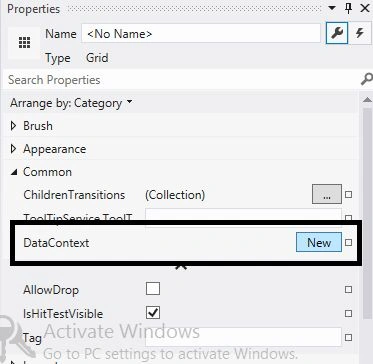
In the Select Object dialog box, make sure that Show all assemblies is cleared, and then select EmployeeDetail under the projectName namespace, and then click OK.

Step 6
Select the TextBlock control, click the property marker to the right of the Text property under Common in the Properties window.

Click Create Data Binding from the open menu.
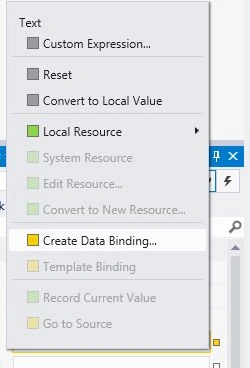
Select the desired property from the Path box you want to bind, and then click OK.

Step 7
Repeat Step 6 for the remaing textblocks in the UI element and select the desired property.
Step 8
Press F5 to start the app.
You will see that the values are bound to the controls.

Praveen VRPosted Oct 29, 2012, 4:34 AM
Thanks Gourav :)
Gaurav GuptaeditedPosted Oct 29, 2012, 4:28 AMEdited Oct 29, 2012, 4:30 AM
In the App.xaml.cs file you can write the name of Startup page..For ex-if (!rootFrame.Navigate(typeof(BasicPage2), args.Arguments))
Praveen VRPosted Oct 29, 2012, 2:17 AM
Hi Gourav , Can you say how to change the start up page for windows store apps while development?