

This article shows how to implement Model Data Binding with ASP.NET data controls using the Select Method attribute of a data bound control. It is a new way to bind data to data controls in ASP.NET 4.5.
So, let's proceed with the following procedure.
- Create a Default Page
- LINQ to SQL database connection Northwind.dbml
- For the Grid View control create a new method, ItemType, and select Method
- ItemType: "GridViewModelBinding.Order_Detail"
- Select Method: "grdorder_GetData"
The first step is to create the database connection in Visual Studio. Open the Server Explorer window from the View menu and click the Connect to Database button and it will look as in the following.
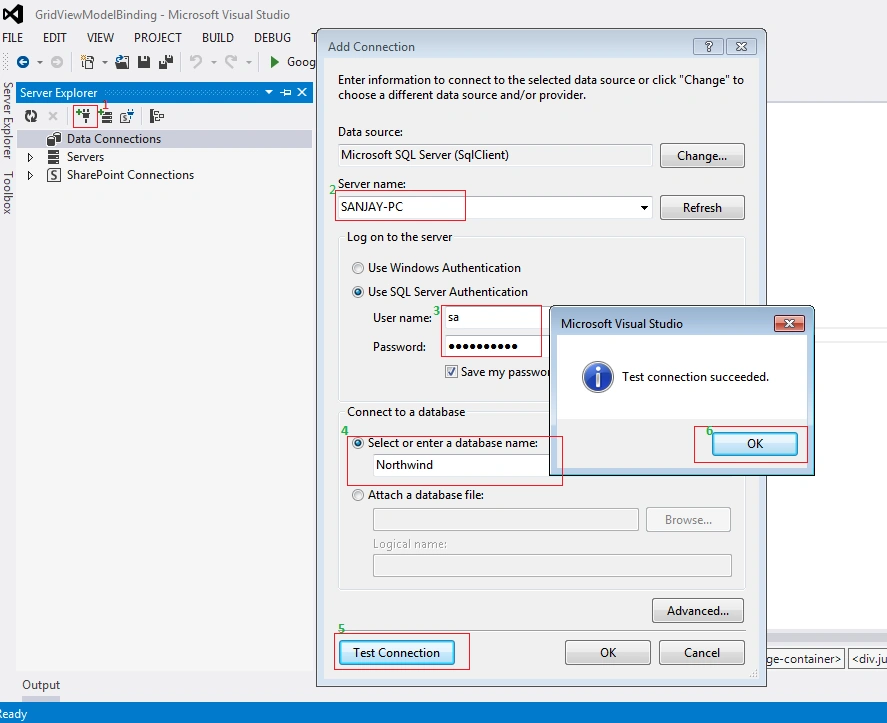
Now the Northwind database is as shown in the Database Explorer window.

Now, in the project in the Solution Explorer click on Add > New Item.
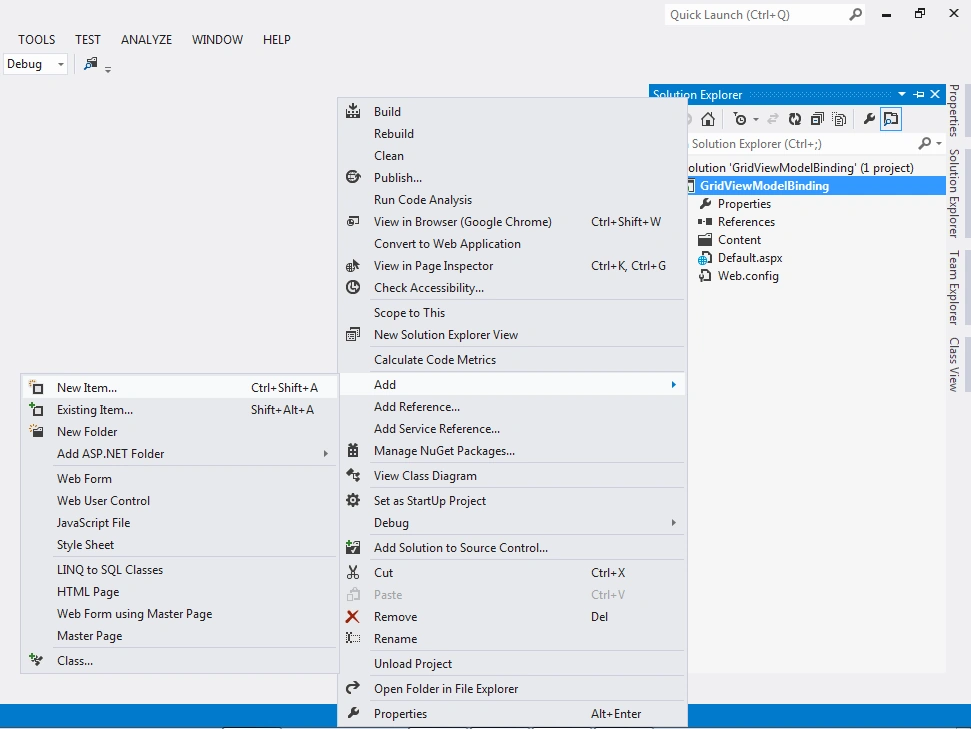
Now, select LINQ to SQL Classes File type in the Add New Item dialog box for Northwind.dbml then click Add.

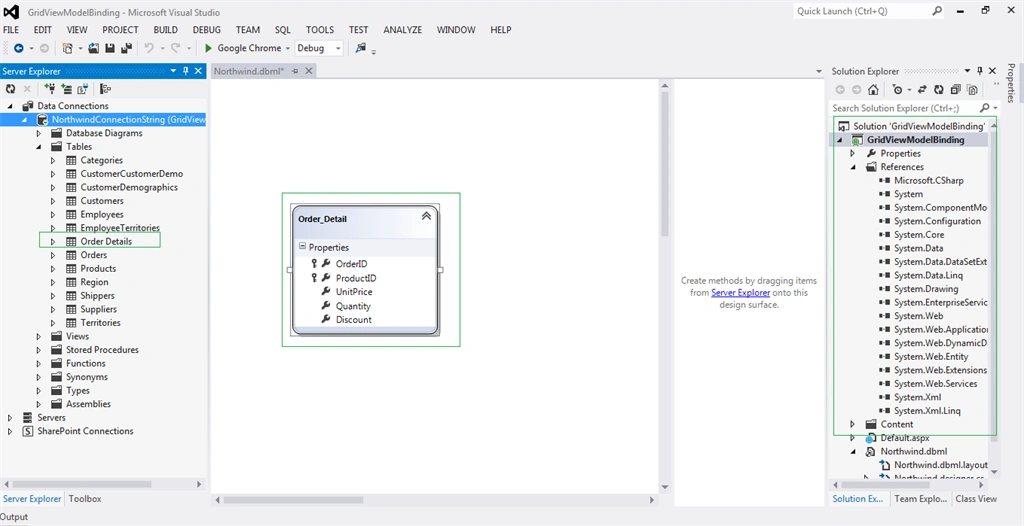
Shows the LINQ to SQL design Order Details table.
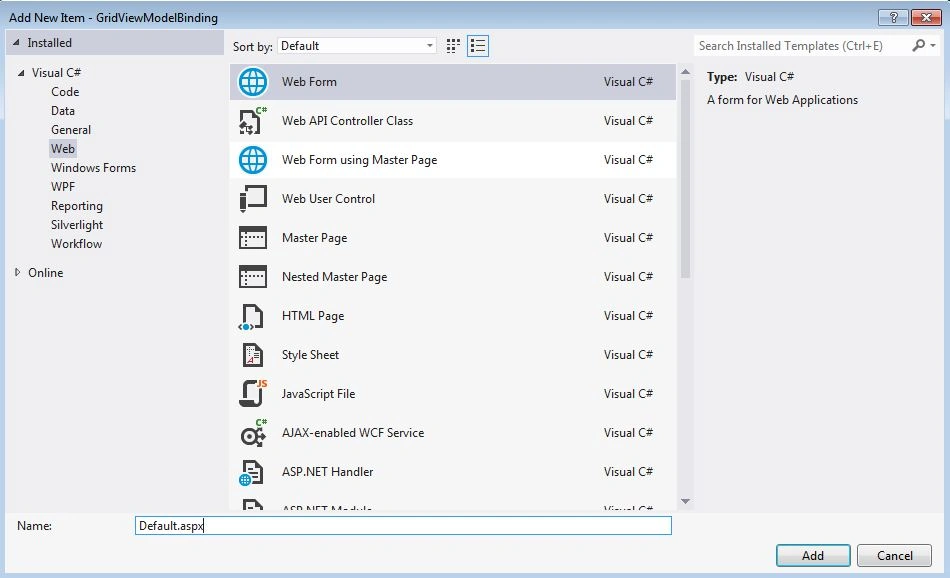
Now add a new item then select Web Form and leave Default.aspx as the name then click Add.
The following are the contents of the Default.aspx.
- <%@ Page Language="C#" AutoEventWireup="true" CodeBehind="Default.aspx.cs" Inherits="GridViewModelBinding.Default" %>
- <!DOCTYPE html>
- <html
- xmlns="http://www.w3.org/1999/xhtml">
- <head runat="server">
- <title>How to Use GridView Model Binding in ASP.NET 4.5 </title>
- <link href="Content/bootstrap.cosmo.min.css" rel="stylesheet" />
- <link href="Content/StyleSheet.css" rel="stylesheet" />
- </head>
- <body>
- <form id="form1" runat="server">
- <div id="mainContainer">
- <div class="shadowBox">
- <div class="container">
- <div class="page-container">
- <br />
- <div class="jumbotron">
- <p class="text-danger">How to Use GridView Model Binding in ASP.NET 4.5 </p>
- </div>
- <div class="row">
- <div class="col-lg-12 ">
- <asp:GridView ID="grdorder" AllowPaging="true" PageSize="5" ViewStateMode="Disabled" CssClass=" table table-bordered table-condensed table-striped table-hover"
- runat="server" SelectMethod="grdorder_GetData" ItemType="GridViewModelBinding.Order_Detail">
- <HeaderStyle CssClass="warning" />
- </asp:GridView>
- </div>
- </div>
- </div>
- </div>
- </div>
- </div>
- </form>
- </body>
- </html>
- using System;
- using System.Linq;
- namespace GridViewModelBinding
- {
- public partial class Default: System.Web.UI.Page
- {
- NorthwindDataContext dc = new NorthwindDataContext();
- protected void Page_Load(object sender, EventArgs e)
- {
- }
- // The return type can be changed to IEnumerable, however to support
- // paging and sorting, the following parameters must be added:
- // int maximumRows
- // int startRowIndex
- // out int totalRowCount
- // string sortByExpression
- public IQueryable < GridViewModelBinding.Order_Detail > grdorder_GetData()
- {
- var qry = from Order in dc.Order_Details
- select Order;
- return qry.AsQueryable();
- }
- }
- }

Now run the page and it will look like the data bound grid view.

I hope this article is useful. If you have any other questions then please provide your comments in the following.
Rahul Kumar SaxenaPosted Mar 29, 2015, 12:19 AM
Good Work..
RakeshPosted Mar 28, 2015, 8:17 PM
Helpful :)
Santhakumar MunuswamyPosted Mar 28, 2015, 3:26 PM
Thanks for nice one