

Introduction
Most binding in WPF is pretty straightforward (such as binding a TextBlock to a string), but binding to a more complex data structure is not as intuitive. This article explains how to bind a Dictionary in your ViewModel to a ComboBox.
The View Model
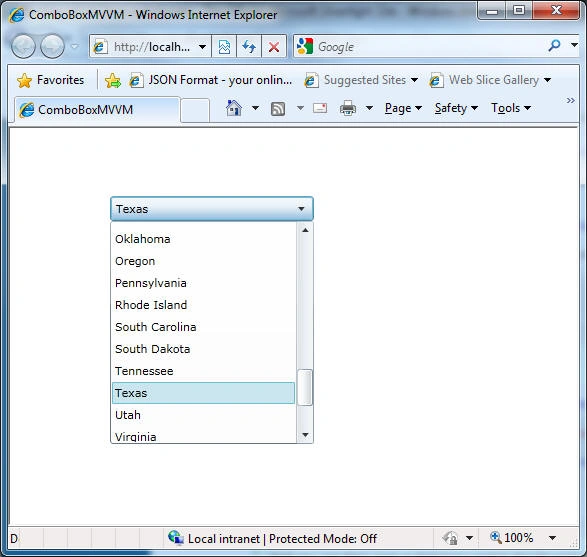
Let's say we wanted to show a list of states in our combobox, but when the user selected a state, we only wanted to retrieve the state code from the combobox. How might we go about doing this? For example, if the user chooses Texas, I want the combobox to return TX the abbreviation for Texas.
The easiest way to do this is to maintain a list of (Key, Value) pairs in the viewmodel. We'll start by creating a static dictionary to maintain all our states. In practice, it would probably be better to read these out of a file, but for the sake of the example, we'll hard-code all the states in our ViewModel.
Listing 1 - States maintained in a static Dictionary
private static readonly Dictionary<string, string> StateData = new Dictionary<string, string> {
{"AR", "Arkansas"}, {"AL", "Alabama"}, {"AK", "Alaska"}, {"AZ", "Arizona"}, {"CA", "California"}, {"CO", "Colorado"}, {"CT", "Connecticut"}, {"DE", "Delaware"},
...
Also in our ViewModel, we'll add a property States to the view of type Dictionary in which we can bind to the combobox and we'll assign it the stateData in the constructor.
Listing 2 - Property we will bind to our ViewModel
public AddressViewModel()
{
States = StateData;
}
private Dictionary<string, string> states;
public Dictionary<string, string> States
{
get { return states; }
set {
states = value;
PropertyChanged(this, new PropertyChangedEventArgs("States"));
}
}
In the combobox, we'll use the Value part of the Dictionary to display the choices to the user. But we'll also want a property called SelectedState to bind to the selected value, so we can capture the state abbreviation selected by the user.
Listing 3 - Property for binding to the selected item chosen by the user in the combobox
public string SelectedState
{
get { return _selectedState; }
set
{
_selectedState = value;
PropertyChanged(this, new PropertyChangedEventArgs("State"));
}
}
Now we're ready to bind to the view model to the actual ComboBox in our XAML mark up.
The XAML
The first thing we need to do in our UserControl is to instantiate the view model. We can do this directly in the Resources of the page.
Listing 4 - Instantiating the view model in XAML
rima patelPosted Dec 27, 2010, 1:46 AM
Great article...Thanks a ton..!! :)