

Microsoft Purview Data Loss Prevention (DLP) has closed a long-standing gap in SharePoint and OneDrive protection: the ability to block access to sensitive content for specific external domains or individual guest accounts, rather than only offering an all-or-nothing external block. this option lets administrators target particular partner domains or guest SMTP addresses while leaving other external collaboration paths open. Here's what changed, why it matters, and how to configure it correctly.
What's new
Microsoft Purview DLP is adding the ability to block access to sensitive SharePoint Online and OneDrive for Business files based on an external user's domain or specific email address (SMTP), giving admins more granular, enterprise-ready control over external access and reducing the risk of unintended data exposure when collaborating outside the organization.
Why this matters
Before this update, SharePoint/OneDrive DLP access-restriction actions were essentially binary: block everyone, block everyone outside the org, or block only people who accessed content via an "Anyone with the link." That's a blunt instrument for real-world collaboration, where an organization might legitimately share sensitive data with a handful of named vendors or partners but wants to shut the door on everyone else.
The new action solves that by letting you build block lists and allow lists at the domain or individual-user level, so you can, for example:
limit sensitive content to a small set of approved supplier domains
allow only named external users involved in regulated projects
How it works
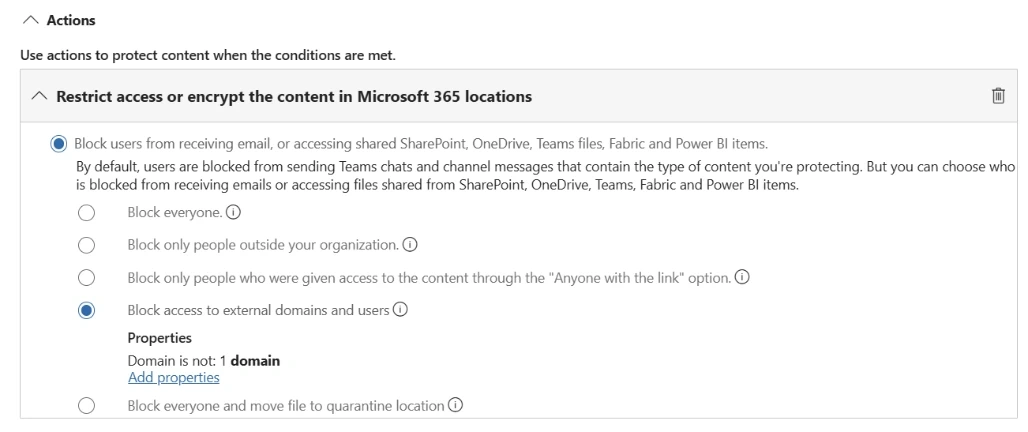
The action lives inside the familiar Restrict access or encrypt the content in Microsoft 365 locations block, under a new radio button option: Block access to external domains and users (shown as "Block access for specific external domains or users" in Microsoft's docs). Selecting it exposes a Properties panel where you define:
Domain — condition set to "is" or "is not," followed by one or more domains
User SMTP address — for blocking or allowing specific individual guest accounts
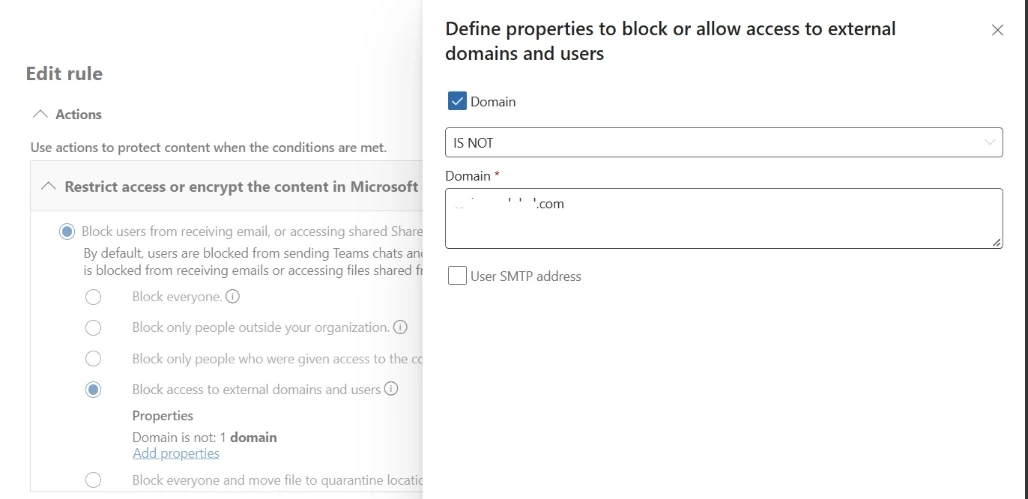
Selecting Add properties opens the flyout shown in your second screenshot, where you check Domain, choose IS or IS NOT, and enter the domain(s). This is exactly where the "exclude domains" capability lives — configuring the condition as Domain IS NOT effectively creates an allow-list behavior (block everyone except the domains you list), while Domain IS creates a targeted block list (block only the named domains).
Precedence rule
If a user or domain appears in both an allow list and a block list, the block takes effect, the most restrictive rule wins. Plan your domain lists with this in mind. Don't assume adding a domain to an "allow" condition anywhere in the policy will override a block defined elsewhere.
Step-by-step configuration
Go to the Microsoft Purview portal → Data Loss Prevention → Policies.
Ensure the policy scope includes SharePoint Online, OneDrive for Business, or both.
Build your rule conditions: "shared with people outside the organization" + a sensitivity label/SIT/classifier.
In the policy rule, after configuring conditions, go to the Actions section and select Restrict access or encrypt content.
Choose Block access to external domains and users.
Under Properties, select Add properties, check Domain, set the condition to IS (block these) or IS NOT (block everyone except these), and enter the domain(s). Repeat with User SMTP address if you need to target individual guests rather than whole domains.
Optionally build a companion allow condition for trusted partners, remembering that block always wins on conflict.
Save and test in a pilot group before wide deployment. SharePoint can take some time to propagate the block after policy activation.
Important limitations to flag for your stakeholders
These are the details worth calling out explicitly in change documentation, since they affect what "block" actually covers:
Internal users are out of scope. This specific action cannot target internal users
No end-user messaging. User notifications and self-service overrides are not supported for this action, though alerting is supported.
Image files aren't covered. The documentation notes that image files are not protected by this suboption.
This isn't a replacement for tenant-wide controls. It's a targeted access-control tool for sensitive content, not a substitute for tenant-wide SharePoint external-sharing settings or Entra guest restrictions. Keep your broader sharing policy and conditional access posture intact
Real-world use cases
Vendor/supplier restriction: Block all external sharing of files tagged "Confidential – Financial" except to your three approved audit-firm domains.
Regulated project teams: Allow only named external counsel or contractor SMTP addresses to access legal-hold or M&A-related sensitive files, blocking all other external domains.
Post-incident containment: Rapidly add a specific compromised or risky external domain to a block list without disabling external sharing tenant-wide.
HR carve-outs: As shown in Microsoft's own example scenario, you can exclude specific internal groups (e.g., Human Resources) from the rule entirely while still blocking sensitive-data sharing with named external domains for everyone else.
Join the conversation! Your thoughts help the community grow.