
Overview
- Creating intuitive forms is key to driving user adoption and collecting high-quality data in SharePoint. One powerful feature that can help you achieve this is branching logic, a simple but effective way to tailor your forms based on user input.
- In this guide, we'll break down what branching logic is, why it's so effective, and how you can easily implement it in SharePoint Online List forms using Microsoft's modern form design, with no coding required!
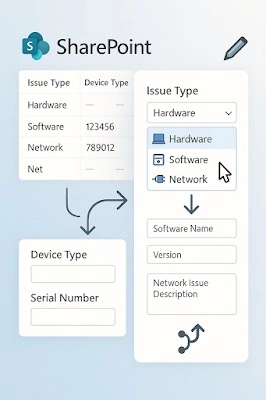
What is Branching Logic?
Conditional logic, also known as branching logic, enables your form to respond dynamically to user decisions. The form can show or hide specific fields based on user selection, simplifying the process and eliminating unnecessary inputs.
Example
If a user selects “Contractor” from a dropdown, fields related only to contractors will appear. Other sections, such as full-time employee information, remain hidden.
Why Use Branching Logic in SharePoint Forms?
Key Benefits
- Simplifies the User Experience: Only questions relevant to the user are displayed.
- Reduces Entry Errors: Hidden fields can’t be filled incorrectly.
- Improves Data Quality: Ensures accurate and relevant inputs.
- Saves Time: Avoids unnecessary scrolling or input.
Limitations
- Limited Logic Scope: Only supports simple conditions; complex logic (e.g., AND/OR combinations) requires Power Apps.
- No Backward Conditions: You can't reference future responses to adjust earlier fields.
- Basic Customization: The built-in SharePoint form designer limits visual layout and advanced actions.
Use Case: IT Helpdesk Ticket Form
Let’s say you’re building an IT helpdesk form. Based on the selected Issue Type, you want to display only the relevant fields.
- Hardware: Show Device Type and Serial Number.
- Software: Show Software Name and Version.
- Network: Show Location and Network Issue Description.
Always show: Priority and Description
How to Set Up Branching Logic in SharePoint Online List Forms?
🔹 Step 1. Prepare Your SharePoint List.
Make a SharePoint list using the columns listed below.
- Issue Type (Choice: Hardware, Software, Network)
- Device Type (Choice)
- Serial Number (Single line text)
- Software Name (Single line text)
- Version (Single line text)
- Location (Choice)
- Network Issue Description (Multiline text)
- Priority (Choice)
- Description (Multiline text)
Note: Define all necessary columns before customizing your form.
🔹 Step 2. Launch the Modern Form Designer.
- Go to your SharePoint list.
- Click on "Forms" in the command bar, as shown below.

- Either select 'New' or 'Update an existing form'.

🔹 Step 3. Apply Branching Logic.
- Inside the form builder, edit your form's Title, Logo, and Instructions if needed.

- To customize certain fields, use the pencil icon.
- Click "Branching" from the top navigation.
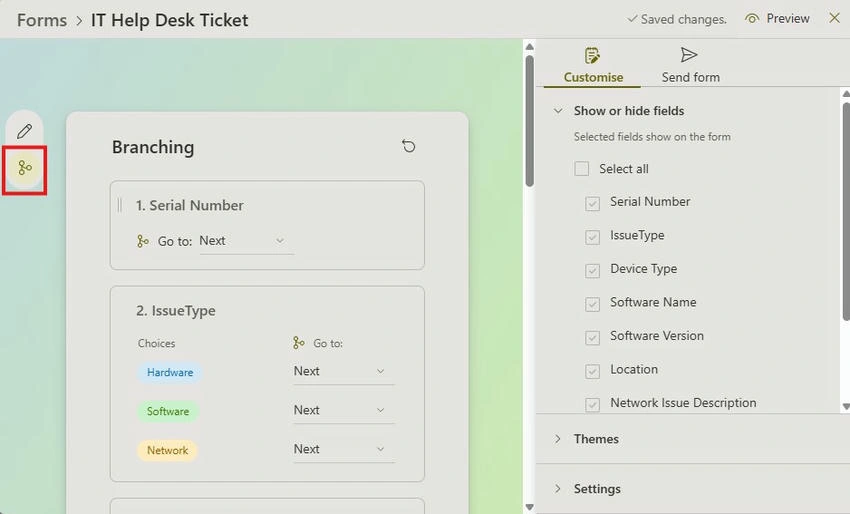
- For each condition: Select the Issue Type field.
- Add rules like.
- If Hardware, show Device Type and Serial Number.
- If Software, show Software Name and Version
- If Network, show Location and Network Issue Description
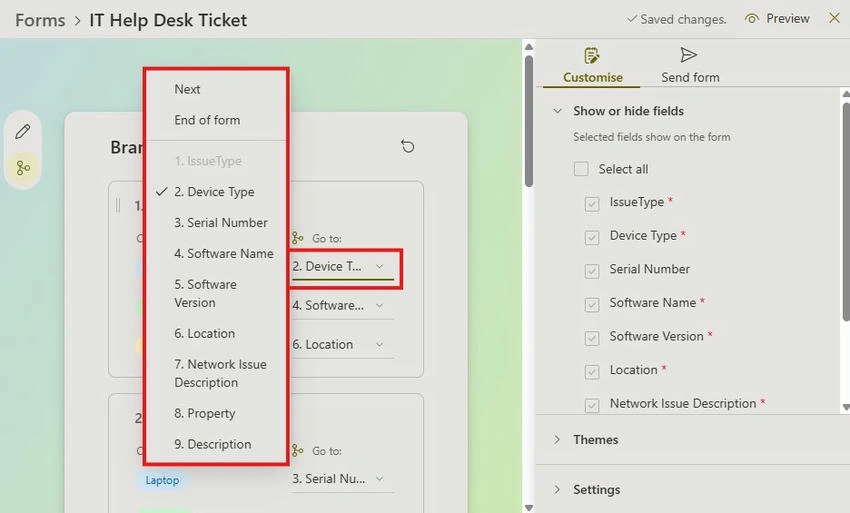
- Use the Revert icon to reset to the default form settings.
🔹 Step 4. Customize the Appearance.
- On the right-side panel, click Customize.
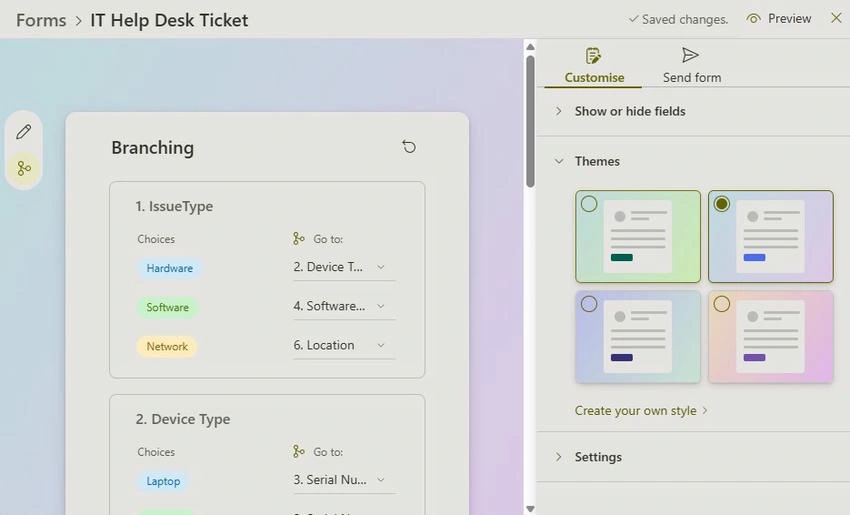
- A background theme
- Custom submission/closure messages
- Start/end availability dates
- Email notifications

🔹 Step 5. Test the Logic.
Before rolling out the form.
- Preview it by clicking "Preview".
- Choose different Issue Type values.
- Verify that only the correct fields appear for each option.

Test thoroughly to avoid logic gaps or broken paths.
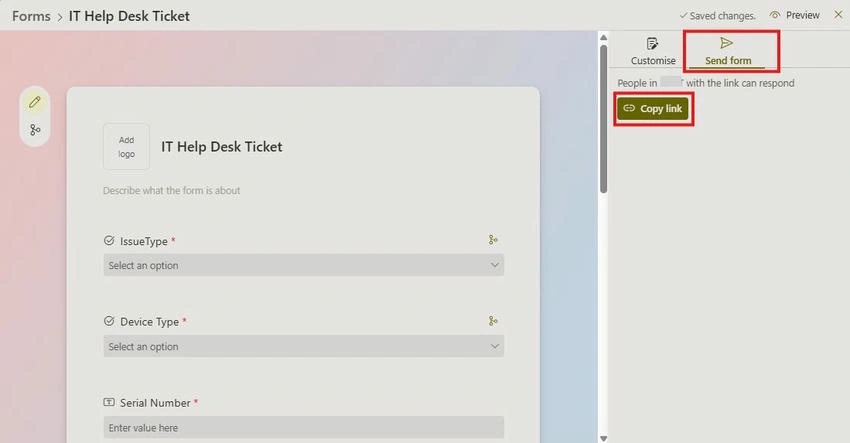
🔹 Step 6. Share Your Form.
Once you're satisfied.
- Click Save (auto-save is usually on).
- Use the Copy Link option to distribute your form to users.
Pros and Cons of SharePoint Branching Logic
| Pros | Cons |
|---|---|
| Improves form usability by removing clutter | Doesn’t support nested or multi-condition logic |
| Minimizes user confusion and errors | It may not function perfectly on mobile |
| Saves user time with smart field skipping | Advanced needs require Power Apps |
| Easy to implement with zero code | Limited layout customization |
Tips for Effective Use of Branching Logic
- 🔹 Keep it simple: Don’t overwhelm users, limit each field to 2–3 branching rules.
- 🔹 Start with a flowchart: Visualize your form logic on paper first.
- 🔹 Test all logic paths: Ensure no combination of responses causes a dead end.
- 🔹 Upgrade to Power Apps: For calculations, advanced rules, or enhanced UI, Power Apps is your best friend.
- 🔹 Add help text: Adding brief clarifications next to fields will help users better understand them.
Final Thoughts
- Branching logic is a simple yet powerful way to elevate your SharePoint Online forms. By dynamically showing or hiding fields, you enhance usability, reduce errors, and make your forms much more efficient.
- So next time you're building a SharePoint list form, don’t settle for static input. Leverage branching logic to craft smarter, cleaner, and more user-friendly experiences.
Join the conversation! Your thoughts help the community grow.