

“Infrastructure as code” is the true power of Microsoft Azure Cloud. Here, I sketched a single file used to install a domain controller in Microsoft Azure with the provision of an Azure AD Tenant. You need to define all parameters first. All AD Groups, AD Test users, AD Members, and AD OUs are present in attached .csv files. I passed the example parameters in script. Script will do the following in sequence shown below, based on your parameters
- Storage Account
- Virtual Network and Subnet
- Cloud Service
- Virtual Machine
- Domain and Tenant
Since I am in New Zealand, I mentioned my closest Microsoft Data Center location "Australia East" in script everywhere. Place all files in one folder. For example, in my case, all files are residing at location in folder C:\DC\.
DC is folder name here. All files with given names are attached
- File to create domain controller
DomainController.ps1
- File to create VNet and Subnet
CreateVNetSubNet.xml
- File to create AD Groups
AD_Groups.csv
- File to create AD members
AD_Members.csv
- File to create AD OUs
AD_OUs.csv
- File to create AD Users
AD_Users.csv
Here are the steps to execute the script with mentioned files.
- Open PowerShell ISE with Administrator Account.
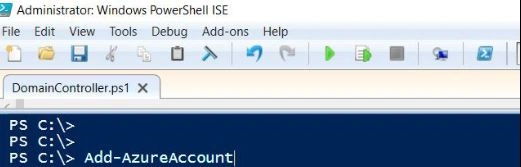
- Add-Azure Account, as shown below.
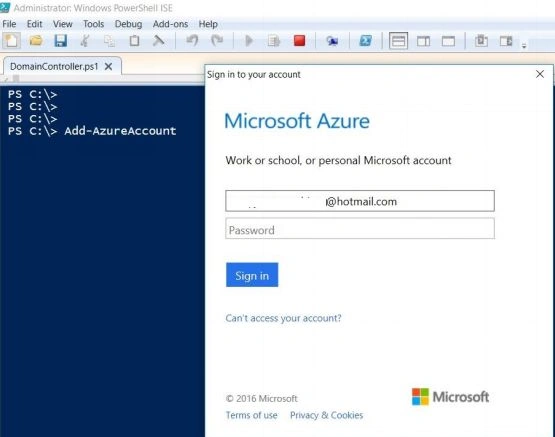
- Pass Azure Account Credentials in prompt window.
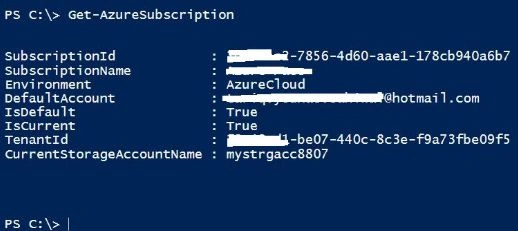
- Run command Get-AzureSubscription in order to see if subscription is valid or not.
- Select the DomainController.ps1 from location C:\DC\ and open in PowerShell.

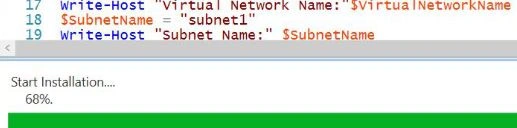
- Run the script and it will look like below. Note that the script has started executing in sequence.
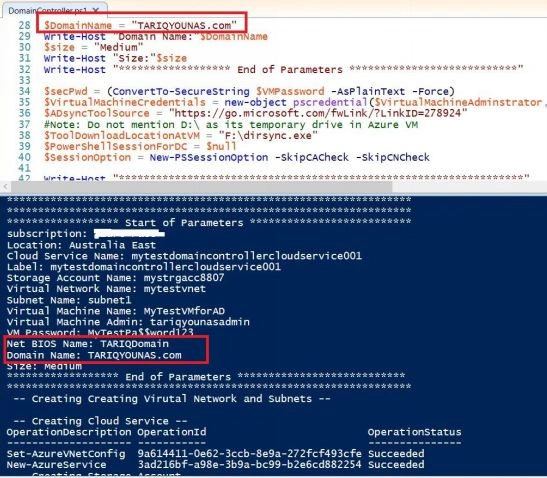
- Here, you can see the progress.
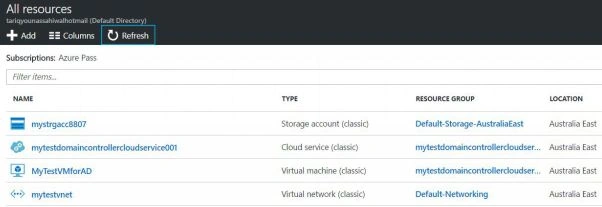
- After completion of the above, the following will be created.
- Click on VM i.e "MyTestVMforAD".
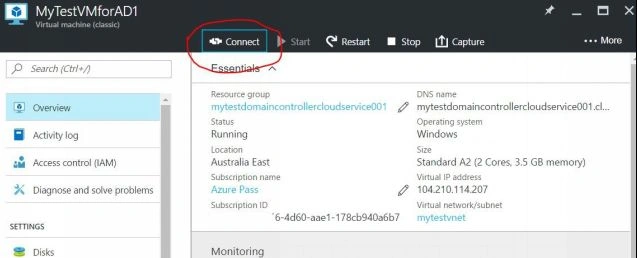
- Press "Connect" to take session.
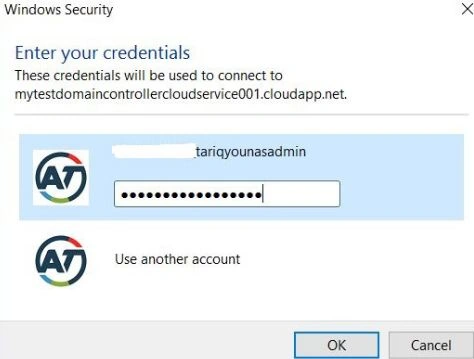
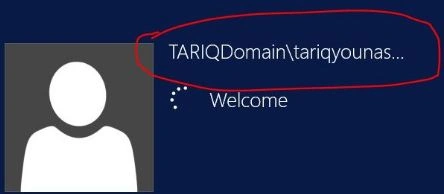
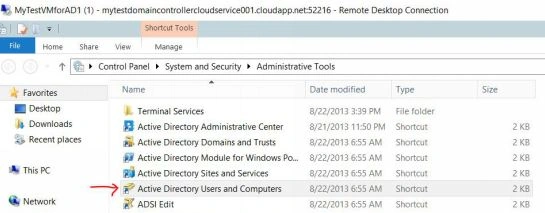
- After log-in, go to server administrative tools and click "Active Directory Users and Computers".
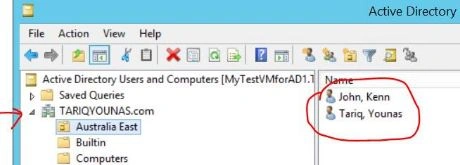
- WOW, domain controller has been provisioned and users imported.
Intikhab KhanPosted Mar 16, 2017, 2:26 AM
To the point and useful artical
Anu VPosted Dec 2, 2016, 7:19 AM
Nice article. Thanks for sharing
Haseeb AhmadPosted Nov 9, 2016, 1:41 AM
Great article. Really very useful
Rana IrfanPosted Nov 7, 2016, 2:42 PM
Thank you for elaborating with screenshot its really helpful and easy to follow.