

Introduction
Messaging extensions enable users to execute search queries or trigger actions within a designed external system. As a result, messages are received from custom web services or API to the Microsoft Teams Client.
Messaging Extension
Messaging extensions take advantage of the Bot Framework's messaging schema and secure communication protocol to connect with Microsoft Teams Client App.
There are three type of messaging extenions that can be build for Microsoft Teams:
- Search based messaging extenion for Microsoft Teams
- Action based messaging extenion for Microsoft Teams
- Unfurl Url with messaging extension for Microsoft Teams
How Messaging Extension works
- Command box: This is the area at the top of the Microsoft Teams client
- Compose message box: This is the area at the bottom of a 1:1 or group chat and at the bottom of the Conversations tab in a channel
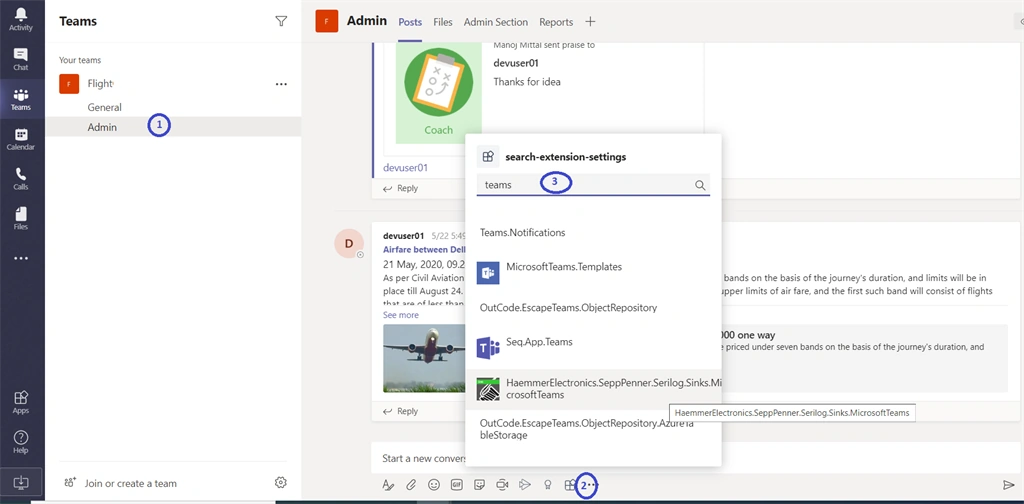
- More Actions menu: It is accessible, when users hover over a message in a conversation chat
Your web service will respond with a JSON payload, via the Bot Framework, that informs the Microsoft Teams client what interaction to enable next.
Prerequisites
- Microsoft Teams
- Azure Bot Framework, .NetCore
- Azure Web API .Net Standard
- Microsoft 365 tenant
- Microsoft Azure subscription
Let's get started,
To create Microsoft Team Messaging Extension requires two activities:
- Create Microsoft Azure Bot.
- Create manifest file with bot reference
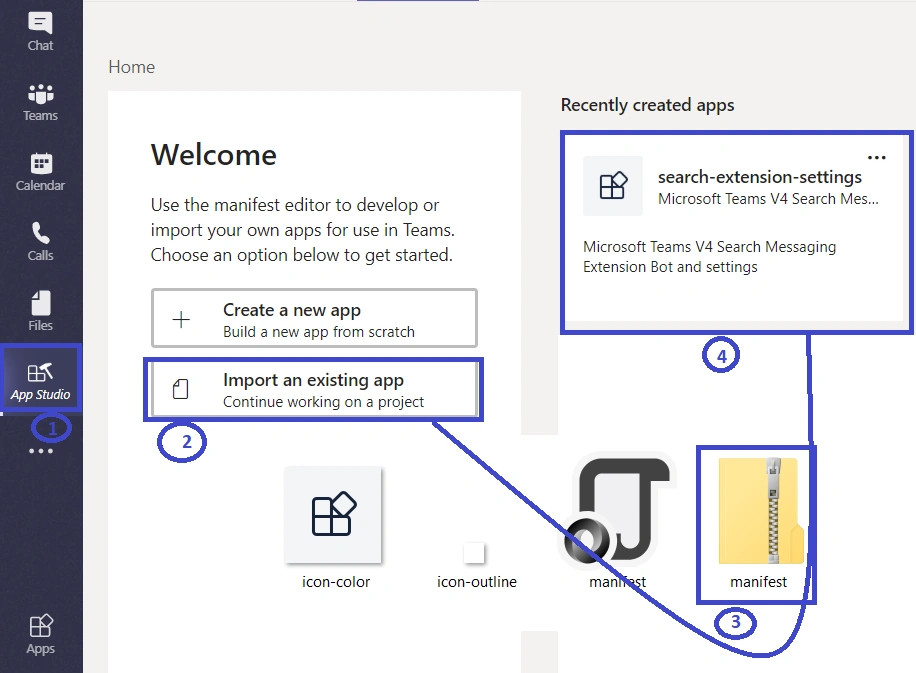
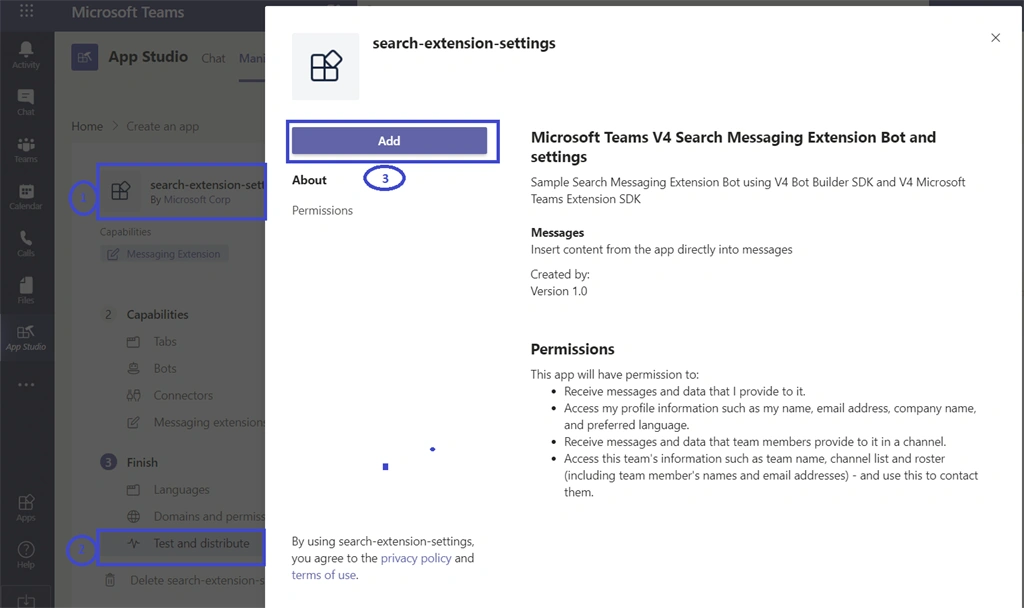
- Upload manifest file to MS Team Client App.
Step 1 - Create Microsoft Azure Bot
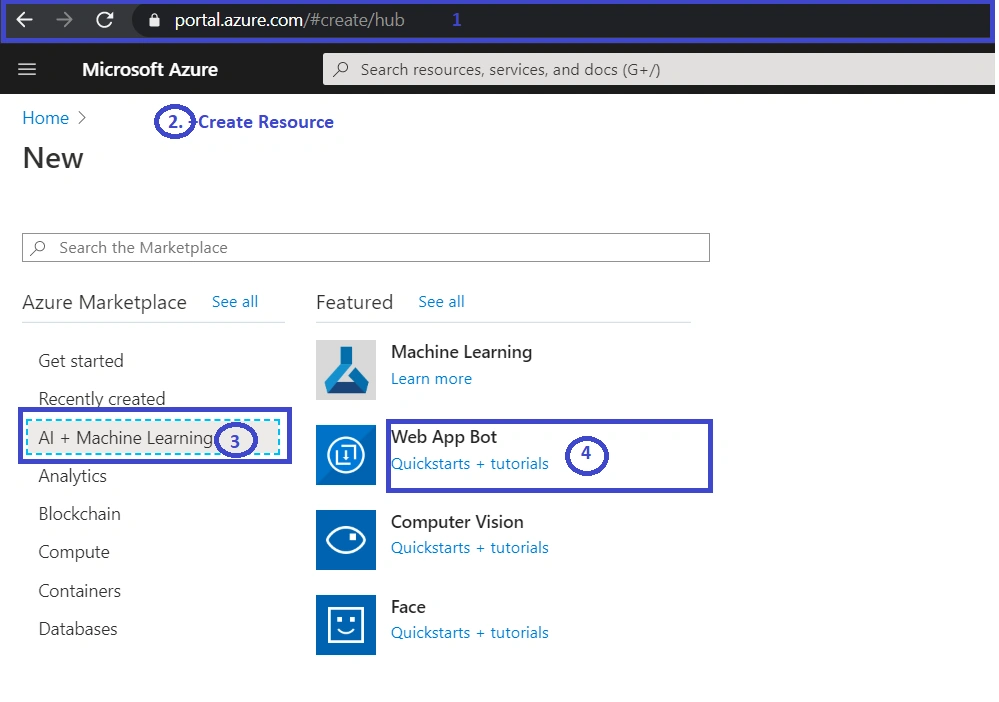
- Browse the https://portal.azure.com with your work or school account.
- Click "+Create Resource"
- Select "AI + Machine Learning"
- Select "Web App Bot"
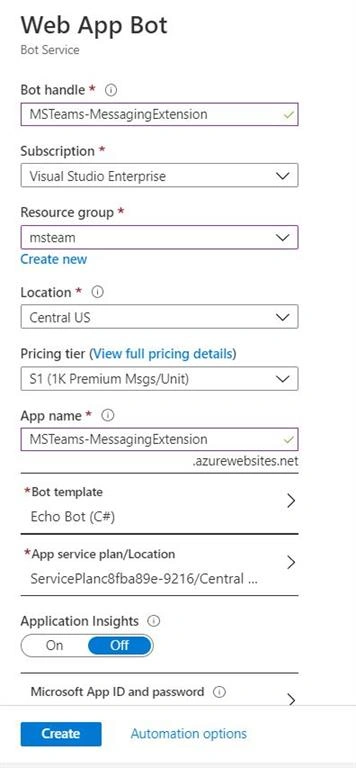
Step 2 - Complete all required information and click create to provision the bot
- Bot handle:- The unique name of your bot.
- Subscription:- Select a valid available subscription.
- Resource Group:-Select an appropriate resource group or create a new one as per requirement.
- Location:- Select your closed azure location or the preferred location.
- Pricing:- Select the required pricing tier or F0 as free for POC activity.
- App Name:- Leave it as-is for this demo purpose.
- Service Plan:- Leave it as-is for this demo purpose.
- Bot Template:- Leave it as-is for this demo purpose.
- Application insight: Select off for this demo purpose
- Microsoft App Id and Password:- Leave it as-is for this demo purpose.
- Click create to provision.
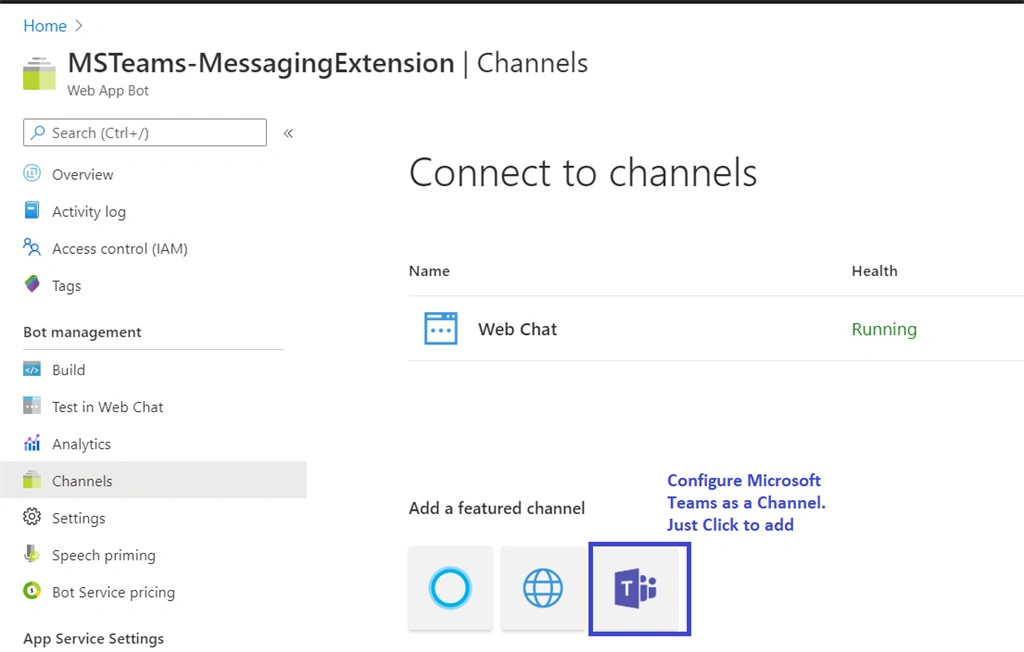
Step 3 - Enable Microsoft Teams Channel for your Bot
In order for the bot to interact with MS Teams, you must enable the Teams Channel.
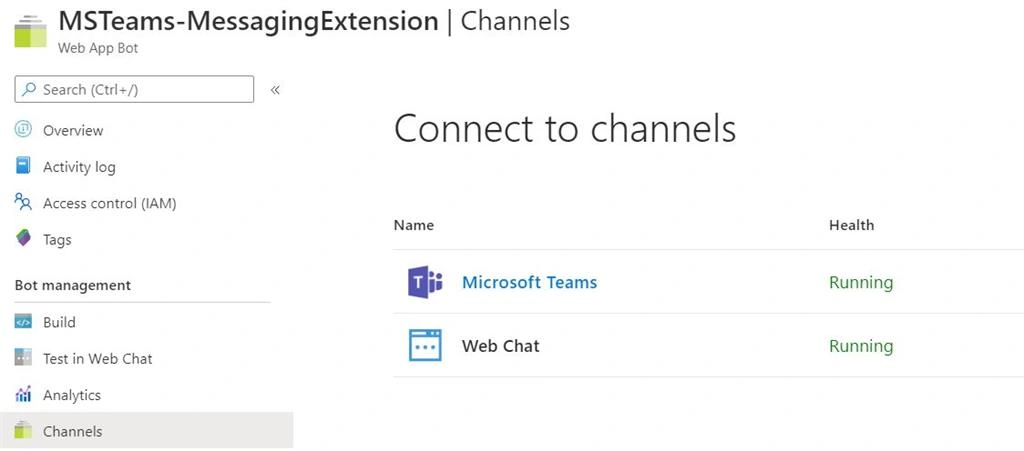
To complete the process, MS Teams and Webchat should be available and should be listed in your channel lists.
Step 4 - Create a Bot Framework
In this section, we are going to create a echo bot using Visual Studio 2019
- Open the Visual Studio, Select create project and navigate to the desired directory to create a project.
- Select Echo Bot (Bot Framework v4) .Net Core

- Select EchoBot.cs
- Remove all default methods defined into EchoBot Class
- Inherit Team Activity Handler to EchoBot Class to implement messaging extension related method.
- Add Query Async method to pass query parameter to external api.
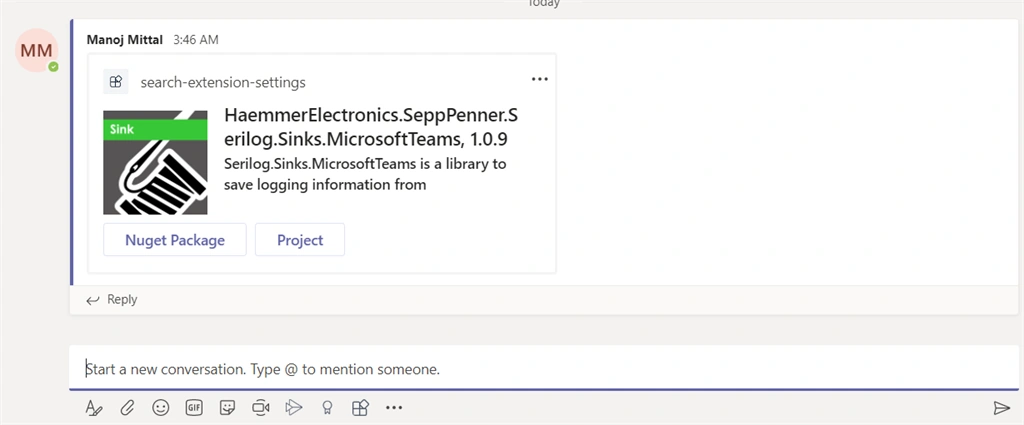
- Select Item Async method used to post the selected message into team channel conversation area via adaptive card.
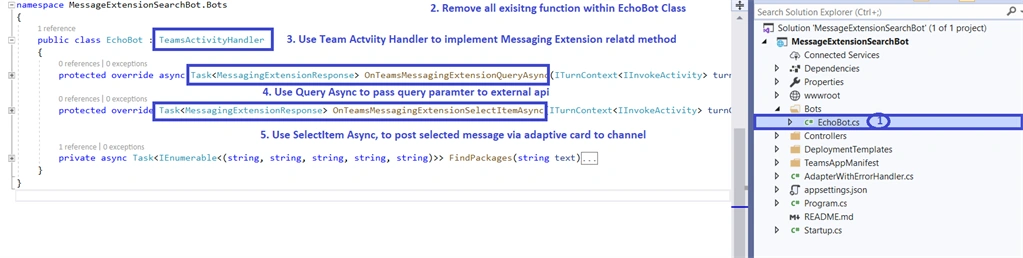
Query Async Method - Take typed query as parameter and pass it to api to get JSON Payload, render the JSON Payload into hero card with list; i.e., attachment layout.
- protected override async Task<MessagingExtensionResponse> OnTeamsMessagingExtensionQueryAsync(ITurnContext<IInvokeActivity> turnContext, MessagingExtensionQuery query, CancellationToken cancellationToken)
- {
- var text = query?.Parameters?[0]?.Value as string ?? string.Empty;
- var packages = await FindPackages(text);
- var attachments = packages.Select(package => {
- var previewCard = new ThumbnailCard { Title = package.Item1, Tap = new CardAction { Type = "invoke", Value = package } };
- if (!string.IsNullOrEmpty(package.Item5))
- {
- previewCard.Images = new List<CardImage>() { new CardImage(package.Item5, "Icon") };
- }
- var attachment = new MessagingExtensionAttachment
- {
- ContentType = HeroCard.ContentType,
- Content = new HeroCard { Title = package.Item1 },
- Preview = previewCard.ToAttachment()
- };
- return attachment;
- }).ToList();
- return new MessagingExtensionResponse
- {
- ComposeExtension = new MessagingExtensionResult
- {
- Type = "result",
- AttachmentLayout = "list",
- Attachments = attachments
- }
- };
- }
prince pabariPosted Sep 28, 2022, 4:43 AM
How to add multiple tabs i.e. sales, opportunity, lead down to search bar, as shown in docs.