

In the evolving landscape of artificial intelligence, chatbots have become an essential component of customer engagement and business automation. Microsoft’s Azure AI Bot Service is a powerful platform that enables developers to build, deploy, and manage intelligent bots with ease. Whether you are looking to create a virtual assistant, customer support chatbot, or an interactive AI-driven agent, Azure AI Bot Service provides the tools and capabilities needed to bring your bot to life.
Why Choose Azure AI Bot Service?
Azure AI Bot Service is designed to streamline the development of conversational AI solutions by offering:
- Scalability: Easily deploy bots across multiple channels such as Microsoft Teams, WhatsApp, Slack, and custom applications.
- AI-Powered Conversations: Integrates with Azure Cognitive Services for natural language understanding (NLU) and speech capabilities.
- Security & Compliance: Built-in security features and compliance with industry standards.
- Low-Code & Pro-Code Development: Supports both no-code tools like Power Virtual Agents and pro-code frameworks like Bot Framework SDK.
This article walks you through the process of setting up an AI chatbot using Azure AI Bot Service, from creation to deployment.
Setting Up Your Azure AI Bot
To begin, you need an Azure account and access to the Azure AI Bot Service.
Step 1. Create a Bot Service in Azure
- Sign in to Azure Portal
- Navigate to “Create a Resource” → AI + Machine Learning → Azure Bot
- Fill in the bot details:
- Bot name
- Subscription & Resource Group
- Choose a pricing tier (Free for development)
- Select the Bot Type (e.g., SDK v4 Bot or Power Virtual Agents)
- Deploy and Wait for the Bot Service to be Provisioned
Once the bot is created, Azure will generate an App ID and Password, which will be needed for authentication.
Developing Your Bot with Bot Framework SDK
For developers looking for full control over bot logic, the Bot Framework SDK (C#, JavaScript, Python) is the recommended choice.
Step 2. Set Up a Bot Using Bot Framework SDK
Install Dependencies
Ensure you have Node.js, Python, or .NET Core installed, depending on your preferred language.
For JavaScript/Node.js, install the Bot Framework SDK:
npm install -g yo generator-botbuilder
Create a new bot project:
yo botbuilder
Run your bot locally:
npm start
You can test your bot using Bot Framework Emulator, a free tool for debugging bot interactions.
Integrating AI Capabilities with Azure Cognitive Services
A chatbot becomes truly intelligent when it understands language, images, and user intent. This is where Azure Cognitive Services come in.
Step 3. Adding Natural Language Understanding (NLU)
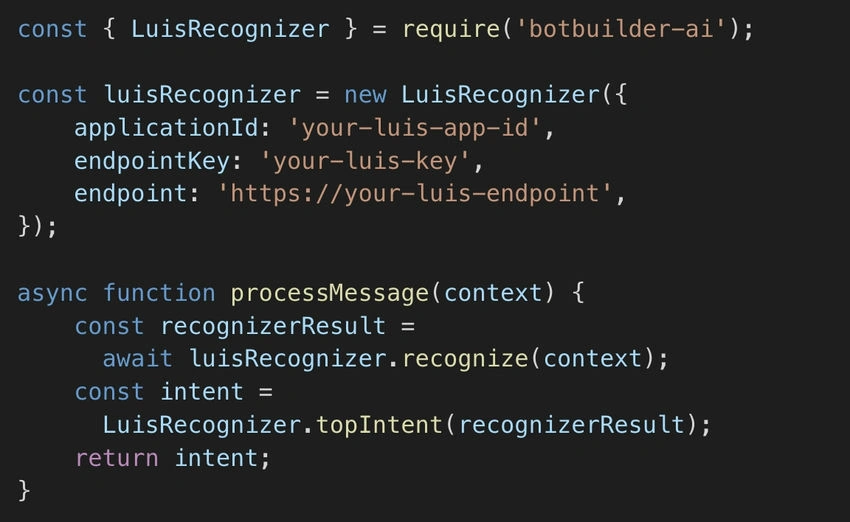
To enable your bot to process human language naturally, integrate Azure Language Understanding (LUIS):


Join the conversation! Your thoughts help the community grow.