Introduction
Azure OpenAI provides powerful AI models that can be integrated into applications to generate human-like text, translate languages, and analyze sentiment. Azure Functions, a serverless compute service, allows developers to build event-driven applications with minimal infrastructure management. Combining Azure OpenAI with Azure Functions enables intelligent, scalable, and cost-effective AI-powered solutions.
Prerequisites
Before getting started, ensure you have the following:
- An Azure Subscription
- Access to Azure OpenAI Service
- Azure Functions Core Tools installed
- Visual Studio Code or any preferred IDE
Step 1. Setting Up Azure OpenAI
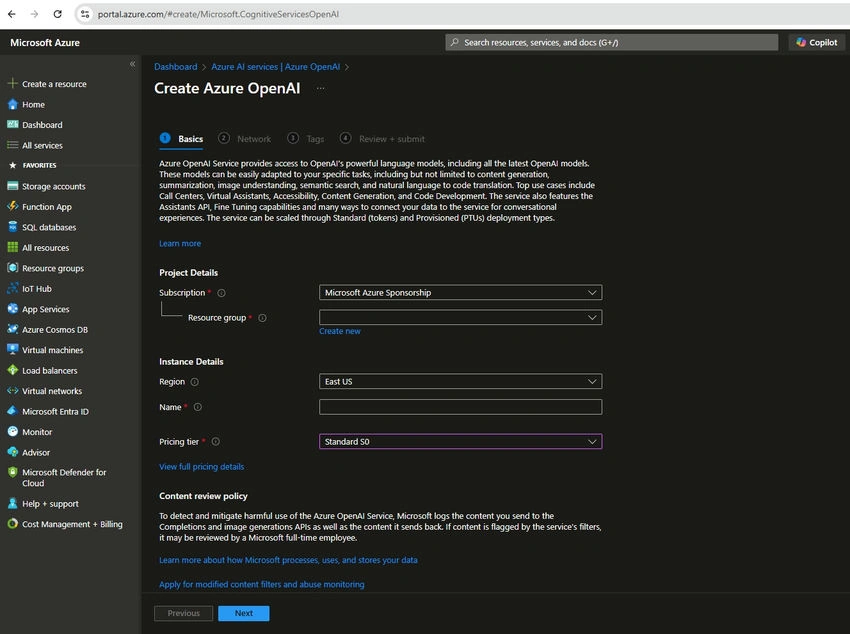
1. Create an Azure OpenAI Resource
- Go to the Azure portal.
- Search for "Azure AI services" and create a new resource.
- After deployment, navigate to the resource and obtain the API key and endpoint.
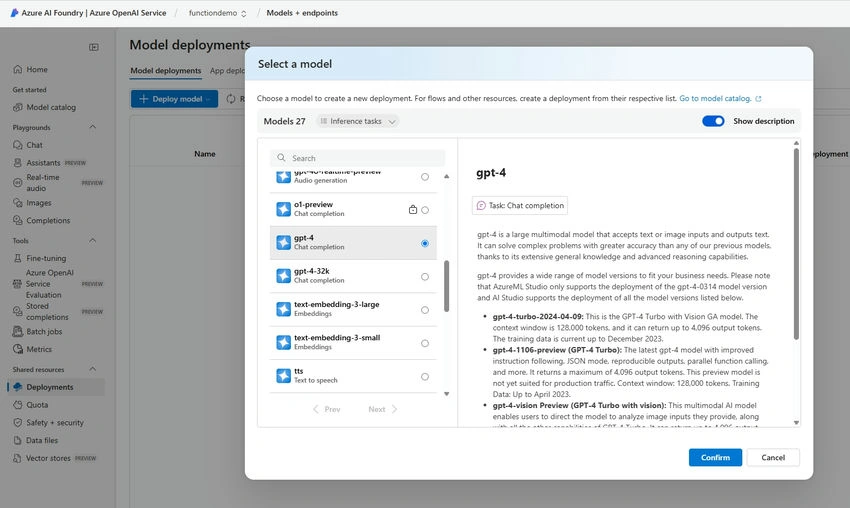
2. Deploy a Model
- Inside your OpenAI resource, deploy a model like text-davinci-003 or GPT-4.
- Note the model name for later use.
Step 2. Creating an Azure Function using Visual Studio 2022
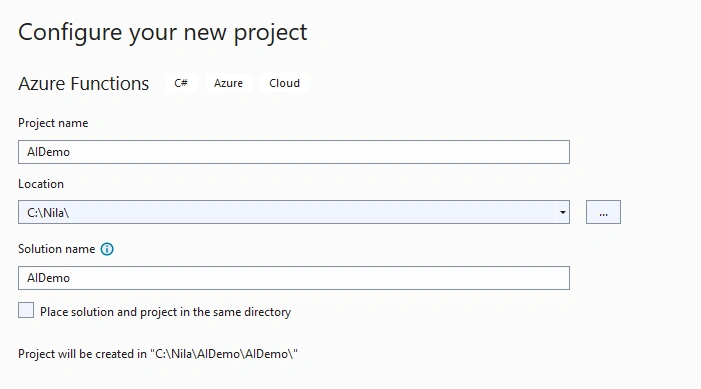
1. Open Visual Studio 2022
- Click on Create a new project.
- Select Azure Functions and click Next.
- Provide a Project Name, select a location, and click Create.
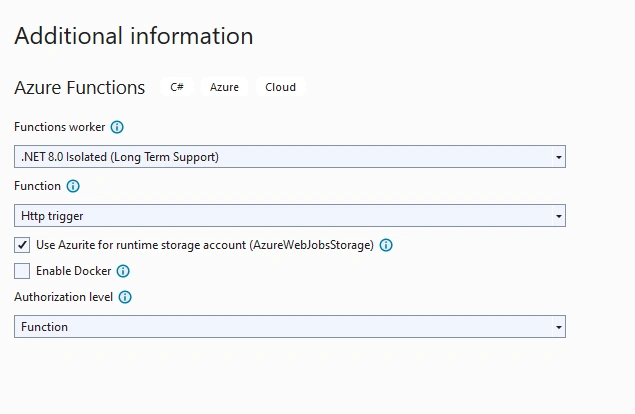
2. Configure the Function
- Choose .NET 8.0 (LTS) as the runtime.
- Select HTTP trigger as the function template.
- Set the Authentication Level to Anonymous.
- Click Create to generate the function project.
3. Install Required Dependencies
- Open the Package Manager and install Azure.AI.OpenAI:
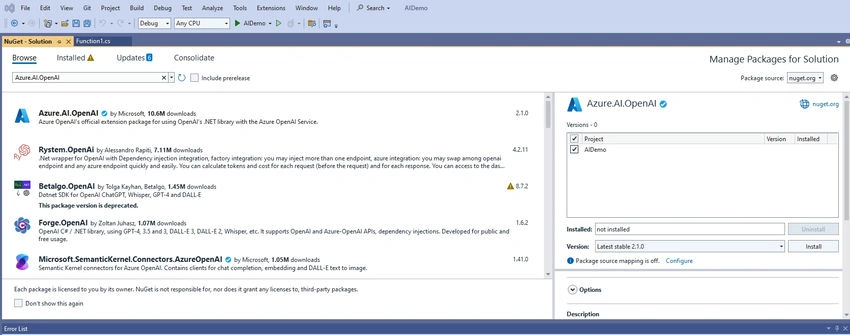
Step 3. Implementing Azure OpenAI in the Function (Function1.cs).
using Azure;
using Azure.AI.OpenAI;
using Microsoft.AspNetCore.Http;
using Microsoft.AspNetCore.Mvc;
using Microsoft.Azure.Functions.Worker;
using Microsoft.Extensions.Logging;
using OpenAI.Chat;

namespace AIDemo
{
    public class Function1
    {
        private readonly ILogger<Function1> _logger;

        public Function1(ILogger<Function1> logger)
        {
            _logger = logger;
        }

        [Function("Function1")]
        public async Task<IActionResult> Run(
            [HttpTrigger(AuthorizationLevel.Function, "get", "post")] HttpRequest req)
        {
            _logger.LogInformation("Processing request with Azure OpenAI");

            string prompt = req.Query["prompt"];
            if (string.IsNullOrEmpty(prompt))
            {
                return new BadRequestObjectResult("Please provide a prompt");
            }

            var openAiApiKey = "YOUR OPENAI KEY";
            var openAiEndpoint ="YOUR OPENAI Key Endpoint";
            var deploymentName = "gpt-4";

            AzureOpenAIClient client = new(new Uri(openAiEndpoint), new AzureKeyCredential(openAiApiKey));
            ChatClient chatClient = client.GetChatClient(deploymentName);

            var requsetOptions = new ChatCompletionOptions()
            {
                MaxOutputTokenCount = 1000,
            };

            var messages = new List<ChatMessage>
            {
                new UserChatMessage(prompt)
            };

            ChatCompletion response = await chatClient.CompleteChatAsync(messages, requsetOptions);

            return new OkObjectResult(response.Content[0].Text);
        }
    }
}
Step 4. Running the Function Locally
1. Start the Function
- Press F5 in Visual Studio to run the function.
- The console will display a local URL.

2. Open the browser and add the local URL with prompt as a query parameter
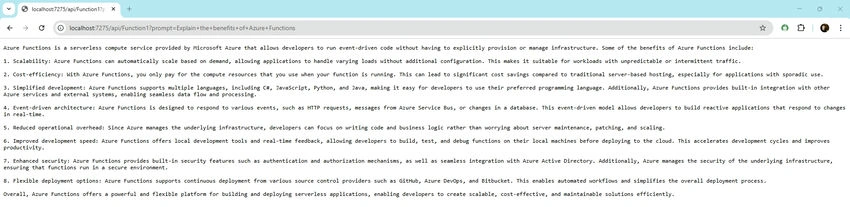
Step 5. Deploying to Azure
Publish from Visual Studio
- Right-click the project in Solution Explorer.
- Select Publish.
- Choose Azure Functions App (Windows) and click Next.
- Select your Azure Subscription and click Create a new Function App.
- Configure the Resource Group, Plan, and Storage Account.
- Click Finish and then Publish.
Conclusion
Integrating Azure OpenAI with Azure Functions allows developers to build scalable, AI-powered applications with minimal infrastructure overhead. By leveraging serverless computing, businesses can reduce costs while enhancing application intelligence.


Join the conversation! Your thoughts help the community grow.