

Introduction
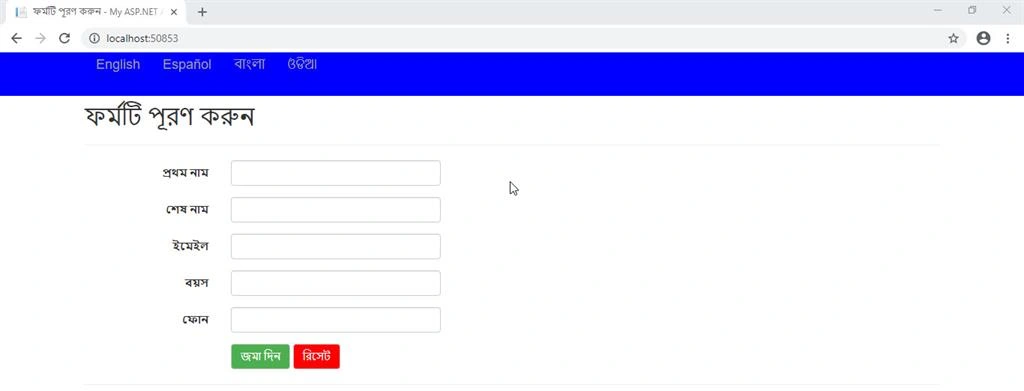
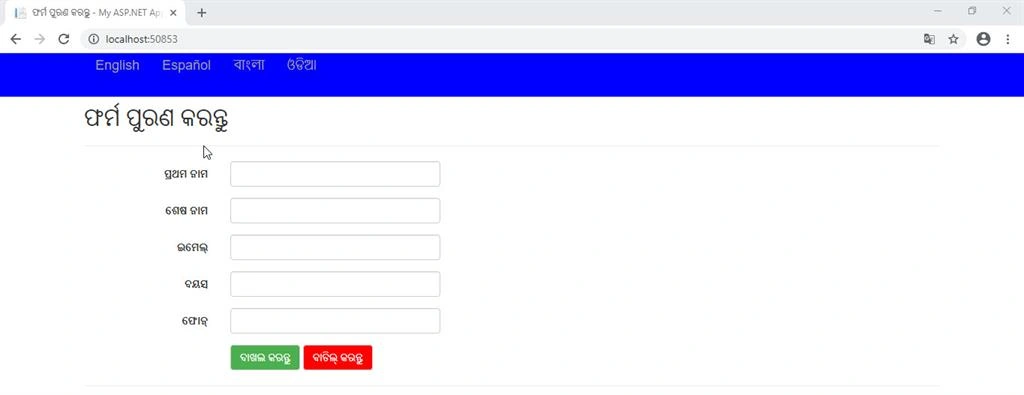
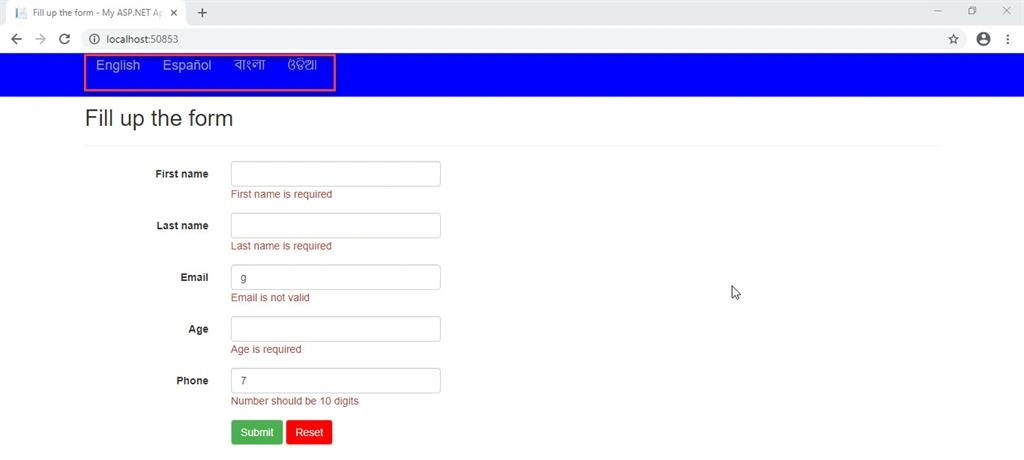
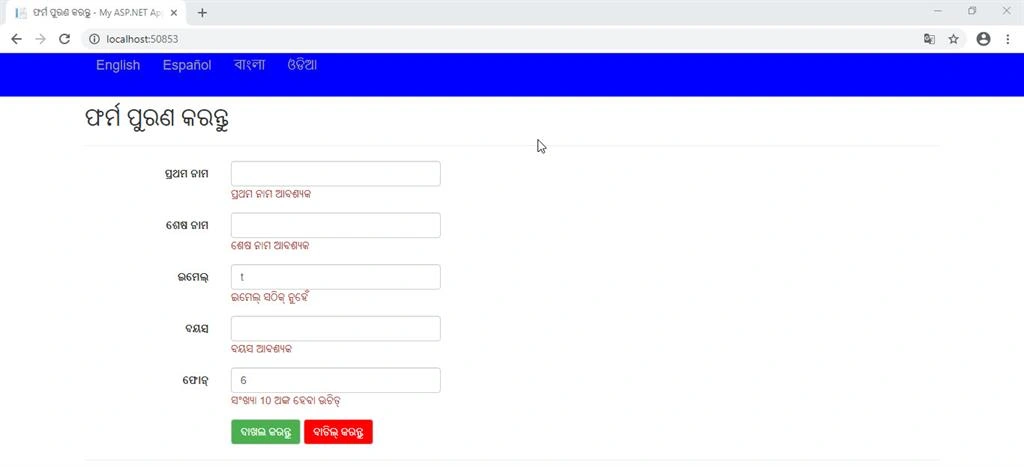
In this article, we will learn a step by step process to create a multilingual Web application using ASP.NET MVC. Multilingual means we can implement the website in multiple languages.
In today's world to grow customer interaction, everyone needs to implement this procedure in their applications.
Prerequisites
- Visual Studio
Note
Before going through this session, visit my previous articles related to ASP.NET MVC for better understanding.
Step 1
First, we need to add Resource File for different languages:
- Resource.resx - This is the default resource file for the English language.
- Resource.es.resx - This resource file is associated with the Spanish language.
- Resource.bn.resx - This resource file is associated with the Bengali language.
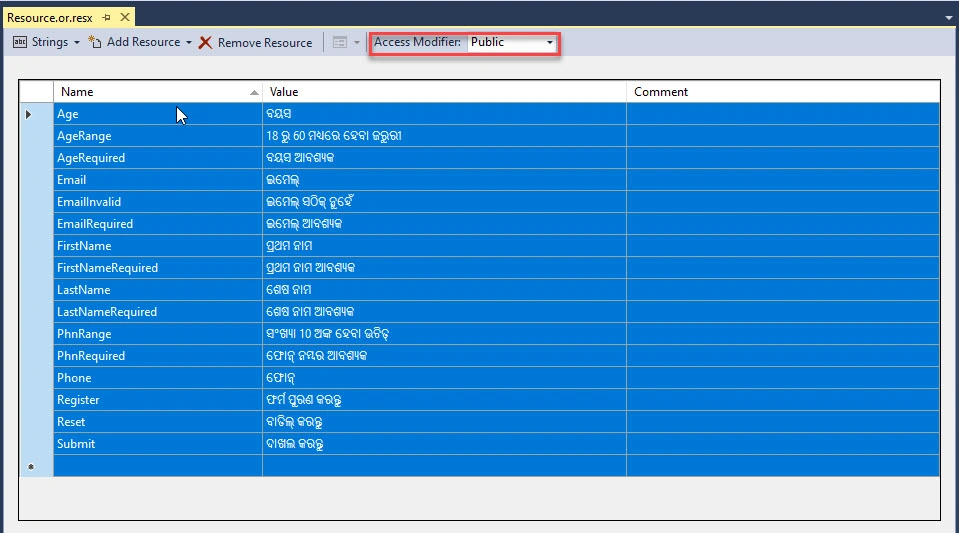
- Resource.or.resx - This resource file is associated with the Oriya language.
Go to Solution Explorer > Right Click on Project name form Solution Explorer > Add > Add New > Select Resource File under General > Enter File name > Add.
Set all the resource files Access Modifier to Public as mentioned in below image:
Step 2
In this step, we need to add a class file in the Model folder to configure field validation setup.
Go to Solution Explorer > Right Click on Modules folder > Add > Class > Enter Class name (SignUp.cs) > Add.
Code Ref
- using System;
- using System.Collections.Generic;
- using System.Linq;
- using System.Web;
- using System.ComponentModel.DataAnnotations;
- using System.ComponentModel;
- namespace MultilingualMVCApp.Models
- {
- public class SignUp
- {
- [Display(Name = "FirstName", ResourceType = typeof(Resource))]
- [Required(ErrorMessageResourceType = typeof(Resource), ErrorMessageResourceName = "FirstNameRequired")]
- public string FirstName { get; set; }
- [Display(Name = "LastName", ResourceType = typeof(Resource))]
- [Required(ErrorMessageResourceType = typeof(Resource), ErrorMessageResourceName = "LastNameRequired")]
- public string LastName { get; set; }
- [Display(Name = "Email", ResourceType = typeof(Resource))]
- [Required(ErrorMessageResourceType = typeof(Resource), ErrorMessageResourceName = "EmailRequired")]
- [RegularExpression(@"^([0-9a-zA-Z]([\+\-_\.][0-9a-zA-Z]+)*)+@(([0-9a-zA-Z][-\w]*[0-9a-zA-Z]*\.)+[a-zA-Z0-9]{2,3})$",
- ErrorMessageResourceType = typeof(Resource), ErrorMessageResourceName = "EmailInvalid")]
- public string Email { get; set; }
- [Display(Name = "Age", ResourceType = typeof(Resource))]
- [Required(ErrorMessageResourceType = typeof(Resource), ErrorMessageResourceName = "AgeRequired")]
- [Range(18, 60, ErrorMessageResourceType = typeof(Resource), ErrorMessageResourceName = "AgeRange")]
- public int Age { get; set; }
- [Display(Name = "Phone", ResourceType = typeof(Resource))]
- [Required(ErrorMessageResourceType = typeof(Resource), ErrorMessageResourceName = "PhnRequired")]
- [RegularExpression(@"^([0-9]{10})$", ErrorMessageResourceType = typeof(Resource), ErrorMessageResourceName = "PhnRange")]
- public string Phone { get; set; }
- }
- }
Code Description
Here, the typeof(Resource) is the file name for resources. All input fields have field validation for empty and if any input is not valid. Below, these namespaces are important for showing field names and validation messages to the user.
- using System.ComponentModel.DataAnnotations;
- using System.ComponentModel;
Step 3
In this step, we need to add another class to manage and setup language property & function that is based on language selection the all field text and validation text of input fields are translated accordingly.
Go to Solution Explorer > Right Click on Project name form Solution Explorer > Add > Class > Enter Class Name (LangTrans.cs) > Add.
Code Ref
- using System;
- using System.Collections.Generic;
- using System.Globalization;
- using System.Linq;
- using System.Threading;
- using System.Web;
- namespace MultilingualMVCApp
- {
- public class LangTrans
- {
- public static List<Languages> AvailableLanguages = new List<Languages> //add language name and its culture name based on resource files.
- {
- new Languages{ LangFullName = "English", LangCultureName = "en"},
- new Languages{ LangFullName = "Español", LangCultureName = "es"},
- new Languages{ LangFullName = "বাংলা", LangCultureName = "bn"},
- new Languages{ LangFullName = "ଓଡିଆ", LangCultureName = "or"}
- };
- public static bool IsLanguageAvailable(string lang) //Here all added languages are available
- {
- return AvailableLanguages.Where(a => a.LangCultureName.Equals(lang)).FirstOrDefault() != null ? true : false;
- }
- public static string GetDefaultLanguage() //On page load the default language selection is English.
- {
- return AvailableLanguages[0].LangCultureName;
- }
- public void SetLanguage(string lang) //Here language selection with property and function setup
- {
- try
- {
- if (!IsLanguageAvailable(lang))
- lang = GetDefaultLanguage();
- var cultureInfo = new CultureInfo(lang);
- Thread.CurrentThread.CurrentUICulture = cultureInfo;
- Thread.CurrentThread.CurrentCulture = CultureInfo.CreateSpecificCulture(cultureInfo.Name);
- HttpCookie langCookie = new HttpCookie("culture", lang);
- langCookie.Expires = DateTime.Now.AddYears(1);
- HttpContext.Current.Response.Cookies.Add(langCookie);
- }
- catch (Exception ex)
- {
- }
- }
- }
- public class Languages //Declare object names
- {
- public string LangFullName { get; set; }
- public string LangCultureName { get; set; }
- }
- }
Code Description
Here I added code with a description in a green comment mark "//" at one place for better and faster understanding.
In this step, we add another class that acts as an inherit Controller, where BeginExecuteCore can be overridden. It is added for checking & set language each time any request execute.
Go to Solution Explorer > Right Click on Project name form Solution Explorer > Add > Class > Enter Class Name (MyCommonController.cs) > Add.
Code Ref
- using System;
- using System.Collections.Generic;
- using System.Linq;
- using System.Web;
- using System.Web.Mvc;
- namespace MultilingualMVCApp
- {
- public class MyCommonController:Controller
- {
- protected override IAsyncResult BeginExecuteCore(AsyncCallback callback, object state)
- {
- string lang = null;
- HttpCookie langCookie = Request.Cookies["culture"];
- if (langCookie != null)
- {
- lang = langCookie.Value;
- }
- else
- {
- var userLanguage = Request.UserLanguages;
- var userLang = userLanguage != null ? userLanguage[0] : "";
- if (userLang != "")
- {
- lang = userLang;
- }
- else
- {
- lang = LangTrans.GetDefaultLanguage(); // Using LangTrans class we get default language
- }
- }
- new LangTrans().SetLanguage(lang); // Using LangTrans class, We set language selection with property and function
- return base.BeginExecuteCore(callback, state);
- }
- }
- }
Join the conversation! Your thoughts help the community grow.