

Here, we will be building our own container images. For doing this, we have two different ways, namely manual method and automated method. Let us see both ways.
Exercise 1 Building Container Manually
- Open PowerShell in the DcokerVM and run some command to start a container. We are doing this to make use of that container to create some new container by making a few modifications to it. So, run the following command.
docker run -it Microsoft/nanoserver powershell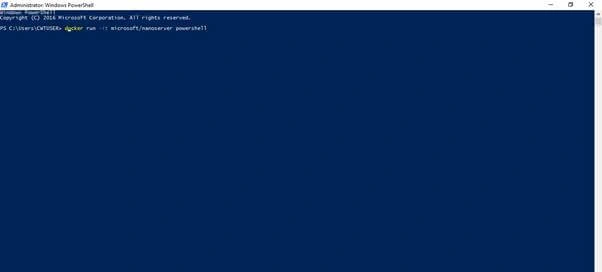

- We shall create some new file in our container now. This is to customize our container and work with it. Run the following command to create a new file inside the running container. This will create a file in the local disk c with the name sample.
New-Item -ItemType file -Name sample.txt -value sampletext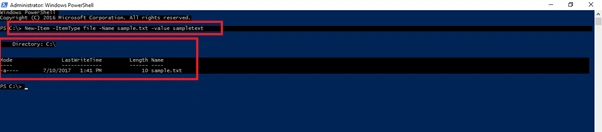
- Now, press CTRL+PQ to get out of the container which you are working in. Then get the running container's details by executing the following command.
docker ps
- This will now show you the running container details. Now stop this running container by executing the command
docker stop 1d
Replace 1d in the above code with first two letters of your container ID,
- Now we shall capture the stopped image which is modified by creating some text file in it. Here we will be using the base container image as the image which we have stopped. Run the following code to capture the image.
docker commit 1d my-custom-image
- Now check for all the available images in the container. This will show you all the base containers which you have pulled from the docker hub and also the image which you have captured now by creating a new text file inside it.
docker images

Join the conversation! Your thoughts help the community grow.