

Introduction
In my first two articles, we first looked at the four common types of .NET applications we may find out in the field. We briefly discussed these four types of applications and then in the second article, we looked at the design and architecture at a high level which would apply to all these applications in general terms. Next, we build the first type of application, the .NET desktop application. Today, we will look at the second and probably the most common type of application, the .NET web application.
Requirements for building this application
It is assumed the reader of this article has some basic knowledge and understanding of .NET development and C#, which is the programming language used for developing all the samples. In addition, the following tools would be required.
- SQL Server 2008 Express Edition
- SQL Server Management Studio
- Visual Studio 2019 Community Edition
All the above tools are free to download and use. We will be building the application using the .NET Core 3.1 and its related technologies. So, let’s begin. The advantage of using .NET Core over the .NET framework is that this solution can be deployed to Linux and Mac environments in addition to Windows.
The Data Source
The first step is to build the data source, where we would be saving the data. Here, I will create a new database called “EmployeeDB”. However, we will not be creating the Employee table, as this would be done using the Entity Framework Core and the Code First approach. This code would also be used to add the initial data, also known as seeding the database. This will all be done in the data access layer. So, let’s move directly to the data access layer.
The Data Access Layer
The data access layer would be created as a Web API application. A Web API application is an application that exposes functionality over an HTTP protocol via calls made to it and returns data, most commonly in the JSON format. This data can then be used in the application as required.
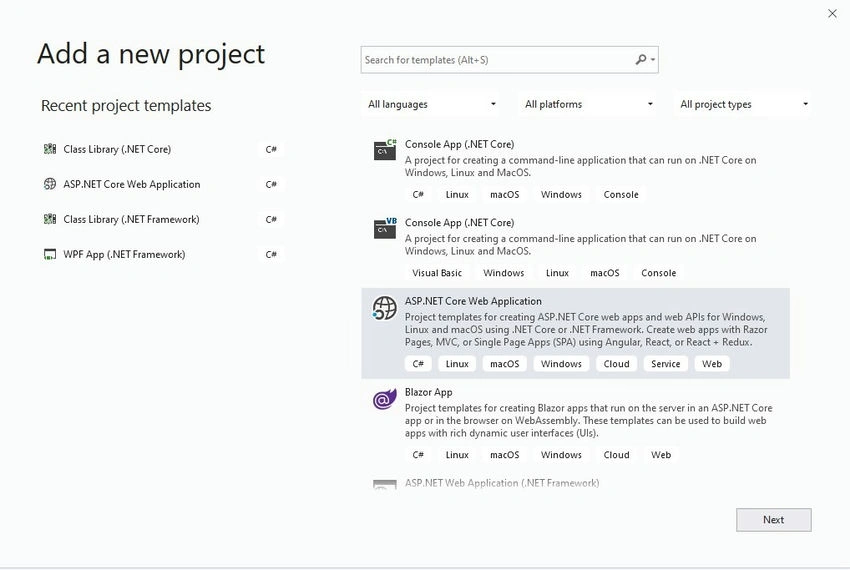
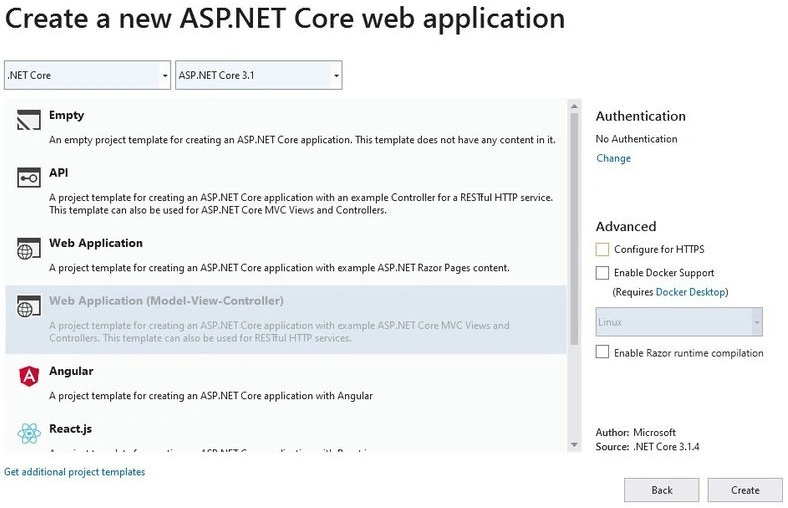
We start by creating a new ASP.NET Core Web application of type “API”. Also, remember to uncheck the “Configure for HTTPS” option and ensure “No Authentication” is selected for the Authentication. We will discuss authentication in some future articles.
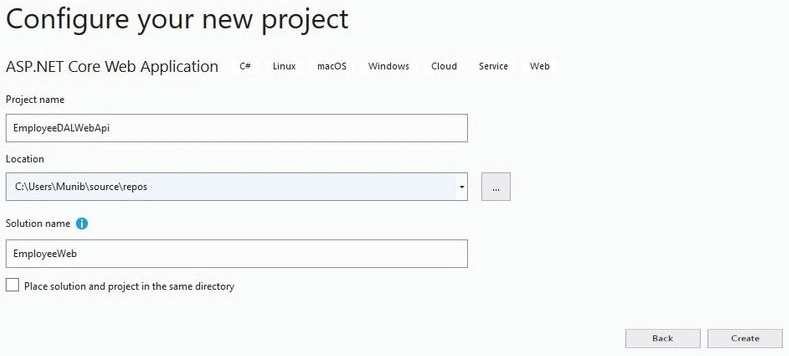
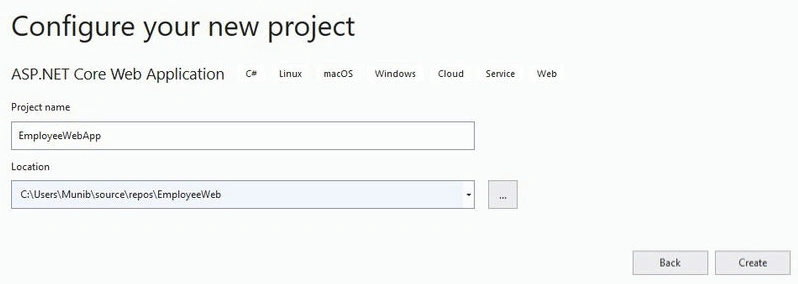
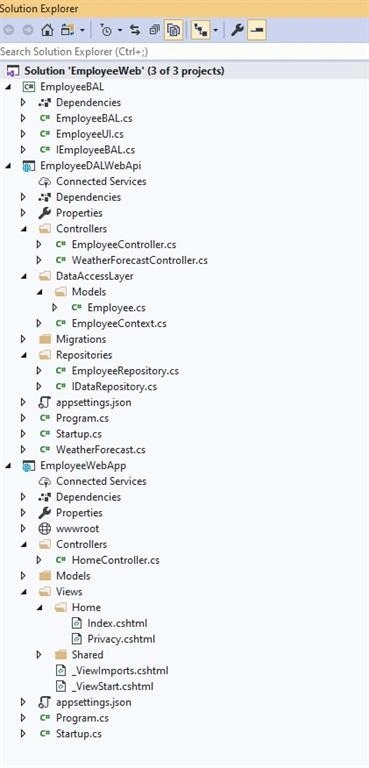
Here, we have created a solution by the name of “EmployeeWeb” and a project by the name of “EmployeeDALWebApi”.
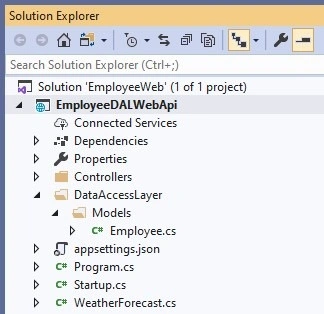
Now, we start to create the pieces of the data access layer. The first thing we need to create is the employee model class. This will be the model which will then be created in the database. Here, we create a new folder called “DataAccessLayer” and inside it another folder called “Models”. Inside this folder, we create a new class called “Employee” with the below code.
using System;
using System.ComponentModel.DataAnnotations;
using System.ComponentModel.DataAnnotations.Schema;

namespace EmployeeDALWebApi.DataAccessLayer.Models
{
    public class Employee
    {
        [Key]
        [DatabaseGenerated(DatabaseGeneratedOption.Identity)]
        public int Employee_ID { get; set; }

        [Required]
        [Column(TypeName = "nvarchar(50)")]
        public string First_Name { get; set; }

        [Required]
        [Column(TypeName = "nvarchar(50)")]
        public string Last_Name { get; set; }

        [Required]
        [Column(TypeName = "smalldatetime")]
        public DateTime Date_Birth { get; set; }

        [Column(TypeName = "nvarchar(100)")]
        public string Street_Address { get; set; }

        [Required]
        [Column(TypeName = "nvarchar(50)")]
        public string City { get; set; }

        [Required]
        [Column(TypeName = "char(2)")]
        public string Province { get; set; }

        [Required]
        [Column(TypeName = "smalldatetime")]
        public DateTime Date_Joining { get; set; }

        [Column(TypeName = "smalldatetime")]
        public DateTime? Date_Leaving { get; set; }
    }
}
Please note that the following NuGet packages are required for the solution.
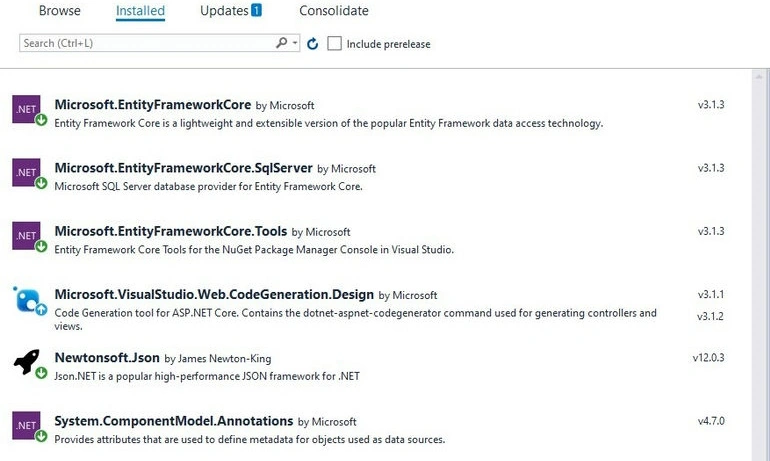
As we will be using the Entity Framework Core technology, we need to create the Context class which is used to communicate with the underlying data store. Hence, we will next create a class called “EmployeeContext” in the “DataAccessLayer” folder.
using Microsoft.EntityFrameworkCore;
using EmployeeDALWebApi.DataAccessLayer.Models;
using System;

namespace EmployeeDALWebApi.DataAccessLayer
{
    public class EmployeeContext : DbContext
    {
        public EmployeeContext(DbContextOptions options) : base(options) {}

        public DbSet<Employee> Employees { get; set; }
    }
}
Now before we can create the table in the database using the Code First approach, we need to specify the database connection. This is done in the appsettings.json file, as shown below.
{
    "Logging": {
        "LogLevel": {
            "Default": "Information",
            "Microsoft": "Warning",
            "Microsoft.Hosting.Lifetime": "Information"
        }
    },
    "ConnectionString": {
        "EmployeeCS": "Data Source=localhost\\SQLEXPRESS;Initial Catalog=EmployeeDB;Integrated Security=True"
    },
    "AllowedHosts": "*"
}
Also, remember to update the “Startup.cs” file as mentioned later in this article section. We can run the below commands and create the table in the EmployeeDB database.
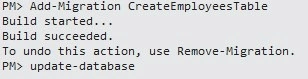
After this, we will see that a Migrations folder is created that has classes related to migration and a rollback for this migration as well.
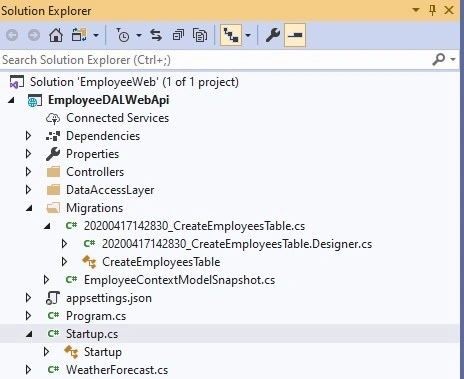
Next, we will add the code to create the initial data also known as seeding the database. See the below changes to the EmployeeContext class.
using Microsoft.EntityFrameworkCore;
using EmployeeDALWebApi.DataAccessLayer.Models;
using System;

namespace EmployeeDALWebApi.DataAccessLayer
{
    public class EmployeeContext : DbContext
    {
        public EmployeeContext(DbContextOptions options) : base(options) {}

        public DbSet<Employee> Employees { get; set; }

        protected override void OnModelCreating(ModelBuilder modelBuilder)
        {
            modelBuilder.Entity<Employee>().HasData(new Employee {
                Employee_ID = 1,
                First_Name = "John",
                Last_Name = "Doe",
                Date_Birth = new DateTime(1980, 10, 01),
                Street_Address = "100 Street West",
                City = "Toronto",
                Province = "ON",
                Date_Joining = new DateTime(2020, 01, 15)
            });
        }
    }
}
Next, we do another migration called “SeedEmployeesTable”. Now, we have a table created with an initial record, as shown below.
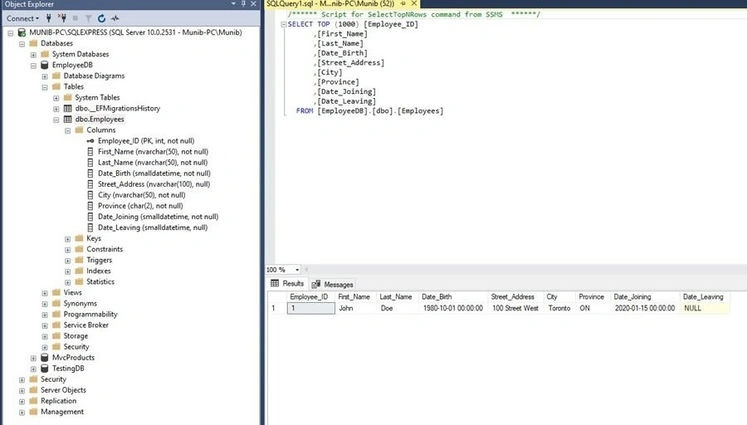
The next step will be to create a repository pattern to access the context to maintain and view the data. This will be done by creating the below classes in a new folder called “Repositories”. Please note that here we will have only one repository as we only have one table.
using System.Collections.Generic;

namespace EmployeeDALWebApi.Repositories
{
    public interface IDataRepository<TEntity>
    {
        IEnumerable<TEntity> GetAll();
        TEntity Get(long id);
        void Add(TEntity entity);
        void Update(TEntity dbEntity, TEntity entity);
        void Delete(TEntity entity);
    }
}
using System.Collections.Generic;
using System.Linq;
using EmployeeDALWebApi.DataAccessLayer.Models;
using EmployeeDALWebApi.DataAccessLayer;
using System;

namespace EmployeeDALWebApi.Repositories
{
    public class EmployeeRepository : IDataRepository<Employee>
    {
        readonly EmployeeContext _employeeContext;

        public EmployeeRepository(EmployeeContext context)
        {
            _employeeContext = context;
        }

        public IEnumerable<Employee> GetAll()
        {
            return _employeeContext.Employees.ToList();
        }

        public Employee Get(long id)
        {
            throw new NotImplementedException();
        }

        public void Add(Employee entity)
        {
            throw new NotImplementedException();
        }

        public void Update(Employee employee, Employee entity)
        {
            throw new NotImplementedException();
        }

        public void Delete(Employee employee)
        {
            throw new NotImplementedException();
        }
    }
}
The final step in the data access layer will be to create a controller class and add actions to it. This is done by creating a new controller class under the “Controllers” folder as shown below.
using System.Collections.Generic;
using Microsoft.AspNetCore.Mvc;
using EmployeeDALWebApi.Repositories;
using EmployeeDALWebApi.DataAccessLayer.Models;

namespace EmployeeDALWebApi.Controllers
{
    [Route("api/employee")]
    [ApiController]
    public class EmployeeController : ControllerBase
    {
        private readonly IDataRepository<Employee> _employeeRepository;

        public EmployeeController(IDataRepository<Employee> employeeRepository)
        {
            _employeeRepository = employeeRepository;
        }

        [HttpGet]
        public IActionResult Get()
        {
            IEnumerable<Employee> employees = _employeeRepository.GetAll();
            return Ok(employees);
        }
    }
}

Join the conversation! Your thoughts help the community grow.