

Introduction
In this article, we walk through a step-by-step process to build an AI agent using the Microsoft Foundry portal that helps employees with expense claims.
Create a Foundry Project and Agent
Step 1: Open the Foundry Portal
Open a web browser and navigate to Microsoft Foundry https://ai.azure.com.
Sign in with your Azure credentials.
If this is your first time signing in, close any tips or quick-start panels that appear.
If needed, select the Foundry logo in the top-left corner to return to the home page (close the Help pane if it is open).
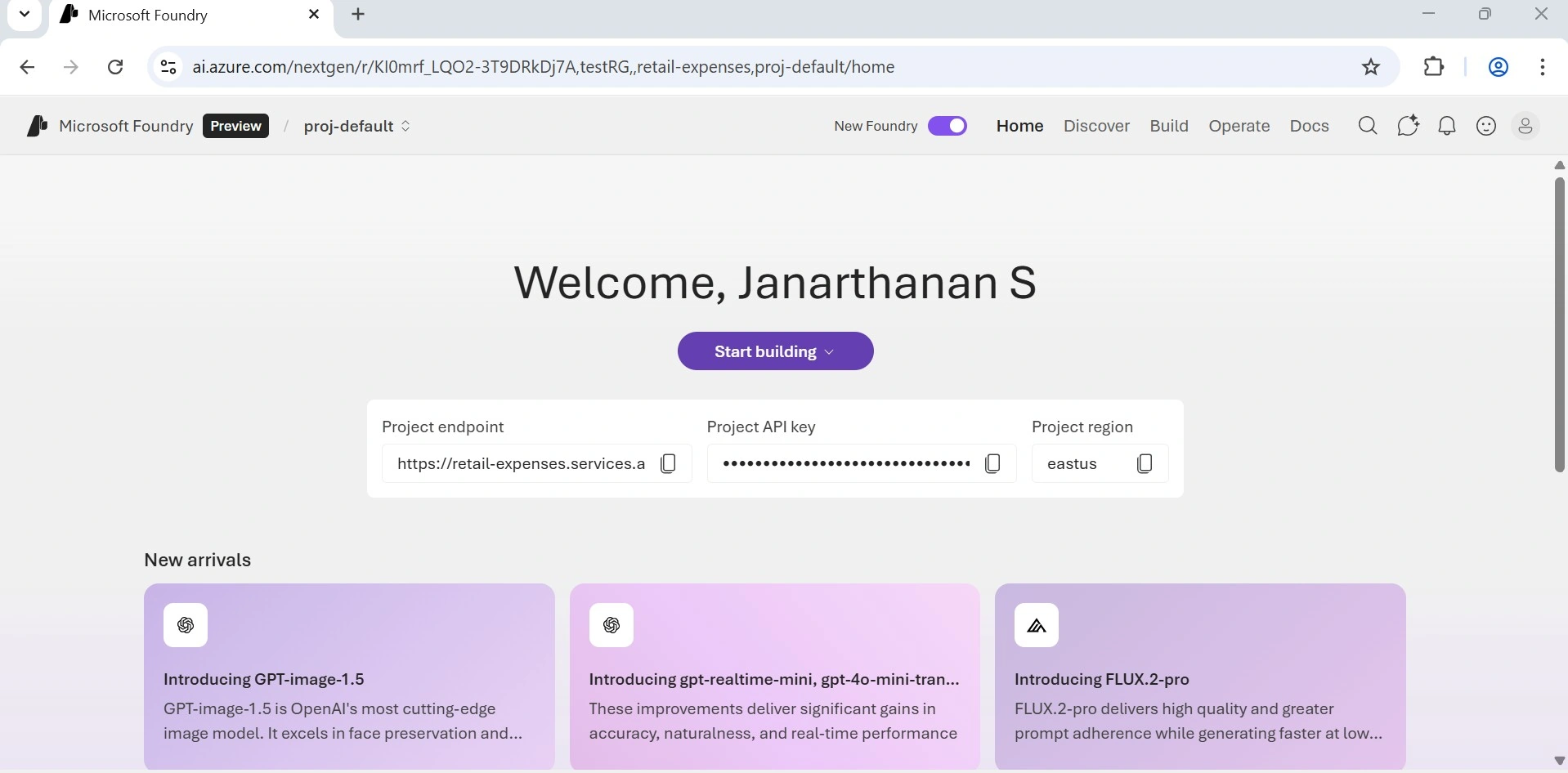
Step 2: Start Building
From the top banner, select Start building to begin using the new Microsoft Foundry experience.
When prompted, create a new project and enter a valid name.
Step 3: Configure Project Settings
Expand Advanced options and configure the following settings:
Microsoft Foundry resource: retail-expense
Subscription: Your Azure subscription
Resource group: testRG
Region: East US
Select Create and wait for the project to be created.
Step 4: Create the Agent
Once the project is created, select Start building, then choose Create agent from the drop-down menu.
Enter expense-agent as the agent name and create the agent.
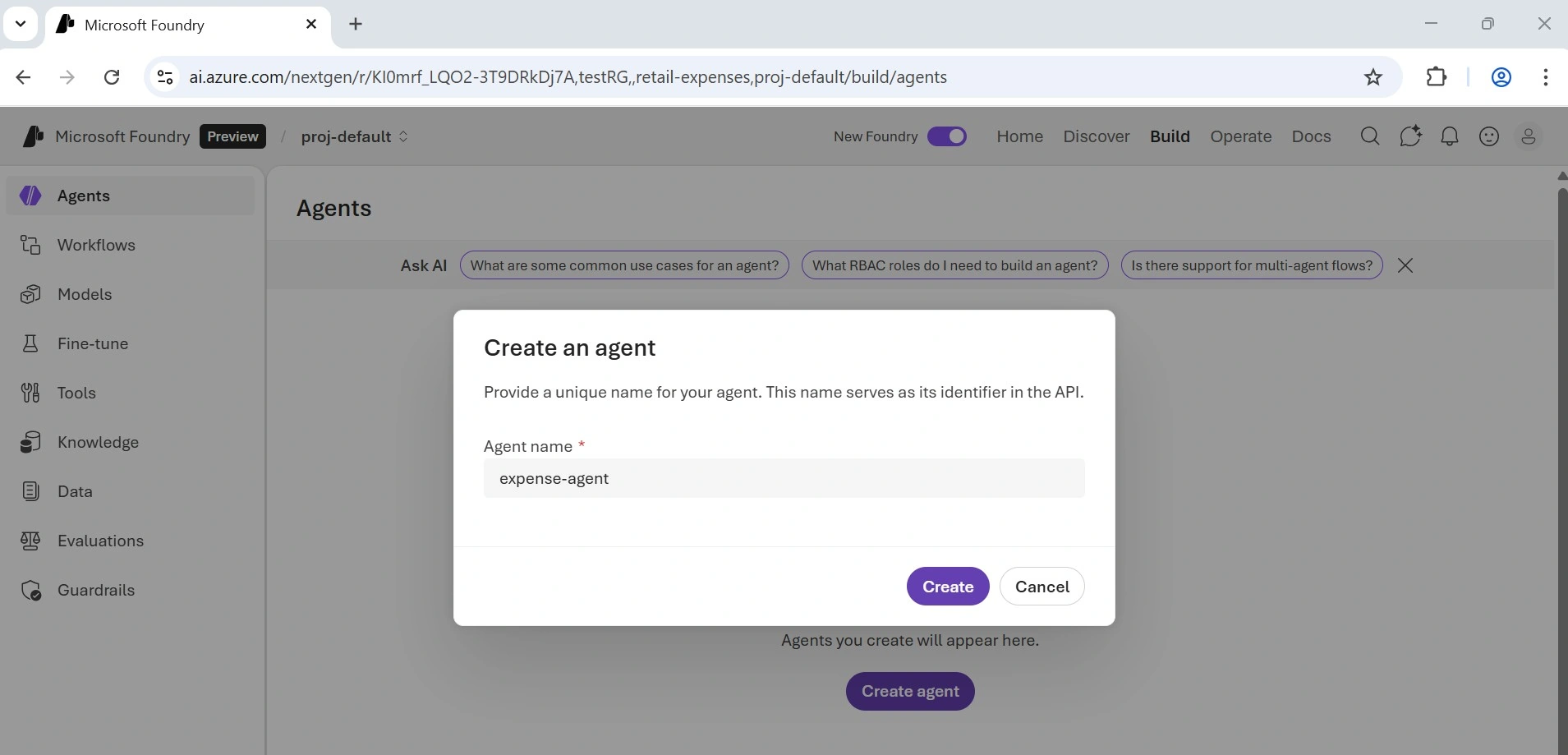
After creation, the playground opens, and a deployed model is automatically selected for your agent.
Configure Your Agent
Upload the Expenses_policy.docx document, which contains the expense policy details.
Navigate back to the browser tab where the playground for your expense agent is open.
Set the Instructions as required for your agent.
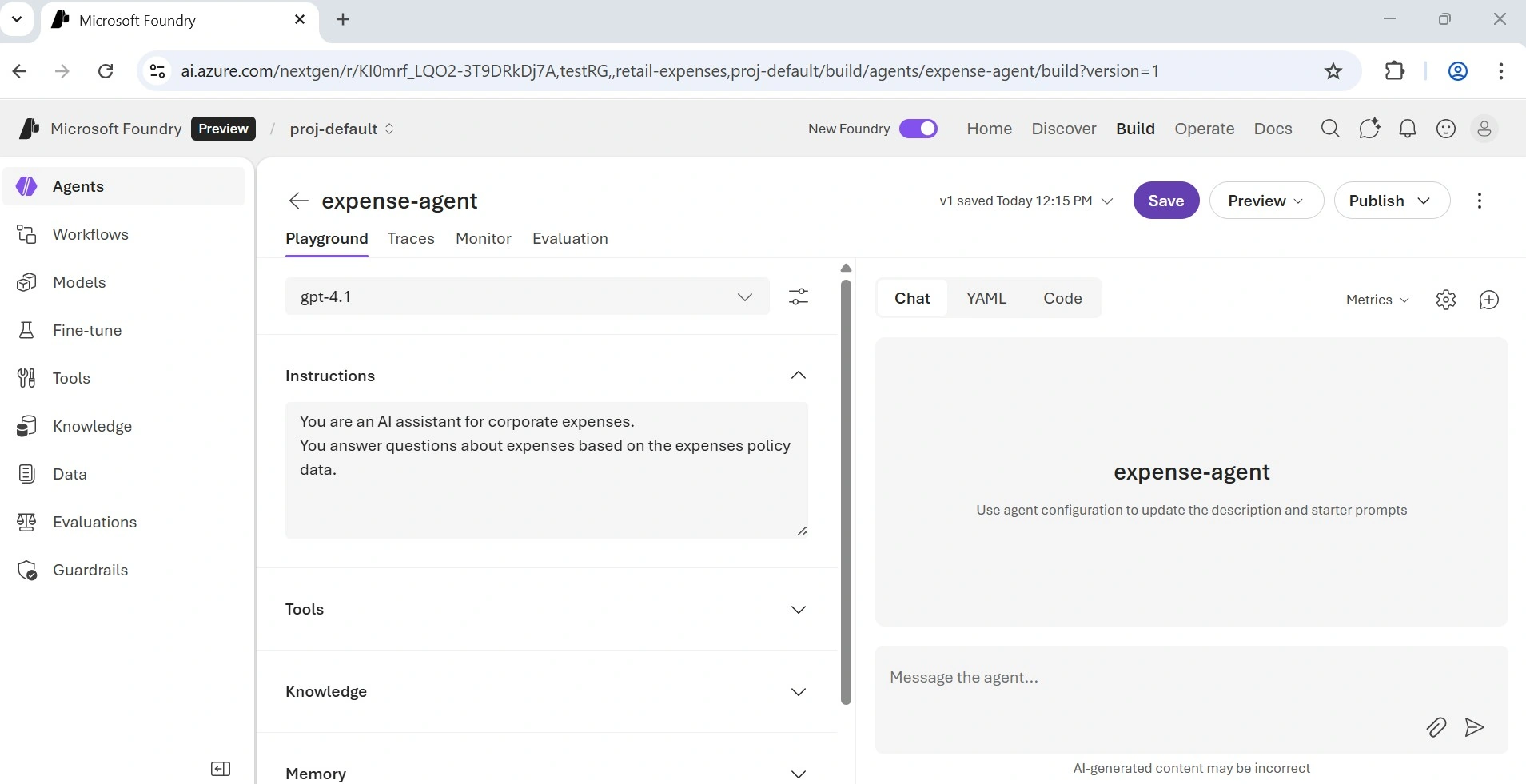
Step 1: Add Tools
Below Instructions, expand the Tools section.
Select Upload files and keep the default values for Index option and Vector index name.
Use the Browse for files option to upload the previously downloaded Expenses_policy.docx file.
Once the file uploads successfully, select Attach.
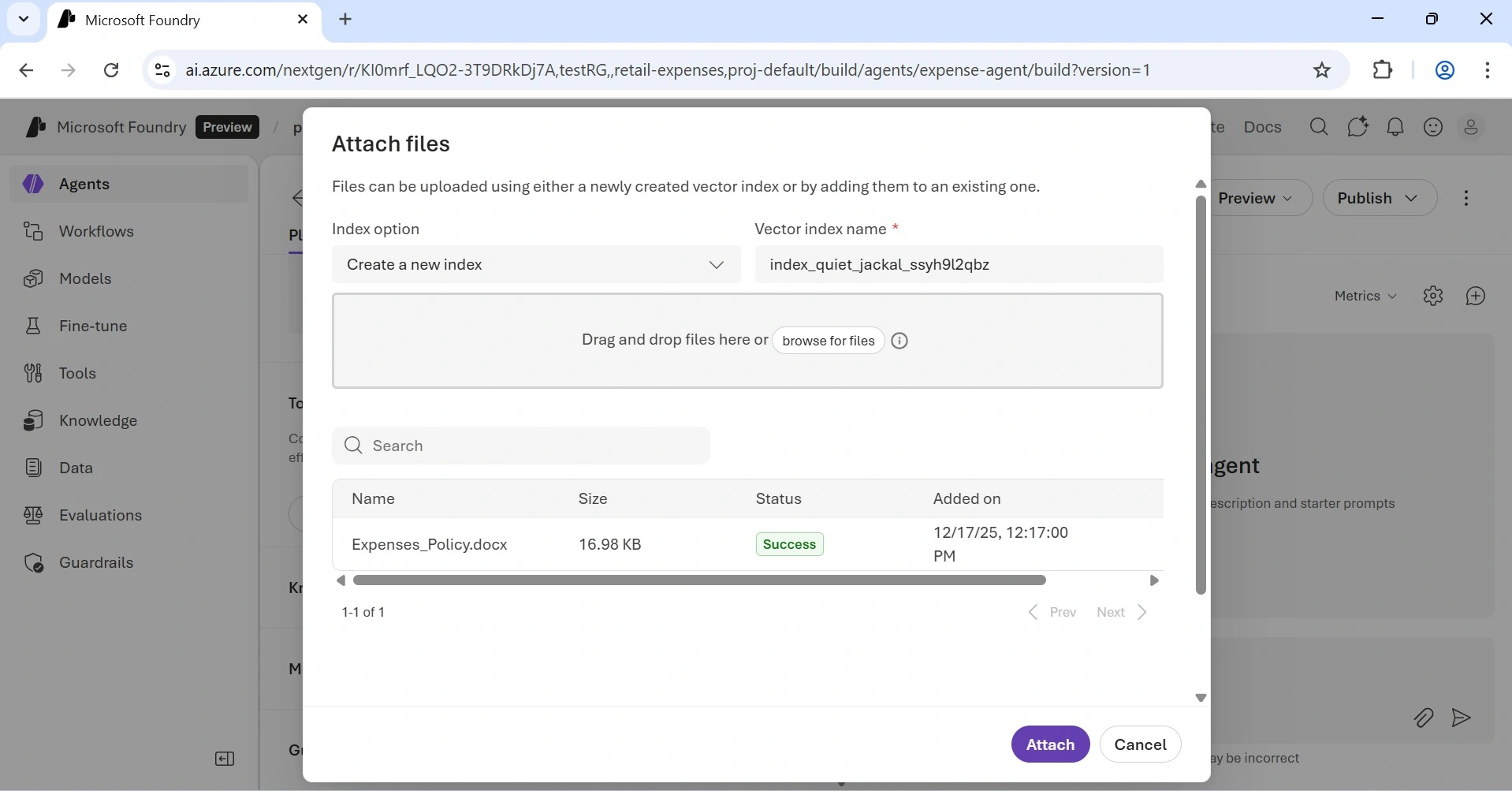
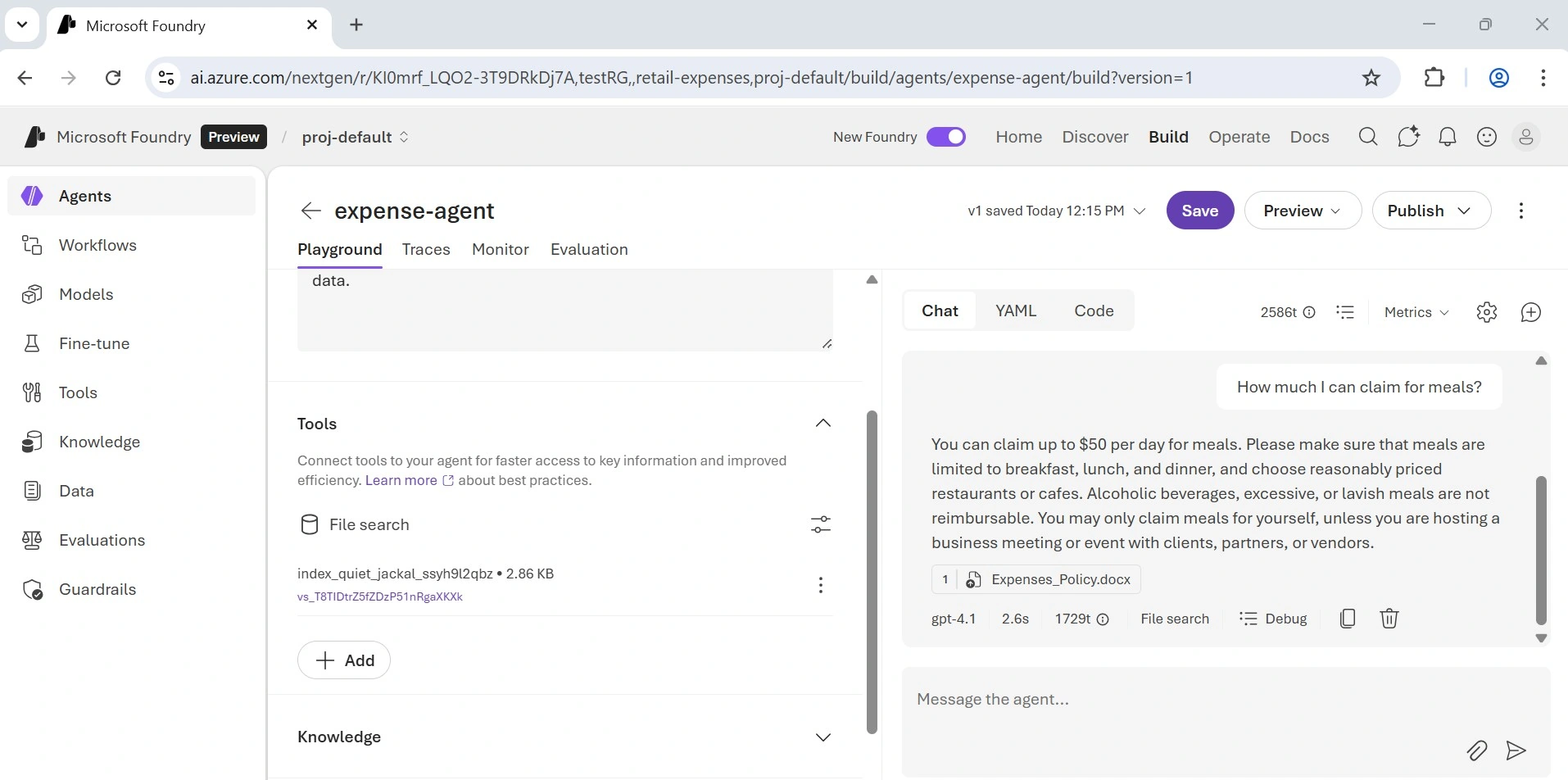
In the Tools section, confirm that a new File search entry appears and shows 1 file.
Finally, select + Add in the Tools section.
The agent uses the uploaded document as its knowledge source to ground responses, answering questions based on the document’s content. It also leverages the code interpreter tool, generating and executing Python code as needed to perform actions.
Test Your Agent
Now that your agent is set up, you can test it in the playground chat.
Enter the prompt:
How much can I claim for meals?”
Review the agent’s response. The answer should be based on the information in the Expenses_policy.docx document you uploaded as the agent’s knowledge source.
Summary
In this article, we walked through the step-by-step process of creating an AI agent using Microsoft Foundry, from setting up a project and agent to configuring tools and testing it with a knowledge document. By following these steps, you now have a functional agent that can assist employees with expense claims while leveraging Python code for dynamic actions.
I hope you enjoyed reading this article. Happy learning, happy reading, and see you soon in the next article!
Join the conversation! Your thoughts help the community grow.