

The Deep Zoom Composer is an additional tool available to Silverlight developers to compose and export multiple images with zoom and pan functionality. This tutorial is an introduction to the Deep Zoom Composer and how to use it to build zoom and pan enabled Silverlight applications with the help of Expression Blend and Visual Studio 2008.
First second part of this tutorial is the "Deep Zoom User Guide" document provided by Microsoft.
Installation
Download Deep Zoom Composer here and install it: Download from MSDN
The installation steps should be - Visual Studio 2008, Expression Blend 2, and then Deep Zoom Composer.
Build a Deep Zoom Composer Project
Now we are going to build a Deep Zoom Composer project.
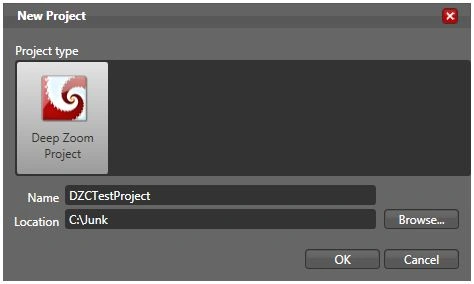
Select New Project, select a folder and type your project name.
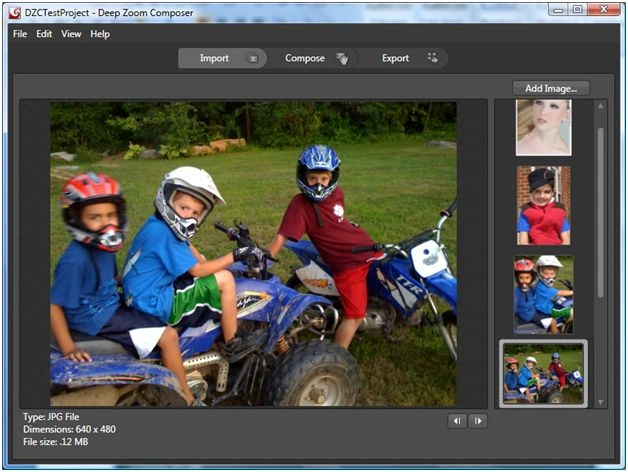
Next we are going to add images to the project. Click on Add Image and select images from your machine. I add some images. See below.
Next part is Compose. Click on the Compose button at the top and drag, drop and move images the way you want. You will also see a preview in the left bottom area of the screen. My organized images look like following.

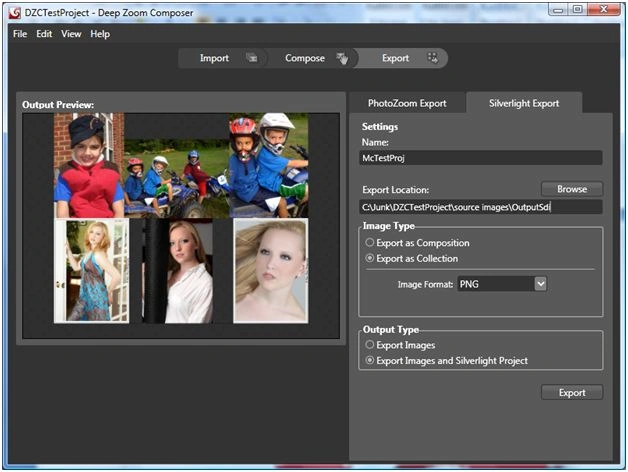
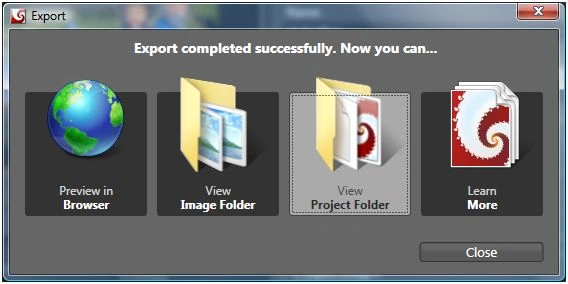
Now we are going to Export the project. Click on the Export option and select Silverlight Export in the tab as you can see from the right side. Make sure to select Output Type option to Export Images and Silverlight Project and click on the Export button.
Join the conversation! Your thoughts help the community grow.