

Introduction
In the world of web application development, the ability to efficiently handle bulk data uploads is a common requirement. Whether you're dealing with customer information, product catalogs, or any other type of data, providing a seamless and user-friendly bulk upload experience can significantly improve your application's functionality and user satisfaction.
Prerequisites
Before we dive into the implementation details, ensure that you have the following in place:
- A Blazor Server project is set up in your development environment.
- The Radzen.Blazor NuGet package installed in your project.
- A basic understanding of Blazor and Razor syntax.
Step 1. Setting up the Razor Page
Let's start by creating a new Razor Page named `BulkUploadRecords.razor` in the `Pages` folder of your Blazor Server project.
@page "/bulk-upload-records"
@using BulkUpload.Data
@using Radzen
@using Radzen.Blazor

<style>
    .rz-sortable-column {
        min-width: 180px;
        border-bottom: 1px solid #000;
    }
</style>

<section class="body-wrapper">
    <div class="container-fluid">
        <div>
            <RadzenLabel Text="Please upload a CSV file" class="form-label required lead px-0" />
        </div>
        <div>
            <InputFile Accept=".csv" OnChange="OnInputFileChange" class="input-file-uploader" id="uploadalldocs" />
        </div>

        @if (null != Records && Records.Count > 0)
        {
            <RadzenDataGrid class="mt-4" AllowAlternatingRows="false" AllowFiltering="true" AllowPaging="true" PageSize="10" AllowSorting="true"
                            Data="@Records" TItem="ImportDataModel" @ref=grid
                            FilterMode="FilterMode.Advanced" PagerHorizontalAlign="HorizontalAlign.Left" ShowPagingSummary="true"
                            FilterCaseSensitivity="FilterCaseSensitivity.CaseInsensitive" AllowColumnResize="false" LogicalFilterOperator="LogicalFilterOperator.Or">
                <Columns>
                    <RadzenDataGridColumn TItem="ImportDataModel" Filterable="false" Sortable="true" Property="FirstName" Title="First Name" TextAlign="TextAlign.Left">
                        <EditTemplate Context="application">
                            <RadzenTextBox @bind-Value="application.FirstName" Style="width:100% !important; display: block" Name="FirstName" />
                        </EditTemplate>
                    </RadzenDataGridColumn>
                    <RadzenDataGridColumn TItem="ImportDataModel" Filterable="false" Sortable="true" Property="LastName" Title="Last Name" TextAlign="TextAlign.Left">
                        <EditTemplate Context="application">
                            <RadzenTextBox @bind-Value="application.LastName" Style="width:100% !important; display: block" Name="LastName" />
                            <RadzenRequiredValidator Text="Last name is required" Component="LastName" Popup="false" />
                            <RadzenRegexValidator Component="LastName" Text="Invalid Last Name" Popup=false />
                        </EditTemplate>
                    </RadzenDataGridColumn>
                    <RadzenDataGridColumn TItem="ImportDataModel" Filterable="false" Sortable="true" Property="Email" Title="Email" TextAlign="TextAlign.Left">
                        <EditTemplate Context="application">
                            <RadzenTextBox @bind-Value="application.Email" Style="width:100% !important; display: block" Name="Email" />
                        </EditTemplate>
                    </RadzenDataGridColumn>
                    <RadzenDataGridColumn TItem="ImportDataModel" Filterable="false" Sortable="true" Property="Phone" Title="Phone" TextAlign="TextAlign.Left">
                        <EditTemplate Context="application">
                            <RadzenTextBox @bind-Value="application.Phone" Style="width:100% !important; display: block" Name="Phone" />
                        </EditTemplate>
                    </RadzenDataGridColumn>
                </Columns>
            </RadzenDataGrid>
        }
    </div>
</section>
In this Razor Page, we have the following key elements:
- Styles: We define custom CSS styles for the Radzen Datagrid columns, setting a minimum width and a border-bottom.
- File Upload Section: This section includes a label and an `InputFile` component that allows the user to select a CSV file for upload.
- Radzen Datagrid: The Datagrid is conditionally rendered when there are records available. It includes features like sorting, filtering, pagination, and inline editing.
- Datagrid Columns: We define the columns for the Datagrid, including `FirstName`, `LastName`, `Email`, and `Phone`. Each column has a custom `EditTemplate` that allows the user to edit the data directly in the Datagrid.
- Validation: We apply validation rules, such as a required field for the `LastName` column and a regex validator for the `LastName` column.
Step 2. Implementing the Code Behind
Now, let's create the code-behind file `BulkUploadRecords.razor.cs` and implement the necessary functionality.
using Microsoft.AspNetCore.Components;
using Microsoft.AspNetCore.Components.Forms;
using Radzen;
using Radzen.Blazor;

namespace BulkUpload.Pages
{
    public partial class BulkUploadRecords : ComponentBase
    {
        public ImportDataModel Record = new ImportDataModel();
        public IBrowserFile file { get; set; }
        public List<ImportDataModel> Records = new();
        public RadzenDataGrid<ImportDataModel> grid = new RadzenDataGrid<ImportDataModel>();
        public DataGridEditMode editMode = DataGridEditMode.Single;

        public class ImportDataModel
        {
            public string FirstName { get; set; }
            public string LastName { get; set; }
            public string Email { get; set; }
            public string Phone { get; set; }
            public IBrowserFile? RecordFile { get; set; }
        }

        public async Task OnInputFileChange(InputFileChangeEventArgs e)
        {
            Record.RecordFile = e.File;
            await SubmitRecords(e);
        }

        public async Task SubmitRecords(InputFileChangeEventArgs e)
        {
            file = Record.RecordFile;
            if (file.Name.EndsWith(".csv", StringComparison.OrdinalIgnoreCase))
            {
                using var stream = file.OpenReadStream();
                using var reader = new StreamReader(stream);
                string line;
                int lineNumber = 0;
                bool isHeaderRow = true;
                Records.Clear();
                await InvokeAsync(StateHasChanged);

                while ((line = await reader.ReadLineAsync()) != null)
                {
                    lineNumber++;
                    if (isHeaderRow)
                    {
                        isHeaderRow = false;
                        var headerValues = line.Split(',');
                    }

                    if (string.IsNullOrWhiteSpace(line))
                        continue;

                    var values = line.Split(',');
                    var record = new ImportDataModel
                    {
                        FirstName = values[0].Trim(),
                        LastName = values[1].Trim(),
                        Email = values[2].Trim(),
                        Phone = values[3].Trim(),
                    };

                    if (lineNumber > 1)
                    {
                        AddUserData(record);
                    }
                }

                lineNumber = 0;
                await InvokeAsync(StateHasChanged);
            }
        }

        public async void AddUserData(ImportDataModel myDataModel)
        {
            var record = new ImportDataModel
            {
                FirstName = myDataModel.FirstName,
                LastName = myDataModel.LastName,
                Email = myDataModel.Email,
                Phone = myDataModel.Phone
            };
            Records.Add(record);
            StateHasChanged();
            await grid.Reload();
        }
    }
}
In the code behind, we have the following key components:
- ImportDataModel Class: This class represents the data model for each record in the CSV file. It includes properties for `FirstName`, `LastName`, `Email`, and `Phone`.
- OnInputFileChange Method: This method is called when the user selects a file for upload. It sets the `RecordFile` property of the `Record` object and calls the `SubmitRecords` method.
- SubmitRecords Method: This method processes the uploaded CSV file. It reads the file line by line, skipping the header row, and adds each record to the `Records` list.
- AddUserData Method: This method adds a new record to the `Records` list and triggers a reload of the Radzen Datagrid.
The key aspects of the implementation are:
- The `InputFile` component is used to handle the file upload event and retrieve the uploaded file.
- The CSV file is read line by line, skipping the header row, and each record is parsed and added to the `Records` list.
- The Radzen Datagrid is utilized to display the uploaded data, with features like sorting, filtering, and pagination.
- The `EditTemplate` is used to provide custom editors for each column, allowing users to edit the data directly in the Datagrid.
- Validation rules, such as required fields and regex validation, are applied to the Datagrid columns.
Putting It All Together
- With the Razor Page and the code-behind file in place, you can now run your Blazor Server application and test the bulk data upload functionality.
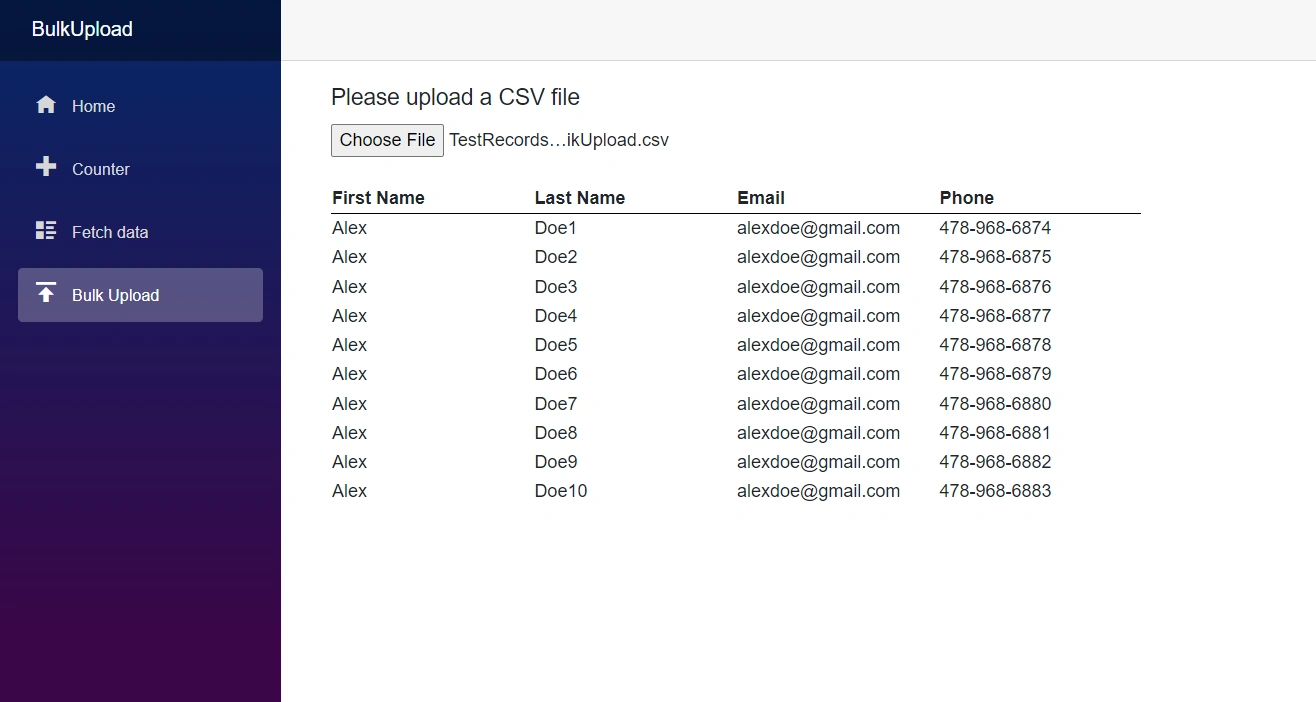
- When the user selects a CSV file and uploads it, the application will process the file, populate the Radzen Datagrid with the data, and allow the user to edit the data directly in the Datagrid.
- This implementation provides a user-friendly and efficient way to handle bulk data uploads in your Blazor Server application, leveraging the powerful features of the Radzen Datagrid component.
Output
Conclusion
This article showed how to create a bulk data upload feature in a Blazor Server app using the Radzen Datagrid.
The key points are:
- The app lets users easily upload a CSV file.
- The data from the file is displayed in a table with features like sorting and filtering.
- Users can edit the data directly in the table, and the app checks that the data is valid.
By using the techniques in this article, developers can add powerful bulk upload capabilities to their own Blazor apps. This makes it easier for users to manage large amounts of data.
Join the conversation! Your thoughts help the community grow.