

Introduction
Bundling is a way or technique to combine multiple JavaScript or CSS files into a single file. Minification is a technique to reduce the size of the file by removing white space and commented code. Both Bundling and Minification are used to improve the performance of our web application by reducing the number of requests to the Server and reducing the size of the requested assets, such as JavaScript and CSS files.
In ASP.NET Core applications, we can bundle and minify the client resource (such as JavaScript and CSS) during the design time using third party tools, such as Grunt and Gulp. Doing bundling and minification at design time means that minified files are created at the time of deployment of the application. It is important to reduce server load however it increases build complexity. Bundling and minification improve the performance of the page request load time. Once the browser has requested the web page and caches related assets, bundling and minification do not provide any performance issue on this page.
Bundling
Bundling is a process of combining multiple files into single file. It reduces the number of requests to the Server, which are required to load the page asset or resources. This only improves page load performance.
Using gulp-concat plugin, we can achieve Bundling. This plugin can be installed from npm (Node Package Manager). So, we need to add gulp-concat package to devDependencies section of our package.json file. If package.json file is not present in the project, we can add this file to the project.
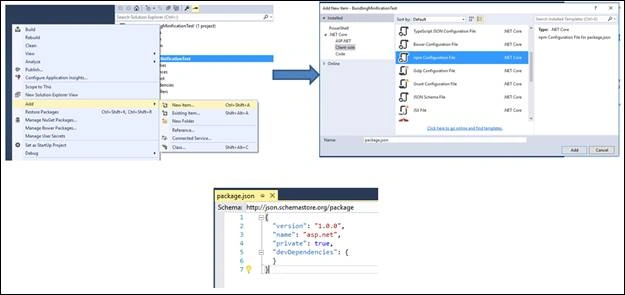
Package.json
- {
- "version": "1.0.0",
- "name": "asp.net",
- "private": true,
- "devDependencies": {
- "gulp": "3.8.11",
- "gulp-concat": "2.5.2",
- "rimraf": "2.2.8"
- }
- }
The next step is to import "gulp-concat" module to gulpfile.js. If gulpfile.js is not present in project, we can add it from new Item list.
- var gulp = require("gulp"),
- rimraf = require("rimraf"),
- concat = require("gulp-concat");
- var paths = {
- webroot: "./wwwroot/"
- };
- paths.js = paths.webroot + "js/**/*.js";
- paths.concatJsDest = paths.webroot + "js/site.min.js";
- gulp.task("bundle", function () {
- return gulp.src([paths.js])
- .pipe(concat(paths.concatJsDest))
- .pipe(gulp.dest("."));
- });
- gulp.task("bundle", function () {
- return gulp.src([paths.js, "!" + paths.concatJsDest])
- .pipe(concat(paths.concatJsDest))
- .pipe(gulp.dest("."));
- });
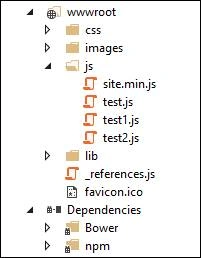
Test.js
- function test() {
- console.log("test");
- }
- function test1() {
- console.log("test1");
- }
- function test2() {
- console.log("test2");
- }
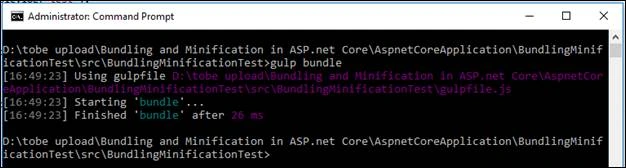
As a result of the task, gulp is concating all three JavaScript files into site.min.js file. There is one limitation over here, the destination file (site.min.js in our case) must be present on the project. It means that gulp command cannot create new files within project, it just updates an existing file.
Minification
Minification is technique to reduce the size of the file by removing white space and commented code. It helps to reduce the size of requested assets such as CSS, JavaScript. Minification tasks include removing unnecessary white space, removing comments, and shortening variable names to one character.
To minify our JavaScript files, we can use the “gulp-uglify” plugin and for CSS, we can use “gulp-cssmin” plugin. So, first of all, these packages must be mentioned in package.json file.
Package.json
- {
- "version": "1.0.0",
- "name": "asp.net",
- "private": true,
- "devDependencies": {
- "gulp": "^3.9.1",
- "gulp-concat": "2.5.2",
- "gulp-cssmin": "0.1.7",
- "gulp-uglify": "1.2.0",
- "rimraf": "2.2.8"
- }
- }
- var gulp = require("gulp"),
- rimraf = require("rimraf"),
- concat = require("gulp-concat"),
- cssmin = require("gulp-cssmin"),
- uglify = require("gulp-uglify");
- var paths = {
- webroot: "./wwwroot/"
- };
- paths.minJs = paths.webroot + "js/**/*.min.js";
- return gulp.src([paths.js, "!" + paths.minJs])
- .pipe(uglify())
- .pipe(gulp.dest("."));
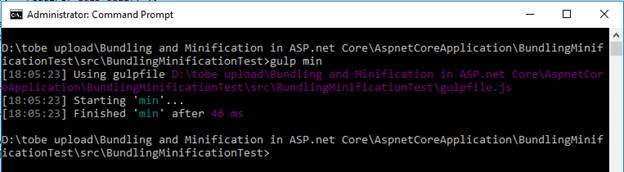
As a result of the run gulp task, gulp is minifying all three JS within same file.
Execute the gulp command using Task runner
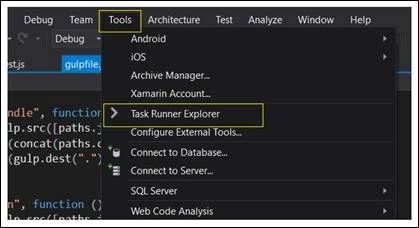
We can also run the gulp command using Visual Studio Task Runner. Task Runner is located at Tools menu in VS 2015.
To run gulp command using Visual Studio Task Runner Explore, select task, right click on task and "Run".
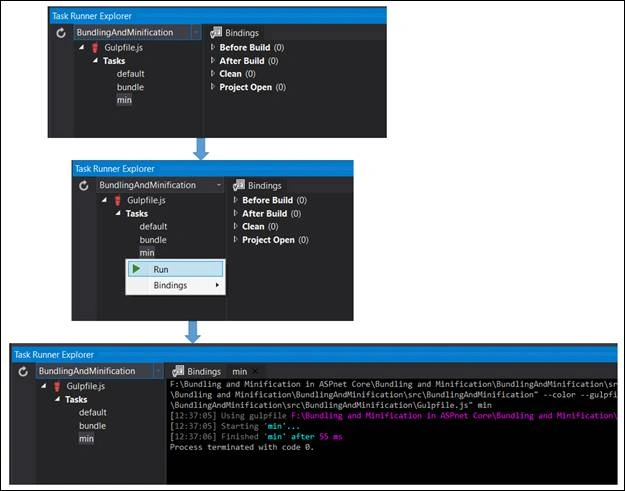
We can also bind these tasks to run during certain Visual Studio events. One task can be bound with multiple events and with any event. Following events can be bound with gulp tasks.
- Before Build
- After Build
- Clean
- Project Open

When we bind task with any event, it is reflected in gulpfile.js file. We can also do this directly by modifying the binding code in gulpfile.js file.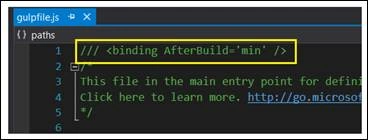
- /// <binding AfterBuild='min' />
Summary
The integration of gulp with Visual Studio makes it simple to manage JavaScript and CSS. We can create tasks for bundling and minification that can be integrated with any Visual Studio event.
Join the conversation! Your thoughts help the community grow.